
Courses
Courses with modules and lessons in text, image, video or link form. What the member does: see the courses, start, watch, mark lessons and finish. How the team creates, builds, publishes and follows the students, the A single course mode, and how to sell it.
The Courses module organizes learning in three levels:
Members start the course, take the lessons, mark each one as completed and follow their progress until the end. The space can be a list of courses or, in A single course mode, one course.
What it is for
| Community | Course |
|---|---|
| Online school | Excel from scratch: 6 modules, 30 video lessons |
| Company HR | Onboarding: 3 modules with the company policies |
| Mentoring | Mentee track: one module per month |
What the member does
The course list
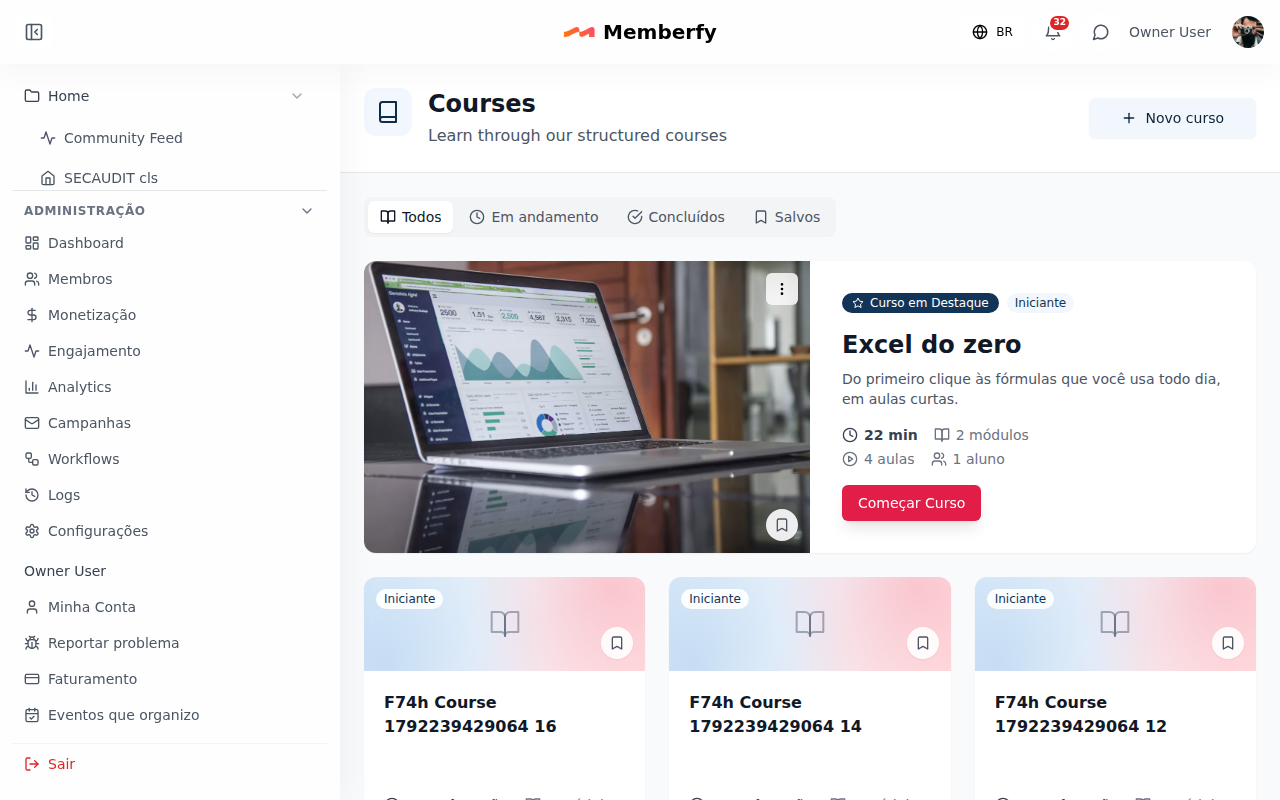
In the Courses space, the member sees the community's courses as cards. Each card shows the level, the title, the number of modules and lessons, and the duration (or "No duration"). Someone who has started sees the progress bar; someone who has not sees "Not Started".
- The course marked as featured appears large at the top, with the Featured Course badge. With no featured course, there is no featured block.
- At the top, the All, My content, In progress, Completed and Saved switch narrows the list (see My content); the choice stays in the page address.
- Draft and archived show up only for the team, with a badge. Members do not see them.
- The student count shows up only for the team.
- In A single course mode there is no list: the member lands straight on the course.
- Action on the card: each course card has the right action for whoever sees it, without opening the course: Continue (or Review, for whoever finished it), which opens the lesson where the person stopped, for enrolled students; Start on an open course (it enrolls and opens the course); Enroll or Buy when a product sells the course (through the usual checkout); and the waitlist when it is sold out. When the card shows the student count, it also shows a few of their faces.
When there is nothing to show, the screen says why:
| Situation | Message |
|---|---|
| The space has no published course | No courses available |
| My content filter with no result | None of your courses here yet |
| In progress filter with no result | No courses in progress |
| Completed filter with no result | No completed courses yet |
| Loading failed | Error loading courses, with the Try again button |
Starting the course
On the course page, the member sees the cover, the level, the description and the Course content: the outline with the modules and lessons, and the type and duration of each. Without enrollment, the outline does not open the lessons.
The course header. Right below the cover are the title and a line with the level, how many modules and lessons, the total duration (when every lesson has a duration) and how many students; below it, the tags and the instructors (Taught by …). It replaces the old Course details card. The page's sections (Content, Students and Ratings, the last two only for who can see them) are underline tabs.
In the outline, each module shows how many lessons it has and their duration, and collapses or expands with one click; each lesson shows the type icon, the title, the duration and the completed check or the lock.
The side column has a single main button (Start Course, Continue Course or Review course). Whoever is enrolled sees their progress there and the Next lesson, which opens directly. Share, Save course and Leave course become small icons, in a row, below the button.
Start Course enrolls the member with one click and opens the first lesson. Next to the button there is a notice: "When you start, the community team can follow your progress in this course."
| Situation | What the page shows |
|---|---|
| Not started yet | Start Course |
| Already started | Continue Course and the progress bar |
| Finished every lesson | Course completed, Completed on {date} and Review course |
Continue Course opens the last lesson accessed, if it is not completed; otherwise, the first pending lesson. Enrolling again is not an error: the existing enrollment stays valid, with no extra points.
Taking the lesson
Each lesson shows according to its type:
| Type | How it shows |
|---|---|
| Video | Embedded in the page, only from YouTube, Vimeo and Loom. A video from anywhere else becomes a link lesson |
| Text | Formatted text |
| Link | An Open button, which opens another tab. Notice: "This link opens in a new tab and takes you outside this community. Check the address before you continue." |
| Image | The image on the page |
Beside the lesson is the Course content with the progress; on a phone, the Course content button opens a drawer with the same outline.
Mark as completed records the lesson. There is no way to unmark it. After marking, the lesson shows Lesson completed and the Next lesson button.
On the last lesson, the screen shows You finished this course!.
Completion is only by the button: watching the video to the end does not mark the lesson.
A lesson with no content has no complete button.
Opening a lesson records the access, so Continue Course returns to where the person stopped.
Previous lesson and Next lesson sit at the edges of the lesson (on mobile, Previous and Next). The Complete lesson button marks the lesson, which then shows Completed.
Automatic completion. The lesson completes by itself when the video ends: uploaded video, Drop, YouTube and Vimeo. For other embedded videos, use Complete lesson.
Resume where you stopped. The video's position is saved about every 15 seconds; when you come back, the lesson shows "Continuing from 04:32" and Start over. Near the end counts as watched.
Rate this lesson from 1 to 5 stars, with an optional comment. Students see only their own rating. With Show the rating average to students, in the course form (owner and admin), students also see the average and the number of ratings. The team sees the average, the distribution and the comments for each lesson and for the course in the Ratings tab of the course page.
When something is not available
| Message | When |
|---|---|
| Start the course to see this lesson | The member opened a lesson without having started the course |
| This lesson's content has not been published yet | The lesson exists, but the team has not added the content yet |
| Lesson not found | The lesson was removed from the course |
| Course not found | The course was removed or the address is wrong |
| This space is restricted | The member has no access to the space. Course access is the space's access |
The team previews
Owner, admin, moderator and finance open the course and lessons without enrolling, including in a course of a paid space. Preview sits in the Manage course bar and opens the first lesson as the student would see it. Inside the preview, the screen warns: "You are previewing this course. Your progress is not saved." The team does not count as a student and earns no points in this preview.
How it works
The course
| Field | What for |
|---|---|
| Title and slug | The course's name and address |
| Description | What is learned |
| Level | Beginner, intermediate or advanced |
| Image | The cover |
| Status | Starts as a draft; published, it accepts enrollment; archived leaves the member's list |
Modules and lessons
Each course has modules, in order, and each module has lessons, in order. A lesson has a type, a duration and the content:
| Type | Lesson content | Rule |
|---|---|---|
| Text | The text, formatted | The text is required |
| Video | The video address | Only YouTube, Vimeo and Loom |
| Link | The address of a page | Starts with http:// or https:// |
| Image | The image address | Starts with http:// or https:// |
The duration is written as mm:ss or hh:mm:ss (for example, 12:30). The course duration in the list is the sum of the lessons; if some duration cannot be read, the list shows "No duration".
Enrollment and progress
A member starts a published course. The enrollment becomes completed when every lesson in the course is completed, and it does not go back: if the team adds a lesson later, progress shows "9 of 10 lessons", but the course stays completed. A course with no lessons cannot be completed.
Starting the course and completing lessons earns engagement points: 10 points for enrolling and 25 per completed lesson, once per lesson. Finishing the course itself earns no points.
Content is only for who can see it
The lesson content (text and the address of the video, link or image) is only delivered to the team (owner, admin, moderator and finance) or to whoever has started the course. Someone who has not started and someone whose enrollment was canceled receive only the outline: title, type and duration of each lesson.
Who can
| Action | Who |
|---|---|
| See published courses and start | Whoever has access to the space |
| See drafts and archived courses | Owner, admin, moderator and finance |
| See the content without starting the course | Owner, admin, moderator and finance (read-only, no progress) |
| Create the Courses space | Owner and admin |
| Create, edit, publish, archive and delete courses, modules and lessons | Owner and admin |
| See the Students tab | Owner, admin, moderator and finance (moderator and finance only read) |
| Choose and switch the space's mode | Owner and admin |
| See in draft, edit, publish and delete one course, build its modules and lessons, moderate the conversation and see the students and their progress | The instructors of that course, of any role |
Display. The owner and the admin choose how items appear in this space: Cards, List or Showcase (default: Cards; see Showcase). See Display.
Building the course
Who does what
| Who | What they see and do |
|---|---|
| Owner and admin | Create, edit, publish, archive and delete courses, modules and lessons, and see the Students tab |
| Moderator and finance | See the Students tab, read-only. No editing tool shows up |
| Member | Sees nothing for editing |
| Course instructor | Does everything in the course they teach, like the owner and the admin, except featured, price and required plan. See Course instructors |
Creating the course
Role: owner or admin.
- In the Courses space, click New course. The course starts as a draft, visible only to the team, and its page opens in edit mode right away.
- On the page itself, fill in the title, level, description and cover, and build the modules and lessons. See Editing the course on its own page.
- Address (slug), tags, featured, certificate and badge on completion are in the Settings panel. Changing the address changes the course link: old links stop working.
- When the To publish list is complete, click Publish. See To publish.
Every course is also created with its own product, as a free draft, linked to the course one to one. While the product isn't published, nothing changes for the student. See Selling the course.
Building modules and lessons
On the course page, the Course content list is the builder. See Course content.
Modules: use Add module, at the end of the list, give it a title and save. Each module shows how many lessons it has and their duration, and collapses or expands. The module's ⋯ has Move up, Move down, Schedule release, Rename and Delete module.
Lessons: in Add lesson, at the end of the module, give it a title: the lesson starts as a draft with its title and text, and its page opens in edit mode. There is no Lesson type to pick anymore: the main media is optional and comes in through Add media. The lesson's ⋯ has Move up, Move down, Rename, Edit lesson and Delete lesson.
Dragging: each row has a handle on the left ("Drag to reorder"): modules are dragged among modules, and lessons within their own module. On a computer, the handle and the ⋯ appear when the mouse passes over the row or it gets focus; on phones and tablets, they are always visible. To take a lesson to another module, edit the lesson and change the Module field: it goes to the end of the chosen module.
Add media offers Video, Audio, Image, Link or File. Once media is set, Replace puts another in its place and Remove takes it out; changing the type keeps the text, the attachments and the quiz.
- Video: a YouTube, Vimeo, Loom, Bunny Stream, Cloudflare Stream or Panda Video link or an HLS (
.m3u8), a video uploaded from your computer or recorded on the spot. - Audio: an MP3, M4A, AAC, WAV, OGG or WebM file, up to 200 MB. The student listens in a player on the lesson itself.
- Image: the address of an image already hosted.
- Link: the address and the title. This is how a PDF hosted elsewhere, or a video from a provider the video lesson doesn't take (Wistia, for example), comes in.
- File: a file uploaded to download.
- Length: Add length opens Hours, Minutes and Seconds; Remove length takes it out. On a video lesson, the length comes from the video when it loads, and you can adjust it.
The lesson text is in the text editor, with tables and images.
Text formatting: the lesson editor has Heading and Subheading, Underline, bulleted and numbered lists, quote, three text sizes (small, normal and large) and Alignment (Left, Center, Right and Justify). The same formatting works in the text of Individual plans steps and week intros.
Under the Video type, a lesson now also accepts a video uploaded from your computer, and there is the File type. See Hosted video and file.
For paid content, use an unlisted video: the video address is seen by whoever is enrolled.
- Duration: it is optional. If any lesson has no duration, the course does not show the total duration.
- Lesson with no content: gets the No content badge, and the student sees "content coming soon" in it.
- Reordering: by dragging the handle or with Move up and Move down in the ⋯.
Tables and images in the lesson text
The lesson's text editor (in any lesson type) has Insert table in its toolbar. With the cursor inside the table, Add row below, Add column to the right, Remove row, Remove column and Remove table show up. The first row is the header.
- On a phone, a wide table scrolls sideways inside the lesson, without pushing the page.
- Images inside the text (such as the ones the assistant places when it builds the lesson from a material) are kept when the team edits the lesson, and each one opens full screen. Only images stored in Memberfy count.
- The same tables and images work in the steps and week intros of Individual plans.
Text and attachments in any lesson
Every lesson, whether video, text, quiz or live, can have, besides its main format, a text and up to 10 attachments: the week's PDF workbook, the exercise spreadsheet, the board picture. The lesson type is now just the main format.
A quiz in any lesson: besides media, text and attachments, every lesson can have a quiz. With a quiz, the lesson completes only when the student passes: until then, completing the lesson shows "Pass the quiz to complete", and passing the quiz completes the lesson on its own. Once the quiz has attempts, it can no longer be removed.
- Formats: images and documents (PDF, Word, Excel, PowerPoint, text), checked by the file's content, or a file already in the Media library.
- Download only: the attachment opens through a download link that lasts 5 minutes.
- Who downloads: whoever can open the lesson. A draft lesson, a scheduled one, one in a module not yet open or one locked by the sequence does not hand out its attachments.
Hosted video and file
Role: owner or admin. Besides the YouTube, Vimeo or Loom link, a lesson can keep its own file on Memberfy:
| Lesson type | What it accepts | Limit |
|---|---|---|
| Video | The usual link, or a hosted video uploaded from your computer: MP4, WebM or MOV | 500 MB |
| File (new) | PDF, Word (.doc, .docx), Excel (.xls, .xlsx), PowerPoint (.ppt, .pptx), ZIP and PNG, JPEG, GIF or WebP images | 50 MB |
SVG, HTML, scripts and executables are never accepted. Memberfy checks the content of the file, not only the extension: an executable renamed to .mp4 is refused.
- Uploading: under Choose file, pick the file; the bar shows "Uploading… 40%" and Cancel upload stops it. The upload goes straight to storage, without passing through Memberfy's server. If it fails or is canceled, the lesson stays as it was.
- Content coming soon: you can create the lesson without the file ("Without a file, the lesson is created as “content coming soon” and you upload the video later.") and publish the course before the media is ready; the student sees Content coming soon on that lesson.
- Replace puts in another file and deletes the previous one. Remove asks for confirmation ("The file will be deleted and the lesson goes back to “content coming soon”.") and gives the space back.
- Only one per lesson: a hosted video and an external link do not coexist; choosing one clears the other.
Who sees it
Only the enrolled student, with the course published and the lesson unlocked (the sequence and the date apply as for any lesson). The team (owner, admin, moderator and finance) always sees it. The file is private: the student gets a temporary link, 1 hour for the video (you can skip to the middle) and 5 minutes for the file, which downloads with its original name; the screen asks for a new one on its own when it expires. Someone who leaves the course stops getting new links, but a link already issued works until it expires.
Hosted or external link
| Hosted video | External link (YouTube, Vimeo, Loom) | |
|---|---|---|
| When to use | Paid or private content: only enrolled people reach the file | Long or heavy videos, with quality that adjusts to the student's connection |
| Space | Uses the community's storage | Does not |
| Format | A single MP4, WebM or MOV file, with no automatic quality switching | Whatever the service accepts |
| Watch out | Large files take a while to upload | For paid content, use an unlisted video: the address is seen by enrolled people |
Bunny Stream, Cloudflare Stream, Panda Video and HLS
Besides YouTube, Vimeo and Loom, a video lesson accepts the link to a video from people who already host their videos on a service of their own. Each provider's step by step and the key screen are in Video integrations.
| Provider | The lesson link |
|---|---|
| Bunny Stream | https://iframe.mediadelivery.net/embed/{library}/{video} (or /play/), or https://video.bunnycdn.com/play/{library}/{video} |
| Cloudflare Stream | https://customer-{code}.cloudflarestream.com/{id}, https://iframe.videodelivery.net/{id} or https://watch.videodelivery.net/{id} |
| Panda Video | https://{player}.tv.pandavideo.com.br/embed/?v={id} |
| HLS | An https://…/file.m3u8 address on a public server |
- The address must be exactly from one of these services: a lookalike domain, an HLS over
http, an IP, a port or an internal server are refused. Memberfy does not download the video; the player plays straight from the provider. - The player only goes out to whoever can see the lesson, by the same rule as the link: someone who only sees the course outline or a locked lesson does not get the video.
- A link from these providers pasted in a post also becomes a player, like a YouTube one.
- The welcome video stays YouTube and Vimeo only (see Welcome).
Protected video (Bunny and Cloudflare). If the Bunny library or the Cloudflare account requires a token to play, register the community's signing key: Bunny's is the library's Embed token authentication key; Cloudflare's is the signing key (the keyId and the private key). With the key registered:
- The video goes out signed, valid for 6 hours, only to whoever the lesson (or the post) already let see it. Someone who copies the player address cannot play it after that.
- The key is write-only: once saved, only its last 4 characters show. Registering, replacing, checking and deleting go to the Logs, without the value.
- Verify signs the link to one of your videos and asks the provider whether it accepts it: accepted, the key is valid; refused, invalid.
- If the provider refuses the key, that provider's videos become unavailable (the player does not open) until you register the right key, and the owner and the admin get a bell notice, at most once a day. Videos from the other providers keep playing.
- Only the owner and the admin register and see the keys.
Paste the link in the lesson form, like a YouTube one. The signing keys are in Settings › Video (formerly Video integrations), for the owner and the admin: Save key, Check with one of your videos and Verify, Replace key and Remove key, with the status No key, Not verified, Valid or Invalid. When the provider refuses the key, viewers see "Video unavailable" and "Let the community team know so they can fix it.", and the bell notice opens Settings › Video. Remove key asks "Remove the Bunny Stream key?" (or the Cloudflare Stream one). For the owner and the admin, an unavailable video shows the Open Video integrations button.
How much space is in use
The owner sees the usage under Settings › Plan and usage, in the Video and file storage block: the storage used and its limit, what was uploaded this month and its limit, a bar and a warning from 80% of the limit and above 100%. Storage has the plan's limit (from 5 to 250 GB): at the limit, new uploads are refused, and what's already stored stays; the month's upload volume only warns. See Plan and extensions. Deleting (media, lesson, module or course) gives the storage back but does not lower the month's volume, which is what was uploaded; the monthly counter resets on the 1st, at midnight in the community's time zone. Only the hosted media of courses counts.
Managing the course
The Manage course bar, on the course page, shows what state the course is in and has the buttons:
| Button | What it does |
|---|---|
| Publish (or Publish again) | Members with access to the space start seeing the course |
| Back to draft | The course is visible only to the team again |
| Archive | Takes the course away from members. Enrollments and progress are kept |
| Delete | Asks for confirmation |
- Publishing a course with no lessons, or with a lesson with no content, warns ("Publish anyway?") and asks for confirmation: Keep editing or Publish anyway.
- Deleting the course shows what goes away (the course, the modules and the lessons, with their content) and says the students' progress is kept.
- Deleting a lesson or a module warns how many students have progress there. Progress is kept, and each student's bar now counts only the lessons that exist.
Deleting a Courses space also deletes its courses: they leave the list and students lose access. Certificates already issued stay valid and nobody receives new certificates from these courses. The app warns before you confirm: "The courses in this space will be deleted too: they leave the list and students lose access. Certificates already issued stay valid, and nobody will receive new certificates from these courses.".
Following the students
Role: owner, admin, moderator or finance (moderator and finance only read).
The Students tab lists who started the course, most recent enrollment first, in pages, with no search. Each row shows:
- the enrollment date ("Enrolled on …");
- the progress percentage and "N of M lessons completed";
- the last activity ("No activity yet", if there was none);
- the Completed badge, when they finished.
Click a student to open their profile. A canceled enrollment does not show and does not count in the total ("N students enrolled"). The total is the same number the team sees in the course list.
Editing the course on its own page
Role: owner or admin.
Entering edit mode
- New course, in the Courses space, creates the draft and opens its page in edit mode right away. In Create Space with a single course, the flow ends in the same place.
- On an existing course, Edit course, in the Manage course bar, puts the page in edit mode. A draft course always opens this way.
- Each editable part shows an outline and a pencil when the mouse passes over it (always visible on phones and tablets). Click and edit right there; Esc or a click outside closes it.
- Preview shows the page exactly as the student sees it, with the banner "Preview: this is what a student sees." and the Back to editing button.
What you edit on the course page
| Part | How |
|---|---|
| Title | On the title itself. An empty title is not saved and shows the error in the field |
| Level | Beginner, Intermediate or Advanced, in a list on the computer and in a sheet that slides up from the bottom on the phone |
| Description | In the text itself, with bold, lists and links |
| Cover | Add cover, or on the cover: Replace, Adjust framing (tap or drag to the point that must always stay in view, with a preview of the crop) and Remove. Under Cover format, choose Banner (3:1), Poster (2:3) or Video (16:9). An invalid image shows the error and keeps the cover that was there. See Cover format You can also Choose from gallery an image already uploaded, cropped to the field's format (see Media library). |
| Instructors | Edit instructors: who is an instructor, of any role. See Course instructors |
| What you will learn | Add what you will learn or Edit what you will learn: up to 8 items |
| Course content | See Course content |
An empty part shows as Add … to the team only; the student sees nothing in its place.
What does not appear on the page lives in the Course settings panel (Settings button): address (slug), tags, featured course, lessons in sequence, public ratings, leaderboard, certificate, minimum grade and badge on completion. The panel saves when you click Save changes.
Saving: draft and published
| Course | How it saves |
|---|---|
| Draft | On its own, right after each change. The bar shows Saving…, then Saved just now |
| Published | Changes wait for Save changes ("Published course: changes reach students only when you click Save changes."). Until then the student sees the previous version, and leaving the page with a pending change asks for confirmation |
Replacing the cover and uploading a video save when they finish, in both cases.
To publish
On a draft course, the To publish list shows what is missing ("N of M items ready"):
| Item | |
|---|---|
| Course name | Required |
| One published lesson with content | Required. Content means a video, audio, file or link, a text, or a quiz with at least one question |
| Cover image | Recommended: it does not block publishing |
Clicking an item takes you to the part of the page that is missing. Publish, with something required missing, does not publish and marks the item. With everything ready, "Everything is ready to publish." appears, and Publish puts the course live (with the e-mail notice, as before).
The lesson on its own page
- Add lesson creates the lesson as a draft and opens its page in edit mode. A draft lesson has the Draft badge and the notice "Draft lesson: only the team sees it. Students see it once you click Publish lesson."
- The student does not see a draft lesson: it stays out of the lesson list, progress, completion and the certificate. Publish lesson puts it in the course. Lessons that already existed stay published.
- On the lesson page, edit the title, the duration and the lesson text (with bold, lists and links) in place. On a video lesson, the text and the settings save even before the video is uploaded.
- The Lesson settings panel holds the lesson type, the quiz (questions, minimum grade and attempts) and the module, to move the lesson to another module. Changing the type may remove the lesson's current content.
- Saving works as in the course: a lesson of a draft course saves on its own; of a published course, it waits for Save changes.
The lesson video
In the player area, a video lesson offers:
| Button | What it does |
|---|---|
| Upload file | Uploads an MP4, WebM or MOV from the computer (up to 500 MB), with the progress bar and Cancel upload |
| Record | Records the lesson in the browser. See below |
| Record in Studio | Opens the Studio in a room named after the lesson: the recording, with screen, layouts, text on screen and guests, becomes the lesson's video when it is ready. Owner and admin only. |
| From the library | Uses a video already in the community, without uploading it again |
| Link | Pastes a YouTube, Vimeo, Loom, Bunny Stream, Cloudflare Stream, Panda Video or HLS link, as before |
With a video on the lesson, Replace puts another one in (the previous one stops playing) and Remove asks for confirmation and leaves the Add video area. A file lesson has Upload file; link and image lessons, Link. The video plays like any hosted video, only for whoever can see the lesson.
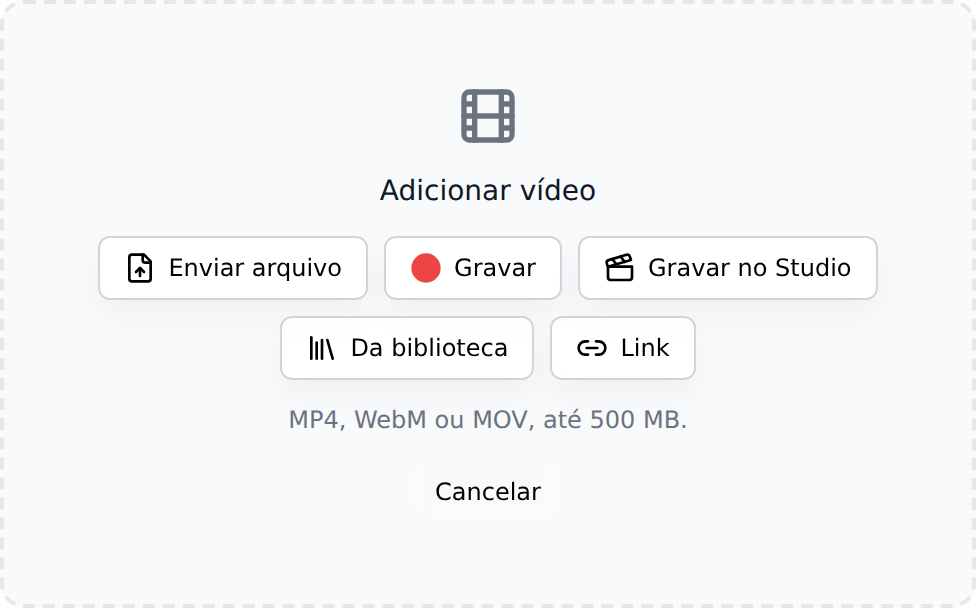
Record in Studio. The owner and the admin record the lesson in the Studio, with the team, guests and the screen, in the studio's layouts. When the recording is ready, it becomes the lesson's video, with its transcript, and Back to the lesson takes you back to the editor. If it cannot go into the lesson, the video stays in the Media library, to pick from the library. A recording already made in the Studio also becomes a lesson's video from the recording's page, with Use in a lesson, and its transcript becomes the lesson's captions.
Recording the lesson. Click Record (with a video on the lesson, Replace and then Record) and choose what to record: on a computer, Camera, Screen or Screen + camera (the camera in a bubble in the corner); on a phone, Camera only. Recording goes up to 30 minutes (about 600 MB) and stops on its own at the limit. When you click Stop, the recording becomes the lesson video right away, with no extra step, and the duration is filled in if it was empty. Then, if you want, pick the cover from the video's frames and click Finish. If you deny the camera or cancel screen sharing, the page shows what to do, without freezing. It's the Drops recorder, with 16:9 or 9:16 format, screen fit, camera bubble, pause and microphone; see Record a Drop.
Course content
The Course content list, on the course page and next to the lesson (on the phone, in the list drawer), is editable for the team:
- Add module and Add lesson (the lesson is born a draft);
- Rename module and lesson in place: Enter saves, Esc cancels;
- drag by the handle to reorder modules among themselves and lessons within the module (also with the keyboard);
- Delete module and Delete lesson, with confirmation.
A draft lesson shows in the list with the Draft badge, to the team only. The new order applies to the student right away.
Editing at the same time
Whoever else is editing the course or the lesson shows at the top, and when someone else saves, you see the notice that they saved, with Reload. If you save over a version that changed, nothing is overwritten without a choice: the Someone else saved before you window asks which version stays. See Who is here and team editing.
Courses in "A single course" mode
By default, the Courses space is a List of courses. In A single course mode, the space is one course: whoever opens it lands straight on the course page, with no list, no filters and no Back button.
Choosing the mode
Role: owner or admin.
- In Add Space, choose the Courses module. In How the space works, choose List of courses (the default) or A single course.
- With A single course, the Next button leads to the Course step: give the title (required), the level and the description.
- Finish. The space and the course are created together; if something fails, nothing is created. The course starts as a draft. On creating, the window ends open on the course page.
What each person sees
| Who | What they see |
|---|---|
| Member | The course, with Start Course or Continue Course. With the course in draft, archived or missing, it always shows "This course is not available yet" |
| Owner and admin | The course page with every tool, with no list and no New Course. If the course is deleted, it shows "This space has no course yet", with Create the course |
One course per space
You cannot create a second course in a space in A single course mode, not in the app, not through the API, not through the assistant. Drafts and archived courses count. To have more courses, switch the mode.
Switching the mode
Role: owner or admin. In Edit Space, in the How the space works field:
| Switch | What happens |
|---|---|
| List of courses to A single course | With 0 or 1 course, it goes through. With 2 or more, it is refused, saying how many courses there are and asking you to delete them until one is left. Nothing is deleted |
| A single course to list of courses | Always goes through. Enrollments and progress stay |
Deleting the course of a space in A single course mode does not switch the mode: the space waits for a new course.
Showcase, cover format and "Continue where you left off"
Cover format
In the course form, the owner and the admin choose the cover format:
| Format | Ratio | What for |
|---|---|---|
| Banner (default) | 3:1 | Today's wide cover |
| Poster | 2:3 | An upright cover, like a movie's or a series', made for the Showcase |
| Video | 16:9 | The shape of a video thumbnail |
The upload crops the image to the chosen ratio, and the course title sits below the cover. Every existing course starts as Banner: nothing changes until you switch.
Showcase
Showcase is one of the options of the Display field of a Courses space (Courses only): a grid of posters, 2 per row on a phone and 4 to 6 on a computer. For enrolled people, a thin progress bar sits right under the cover; the title comes below. A course without a poster cover gets a generated one with the community color and the title. Anyone who completed the course sees the Course completed badge under the title. A locked course shows the padlock, as in the other displays.
"Continue where you left off"
At the top of the space's course list, in the All view and in any display, anyone who has started a course there sees Continue where you left off: their courses in progress, most recent first. Each one opens straight at the lesson where the person stopped and, in a video lesson, at the point in the video where they were. When that lesson is already completed, it opens the next one not yet completed and not locked.
Only courses the person can still open come in: active enrollment, published course and a space they have access to. A course that became locked (the plan ended, they left the group) drops off the list. With no course in progress, the block does not show.
My content
The My content view shows the courses that already belong to the person: the ones with an enrollment (active or completed) and the ones unlocked by their plan or by a purchase, even without an enrollment. Courses that still have to be bought and free courses they have not enrolled in stay out. Staff see there only the courses they are enrolled in: a role does not make a course theirs.
My notes
The student writes personal notes pinned to the minute of the video, goes back to that point with one click and finds all the course's notes in one place. Only the writer sees their own notes: neither the owner nor the admin has access.
Take notes during the lesson
- In the lesson, next to the player (below it, on a phone), click Add note. The video pauses and the field opens with the current minute (Pin to 12:30).
- Write up to 2,000 characters and click Save note.
The lesson's notes show next to the player, in minute order. Clicking a note (Go to 12:30) takes the video to that point. Each note has Edit note and Delete note ("Delete this note? Only this note goes. The lesson, your progress and your other notes stay."). In a lesson without video (text, link or image), the note has no minute and goes at the end of the list.
All notes in the course
All notes in this course opens My notes: all the course's notes, grouped by lesson, in course order, with the total ("12 notes"). Each note has Open the lesson at 12:30, which opens the lesson right at that point.
What happens to the notes
- Enrollment: to take notes, the person needs to be enrolled in the course ("You need to be enrolled in this course to use notes."), and the lesson needs to be released. The team that builds the course takes notes without enrollment.
- Lost access (subscription ended, left the space): the notes stay saved and come back when access returns.
- Lesson, module or course deleted: its notes are deleted with it.
- Up to 500 notes per lesson for each person.
The same notes work on Videos and Podcast episodes.
Through the assistant: "Note at 12:30 of this lesson: review the VLOOKUP formula", "Show my notes for the Excel from Scratch course". See Tools · Courses › Notes.
Through the API: GET and POST /api/courses/lesson/{lessonId}/notes (your notes on the lesson; text and positionSeconds, in seconds, or null without a minute), GET /api/courses/{courseId}/notes (all of the course, by lesson) and GET, PUT and DELETE /api/player-notes/{noteId}. Someone else's note answers 404. See Courses and the errors.
With the assistant and the API
With the assistant
Ask in plain language, and the assistant creates the space, the course, the modules and the lessons, with the content of each:
"Build the course Excel from Scratch with two modules. In the first, a welcome text lesson and a video lesson with this YouTube link. In the second, a lesson with a link to the practice sheet and a lesson with the shortcuts image."
The lesson text and the course description are written in Markdown and becomes the app's formatted text. A Bunny Stream, Cloudflare Stream or Panda Video link, or an HLS stream (.m3u8), becomes a video lesson, and with the signing key the video plays signed; any other provider becomes a link lesson. The admin also changes the order of modules and lessons, chooses the space's mode and sees the students (moderator, finance or above). See Tools · Courses and the recipes Build a course with modules and lessons of every type, A single-course space, with its course, Build and publish the course and Follow the students of a course.
From a material. Send the PDF workbook or the syllabus and ask: "Build week 2 of this material as a course, with the week's quiz." The assistant first reads the program guide, which says which module takes each part, and builds everything: the module with all its lessons at once, the text with tables and the images taken from the PDF itself, the quiz with the five question types and the lessons scheduled for each day. See The program guide.
The assistant creates draft lessons (draft: true in create_lesson), publishes each one with publish_lesson and publishes the course with publish_course, which returns what is missing when it cannot be published yet. See Tools · Courses.
"Where did I stop?": the assistant calls list_my_courses_in_progress with limit: 1 and opens the lesson with get_course (the course slug). "Use a poster cover on the Excel from Scratch course": update_course with cover_format: "POSTER". The Showcase is chosen when creating or editing the space (layout: "showcase", Courses only). See Tools · Courses.
create_course also returns the course's product and suggests setting the price and publishing; enroll_in_course explains the refusal of a paid course and of a full course, and offers the waitlist. See Tools · Courses.
For the course certificate, ask: "Turn on the certificate for the Excel from Scratch course with the Course completion template." The assistant also shows what the course issues and warns when the chosen template is archived. See Tools · Courses and the recipes Set up this course's certificate, What does the course issue? and I finished the course.
Quiz and attachments in any lesson. create_lesson and update_lesson take a quiz on any lesson type, and get_course shows hasQuiz on each lesson. remove_lesson_quiz removes a lesson's quiz (asks for confirmation; refused once the quiz has attempts). For attachments: list_lesson_attachments, add_lesson_attachment, rename_lesson_attachment, reorder_lesson_attachments, remove_lesson_attachment (asks for confirmation) and get_lesson_attachment_link.
With the API
- Create the space:
POST /api/spaceswithmodule: "courses". For a space in A single course mode, sendmoduleConfig: { "mode": "single" }and, with it,course(title,level,description): the space and the course are created in a single transaction. - Create the course (in list mode):
POST /api/courseswithcommunityId,spaceId,title,slugandlevel. Keep theid. - Create each module:
POST /api/courses/modulewithcourseIdandtitle. - Create each lesson:
POST /api/courses/lessonwithmoduleId,title,typeand the content (bodyfor text,contentUrlfor video, link and image). The videocontentUrlaccepts YouTube, Vimeo, Loom, Bunny Stream, Cloudflare Stream, Panda Video and HLS (https://…/*.m3u8); any other address returns400oncontentUrl.GET /api/courses/{identifier}returns, on each video lesson the person can see,videoEmbed(provider,kindiframeorhls,src); with the signing key, a signedsrc,signed: trueandexpiresAt(6 hours), orunavailable: truewhen the key was refused. - Publish:
PUT /api/courses/{id}withstatus: "published".
Video signing keys (owner and admin; other roles get 403): GET /api/video-integrations, PUT and DELETE /api/video-integrations/{provider} (bunny with tokenKey; cloudflare with keyId and privateKey, in PEM or JWK) and POST /api/video-integrations/{provider}/verify (with the link to a video from the same provider: accepted, status: valid; refused, invalid; a video that does not exist, 422 videoNotFound; no answer from the provider, 502). The response carries only masked/last4, status and checkedAt; never the key. The bell notice is videoIntegrations.keyInvalid.
The community around the course
The course stops being just an outline of lessons: students talk with the cohort, see who teaches the course, save what they want to do later and, if the team wants, compare progress on a leaderboard.
Lesson recording, cover and text
Role: owner or admin. On a video lesson's page:
- Record (or Replace and then Record, if the lesson already has a video) records with the camera, the screen or the screen with the camera on a computer, and with the camera only on a phone, up to 30 minutes (about 600 MB). When you click Stop, the recording becomes the lesson video. It plays on the lesson page itself, for the team and for enrolled students.
- Duration. On a lesson without a duration, the recording's (or the uploaded video's) duration fills in by itself.
- Cover. After recording, the page shows up to six frames of the video; click one to use it as the cover, then Finish.
- Lesson text. Edit it in place, with bold, lists and links; the student reads it below the video.
- Generate lesson text from the video. Only when the video was recorded in the app: the button, above the lesson text, writes the text from what was said and puts it in place of the current text. Review and edit it as you like.
Leave the course
An enrolled student whose course is not yet completed sees Leave course on the page. The confirmation says progress is kept: if they start the course again, they continue where they stopped. After leaving, the lesson content goes back to being just the outline, and the person leaves the student count and the Students tab. Leaving takes away no points and revokes no certificate. Whoever completed the course cannot leave.
Course discussion and lesson discussion
There are two discussions: the Course discussion, on the course page (general questions, cohort notices), and the Lesson discussion, inside each lesson. Both work the same:
- Comments with one level of replies: you can reply to a comment, not to a reply. The text is plain, 1 to 2,000 characters; HTML is not interpreted.
- Who reads: enrolled students and the team (owner, admin, moderator and finance). Someone not enrolled, or who left the course, reads "The discussion is only for people enrolled in the course."
- Who writes: enrolled students and the team.
- Edit and delete: the author edits their own comment (it shows edited) and deletes it. Owner, admin, moderator and finance delete anyone's comment, after confirming. A deleted comment that has replies becomes "Comment removed" and the replies stay.
- No prior approval: the comment appears at once, and the team deletes what should not stay.
- Reactions: the usual seven (👍 ❤️ 🔥 🙌 😊 👏 🎉), on the comment, the lesson and the course. Each person has one per target: tapping the same removes it, tapping another switches.
- Draft or archived course: whoever can read reads, but nobody writes or reacts.
- Points: commenting earns the community engagement points, once per comment and only for the student. No e-mail or notification goes out.
"What you will learn"
Under What you will learn, list up to 8 items of up to 140 characters, in plain text (blank items are discarded). The list appears to everyone who opens the course, including whoever has not enrolled. With no items, the block does not appear.
Course instructors
A course can have several instructors, and they look after the course like the team would. Whoever creates the course becomes an instructor, and any community member can be an instructor, of any role.
Where it is. On the course page, in edit mode, the Instructors section (Edit instructors) lists who is an instructor, with their photo. Add instructor opens the search (Search members by name); Remove takes the person off. The change applies right away, without Save. The course page shows them all under Taught by ….
What the instructor does in their course:
- sees the course in draft;
- edits the course, the cover, the text and what you will learn, and publishes;
- creates, edits, reorders and deletes modules and lessons;
- answers and moderates the course and lesson conversations;
- sees the Students tab, with each one's progress;
- adds and removes other instructors;
- deletes the course.
What stays with the owner and the admin only: creating courses, featured course, the required plan, the price and the course sale (the product). In a paid course, the instructor does not touch the price.
There is always at least one. A course never ends up without an instructor: on the last one, Remove is disabled ("The course needs at least one instructor."). To leave, add someone else first. Who joins and leaves as instructor, and a course deleted by an instructor, go to the Logs.
The instructor only has these powers in the course they teach; in others, they keep their role in the community.
Saving courses
On each card and on the course page, Save course keeps the course for later (Remove from saved undoes it). The Saved filter in the list shows yours. It is personal: not even the team sees what you saved. A course that stops being visible disappears from the filter.
How many students
A member sees "N students" on the card and on the page only from 10 students; below that, no number appears. The team always sees the real number. Nobody receives the other students' names through that number.
Course leaderboard
Role: owner or admin. On the Publication tab, the Show course leaderboard switch starts off. When on, enrolled students and the team see the Course leaderboard: the top 10 by completed lessons (on a tie, whoever finished earlier wins), with name and avatar, and the position of whoever is looking, even outside the top 10 ("You are in position 14, with 3 lessons completed."). Whoever left the course and the team's preview do not count.
The leaderboard is the course's and counts completed lessons, not points. Because it shows students' name and avatar to other students, turning it on is the team's choice, course by course; the student has no way to opt out of it.
Lessons in sequence and release by date
Two optional, independent controls guide the student's pace: the order of the lessons and the date each module opens.
Lessons in sequence
Role: owner or admin. On the course's Publication tab, turn on Require sequence (it starts off). When on, a student only opens a lesson after completing the previous one, in the order of the outline: module by module, lesson by lesson, across modules.
A lesson is open if it is the first one, if the previous one is completed, or if it is itself already completed. So turning on the sequence with the course under way, reordering, inserting or deleting lessons never closes what the student already did. Turning it off opens everything at once. Moderators, finance and members do not see the control.
Release by module
Role: owner or admin. On each module, the Release button (in the new builder, Schedule release, in the module's ⋯) opens the "Module release" window. Choose one of the two modes and click Save release:
| Mode | When the module opens |
|---|---|
| Fixed date ("Available from") | On the chosen date and time, in the community's time zone. A past date opens at once |
| Days after enrollment (0 to 3650) | At midnight (00:00) in the community's time zone of the day that is that many days after each student's first enrollment. With 0, it opens at once. Each student has their own date |
- Only one mode applies to each module; switching from one to the other clears the previous one. Blank, the module opens at once.
- Leaving the course and coming back does not restart the count: the first enrollment always counts.
- The module opens on its own at the set time, and each enrolled student gets the lesson released notice.
- A lesson the student already completed stays open even if you change the date or the days later.
Scheduled lesson
Role: owner, admin or course instructor. A draft lesson can publish itself on a date. In the lesson editor, Schedule publication opens the Publish on field: pick the date and time (in the community's time zone) and click Schedule. Change sets another date, and Cancel schedule turns the lesson back into a plain draft.
- Until the date, the team sees the Coming soon · publishes 11/25, 6:00 PM badge on the lesson, in the builder and in the outline. The student sees the lesson in the outline, dimmed and with a padlock, with the same date, but without the content, the media or the quiz. Opening the lesson shows "This lesson opens on 11/25 at 6:00 PM", not an error.
- On the date, the lesson publishes itself, within a minute, as if the team had clicked publish.
- The date has to be in the future, and only a draft lesson can be scheduled.
- A draft with no date stays invisible to the student.
Lesson released notice
When a lesson opens for an enrolled student, they get a notice. This happens when the lesson is published (by hand, by the scheduled lesson or created already published) or when its module opens for them (the fixed date or the days after enrollment).
- One notice per course: several lessons released at once become a single notice ("3 new lessons released in Excel from scratch").
- In the bell: tapping the notice opens the lesson (or the course, when there are several).
- On the phone: the push notification follows the Courses category, in the notification preferences.
- By e-mail: the "New lesson released: …" e-mail, with Open the course, goes out through the Courses category of the This community's e-mails screen, on by default and with the unsubscribe link.
- Who does not get it: whoever already opened or completed the lesson, and whoever enrolled after the lesson was already open (the course was already like that when they arrived).
- For integrations: the
course.lesson_releasedandcourse.module_releasedevents go to the webhooks.
Sequence and date together
With the sequence on, a module scheduled in the middle of the course also locks the lessons of the following modules, because the previous one cannot be completed until it opens. Whoever had already completed lessons there keeps them open. If a lesson is held by both reasons, the message shows the date first. The course only completes when all lessons are completed, so whoever finishes everything but the scheduled module waits for the date; the progress bar shows the real number and the certificate follows the usual rule.
What the student sees
A locked lesson shows in the outline with a padlock and no content (the lesson's text and address are not delivered). The message says why:
| Situation | Message |
|---|---|
| Fixed date | "Opens 10/13 at 9:00 AM" (formatted for the language) |
| Days after enrollment | "Opens 10/18, 7 days after your enrollment", with that person's real date. Someone not yet enrolled reads "Opens 7 days after enrollment" |
| Sequence | "Finish “X” first" |
Opening a locked lesson by its address takes you back to the course with "This lesson is not open yet". Continue and Next lesson always lead to an open lesson. Through the API or the assistant, completing a locked lesson is refused with 409, saying which lesson is missing or when it opens.
What the team sees
Owners, admins, moderators and finance open every lesson, in preview, with the Sequence and Scheduled badges where there would be a lock. Preview does not record progress, points or a certificate.
Moderators and finance read the lesson content without enrolling, including in a course of a paid space. Creating, editing and deleting remain with owners and admins only. Members, visitors and people who left the course still get no content.
Quiz lessons
A Quiz lesson tests what the student learned, with automatic grading and a minimum score to complete.
Building the quiz
Role: owner or admin. On the lesson, use Add quiz. Set the Passing score (%) (1 to 100; the default is 70) and the questions:
- 1 to 30 questions, each with a prompt (up to 1,000 characters) and a Question type (table below).
- An optional explanation per question.
- Each question is worth one point; Open answer questions stay out of the grade.
- Saving replaces the whole set. Changing the type of a quiz that already has attempts is refused.
| Question type | How you build it | When the student gets it right |
|---|---|---|
| Single choice | 2 to 6 options, exactly one correct (mark the circle) | Picks the correct one |
| Multiple correct | 2 to 6 options, at least one correct | Ticks every correct one and no other |
| Fill in the blanks | Mark each blank in the prompt with ___ and list the accepted answers for each one. E.g.: Tomorrow ___ call you before the flight. | Types an accepted answer in each blank. Capitals, spaces, straight or curly apostrophes and final punctuation do not count |
| Matching | 2 to 10 pairs: the left item and its match | Matches each item to its pair; the second column arrives shuffled |
| Open answer | Just the prompt | No automatic grading: the student writes freely, and the team reads it in the Responses tab |
What the student sees
The student answers every question and clicks Submit answers; the server does the grading. A quiz lesson has no Mark as complete: passing is what completes the lesson.
Each type has its own field: checkboxes in Multiple correct, the blanks inside the sentence, a list to pick the pair for each item in Matching (which works well on a phone) and a text box in Open answer, which does not count toward the grade. Once passed, the result shows the accepted answers of each blank, and open answers show as sent for the course team to read.
| Result | What appears |
|---|---|
| Passed! (score equal to or above the minimum) | The score, what was right and wrong, the correct answer and the explanation for each question. The lesson is completed, once only (points too). Retaking is allowed |
| Not this time | Only the score ("You got 3 of 5 right") and the minimum score. Neither which questions were wrong nor the correct answers appear: they are only shown after passing. Try again is available |
There are 30 attempts per hour on each lesson. Your last attempts lists the 10 most recent (score, passed or not, date and time in the community's time zone); nobody reads another person's attempt. The sequence and the date release apply to the quiz like to any lesson.
Attempts, best score and final grade
- Options are shuffled on every attempt (the order stays the same within an attempt). The team sees the written order.
- Attempts allowed: in the quiz editor, 1 to 100; empty means unlimited (the limit of 30 per hour still applies). The student sees "Attempts left: 2 of 3". Editing the quiz without touching this field keeps the limit.
- The best score counts, for each student on that quiz.
- Attempts run out without passing: the lesson is marked Not passed, the student moves on to the next lesson and sends no more attempts on it.
- Course final grade: the average of the best score on each quiz in the course, with equal weight. The student sees the Final grade and the team sees it on the Students tab.
- Minimum grade for the certificate (%) (Completion tab, 0 to 100, optional): with it, the completion certificate only goes out when the final grade is equal or higher. Whoever falls below reads "You finished the course, but your final grade (62%) is below the minimum for the certificate (70%)." Empty, finishing is enough. A course with no quiz does not use the minimum, and changing the minimum does not revoke certificates already issued.
What the team sees
Owners, admins, moderators and finance see the Team preview: the correct answers and the explanations, and they can test the quiz. Nothing is recorded: no attempt, no progress, no points. Moderators and finance do this without enrolling.
The Responses tab. In the quiz lesson, the course team (owner, admin, moderator, finance and the course instructors) has the Quiz and Responses tabs. Responses lists the students' attempts, newest first, with who answered, the grade, whether they passed, the date and the text of each Open answer. Team test runs do not show up, because they are not recorded. With no attempts, the tab shows "No responses yet".
Editing after there are attempts
Whoever already passed stays passed and the course can complete; new attempts use the new questions.
Certificate on completion
Whoever completes the course gets the certificate on their own, by email, and finds it in My certificates, with no one on the team issuing them one by one. The setting lives on the course itself and is optional.
Where it is
Role: owner or admin. In Edit course (or New course), on the Completion tab. In A single course mode, it is in the Course step of the space creation wizard, opened with the Next button. Moderators and members do not see the tab.
Turn the certificate on
Under Issue a certificate?, the switch starts off. When it is on, whoever completes the course gets the certificate by email and finds it in My certificates.
- It only applies from now on. People who had already completed the course before you turned it on do not get one: there is no retroactive issuing. Whoever completes it while the switch is off does not get one either, even if you turn it on later.
- One certificate per person per course, forever. Completing again does not create another. Two courses with the same template create two certificates, one for each.
- Turning it off stops issuing for anyone who completes from then on. People who already received theirs keep it.
Choose the template
The Certificate template comes from the community's Certificates module. The list shows only active templates and has the Search templates by name box.
- The platform default is first in the list, already selected, and is the one used when nobody picks another. The platform creates it by itself, along with the Certificates space if the community does not have one yet. It shows up in the space's Templates tab and can be edited or duplicated like any other.
- If the chosen template (or the default) is archived or deleted, the course shows the notice "The chosen template was archived or deleted" and no certificate is issued until someone picks another active template or reactivates that one. The platform never switches templates on its own or reactivates an archived one.
Edit the text
The Certificate text comes filled in and can be edited. The default is "completed the course {assunto}[ with a workload of {cargaHoraria}]".
| Variable | What goes in |
|---|---|
{nome} | The student |
{assunto} | The course title |
{cargaHoraria} | The workload, already with its unit ("2 hours", "0.36 hour"). Do not write "hours" after it |
- Text between
[brackets]disappears when the variable inside it is empty. - HTML is not accepted. The limit is 5,000 characters.
- Restore default text goes back to the original. The preview next to it uses the name "Maria Silva".
Workload
There is no workload field: it is the sum of the lesson durations, in hours with up to 2 decimals (59 minutes become 0.98), and it is frozen at the moment of issuing.
- If any lesson has no duration, the form says "Unavailable: a lesson has no duration" and lists those lessons. In that case the template's own workload is used, if it has one.
- With neither, the workload line is left off the certificate.
- In the wizard for the single-course mode, it says "Calculated once the course has lessons with a duration".
The lesson length is optional on any lesson: Add length, with hours, minutes and seconds.
What the student sees
On completing the last lesson, the student sees Your certificate is being generated. It takes a few seconds, and the certificate also arrives by email. When it is ready, the message changes to Your certificate is ready, with the View certificate button. A certificate that failed or was revoked does not show, and a course that does not issue shows nothing.
Revoke and reissue
This is still done in the Certificates screen (revoke, reissue, resend the email). A revoked certificate does not come back on its own: completing the course again does not create another.
The full sequence, with the ids that pass from one step to the next and the errors of someone who skips a step, is in Creation order.
With quizzes in the course, the Completion tab gains the Minimum grade for the certificate (%): the certificate only goes out with an equal or higher final grade, and changing the minimum does not revoke certificates already issued. See Attempts, best score and final grade.
Selling the course
| Model | How |
|---|---|
| Standalone course | A product that unlocks the course's space (Private › Products) |
| Course included in the subscription | The course's space set to Private and unlocked for the plan, or Subscribers |
| Free course for members | The space set to Members |
Payment belongs to the space or the product, not to the course: whoever has access to the space can start any published course in it.
Price and sale of the course itself
The course has its own product, and you can sell one course without selling the whole space.
Every course is created with a product of the Course kind, linked to it one to one: draft, free, with the course's title and cover. On the course page, at the top of the right column, the team sees the Sale card, with the price, the status (Draft, On sale or Off sale), the free seats and the "Team only" tag. Set price (or Edit price) opens the Price and payment dialog, with the price, the payment methods, the installments, who pays the fee and a preview of what the buyer pays and what you receive; Put on sale puts the course on sale, and Pause sales takes it off; More product options opens the full form, with the seats and the access period. See The Sale card.
- A free draft changes nothing for the student: enrollment is open, as always, until you publish the product.
- Price and seats: set the price in Set price (Free is a free course, which the student gets with Enroll for free), the Seats and, if you like, time-limited access in More product options, and click Put on sale. Publishing with a price requires approved Business Information; free doesn't.
- With the product published and priced, the student sees Buy · {price} and only enrolls after buying ("This course is paid. Buy it to enroll."). The approved purchase enrolls the buyer at once.
- Who gets in without paying: the team; whoever has a plan that includes the course; and whoever was already enrolled when the product was published. Access to the space alone isn't enough for a paid course.
- Seats: when full, the course shows "Sold out" and the waitlist; when a seat frees up, the next person has 24 hours, by e-mail, to accept. See Seats and waitlist.
- Access period: the student sees "Access until …" and Renew in the last 7 days; they get e-mails 7 days and 1 day before the end. See Time-limited access.
- A refund cancels the enrollment; progress and the certificate already issued stay.
- Unpublishing the product returns the course to open mode only for new enrollments; whoever bought keeps access.
- Who sees the button: owner, admin and finance edit the product; the moderator sees View price and sale, read-only. Members don't see the strip.
- Deleting the course archives the product, and is refused while there's a paid purchase that still gives access.
Limits today
- The automatic certificate only applies to people who complete after the feature is turned on. See Certificate on completion.
- The student list has no search. Until the new builder reaches communities, the order of modules and lessons changes only with the move up and move down buttons.
- The video does not remember where the person stopped.
Frequently asked questions
Where do the videos live? The video lesson points to a video on YouTube, Vimeo or Loom, and it plays on the page itself; or it is a hosted video on Memberfy. Bunny Stream, Cloudflare Stream, Panda Video and HLS work too, by pasting the video link (see Bunny Stream, Cloudflare Stream, Panda Video and HLS).
Can I unmark a completed lesson? No. Completing is final, which avoids repeated points in engagement.
Can I have several courses in a space? Yes, in List of courses mode, which is the default. In A single course mode, the space has one course and does not accept a second one.
Does the member see the course in the Feed? Yes, like the other items, if they have access to the space.
Does the team see who is taking the course? Yes. When starting, the member is told that the team follows the progress. The course's Students tab shows who is enrolled and each one's progress (owner, admin, moderator and finance), and the count shows in the course list.
E-mail notice
When you publish a course for the first time, the team sees the Notify by e-mail · N people box, checked by default: 10 minutes later, whoever has access to the space and kept the Courses category on gets an e-mail. It goes out once per item; editing or publishing again doesn't resend. See New content notices by e-mail.
In the API
POST /api/courses, POST /api/courses/module, POST /api/courses/lesson, PUT /api/courses/{id}, PUT and DELETE /api/courses/module/{moduleId} (rename, reorder, delete a module with its lessons), PUT and DELETE /api/courses/lesson/{lessonId} (edit, reorder, move to another module, delete a lesson), POST /api/courses/{courseId}/enroll, POST /api/courses/{courseId}/lesson/{lessonId}/progress. See Courses.
POST /api/courses/lesson/{lessonId}/media/upload-url (returns a 10-minute upload), POST .../media/confirm and DELETE .../media (owner and admin); GET /api/courses/{courseId}/lesson/{lessonId}/media returns { url, expiresAt } (video 1 hour, file 5 minutes). POST /api/courses/lesson accepts awaitingMedia: true and the file type. The lesson carries hasMedia and, for whoever reads the content, media: { name, size, mimeType }. GET /api/communities/media-usage shows the owner the usage, with warning (nearLimit from 80%, overLimit above 100%).
quiz.maxAttempts (1 to 100; empty = unlimited) when creating and editing the quiz lesson, and certificateMinGrade (0 to 100) on the course. The attempt returns maxAttempts, attemptsUsed, attemptsLeft, bestScorePercent and closedWithoutPassing; an attempt after they run out: 409. The course returns userFinalGrade to the student and finalGrade in the student list; below the minimum grade, userCertificate.status is BELOW_MIN_GRADE, with finalGrade and minGrade.
Quiz. POST /api/courses/lesson and PUT /api/courses/lesson/{lessonId} accept the quiz block (passPercent 1 to 100, 1 to 30 questions, 2 to 6 options with exactly one isCorrect, optional explanation), owner and admin only; a format error: 400, with errors[].param on the field (for example quiz.questions[0].options); changing the type of a quiz with attempts: 409. POST /api/courses/{courseId}/lesson/{lessonId}/quiz/attempts sends the answers (all of them) and returns the score, passed and, only when passed, the correct answers; more than 30 attempts per hour on the lesson: 429, with Retry-After; GET on the same route lists the last 10. POST .../progress with completed: true on a quiz lesson: 409.
Quiz types, scheduled lesson and attachments. Each quiz question takes type: single (the default), multiple, fillBlank (accepted answers per blank), matching (2 to 10 pairs) or open (out of the grade); total counts only graded questions. GET /api/courses/{courseId}/lesson/{lessonId}/quiz/responses (the course team) lists the students' attempts with the open answers; others get 403. A draft lesson takes scheduledPublishAt (null cancels; a past date, 400; a published lesson, 409); for the student it comes in the course with comingSoon: true and the date, without content, and opening it answers 423. Releasing a lesson to a student publishes the course.lesson_released and course.module_released events. Attachments: GET /api/courses/{courseId}/lesson/{lessonId}/attachments and .../attachments/{attachmentId}/download (a 5-minute link, for whoever can open the lesson); POST /api/courses/lesson/{lessonId}/attachments, PUT .../attachments/order, PATCH and DELETE .../attachments/{attachmentId} (the course team); GET /api/courses/{identifier} brings courseLessons[].attachments.
In the API: course responses carry product (id, kind, status, price, currency, capacity, available, soldOut; capacity and available only for the team) and, in the detail, access (team, open, purchase, plan, grandfathered, paid), canEnter and waitlist. POST /api/courses/{courseId}/enroll now answers 403 (with data: { productId, price, currency }) when the product is published with a price and the person hasn't bought it, and 409 when full. DELETE /api/courses/{id} answers 409 with a paid purchase that still gives access; otherwise it archives the product.
POST /api/courses/{courseId}/leave (leave; a completed course answers 409); discussions at /api/courses/{courseId}/comments (with lessonId for the lesson; PUT and DELETE at .../comments/{commentId}, reactions at .../comments/{commentId}/react and .../react); POST and DELETE /api/courses/{courseId}/favorite and GET /api/courses?saved=true; GET /api/courses/{courseId}/leaderboard (403 with the leaderboard off). POST and PUT /api/courses accept instructorMemberId, learningPoints and leaderboardEnabled (owner and admin only). The course returns instructor, learningPoints, studentsCount (members only from 10 students up, otherwise null) and isSaved.
POST and PUT /api/courses accept requireSequential (boolean, owners and admins only); modules accept availableAt (date and time) or availableAfterDays (integer from 0 to 3650), never both (400). The course GET returns, on each module and lesson, locked, lockReason (sequence or date), unlocksAt and, for the sequence, pendingLesson, and omits body and contentUrl of what is locked. POST /api/courses/{courseId}/lesson/{lessonId}/progress on a locked lesson answers 409.
Showcase and "Continue where you left off":
GET /api/courses/continue(any role): the person's courses in progress, most recent first, each withcourse(id,slug,title,bannerUrl,coverFormat,spaceId),lesson(the lesson to open now:id,title,type,duration,moduleId,moduleTitle),resumeAt(the second in the video;nullwithout a position),lastAccessedAtandprogress.limitfrom 1 to 20 (default 10). Only published courses, with an active enrollment, in a space the person opens.coverFormat(BANNER,POSTERorVIDEO; defaultBANNER) onPOSTandPUT /api/coursesand in every course read. Any other value returns400. The course created with an A single course space starts asBANNER.layout: "showcase"(Showcase) onPOSTandPUT /api/spaces, only in thecoursesmodule;GET /api/spaces/moduleslists it among the Courses options.
New with dashboard editing:
GET /api/courses/{id}/enrollments: the Students tab list, paginated (page,limit), from the most recent enrollment to the oldest. Owner, admin, moderator and finance (read); a member gets403. A canceled enrollment does not count, andtotalCountis the course'sstats.enrollments.PUT /api/courses/{courseId}/modules/orderandPUT /api/courses/module/{moduleId}/lessons/order: record the order of all modules (or all lessons of a module) at once. The list must be exactly what exists; otherwise400and nothing changes.moduleConfig.modeof the Courses space:"multi"(list, the default) or"single"(A single course). Any other value,400. InPOST /api/spaces,course(title,level,description) creates the space and the course together, insinglemode.- Mode errors: a second course in a
singlespace and a switch tosinglewith 2 or more courses return409, with the message on the field (spaceIdandmoduleConfig.mode). A repeated slug, an empty title and an invalid level return400on the field. The course always starts as a draft. - The course
GET'sstats.enrollmentsonly comes back for the team (owner, admin, moderator and finance); for the member,statscomes back empty. - In each module and lesson of the course
GET,studentsWithProgress(owner and admin only) counts the students with progress there.
Two rules for API consumers: the course GET omits body and contentUrl from the lessons for anyone who is not owner or admin and is not enrolled, and enrolling again returns 200 with the enrollment that already exists.
Certificate on completion:
POSTandPUT /api/courses(andcourseinPOST /api/spaces) accept thecertificateblock:enabled,templateIdandtext. Owner and admin only. Whoever turns the certificate on does not send the date: the server records it when the switch goes from off to on, and only people who complete after it are entitled.templateIdis an active template of the same community; without it, the platform default applies.textis plain text, no HTML, up to 5,000 characters.GET /api/courses/{id}returnscertificate(the setting, with the calculated workload) to owner and admin, anduserCertificate(PENDINGorISSUED, withid,codeandverificationUrl) to the student who completed. A failed or revoked certificate does not appear there.GET /api/certificates/templatesworks withoutspaceIdfor owner and admin: it lists the active templates of every Certificates space, platform default first, and acceptsqto search by name.- New errors:
certificate.templateId(404for a template from another community,400for an archived or deleted template) andcertificate.text(400for text with HTML or over the limit).
Editing on the page itself:
POST /api/coursesaccepts just thespaceId: the course is born a draft as "Untitled course", levelbeginnerand a free address.POST /api/courses/{id}/publish(owner and admin) checks the To publish list and publishes, with the e-mail notice (notifyByEmail, on by default). With something missing, it answers422with one error per item (param:titleorlessons) anddata.readiness; already published,409. TheGET /api/courses/{id}of whoever edits carriesreadiness:[{ key, ok, required }]withtitle,lessonsandbannerUrl(recommended).- The lesson carries
status(draftorpublished),publishedAtandupdatedAt.POST /api/courses/lessoncreates the lesson as a draft unlessstatus: "published"comes along.POST /api/courses/lesson/{lessonId}/publish(owner and admin) publishes the lesson, with no e-mail; already published,409. A draft lesson stays out of everything the student sees; recording progress on it answers404. PUT /api/courses/{id}andPUT /api/courses/lesson/{lessonId}acceptupdatedAt(or theIf-Unmodified-Sinceheader), each with its own item's version: if someone else saved first,409with the currentdata.updatedAt, and nothing is saved.- A recorded lesson video (the lesson's Drop) goes up to 600 MB.