
Activity logs
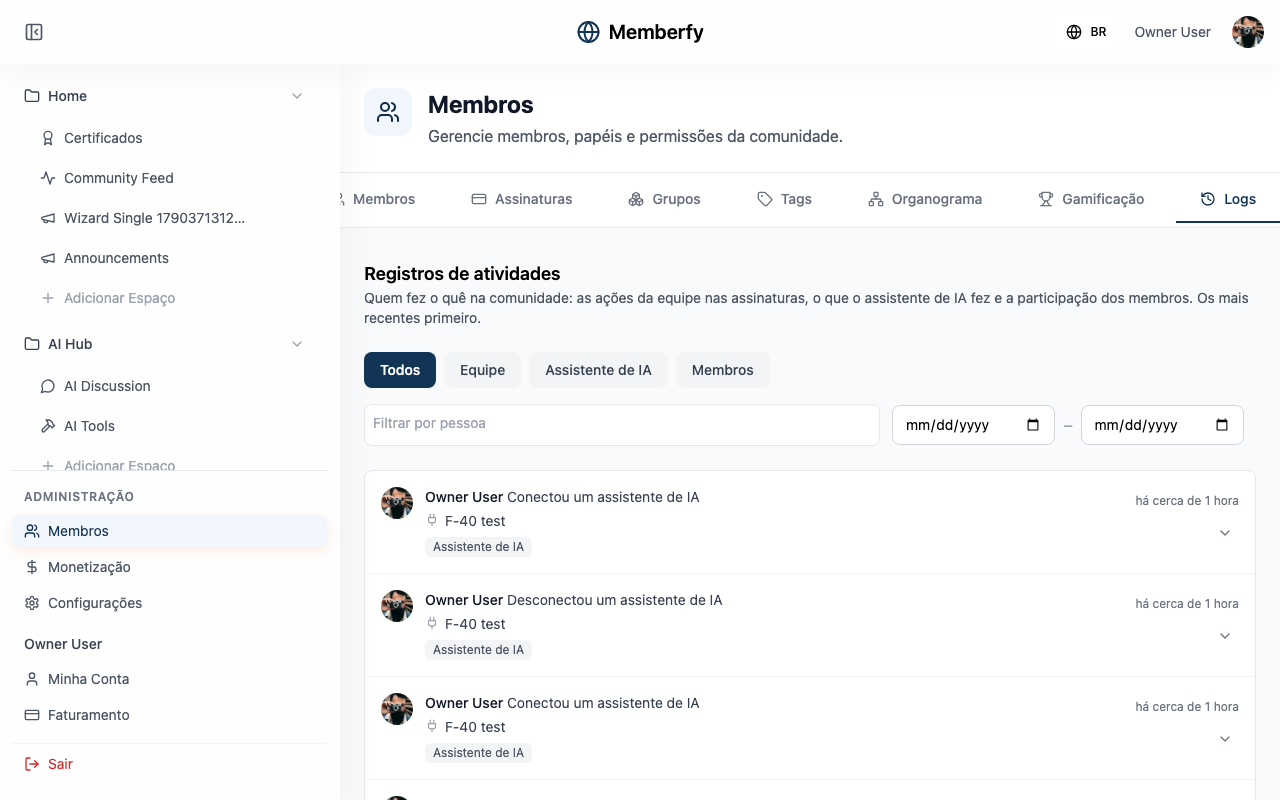
The Logs tab in Members, for the owner and the admin. The timeline of who did what in the community (the team on subscriptions, AI assistants and members who earn points), the filters, the details of each entry and what never shows up.
The Activity logs tell who did what in the community, newest first: "the team's actions on subscriptions, what the AI assistant did and members' participation."
They live in Members › Logs.
What it's for
| The team wants to know… | In the logs |
|---|---|
| Who canceled someone's subscription, and when | Source Team, filtered by the person |
| What the AI assistant did yesterday | Source AI assistant, with the day in From and To |
| Whether an assistant call failed, and why | Source AI assistant, opening the entry |
| How a member has been taking part | Click their name |
Who can
Owner and admin. Moderator and finance don't see the Logs tab.
How it works
What gets recorded
| Source | What goes in |
|---|---|
| Team | The team's actions on subscriptions: cancel, reactivate, give a discount, complimentary, extend, add an add-on, send a payment link. See Subscription management |
| AI assistant | What an assistant connected through MCP did: connecting and disconnecting, each tool used and each blocked or refused action |
| Members | Member actions that earn ranking points: posting, commenting, liking, going to an event, enrolling, completing a lesson, logging in for the day. See Gamification |
Each entry shows who did it, what they did, on what and when. A member action also shows the points ("+5 points").
The filters
- Source: All, Team, AI assistant or Members.
- Person: type in Filter by person, or click someone's name in an entry ("Show only this person's activity").
- Period: From and To, in days of your own time zone.
- Clear filters shows everything again.
The filters stay in the page address: copy the link to send the same view to someone on the team.
The details
Click the arrow on an entry to open its details:
- Team: the Role of who acted and What changed, field by field, before → after (for example, Discount became 20%).
- AI assistant: the status (ok, error, refused, awaiting confirmation), the Duration, the Connected assistant, the Tool and the Arguments (summary). The arguments come summarized: confirmation codes, images and any secret data never show up, long texts are cut and lists of people become just a count.
The links
- A subscription opens its detail in Members › Subscriptions.
- A course opens its space.
- A post or an event opens the item itself, in the space it lives in.
- An item that was deleted shows as "… no longer available" (for example, "Subscription no longer available").
Step by step: who canceled a subscription
Role: owner or admin.
- Members › Logs.
- Click Team.
- In Filter by person, pick the person who was subscribed.
- Open the cancellation entry: it shows who canceled, when, the reason and what changed.
Example
An assistant that got a request wrong. Marina asked Claude to create an event, and it said there was an error. In Members › Logs, source AI assistant, she opens the latest entry: status error, the tool create_event and the summarized arguments, with a start date in the past. She fixes the request in the conversation, and the next entry shows ok.
Frequently asked questions
Does what someone wrote to the assistant show up here? No. The conversation stays in the assistant. Here you only see what it did in the community.
Can an entry be deleted? No. The logs are the community's history.
Do the logs show who viewed what? No. Only actions: what the team, the assistants and the members did.
Through the assistant and the API
- Through the AI assistant:
list_activity_logs, with the same filters. - Through the API:
GET /api/activity-logs(owner and admin), withsource,profileId,from,to,pageandlimit. See Activity Logs.