
Workflows
Automations by trigger. When something happens (someone joins, buys, completes a course, or goes N days without signing in), each person follows a path of waits, conditions, library e-mails, messages, comments, reactions, tags, groups and Slack posts, in their own time. Canvas editor, variables between blocks, ending in success or error, success rate, sending postponed by quota, simulation, history, limits, who signs and the 9 templates. Also Call webhook with Variables and keys, the platform actions, Call workflow and which role the steps act with. Also the Claude and ChatGPT AI blocks, with the community's own API key, the AI limits and the post, certificate, recognition, chat, 1:1 and development plan actions.
A workflow is an automation by trigger: when something happens to a person (they join the community, buy, complete a course, go 30 days without signing in), they enter a path you design, with waits, conditions and actions, and follow that path in their own time. It is the welcome series, the reminder for people who disappeared, the course congratulations, without anyone on the team pressing anything.
Memberfy helps HR keep everyone engaged: the same workflows remind people of a pending review, a 1:1 that was not logged or a goal without a check-in.
Where it is: Administration › Workflows. The owner and the admin create, edit, turn on and pause; the moderator and finance see, simulate and follow the history; members do not see the area.
How it works
The trigger
Each workflow starts with a single trigger, a block of the design dragged from the Triggers category. Each family has its own block (Members, Purchases, Subscriptions, Events, Courses, Certificates, Badges, Levels and points, Forms, Surveys, Calls for papers, Posts and comments, Voting, Downloads, Spaces, Messages, the HR ones, Time, Manual and Webhook), ordered from the most used, and the event is chosen in the block's panel, in Fires when; changing the event does not change the block. Searching for an event ("subscription canceled") finds its block and creates the block already on that event. On the canvas, the block shows the family on top and the event below. With a trigger on the canvas, the Triggers category disappears from the picker; for another kind of trigger, swap the block.
When something happens, for example:
| Subject | Triggers |
|---|---|
| Members | New community member (signup, accepted invitation, purchase, team, company or import, with the Source; signing in does not count), someone leaves, changes role, gets or loses a tag, joins or leaves a group, changes a profile field; Someone comes back after N days away (with Away for at least 7 days or more; a visit through the app or through the assistant counts) |
| Purchases and subscriptions | A purchase is completed (with the First purchase only filter: the person's first purchase, of any product, free ones included) or refunded; someone starts a purchase, abandons the cart, or a cart is recovered; a subscription starts, renews, changes plan, falls overdue, has its free trial ending, is canceled or ends |
| Content and spaces | Someone posts, comments or reacts; visits a space for the first time; gets access to a space; the lifecycle of posts, spaces and downloads (see Lifecycle events) |
| Courses and events | Enrollment, lesson or course completed, quiz passed or not, certificate issued; registration, ticket received, registration canceled, waitlist spot, check-in done or undone |
| Levels and points | Moved up a level, Moved down a level (with the Reason) and Reached N points. See Levels and points |
| Other modules | Form, survey and proposal answered or decided, voting topic, file downloaded, clock-in and clock-out, bookings, recognition and feedback received, and the DM received. The recognition received event carries the recognition's type (type: APPRECIATION, WELCOME…). |
| People (HR) | A review cycle opens, someone submits a review, a result is released; a 1:1 is logged; a key result gets a check-in or becomes at risk; a development plan is approved; a survey round opens |
The Source of New community member includes Came from approval, for people who got in through sign-up with approval (member.joined with source: approval). It is the "approved sign-up": a welcome workflow with this filter fires when the team approves the request, not when the person asks. The request itself, and the rejection, fire neither a workflow nor a webhook.
Each trigger takes its own filter: the product, the course, the event, the space, the group, the tag, the field, the cycle or the survey (empty: any). The trigger panel (Entering the workflow) brings together the filter, how many times a person enters, the Frequency limit and the description.
Time (every day, by date): one pass a day, from 9:00 in the community's time zone, for whoever meets the rule that day: Someone has not signed in for N days, Every day, for everyone, Review pending for N days, Review due in N days, 1:1 in N days, 1:1 not logged for N days, 1:1 agreement overdue for N days, Key result without check-in for N days, Goal cycle ends in N days, Development plan action overdue for N days and Survey unanswered for N days. Each person enters once for the same fact. On the Someone has not signed in for N days trigger, when turning the workflow on for the first time, Include who has already gone more than N days without visiting also brings in people already past that point: the window shows how many people they are and asks for confirmation, and they enter once each, at the pace of the daily limit.
Manual (chosen people): the team starts the workflow for whoever it chooses. With the workflow on, Run now asks for People or an Audience (like the campaigns' one), shows beforehand how many enter, who is left out (unsubscribed, with an invalid e-mail or who complained) and over how many days the e-mails go out because of the daily limit, and asks for confirmation ("I understand that N people will receive this workflow's steps now"). Confirming twice does not start it twice. Up to 20,000 people at a time, in batches.
Scheduled: every day, every week (on the Weekdays) or every month (on the Day of the month, 1 to 28), at the Time chosen in the community's time zone, For whom you define. Turning it on asks for the same confirmation as the date triggers, and a day with the community's sending suspended is skipped.
Webhook received: another system calls the trigger's address and starts the workflow for the person in the call's body. See Incoming webhook.
Called by another workflow: the workflow starts when another one calls it through the Call workflow step, for the same person. See Platform actions and other workflows.
The steps
| Step | What it does |
|---|---|
| Wait | From 5 minutes to 365 days |
| Condition (if / else) | Splits the path into Yes and No by rules, read at the moment of the step: tags (several at once, with has any of the tags, has all the tags or has none of the tags), group, profile field, last access, course completed or in progress, product bought, abandoned cart, access to and visit of a space, registration for and attendance at an event, level and points (Engagement group), and the Variable rule. All rules hold or At least one rule holds. The rules read as sentences, like "If the person has the tag VIP and has not visited for more than 30 days" |
| Send e-mail | An e-mail from the library; each person gets the version in their language; without it, the main one |
| Send a message (DM) | A message in the chat on behalf of someone on the team (see On whose behalf) |
| Comment on the item and React to the item | On behalf of someone on the team, on the trigger's item: the person's post, comment, reaction or registration |
| Add or remove a tag and Add to a group | Organizes the person |
| Post on Slack | A message in the channel of the community's Slack installation |
| Send SMS and Send WhatsApp | A notice to the person's phone, in the Messages category: on SMS, a text of up to 300 characters; on WhatsApp, an approved template with its fields filled in (see Send SMS and Send WhatsApp) |
| Call webhook | An HTTPS call to another system (a CRM, a spreadsheet, n8n), with the keys stored in Variables and keys (see Call webhook) |
| Claude and ChatGPT | Ask the AI for a text or a JSON, with the community's own API key, under the AI category (see AI blocks) |
| Platform actions | Change role, adjust points, award or remove a badge, publish a post, issue a certificate, recognize, block in the chat, schedule a 1:1, add a development plan action, register for an event, enroll in a course, give courtesy access, send an in-app notice; each action is a block, under People, Content or Messages (see Platform actions and other workflows) |
| Call workflow | Runs another workflow for the same person and waits for it to finish, under Flow |
| While (repeat) | Repeats a stretch while the rules hold, up to a maximum of 1 to 10 times (default 3). Every path of the stretch needs a wait of at least 1 day |
| Write to log | Writes a line on the run (see Write to log) |
| End: success and End: error | Where each path ends (see How a workflow ends) |
Every block has a Block name, to recognize it on the canvas and find its variables in Insert variable. The texts accept the variables from the trigger and from earlier steps. What a workflow does never triggers another workflow. The only way for a workflow to start another is the Call workflow step.
The editor
The Design takes up the full height of the screen:
- The icon bar on the left opens the blocks by category (Triggers, Flow, Messages, People, Content, Integrations, AI and End), with search (Search blocks…, shortcut
/); each category has its own color. The categories open and close like an accordion (click,Enteror space), show how many blocks they have when closed, and the browser remembers which ones you left closed; a search opens the ones with results. Drag a block onto the canvas or click to add it after the selected block. - Resizable side bars: drag the edge of the blocks bar or of the block panel to change the width, and a double click goes back to the default. The width is kept in the browser.
- The "+" on both sides of each block is the connection point. Clicking opens the block picker (after the output, or before the input); dragging pulls a wire; dropping a block from the canvas, a block from the bar or the end of a wire on a + connects it. The + in the middle of a connection puts a step in between.
- A refused connection says why, in a notice on the canvas: "The trigger does not take connections: it is always the start.", "A block cannot lead to itself." and "This would create a loop. To repeat steps, use the "While (repeat)" block."
- One click on a block opens its panel, with the Block name, the fields and the community's real choices (e-mails, tags, groups, courses, products, spaces and events, with search). A step off every path is marked as Loose, and a step with an error is marked in red.
- Context menu (right click): Open, Duplicate, Delete, Add block after, Disconnect, Paste.
- Toolbar and minimap: Zoom in, Zoom out, Fit view, Tidy up, Undo, Redo and a minimap of the whole design.
- Keyboard shortcuts: delete the selection, undo and redo, copy, paste and duplicate blocks, select all,
Escto close the panel, save,Shift+ click to select several, drag on the background to select by area andCtrl/⌘+ scroll to zoom. Keyboard shortcuts shows the list.
Saving a workflow that is on creates a new version: it applies to whoever enters from now on, and people already in the middle finish on the version they started.
Simulate, test and estimate
- Simulate with one person walks the design with that person's current data (including what is not saved yet) and highlights the path: Would follow "yes", Would wait 3 days, Would send "…". Nothing is sent.
- Send me a test, in an e-mail step, sends the e-mail only to whoever is signed in.
- Simulate and email me runs the same simulation and sends the e-mails the person would get, with the same text and the same variables, only to you, with [Test] in the subject. They don't count as sends (not in the limits, not in the sending reputation, not in the history) and don't carry the person's unsubscribe links. Up to 10 e-mails per simulation (on a path with more, the first 10 go out) and 10 simulations with sending per hour. The button shows when the design has a Send e-mail step, for whoever can simulate, the moderator and finance included.
- When turning it on, the window shows how many people fired the trigger in the last day, in 7 and in 30 days, to give an idea of the volume; on a date trigger, how many would enter today. Only the next triggers enter: people who went through the trigger before do not enter.
The simulation shows the final text of each step, with the variables filled from the last time the trigger happened for that person in the last 30 days ("Texts filled with this person's occurrence of 10/20."), or with sample data, and says how the path ends: Would end in success or Would end in error.
In an AI block, the simulation shows the filled prompt and "Would ask the model … (the simulation does not call the AI)": it spends no tokens.
History
The History tab has the list of runs on the left and the detail of the chosen one on the right ("Pick a run on the left to see its steps."). Above the list, the filter bar: the person search (by name or e-mail), the Period button (7 days, 30 days or All) and the result in pills (All, Success, Error…), on a single line. The filters live in the page address.
The detail shows the Start, the End and the Duration, the Trigger data and, for each step, its Inputs and Outputs from when it ran: the text sent in the DM, comment or Slack post; the e-mail's subject and delivery; in a condition, what the person had ("Has: VIP", "Last access: …"); in a webhook call, the status, duration, size, attempts, the keys used (name only) and where the call went out from (Fixed IP or Changing IP). Each run shows the drawing of the version it ran on, and a step that left the drawing shows as "Step no longer in the drawing". Copy ID copies the run's code, Show on the canvas shows where the person is, and Stop run (or End run) takes the person out of the workflow. On each member's profile, Automations lists the workflows they went through.
In an AI step, the detail shows the Model, the Tokens (input and output) and the duration; never the key, the prompt or the answer.
Each run shows up as Success, Error, Canceled, Skipped or In progress, with the end block and the reason, and the Result filter separates each one. Steps can be Error and Waiting for quota ("Waiting for quota: postponed until 10/27, 9:00 because of the community's daily sending limit"). The How the runs end card sits at the top: see Success rate and error alert.
Delete run and Clear history. The owner and the admin remove finished runs from the history: Delete run, in the run's More actions menu (disabled while it runs: "Stop the run first."), or Clear history, with All finished runs or Those that started before a date. The window shows first how many go and asks for confirmation; runs in progress stay. They leave the list, the numbers and the success rate, but still count toward how many times a person enters (someone who already went through a Only once workflow does not enter again) and toward the limits. The record stays in Logs. Through the assistant: delete_workflow_run and clear_workflow_runs.
The workflow list
Above the list, the Period button (7 days, 30 days or All time) and the state in pills: All, On, Paused and Draft. Each row shows the workflow's state and trigger and the numbers for the chosen period:
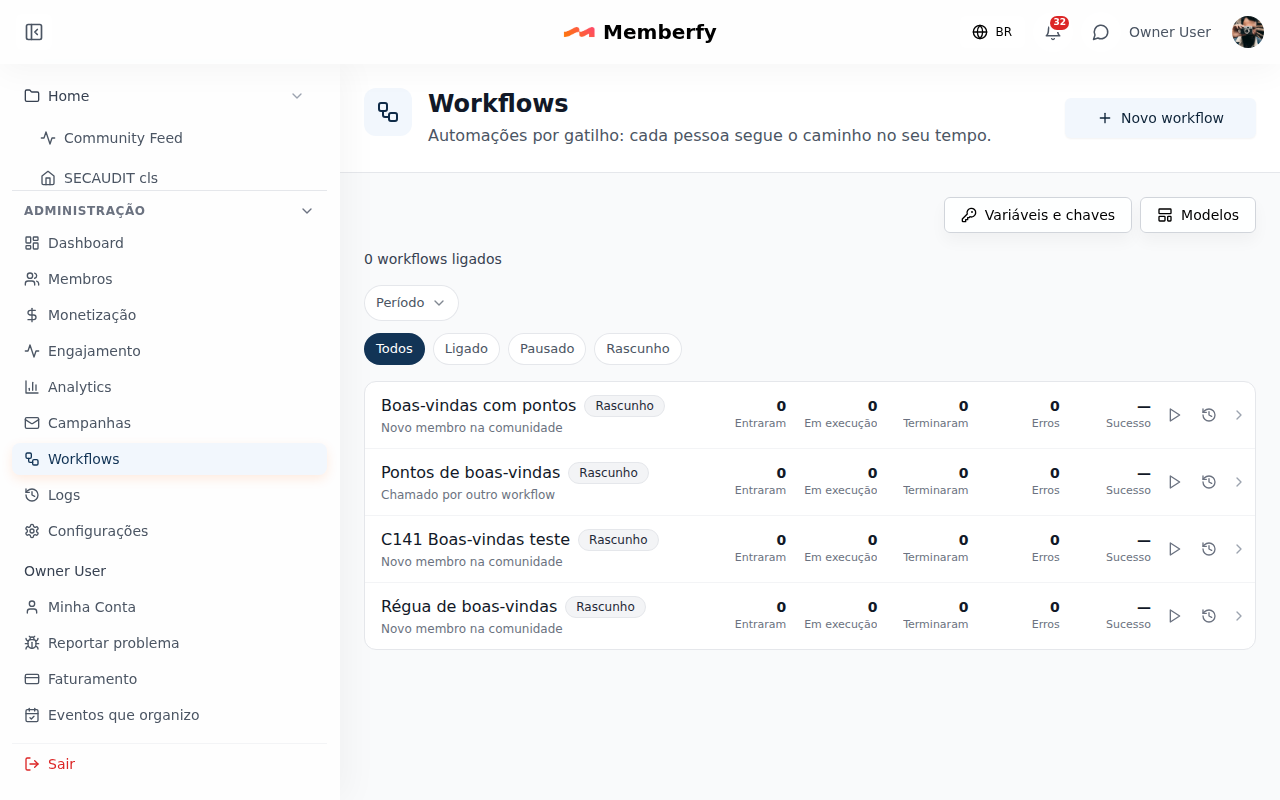
| Number | What it counts |
|---|---|
| Entered | Runs that started in the period |
| Running | People on the path right now (always counted, whatever the period) |
| Finished | Runs that reached the end |
| Errors | Runs that ended in error |
| Success | Success ÷ (success + error), as a percentage, with the color of its band; next to it, the date of the last run |
The actions sit on the row itself (icons on a computer, a sheet of options on mobile):
- Turn on (or Resume, on a paused workflow): asks for the consent confirmation when the trigger is by date or scheduled; if something is missing in the design, the list says what it is and opens the workflow to fix it.
- Pause: no one new enters and each person freezes at the step they are on, including during a wait; Resume carries on from where it stopped.
- Stop: no one new enters and the runs under way are canceled ("No one new enters and 12 runs under way will be canceled."). The workflow stays paused and can be turned on again; people who were canceled do not come back.
- Runs: opens the workflow's history, with each person, the state and where they are or stopped.
Pause or Stop? Pause to fix something and carry on with the same people; stop when what is on the path should no longer go out.
Active workflows by plan. Above the list, "3 of 10 workflows on" (or "3 workflows on", when the plan has no limit). The plan sets how many workflows can be on at the same time: 3 on Starter, 10 on Growth, 30 on Business and no limit on Scale (see Plan and extensions). With the limit reached, turning on or resuming another one shows "Your plan allows 10 workflows on at the same time, and 10 are already on. Pause or stop another one, or change your plan.", with See plans. Pausing or stopping one frees the slot. The SuperAdmin can grant a community an exception, and the new limit applies right away.
How many times a person enters
The How many times a person enters field has Only once, Again after some days and Every time the trigger happens, and only shows up when the trigger can happen again for the same person. Each trigger has its own nature:
| The trigger happens… | Examples | The field |
|---|---|---|
| Once per membership | New community member; A purchase is completed with First purchase only | Hidden. The screen says "This trigger happens once per membership. Someone who leaves and comes back enters again." (or "First purchase only: this trigger happens once per person.") |
| Once per person and item | Course enrollment and completion, lesson completed, quiz passed, certificate issued, first visit and access to a space, survey answered, review result, development plan approved, item published or deleted | Hidden when the filter picks one item (a course, a space, a survey, a cycle): "This trigger happens once per person for the chosen item." With any item, it shows |
| Can repeat | Purchase, subscription, event registration and check-in, comment, reaction, post, tag, group, profile field, cart, DM received, Someone comes back after N days away | Shows |
| By time or run | The date triggers, Scheduled, Manual and Webhook received | Shows |
When the field is hidden, Only once applies within the same membership: someone who leaves the community and comes back enters again.
Never two runs at the same time still applies to every trigger: an event that arrives while the person is in the middle of a run does not open another one and shows up in the history as Skipped, with the reason "was already in progress".
How a workflow ends
Every workflow has one entry and an explicit end, so you know whether each run went well and what to do when it did not.
- A single trigger. The design takes one trigger; the API refuses a second one.
- End: success and End: error, in the End category of blocks. Every path ends in one of them: a path without an end is marked ("This path needs to end in End: success or End: error.") and the workflow is not saved. An end only goes where nothing comes after. An older workflow opens with End: success drawn on the loose ends and keeps running the same way.
- "ok" and "error" exits on each action (send e-mail, send a message, comment, react, tag, group and Slack). The "ok" exit follows the path; Connect the error exit takes the failure to another block, like a DM to the team or End: error. With the error exit not connected, a failure ends the run in error, with the reason. Wait, Condition, While and Write to log have no error exit.
- Summary and alert: see Success rate and error alert.
What counts as an error. Only what really fails at the moment of the step: the e-mail that was deleted from the library or that did not make it into the sending queue, the trigger's item or the group that no longer exists, the message that could not be created, Slack not installed, without the channel or down, and the wait for quota that went past its limit (see When sending is postponed). For the e-mail, only the failure to queue it counts: a bounce or a provider failure after that does not change the path.
What does not count as an error. A step skipped by a rule that does not change with time (unsubscribe, bounce, messages turned off, block) and a step postponed by quota go on through the "ok" exit. Both show up in the history, but never count as errors.
Each step leaves its result for the next ones: {{steps.<block>.result}} (done, skipped or failed), {{steps.<block>.reason}} and, only on that step's error path, {{steps.<block>.error}}, the reason for the failure. See Variables.
Success rate and error alert
In the History, the How the runs end card shows:
- Success in 7 days and Success in 30 days, as a percentage ("18 of 20 runs"); success and error count by the end block;
- Skipped steps (7 days), Error logs (7 days), Waiting for quota (now) and Already in progress (events in 30 days);
- Latest errors: the last 10 runs that ended in error, with the block and the reason.
Skipped and postponed steps and logs do not count as errors. The moderator and finance see the card read-only.
Error rate alert. When more than 20% of the runs in the last 24 hours end in error (with at least 20 runs in the period), the owner and the admins get a notice in the bell and by e-mail ("The workflow "Welcome" has 35% errors in the last 24 h (7 of 20 runs). See what failed."), at most one a day for each workflow.
Variables
Each trigger hands the data of what happened to the next blocks: the course name in the congratulations, the product and the amount in the thank-you for the purchase, the date in the event reminder. Variables have English names, with dots, like {{course.name}} and {{purchase.product}}, and work in the texts of the message (DM), the comment, Slack, Write to log and in the e-mail (subject and body).
Insert variable. The button sits on each text field. The menu groups the variables by the block that produced them, with the name you gave the block and its icon ("Trigger · Courses", "Person", "Community"), in the order of the flow, and only shows the blocks that come before the block being edited. Each variable has its readable name, the code and an example: "Course · {{course.name}} · e.g.: Leadership Course". The search ("Search variable or block") finds it by the name of the variable or of the block. That is why it pays to give each step a Block name.
In the e-mail. Edit e-mail, in the Send e-mail step, opens the library e-mail with the Insert variable of that point in the flow.
How the person sees it. Under each text with variables, the preview shows the text filled with sample data (Maria Souza, [email protected]). The simulation shows the texts with the person's real data (see Simulate, test and estimate).
Fallback value. For people who do not have the data, write a text after the bar: {{purchase.discount|no discount}}. A variable without a value goes out empty, or with the fallback value, and the sending does not fail.
The variables:
| From | Variables |
| AI blocks | steps.<block>.output (the text or the JSON), steps.<block>.output.<field> (each JSON field), steps.<block>.tokens and steps.<block>.model |
|---|---|
| Person (every workflow) | member.first_name, member.name, member.email, member.phone, member.role, member.language, member.member_since, member.last_seen_at, member.tags, member.groups and member.field.<key> (the profile fields) |
| Community (every workflow) | community.name, community.language |
| Purchases | purchase.product, purchase.product_type, purchase.amount, purchase.discount, purchase.payment_method, purchase.installments, purchase.free, purchase.first, purchase.tickets, purchase.ticket_type, purchase.batch; on a refund, refund.product, refund.amount, refund.partial; on the cart, cart.product |
| Subscriptions | subscription.product, subscription.plan, subscription.interval, subscription.amount, subscription.period_end, subscription.ends_at, subscription.canceled_by, subscription.previous_plan, subscription.trial_ends_at (depending on the trigger) |
| Events | event.title, event.date, event.time, event.type, event.ticket_type, event.check_in_method, event.previous_date (on a rescheduled event) |
| Courses | course.name, course.completed_at, lesson.title; certificate.title, certificate.source |
| Spaces, posts and comments | space.name, target.type (where the comment or the reaction was), target.reaction |
| Tags, groups and fields | tag.name, group.name, field.name |
| Downloads | download.title, download.folder (the category), download.previous_folder, download.file_name, download.file_type, download.size, download.version |
| Forms, surveys and calls | form.name, survey.title, call.name, proposal.status |
| Levels and points | level.name (the level's name), level.previous_name, level.number, level.direction (Moved up or Moved down), level.cause (Points or Weekly activity), points.total, points.previous |
| Bookings | booking.resource, booking.starts_at, booking.ends_at |
| Reviews (HR) | cycle.name, cycle.due_at |
| Access | absence.days (days without signing in), on Someone comes back after N days away and Someone has not signed in for N days |
| Who took the action | actor.name, on the lifecycle events |
| DM received | dm.from.name, dm.from.email, dm.to.name, dm.conversation_url and, with its own rule, dm.text (see DM received) |
| Webhook received | trigger.<name>, the values you defined on the trigger |
| Earlier steps | steps.<block>.result, steps.<block>.skipped, steps.<block>.reason and, on the error path, steps.<block>.error |
The formats. Money values go out in the person's currency and language (R$ 197,00); dates, in the community's time zone and the person's language. member.language and community.language go out as the language code (pt-BR).
Rules:
- The trigger's data is stored when the person enters: a 3-day wait does not change the product or the amount, even if the product is renamed in the meantime.
- A variable that does not reach the block (from a step that comes later, or from another trigger) blocks saving, and the block is marked with its name.
- Values go in as text: HTML is escaped in the e-mail and the comment, without
<>in the DM and without mentions or links on Slack; in the subject, without line breaks. No variable goes into a link's address, andtrigger.*does not go into the subject. - An AI block's answer and a Call webhook answer come from outside: they are escaped where they land and never go in an e-mail subject.
- No variable carries what a member wrote (post, comment, answer, voting topic or ad title), fees, documents or HR review content beyond the cycle's name and deadline. The person's e-mail and phone may go in the Slack post.
- The old names keep working (
{{nome}},{{comunidade}},{{campo_<key>}},{{gatilho_<key>}}), but they do not show up in Insert variable.
In campaigns. A library e-mail that uses workflow variables shows "Uses workflow variables". In a campaign, these variables go out empty, and New send warns: "This e-mail uses workflow variables (…). In a campaign they go out empty: swap them for person or community variables, or add fallback values."
"Variable" condition
The Variable rule, in the Flow variables group of the Condition, compares a piece of data from the flow: choose the variable (in the same menu as Insert variable) and the operator, which depends on the type:
| Type | Operators |
|---|---|
| Text | is equal to, is not equal to, contains, does not contain, starts with, ends with, is empty, is not empty. Ignores case and accents ("avancado" matches "Avançado") |
| Number and money | is equal to (=), is different from (≠), is greater than (>), is greater than or equal to (≥), is less than (<), is less than or equal to (≤), is empty. Money in the community's currency, in its format |
| Date | is before, is after, is between, was more than N days ago, was less than N days ago, is in the next N days |
| List (tags, groups, multiple-choice field) | contains, does not contain, contains any of, contains all of |
| Yes/no | is true, is false |
Examples: "Amount is greater than or equal to 100.00", "Format is equal to In person", "Course contains Advanced", "Date is in the next 7 days".
The other rules use the same operators: Has the tag and Is in the group with contains, does not contain, any of and all of (and several groups at once); Profile field with the operators for the field's type (on a multiple-choice field, contains any of, contains all of and does not contain, with the options; the {{member.field.<key>}} variable carries the ticked options), always with the field's current value. The rule is read at the moment of the step.
Write to log
The Write to log block writes a line on the run: choose the Level (Info, Warning or Error) and write the message, which accepts variables ("{{member.first_name}} reached the end of the welcome series").
- Plain text only: HTML comes out as text, and the message is cut at 1,000 characters after it is filled in.
- Up to 20 logs per run; the 21st is discarded ("run's log limit").
- The exit is always "ok". A log at the Error level does not change the run's result and does not count toward the error rate alert; the summary shows how many there were.
- The log shows up in the run's history and in Administration › Logs, under the Workflows source, with a filter by workflow and by level. See Logs.
- The message is only visible to the owner and the admin, because it may contain any variable. The moderator and finance see in the history that there was a log, with "Message visible to owner and admin only." in place of the text.
Call webhook
The Call webhook block, under Integrations, sends an HTTPS call to another system in the middle of the path: tell the CRM about a purchase, write a row to a spreadsheet, call an n8n flow.
- Method and Address (URL): only
https://, port 443 and a fixed host. Variables can go in the path, never in the host, and vault keys never go in the address. - Headers and Body (JSON): accept variables and vault keys (
{{env.CRM_TOKEN}}), only to the key's addresses, when it has any. The body goes withmemberfy.memberLanguageandmemberfy.communityLanguageadded. - Maximum response time: 2 to 15 seconds (default 10).
- What the next blocks can use:
{{steps.<block>.status}},{{steps.<block>.duration}}(ms),{{steps.<block>.size}}(bytes) and the fields of the JSON answer, up to 16 KB ({{steps.<block>.body.<field>}}). Values from outside never go into an e-mail subject.
| Answer | What happens |
|---|---|
| 2xx | Goes on by the "ok" path |
| 3xx (redirects are not followed), 4xx, blocked address, answer over 64 KB, invalid body, key outside its addresses | Goes by the error path, right away |
| 5xx, slower than the maximum time, or a network failure | Tries again after 1, 5 and 15 minutes; without success, goes by the error path |
Limits: 60 calls a minute and 2,000 a day per workflow; 300 a minute and 20,000 a day per community. What goes over waits its turn instead of failing. A destination that fails several times in a row is put on hold for a few minutes.
Fixed IPs
On the Business and Scale plans, calls go out from fixed IPs, the same as webhook deliveries (see Fixed IPs), so you can allow them in the destination's firewall. The block's panel shows the IPs, with Copy IPs, and how many of the month's calls already went out through them.
- The limit is 10,000 calls by fixed IP a month. Past it, the rest go out from changing IPs until the month turns, and the owner gets a bell notice that opens the workflows. The month is the calendar month in the community's time zone: the count restarts at midnight on the 1st and does not carry over on an annual plan.
- On the other plans, calls go out from changing IPs.
- The history shows, for each call, where it went out from: Fixed IP, Changing IP or "Changing IP (monthly fixed-IP limit reached)".
Variables and keys
Variables and keys, at the top of Administration › Workflows, is the community's vault: the tokens and keys that Call webhook uses in headers and body. Only the owner and the admin see and change it.
- Before the first key, read the notice Before you start: a note on personal data and click I have read and accept: people's data sent by webhook leaves Memberfy for the system you point to, and the community is the controller of that data. You accept it once, for the whole community; after that, the screen shows when it was accepted.
- New key opens a dialog with three fields:
- Name: how you refer to the key inside the workflow. It adjusts as you type (capital letters, numbers and
_; spaces and accents become_), and right below it shows exactly what to write in the block: "In the "Call webhook" block, write"{{env.CRM_TOKEN}}. - Value: paste the token or password. The eye icon shows or hides what you pasted (Show the value / Hide the value), only while the dialog is open.
- Can only be sent to (optional): the addresses the key may go to, like
api.yourcrm.com(Enter or Add; if you paste a full URL, only the domain is kept). Empty, the key can be used with any address; with addresses, it only goes to them. For a key tied to one system, like a CRM token, fill it in: it is safer.
- Name: how you refer to the key inside the workflow. It adjusts as you type (capital letters, numbers and
- In the block, use
{{env.CRM_TOKEN}}.
- The value never comes back to the screen. It is stored encrypted, and the list shows only its end ("…a1b2"), where it can go (or "Any address") and when it was used. To change it, Replace.
- Delete wipes the value at once; workflows that use the key then go by the error path.
- The history shows the names of the keys used in a call, never the value.
AI limits
The AI limits card, in Variables and keys, holds the spending of the Claude and ChatGPT blocks, which is the community's. Only the owner and the admin see and change it, and each change is recorded.
What a token is. The AI reads and writes text in tokens, pieces of a word: 1,000 tokens are about 750 words. Both the input (the instructions and the prompt) and the output (the answer) count. None of it uses Memberfy's AI quota.
| Ceiling | Default | When it is passed |
|---|---|---|
| Per call | 4,000 tokens | The most the model writes in one answer: a block that asks for more gets this number |
| Per run | 20,000 tokens | The total for one person going through the workflow. Past it, the block takes its error exit ("AI token ceiling per run reached.") |
| Per day | 200,000 tokens | The community's total for the day, in the community's time zone. Past it, the blocks wait for the next day and go out when it starts |
Per call must be less than or equal to per run, and per run less than or equal to per day. The card shows how much was used today ("Today: 12,400 of 200,000 tokens used."); Save limits saves and Back to default goes back to the numbers in the table.
AI blocks (Claude and ChatGPT)
The Claude and ChatGPT blocks, under the AI category, ask the AI for a text or a JSON in the middle of the path: write a personal welcome, classify a support ticket, summarize a form answer. The call uses the community's own API key, created at Anthropic (Claude) or OpenAI (ChatGPT): the community pays for the use, straight to the provider.
Before the first block:
- In Variables and keys, accept the personal data notice and create a key with the provider's API key. In Can only be sent to, put
api.anthropic.com(Claude) orapi.openai.com(ChatGPT). A key with no address also shows in the block, but restricting it is safer; a key with other addresses does not. - Check the AI limits.
The block's panel:
| Field | What it is |
|---|---|
| Model | The model family, described by use: the most capable, for hard tasks (slower and pricier), a balance of quality, speed and cost, or the fastest and cheapest, for simple tasks. The list follows each provider's current models |
| API key | Only the keys in Variables and keys that may go to the provider; Create a key in Variables and keys takes you to the vault. The key never goes in the prompt or the history |
| System instructions (optional) | How the model behaves on every call: role, tone, rules |
| Prompt | The request, with variables ("Write a welcome message for {{member.first_name}}, who just joined the community."). The vault keys ({{env.*}}) are not allowed |
| Answer format | Text or JSON. With JSON, an optional JSON schema, and each field of the answer becomes a variable |
| Token cap | The most the answer can be, from 16 to 8,000 tokens (default 1,024); the community's per-call ceiling can lower it |
| Wait time | How long to wait for the answer, from 5 to 60 seconds (default 30) |
Variables enter the prompt as data, never as orders to the model, together with the person's and the community's languages. Put in the prompt only what the task needs.
What the next blocks can use: {{steps.<block>.output}} (the text or the JSON), {{steps.<block>.output.<field>}} (each JSON field, also in a "Variable" condition), {{steps.<block>.tokens}} and {{steps.<block>.model}}, through Insert variable. The answer is kept up to 16 KB. It is an outside value, like a webhook's: it is escaped where it lands and never goes in an e-mail subject.
How the block behaves:
| Answer | What happens |
|---|---|
| Answer received | Goes down the "ok" path, with the answer in the variables |
| Key or request refused, the model refuses, empty answer or cut by the token cap, JSON not valid for the schema | Goes down the error path, right away |
| Timeout, provider down or provider limit | Tries again after 1, 5 and 15 minutes; without success, goes down the error path |
| The AI limits' per-run ceiling | Goes down the error path |
| The AI limits' daily ceiling | The step waits for the next day, in the community's time zone |
The simulation shows the filled prompt without calling the AI, and the history shows each call's model, tokens and duration, never the key, the prompt or the answer (see History).
Send SMS and Send WhatsApp
The Send SMS and Send WhatsApp blocks, in the Messages category, send a service notice to the phone of the run's person, under the rules of SMS and WhatsApp notices: the channel on in E-mails and notifications, a phone verified (or provided by the team when declaring the consent), service consent for that channel and the Automations category on in My Account › Notices.
- Text (SMS): up to 300 characters, with variables ("Hi {{member.first_name}}, your event starts in 1 hour."). Variables go in as plain text. When sending, Memberfy puts the community's name in front ("[Running Club] …") and, on SMS, the opt-out link at the end.
- Parts (SMS): the panel counts the parts of the text alone and as sent (with [Community] in front and the opt-out link). One part holds 160 characters, or 153 when the message splits; an accent such as ã, õ or ç, or an emoji, makes each part hold 70 (67 when it splits). Variables count as typed.
- Template (WhatsApp): WhatsApp doesn't accept free text. Pick the Template (Ticket confirmed, Payment declined, Community notice…), fill in the Template fields (up to 300 characters each, with variables; Memberfy fills in the person's first name and the community's name) and, optionally, the Page the button opens (a path in the community, like
/eventos; empty, the home page). For a message without a template of its own, use Community notice, whose field is your text. How it arrives shows the assembled message. A marketing template only reaches people who accepted news on WhatsApp. Don't repeat in a workflow a message the platform already sends, such as the payment confirmation or the event reminder. - Templates a workflow can use (WhatsApp): Community notice (also in the service version), Ticket confirmed, Payment confirmed, Payment declined, Purchase not completed, Event tomorrow and Event starting (with the in-person versions, which carry the map), Event live, Reply to a post, Mention, Direct message, New content, Proposal decided, 1:1, Feedback received (also in the service version), HR to-do, Booking reminder, Subscription renewing, Refund, Waitlist spot and Certificate issued. Left out are the ones no trigger can fill (Visitor at the front desk, Parcel received, Card expiring, Reply to my support ticket and Sign-up approved): those only go out as a platform message.
- Marketing templates (WhatsApp): WhatsApp classifies Community notice and Feedback received (both versions of each), Purchase not completed, Mention and New content as marketing. Whoever didn't accept news on WhatsApp doesn't get them: the step is skipped ("no WhatsApp consent") and continues down the "ok" path. So that everyone gets the message, put a "Variable" condition after the block with
{{steps.<block>.result}}equal toskipped, leading to a Send email. See Marketing templates.
How the block behaves:
| Situation | What happens |
|---|---|
| Sent | Goes on through "ok". The history shows the text and, on SMS, the SMS parts |
| The person cannot receive: channel off in the community, left the community, no phone, phone not verified (nor provided by the team when declaring the consent), country not served, no consent, stopped this community's notices or replied STOP, turned the Automations category off, empty text. On WhatsApp, also a template not approved yet and a marketing template for people who did not accept news | Skipped, with the reason, and goes on through "ok" |
| Quiet hours (9 p.m. to 8 a.m., the recipient's time zone), the community's daily cap or the monthly quota | Waits for quota and goes out when it frees up, as in When sending is postponed |
| The person already got the day's per-person limit (5 by default, on the SMS card) | Moves to the next day at 8 a.m. |
| The send was refused | Goes through the error path, with the Refusal code in the history |
| Temporary failure | Retries after 1, 5 and 15 minutes |
With the community's sending suspended, both blocks wait, like the other messages. Neither skipped nor postponed counts as an error.
Reminders that also go by SMS
With SMS on in the community, three platform reminders also go out by SMS, without a workflow, to whoever can receive: the event reminder, 1 hour before; the PDI cycle reminders (submit and approve the PDI); and the 1:1 reminder. Each screen says so ("The reminder 1 hour before also goes by SMS to people who consented."). A reminder that quiet hours or the daily cap would delay is skipped on SMS; the e-mail goes out as always. With SMS off, nothing changes.
Platform actions and other workflows
Each platform action is a block in the bar, with the action's name, under the category of what it touches (People, Content or Messages). It does for the run's person what the team does on screen; the block's panel asks for the action's fields (the course, event, plan or product and group by search, the Profile field, the New role, the Points and the Reason, dates and texts, with variables) and says which role it needs:
| Action | What it does | Minimum role of who turns it on |
|---|---|---|
| Change role | Changes the person's role, admin included (never to owner, never an owner's role or one's own) | Admin |
| Remove from group and Fill a profile field | Takes the person out of a group; writes a value in a profile field | Admin |
| Adjust points | Adds or removes ranking points, with the reason in the history | Admin |
| Award badge and Remove badge | Awards a badge from the catalog, with an optional Reason (someone who already holds it is skipped), with the bell notice and the Achievements e-mail; or takes it back, without notice (someone who doesn't hold it is skipped) | Admin |
| Give courtesy access and End courtesy | Gives a plan as a courtesy until an end date, or ends the courtesy (a paid subscription is never touched) | Admin |
| Give a courtesy ticket | A courtesy ticket for the event | Admin |
| Schedule a 1:1 | Creates a recurring 1:1 between the person and their direct leader, with the Frequency (weekly, every two weeks or monthly), the Weekday, the Time and the Length (minutes). Without a direct leader, or with a recurring 1:1 already set, the step is skipped | Admin |
| Add a PDI action | Adds an action, with Due in (days), to the person's active development plan; without an active plan, creates a draft with it. In the plan, the action shows "Created by the workflow …" | Admin |
| Publish a post | Publishes a post (in Markdown, with variables) in a feed or content space, on behalf of whoever turned the workflow on, with the space's rule on who can create and no e-mail notice | Moderator |
| Issue a certificate | Issues a certificate from an active template to the person, with the notice e-mail when Send the certificate by e-mail is checked; whoever already has it is skipped | Moderator |
| Recognize | Whoever turned the workflow on posts a recognition for the person, with the message and, optionally, a community value | Moderator |
| Block in the chat | Whoever turned the workflow on blocks the person in the chat, with no notice to anyone; the action has no fields | Moderator |
| Register for event and Enroll in course | Free events and courses only | Moderator |
| Send an in-app notice | A notice in the person's bell, with title and text. The notice also arrives as a browser and phone notification, in the Team notices category; tapping it opens the bell | Moderator |
Anything that moves money or deletes for good never runs in a workflow.
Call workflow runs, for the same person, a workflow that starts with Called by another workflow. In that workflow's trigger, Values this workflow receives declares what it expects (names with lowercase letters, numbers and _), used in blocks as {{trigger.<name>}}; in End: success, Values returned says what goes back to the caller. In the Call workflow block, pick the Called workflow, fill the Values sent and see What it returns, which the next blocks use as {{steps.<block>.output.<name>}}. The calling workflow waits for the other to finish and goes on by "ok" or by error. A workflow never calls itself or whoever calls it, and a chain goes up to 3 workflows. So a shared welcome lives in one workflow, called by many.
Which role the steps act with
A workflow never does more than the person who set it running:
- Steps act with the role of whoever saved, turned on, resumed or ran the workflow. An action above the editor's role is flagged in its panel ("This action needs owner: you cannot save the workflow with it.") and the workflow is not saved.
- The role is read again at every step: if the person lost the role, the action is skipped; if they left the community, the step fails.
- The admin acts like the owner. An admin saves, turns on and runs workflows with any platform action, making someone an admin included. Only an action marked as owner-only would stay above the admin (the workflow would open read-only: "This workflow has actions only an owner can change. You can view and simulate."), and none is today: the community's ownership and the plan are not workflow actions.
- The moderator and finance have limits: they view, simulate and follow the history, but don't save, turn on or run workflows, and a workflow never gives them a power they don't have.
- A workflow called by another acts with the weakest role of the chain.
Lifecycle events
29 triggers with each module's lifecycle, each one in its family's block and also in the webhooks.
| Family | Triggers |
|---|---|
| Downloads | A file is published, edited, moves to another category or is deleted; an attachment is added, replaced by a new version or removed; a downloads category is created |
| Posts and comments | A post is edited, moves to another space or is deleted; a comment is deleted; someone removes a reaction |
| Events | An event is created, edited, rescheduled or deleted; the stream starts; the recording is published |
| Courses | A course is published or edited; a lesson is published; someone leaves a course |
| Spaces | A space is created, edited or deleted |
| Forms | A form is published, closed or reopened |
- Only live items fire: a draft that is edited or deleted starts nothing.
- Deleting an event is how an event is canceled today, and the trigger says so: "An event is deleted (that is how it is canceled)".
- The run's person is whoever took the action (
{{actor.name}}). When the team publishes (an event, a lesson), the trigger is good for a Slack notice or for recognizing the author; to tell every member about new content, use the e-mail notices or a Scheduled or Manual workflow with an audience.
Levels and points
The Levels and points trigger block ("Someone moves up or down a level, or reaches a points total") follows the community's levels:
| Trigger | When it fires | Filters |
|---|---|---|
| Moved up a level | The moment the person reaches a higher level, through points (an action, a team or workflow adjustment) or by meeting the week's missing requirement. Skipping two levels fires once | Level: the level reached (Any level, empty) |
| Moved down a level | On Monday at 00:00, in the community's time zone, for whoever did not meet the previous week's requirements, and the moment a negative adjustment leaves the person below the level's minimum | Level (the level the person landed on) and Reason: "Did not meet the week's activity (on Monday)" and "Lost points (team or workflow adjustment)", both checked by default ("At least one reason stays checked.") |
| Reached N points | "Fires when the total goes past this number upward. Someone who drops and passes it again fires again." | Points (required) |
None of the three fires on a points recalculation, an import, when the community changes its levels or with gamification off.
Conditions. In the Condition, the Engagement group has the Level rule ("is at level Kernel or above", or "is below level Kernel") and the Points rule ("has at least 500 points", or "has fewer than 500 points"), read at the moment of the step.
Examples: "Moved up to Kernel → award the Kernel badge"; "Moved down from Kernel, reason weekly activity → remove from the Kernel group"; "Reached 1,000 points → send a congratulations DM".
DM received
The Messages trigger block has the A member sends a DM to the team trigger: it fires when a member sends a message to someone on the team. The run's person is whoever sent the DM. A DM between members, or from someone on the team, does not fire it.
Filters:
- Who receives it: one or more team members (required).
- Sender has the tag and Sender is in the group (empty: any member).
- Only the first message of a new conversation. Unchecked, every message fires it, with the rule in How many times a person enters.
Variables: {{dm.from.name}} and {{dm.from.email}} (who sent it), {{dm.to.name}} (who received it) and {{dm.conversation_url}} (the link to the conversation).
The DM text ({{dm.text}}) follows the rule of messages: the team does not read other people's conversations. That is why it is only available when the workflow belongs to the person who received the message:
- the Who receives it filter has exactly that person, and only they save and turn on the workflow;
- the text can only go into a DM signed by that person, the body of an e-mail or a condition. Anywhere else (subject, Slack, comment, log, a DM on behalf of someone else), or in a workflow saved or turned on by someone else, the block is marked with an error in the drawing and the workflow is not saved.
The event also reaches the webhooks as message.received, without the text of the message.
Limits
- Frequency limit, optional, on each workflow: at most N e-mails every so many hours or days to the same person; anything over it waits for quota.
- Community daily limit: the plan's workflow e-mails a day (40 on Starter, 80 on Growth, 200 on Business and 350 on Scale; see Plan and extensions); anything over it waits for the next day. Transactional e-mails never count toward this limit.
- SMS and WhatsApp per person: at most 5 workflow messages per person per day in each channel, by default (from 1 to 20, on the SMS card); anything over it goes out the next day at 8 a.m.
- Messages: at most 1 workflow message per person per day; people who turned messages off or blocked the signer do not get it.
- Webhook received: at most 5 runs per person per day in each workflow.
- People who unsubscribed from Automations, addresses with a bounce or a complaint and the community's sending reputation also hold the e-mails back.
- Call webhook: see the call limits.
- With the community's sending suspended, Run now and Scheduled start nobody, and the messages, comments, reactions and Slack posts of people already on the path wait for the suspension to end (tags and groups carry on).
When sending is postponed
When a limit that frees up with time holds the step back, it waits for quota and goes out as soon as the quota frees up, instead of being skipped:
| Limit | How long it waits |
|---|---|
| The workflow's Frequency limit | Until the end of the limit's window (the window goes up to 90 days) |
| Community daily limit | Up to 7 days |
| Sending reputation on alert or paused | Up to 7 days |
| Community's sending suspended | Up to 48 hours |
| 1 workflow message per person per day | Up to 7 days |
- The history shows "Waiting for quota: postponed until 10/28, 9:00 because of the workflow's frequency limit".
- When the quota frees up, the steps go out spread over an hour; after a suspension, at a controlled pace, and not all at once.
- Once it goes out, the step follows the "ok" exit. Past the maximum time, the run follows the "error" exit with the reason "waited for quota past the limit".
- Pausing the workflow freezes the wait; Resume restarts the count; End run or Stop cancels it, and nothing is sent.
- A new event for the same person during the wait does not open another run ("was already in progress").
A permanent block counts as skipped. Unsubscribing from Automations, an e-mail with a bounce or a complaint, a person without an e-mail, messages turned off, a block of the signer and a signer outside the people allowed do not free up with time: the step is skipped, with the reason, and the path goes on through the "ok" exit ({{steps.<block>.result}} is skipped).
Neither postponed nor skipped counts as an error: they do not change the run's result or the error rate alert.
Consent and who signs
Date trigger and Scheduled: when turning it on, the window asks once for the confirmation that these people, already in the community, may receive these e-mails.
On whose behalf
Who may sign workflow messages is a choice of the community:
- In Administration › Settings › E-mails and notifications, the Workflow messages on behalf of card (the same one shows at the top of Administration › Workflows) says on whose behalf workflows may send DMs, comment and react: The whole team (the default: owner, admins, moderators and finance) or Owner only. Only the owner and the admin see and change it.
- The On behalf of field of each DM, comment and reaction block lists the people the setting allows. No one needs to agree to it or approve texts.
- With Owner only, the steps designed on behalf of someone else are skipped, with the reason "the signer is not among the people allowed", and the editor marks those blocks ("This person can no longer sign: with "Owner only", this step is skipped until you change who signs.").
- A record stays: each version keeps who turned it on or published it and the texts that go out on behalf of each person. When someone else on the team turns on a workflow that speaks in your name, you get a notice in the bell, which opens the workflow ("Ana turned on the workflow "Welcome", which speaks in your name. See the texts.").
Templates
Templates creates a draft from one of the 9 templates, with the e-mails already in the library, in the community's language. Nothing is sent until you turn it on.
| Family | Template | What it does |
|---|---|---|
| Engagement | Welcome series | Three e-mails in the first week of someone who joins |
| Engagement | Get started nudge | Joined and did not start a course in 3 days: a little nudge |
| Engagement | Win-back | No access for 30 days: an invitation to come back |
| Engagement | Course congratulations | An e-mail when the person completes a course |
| Engagement | First event registration | A welcome on the first event registration |
| Engagement | Thanks for attending | A thank-you one day after the check-in |
| People (HR) | Pending review reminder | A review not sent for 3 days in the open cycle |
| People (HR) | 1:1 not logged | The 1:1 passed and was not logged yet |
| People (HR) | Goals without check-in | A key result without a check-in for 14 days |
Opening a template shows the steps and the e-mail subjects before you use it ("Creates N e-mails in the library").
E-mails and unsubscribing
Workflow e-mails go out in the Automations category of E-mails from this community, on by default, with the link to turn it off in the footer.
Step by step
An example: a congratulations with the course name.
- In Administration › Workflows, click New workflow (or Templates, to start from a template).
- Drag the Courses block from the Triggers category and, in Fires when, choose Someone completes a course. Choose the course: the How many times a person enters field disappears, because each person completes that course once.
- Click the + after the trigger and choose Send e-mail. Give it the Block name Congratulations and choose the e-mail. In Edit e-mail, use Insert variable › Trigger · Courses › Course to put
{{course.name}}in the subject. - Connect the "ok" exit to End: success. If you like, connect the "error" exit to a Send a message (DM) to yourself, with
{{steps.<block>.error}}in the text, and then to End: error. - Save and Simulate with one person, with a student who completed the course: the simulation shows the subject with the course name and Would end in success. In an e-mail step, Send me a test sends the e-mail only to you. Simulate and email me sends you the e-mail as the student would get it.
- Turn on and confirm. In the list, follow Entered, Finished and Success.
Through the assistant (MCP)
The owner and the admin create, edit, turn on, pause and resume workflows through the assistant, including from the templates; turning on and resuming first show the trigger, the e-mails and the estimate. The team looks them up, simulates and follows the history. Also through the assistant: run_workflow (run now), stop_workflow (stop, with the count of runs that will be canceled before the confirmation), get_workflow_summary (the success rate and the latest errors), list_workflow_variables and preview_workflow_text (a block's variables and the filled-in text), get_workflow_settings and update_workflow_settings (on whose behalf) and the incoming webhook address. See the recipes and Tools · Community.
The assistant also learns to automate: the workflow guide (get_workflow_guide and the recipe Automate a rule with a workflow) explains triggers, blocks, rules and variables and brings ready-made recipes; suggest_workflow turns a rule in plain words ("whoever buys the course gets 7 days of access to the mentoring") into a draft, saving nothing; and after sending a campaign, issuing certificates or inviting people, the assistant suggests the workflow that automates it. Also through the assistant: the vault keys (list_env, set_env, delete_env, never showing the value), the platform action and Call workflow blocks, and removing runs from the history (delete_workflow_run, clear_workflow_runs, with confirmation).
For AI and the new actions: the guide has the ai block (with the block's models and limits) and 48 recipes, among them Welcome DM written by AI, Support ticket triage with AI, Form answer summary with AI, Certificate on check-in and Recurring 1:1 for who joins a team. get_ai_limits and update_ai_limits read and change the AI limits, adjust_member_points adjusts someone's points without a workflow, and simulate_workflow with send_emails_to_me sends the simulation's e-mails only to you. None of the four asks for confirmation.
For SMS and WhatsApp: the guide describes the sendSms and sendWhatsapp blocks (the limit, the 24-hour rule and the skip and wait reasons, read from list_workflow_triggers), and the recipes go up to 56, with Welcome by SMS, Event registration confirmed by SMS, Event rescheduled by SMS, Payment overdue by SMS, 1:1 tomorrow by SMS, Event registration confirmed by WhatsApp, Payment overdue by WhatsApp and Waitlist seat by WhatsApp. See SMS and WhatsApp notices. On WhatsApp, the guide builds the block with the template, the fields and the button's page, never with free text, and the recipes use Ticket confirmed, Payment declined and Community notice.
For multiple-choice fields and badges, the recipes go up to 61: Welcome by interest and Tag by interest (with contains any of in the Profile field condition), Badge on course completion, Group for badge holders and Badge on event check-in.
For levels: the guide describes the Moved up a level, Moved down a level and Reached N points triggers and the levelAtLeast and pointsAtLeast rules, with three new recipes: Moved up a level, gets a badge, Moved down a level, leaves a group and Reached N points, gets a badge. The levels themselves are in get_ranking_levels and update_ranking_levels.
In the API
The routes live under /api/workflows: triggers, list, create, edit, delete, turn on, pause, resume, stop, estimate, simulation, test, runs, history per member, templates and run now (POST /api/workflows/{id}/run). See the API Reference. Also POST /api/workflows/{id}/stop, GET /api/workflows/{id}/summary, GET /api/workflows/{id}/variables and POST /api/workflows/variables (the variables of a design not saved yet), GET and PUT /api/workflows/settings (on whose behalf), occurs and variables on each trigger of GET /api/workflows/triggers, activeCount and maxActive in the list, and the workflows source in GET /api/logs. A refused design comes back with 422 and the block: singleTriggerOnly, pathWithoutEnd, variableUnavailable. Also actionAboveRole and subWorkflowAboveRole (an action above the role of whoever saves), subWorkflowCycle, httpTimeoutInvalid, externalInSubject; Run now or the webhook address of a workflow with actions above your role: 403 workflows.actionsAboveRole. And DELETE /api/workflows/runs/{runId}, POST /api/workflows/{id}/runs/clear, the http, platformAction and runWorkflow blocks, the workflow.called trigger, platformActions and subWorkflow in GET /api/workflows/triggers, and the vault under /api/vault (a key's value never comes back).
The AI blocks are the ai block (provider anthropic or openai, model, keyEnv, system, prompt, outputFormat text or json, jsonSchema, maxOutputTokens, timeoutSeconds, next and error), with the models and the block's limits in aiProviders and aiNode of GET /api/workflows/triggers; the ceilings live in GET and PUT /api/vault/ai-limits (owner and admin). The new actions are in platformActions (content.post.create, certificate.issue, recognition.give, chat.block, oneOnOne.schedule, developmentPlan.action.add), with the optional field ownerOnly, and POST /api/gamification/points adjusts points outside a workflow. POST /api/workflows/{id}/simulate takes sendEmailsToMe: true and returns emailsToMe; more than 10 simulations with sending in an hour: 429; an account without e-mail: 422.
The SMS and WhatsApp blocks are sendSms (text, up to 300 characters, next and error) and sendWhatsapp (template, variables, up to 300 characters each, link, next and error; the templates and their fields come in whatsappNode.templates), described in smsNode and whatsappNode of GET /api/workflows/triggers. The reasons stay on the step: skipped (smsNoPhone, smsPhoneUnverified, smsNoConsent, smsOptedOut, smsOptedOutAll, smsCategoryOff, smsCountryUnsupported, smsChannelDisabled, smsMemberGone, smsTextEmpty and the matching whatsapp* ones, plus whatsappNotOnPlan, whatsappTemplateNotApproved, whatsappNoConsent), postponed (smsQuietHours, smsDailyCapReached, smsMonthlyQuotaReached, smsPersonDailyCapReached and the WhatsApp ones) and error (smsSendFailed, whatsappSendFailed). The parts counter is POST /api/sms/segments.
The badge actions are badge.award (with badgeId and reason, which takes variables) and badge.revoke, in platformActions; the triggers are badge.awarded (filters badgeId and sources) and badge.revoked, with the {{badge.name}} variable. The level and points triggers are member.level_changed (filters direction, up by default or down, levelId and, when moving down, causes: points and activity) and member.points_changed (filter points, required: fires when from < N <= to); the rules are levelAtLeast (levelId) and pointsAtLeast (points), with not. On a multiple-choice field, the fieldEquals rule takes op containsAny, containsAll, notContains and contains, with values.