
Networking
The space where people in the community offer to talk, get found and booked at a time on their schedule, and then say how it went. The four models (community mentoring, company mentoring, business connections, event networking) and Custom, joining with or without approval, Explore, booking a session, How did it go?, reviews, points, badges, chat and e-mails.
The Networking module helps the people in your community meet. Whoever can help joins the program and opens their schedule; whoever is looking for help (or business) finds the right person in Explore, picks a time and books a session, with the reason for the conversation. After the session, both say whether it happened and, if the space asks for it, review each other. Sessions turn into numbers on the profile, labels and points.
Each space is a program. To run two programs (mentoring and a business round, for example), create two spaces. Sessions run on the Scheduling engine: same time zone, calendar invite, reminder, cancellation and rescheduling. The difference is that a Networking session is always free: it uses no credits and no payment. To sell your team's time, use Scheduling.
What it's for
| Model | Example | How it works |
|---|---|---|
| Community mentoring | Senior members mentor people who are starting out | Mentor and mentee; mentors join with approval; reviews visible to everyone |
| Company mentoring | HR connects leaders and new hires | The team invites the mentors; reviews visible only to the person reviewed and the team |
| Business connections | A trade association: suppliers and buyers | Everyone offers and books; 20-minute conversations, accepted by the host |
| Event networking | 15-minute conversations between attendees at a fair | Everyone offers and books; in person; only "did it happen?" |
| Custom | Any other use | Starts from community mentoring and you adjust every option |
Event networking
There is no special link to the event: create a section named after the event (APICON 2027) and put the Networking space inside it, with the Event networking model, next to the event's other spaces. Whoever has access to the section takes part. To open it only to ticket buyers, grant the section's access through the ticket product (see Visibility and access); for a free registration, use a group.
Create the space
The owner and the admin create the space; moderators and members don't see Networking in Create Space.
- In the menu, Add Space, Community tab, Networking.
- Give it a name and a description and set who has access.
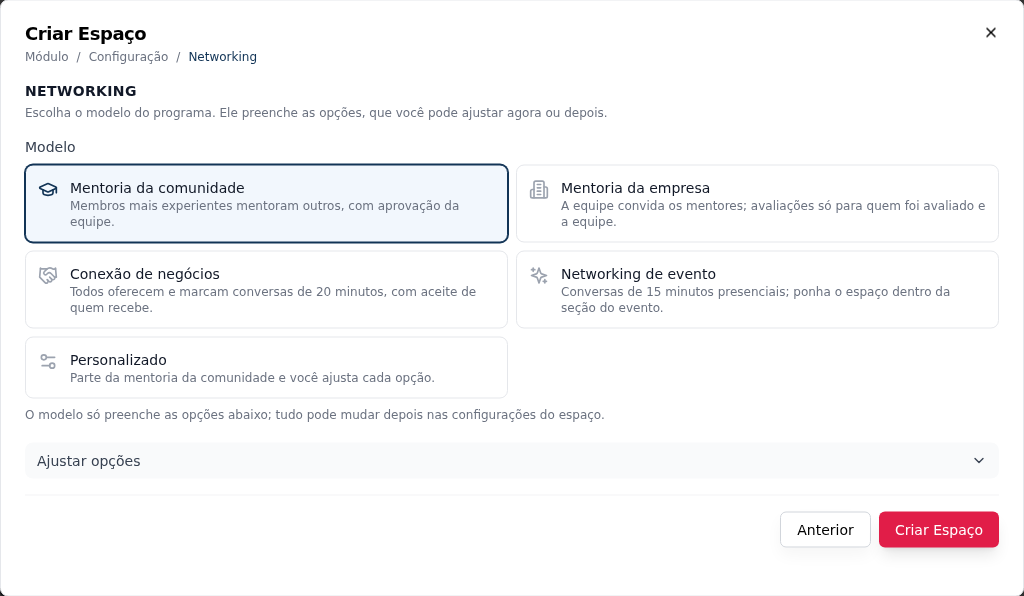
- In the Networking step, choose the Model. It fills in every option.
- To change anything before creating it, open Adjust options. Everything can change later in Settings.
- Create Space.
The options
| Group | Option | What it decides |
|---|---|---|
| Who takes part and how they join | Program sides | Two sides (mentor and mentee) or Everyone offers and books (a single Join button) |
| Name for those who offer and Name for those who book | The names of the sides (default: Mentor and Mentee, or Host and Participant) | |
| Who can be a (mentor) | Any member, Only the team (moderators included) or Only owner and admin | |
| Who can ask to be a Mentor | Groups, tags and badges, on top of the role. Matching one of them is enough (being in one of the groups, having one of the tags or having one of the badges, private ones included). With none picked, anyone with the role can ask | |
| Joining for those who offer | Open, With approval or By team invitation. Those who book have no joining rule: "Whoever can open this space already takes part as a Mentee and books sessions, with no request." | |
| Sessions | Allowed durations and Default duration | The durations the booker can choose |
| Does a session request need acceptance? | The host chooses (each session type says), Always or Never | |
| Where it happens | Online, In person or The host chooses | |
| Limits | Sessions per person per week, Sessions with the same person per month, Minimum notice (hours) and Book up to how many days ahead. Empty or 0 means no limit | |
| Reviews | After the session | Both review, Only the booker reviews, Attendance only or Nothing |
| Who sees the reviews | Everyone in the space, The person reviewed and the team or Only the team | |
| Labels | The four labels | Available now (a free time in the next 7 days), Top rated, New (joined in the last 30 days) and Featured (the team featured them) |
| Categories | The space's categories | They become the chips in Explore and the specialties each person picks |
| Explore filters | Registration fields | The custom fields that become filters and show in the profile's Background. Only fields the member page can show qualify |
What each model fills in:
| Community mentoring | Company mentoring | Business connections | Event networking | |
|---|---|---|---|---|
| Sides | Mentor and mentee | Mentor and mentee | Everyone offers and books | Everyone offers and books |
| Joining for those who offer | With approval | By team invitation | Open | Open |
| Joining for those who book | Open | Open | Open | Open |
| Durations | 15, 30, 45 and 60 (default 30) | 15, 30, 45 and 60 (default 45) | 20 | 15 |
| Request needs acceptance | The host chooses | The host chooses | Always | Never |
| After the session | Both review | Both review | Both review | Attendance only |
| Who sees the reviews | Everyone in the space | The person reviewed and the team | Only the team | Only the team |
| Where it happens | Online | The host chooses | Online | In person |
| Top rated label | Yes (4.8 with 5 reviews) | No | No | No |
Limits start at 2 sessions per week, 2 with the same person per month, 12 hours' notice and 30 days ahead, in all four models. The sample categories are Career, Leadership, Product, Engineering, Design and Entrepreneurship.
The views of the space
The views are underlined tabs, just below the header.
| View | What it has | Who sees it |
|---|---|---|
| Explore | The showcase: search, categories, filters and the people's cards | Everyone with access to the space |
| My sessions | Upcoming, To review and Past | Everyone with access |
| My profile | Your participation, your networking profile, session types and your times | Those with a participation in the program (asked to be a mentor, or had already joined) |
| Team | Requests, People and Badges | Owner and admin |
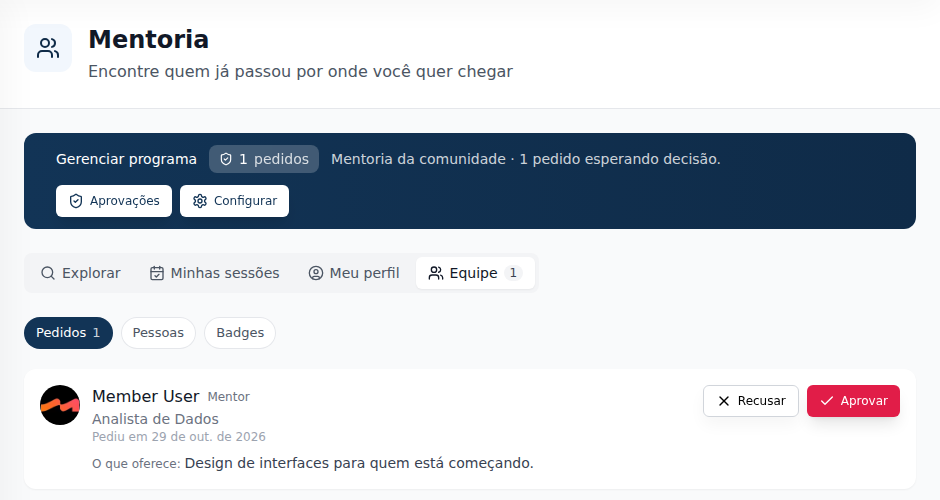
For the owner and the admin, the Manage program bar shows how many requests are waiting, with Approvals (opens Requests) and Settings (the space's options).
Join the program
Whoever opens the space already takes part. In a mentoring program, nobody needs to join to book: whoever has access to the space is already a mentee, books sessions in Explore or on the member's page and sees theirs in My sessions. Who takes part is decided by the space's access.
Only being a mentor is a request. The Be a Mentor button, in the space header, opens the request: Offers, Looking for and Specialties (up to 10 of the space's categories). In a program where everyone offers and books, the button is Join. After the request, the button gives way to a chip with the status: Request to be a Mentor under review, You are a Mentor (or You are in the program), Paused or Request not approved; in the last case, the button comes back as Ask again to be a Mentor. The joining rule for those who offer decides what happens:
| Rule | What happens |
|---|---|
| Open | The person joins at once (Join) and shows up in Explore |
| With approval | Send request: the request waits for the owner or the admin; both get an e-mail and the counter shows in the bar. Meanwhile, the person can already set up the profile and the times |
| By team invitation | The join button doesn't show: only the team adds people, in Team › People › Add person |
Who can be a mentor depends on Who can be a: with Only the team, a member can only join as a mentee. The owner and the admin always join at once.
Mentoring for a specific group. In Settings, the Who can ask to be a Mentor block limits the request to those in one of the chosen groups, with one of the chosen tags or with one of the chosen badges (one is enough), on top of the role rule; Save rule stores it. With nothing picked: "No limit: anyone with the role above can ask." Those who don't match the rule don't see the Be a Mentor button and read "Being a Mentor here is for a specific group. You can still book sessions." The team can still add anyone in Team › People (the role rule still applies), and only the team sees which groups, tags and badges were picked.
Approve or decline
In Team › Requests, each request shows the person, the side, the date and what they offer. Approve puts the person in Explore. Decline asks for the Reason for declining, which the person gets by e-mail and sees in the space ("Reason: …"); they can ask again. Both notices go out by e-mail.
People
In Team › People, filter by Status (Active and paused, Active, Paused, Declined, Out) and, in each person's menu, Feature (the Featured label), Pause, Reactivate or Remove from the program. Add person puts someone in the program, already active, with an e-mail to them; the person needs access to the space, and can be outside the rule for who can ask. When the rule changes, those who are already mentors and no longer match it stay in the program, with the Outside the current rule label: remove them if you want.
Explore
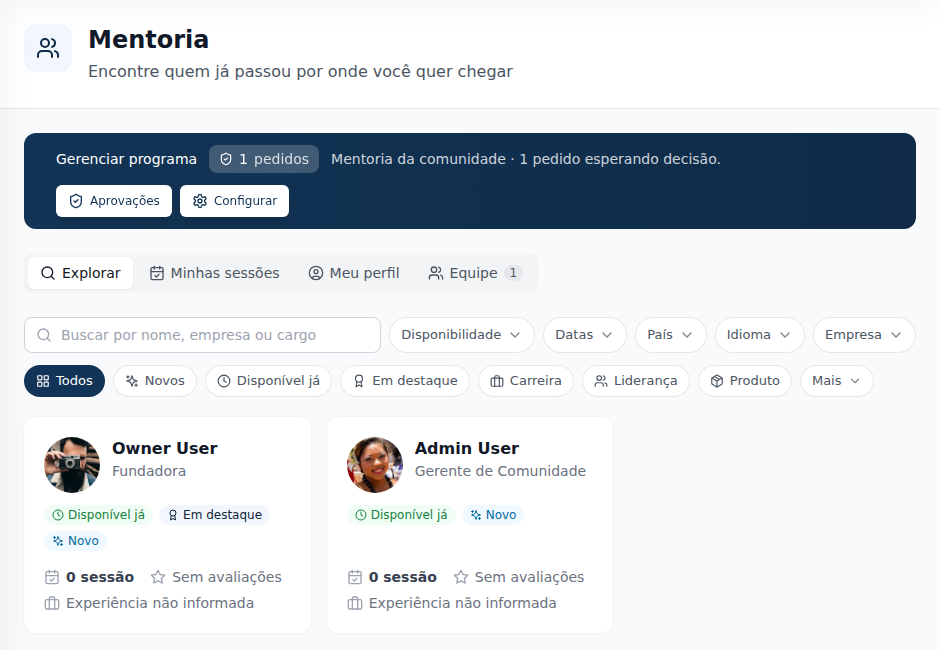
The showcase lists who is active in the program.
- Search by name, company or job title.
- Chips: All, New, Available now, Featured and the space's categories (those that don't fit go under More).
- Filters: Availability (in the next 7 days), Dates (From and To, people with a free time on those days, up to 31 days), Country, Language, Company and the registration fields chosen in Explore filters.
Each card shows only: photo, name, job title and company, the country flag, the labels, completed sessions, the rating (only when Who sees the reviews is Everyone in the space) and years of experience, calculated from the Experience on the member page.
The showcase follows the member page's privacy. Country, language, experience and registration fields only show and only filter when the person made them visible to members (Public or Members). With the country set to Private, the person shows no flag and isn't found by the country filter. The showcase only exists inside the space, for whoever has access to it.
The networking profile
Clicking a card opens the member page with the Networking section: the labels, Offers, Looking for, Specialties, Languages, Session types, Sessions completed, Minutes of conversation and the reviews (according to Who sees the reviews). Beside it:
- Available sessions: the week with the days that have times ("6 times"), the times of the chosen day and Book session.
- Unavailable now, when the person is paused or has no free time, with Explore other people.
Back to Explore takes you back to the showcase. Whoever has access to the space books directly, without joining the program. Whoever the team removed from the program sees "The team removed you from this program; talk to them to book sessions again.", and whoever has no access to the space sees "You don't have access to this Networking space, so you can't book a session here."
Book a session
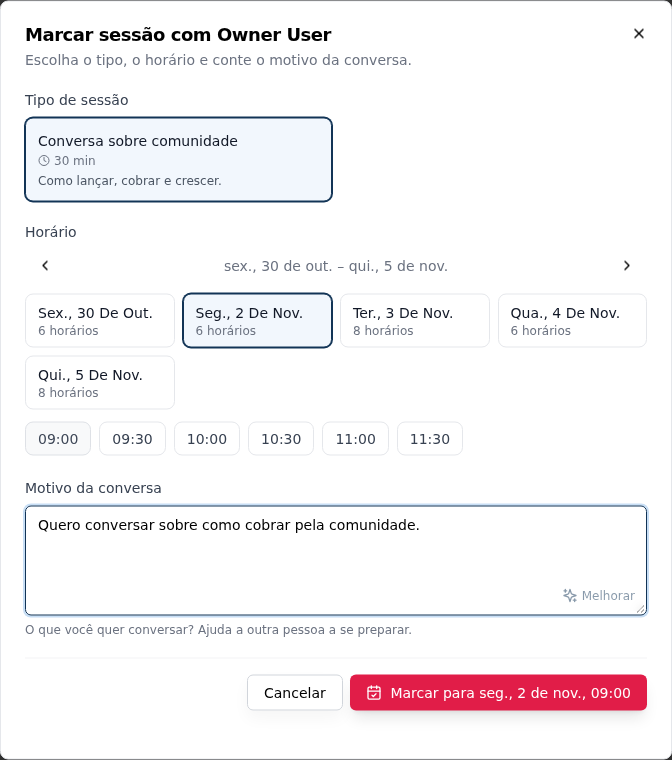
- On the profile, pick the day and time in Available sessions and click Book session.
- Choose the Session type (or, without types, the Duration) and check the Time.
- Write the Reason for the conversation (required): it helps the other person prepare.
- Book for {day}, {time}.
Without acceptance, the session is confirmed: both get the e-mail with the calendar invite (.ics) and the reminder 1 hour before, the same as Scheduling. With acceptance (the space asks for it Always, or the session type says Needs my acceptance), it becomes a request: the time is held until the host clicks Accept or Decline (with a reason, sent by e-mail). An unanswered request expires at the session time.
Why booking can be refused:
| Message | Why |
|---|---|
| That time is no longer available | Someone booked it first. The screen shows the next free times |
| The person already has another session at that time | Nobody is in two sessions at once, as host or as participant, counting the community's Networking and Scheduling |
| A program rule prevents this session | A limit of the space: sessions per week, sessions with the same person in the month, minimum notice or days ahead. The message says which |
| You can't book yet | You haven't joined the program, or your request is still under review |
Limits are checked at the moment of booking, one request at a time: two bookings at the same moment never go over the limit.
For those who offer sessions
In My profile:
- Your networking profile: what you offer, what you're looking for and your specialties.
- Session types: New type with Name (Career mentoring), Description, Duration, Needs my acceptance and Active. An inactive or removed type disappears for bookers; sessions already booked continue. Without types, the booker chooses only the duration.
- Your times: Create my schedule and, in it, Hours (the days and hours you take sessions, on the community's clock) and Blocks. It is the same editor as the Scheduling agenda. While your request is under review, your times only show after approval.
- Pause: you leave Available now and the profile shows Unavailable now; sessions already booked continue. Resume brings you back.
Session requests arrive by e-mail and sit in My sessions › Upcoming, with Accept and Decline.
My sessions
| Tab | What it has |
|---|---|
| Upcoming | Requests and confirmed sessions not over yet, with Join the call (when there is a link), Reschedule and Cancel |
| To review | Sessions that ended in the last 3 days and are waiting for your How did it go? |
| Past | Those that ended, were declined, canceled or expired |
Each session says whether you host or you booked. Cancel asks for an optional reason and tells the other person by e-mail, with the calendar updated; Reschedule checks the duration, the notice, busy times and limits again.
After the session
One hour after the end, both get How did it go? by e-mail, which also stays in To review for 3 days:
- Did the session happen? It happened or It didn't happen.
- Depending on After the session, a rating from 1 to 5 stars and an optional Comment.
- Send. Each side answers once per session.
After 3 days, the session is closed: it happened unless someone said It didn't happen (silence from both counts as happened, with no rating). A session that happened counts in the profile's Sessions completed and Minutes of conversation and can give the first-session badge.
Who sees the reviews
| Who sees the reviews | Who reads them |
|---|---|
| Everyone in the space | Everyone with access to the space, on the profile and in the cards' rating |
| The person reviewed and the team | Only the person reviewed and the team; not even the average shows to others |
| Only the team | Only the owner, the admin and the moderator |
The Top rated label only exists with Everyone in the space. Whoever receives a review is told by e-mail, except with Only the team.
Hide review (on the profile, in the review's menu) is for the owner, the admin and the moderator, with a reason. The review leaves the profile and the average; the team still sees it and can Show review again.
Points and badges
With gamification on, a session is worth points to both, in Members › Gamification:
| Action | Default points |
|---|---|
| Host a Networking session (the host) | 20 |
| Attend a Networking session (the booker) | 10 |
| Review a Networking session | 3 |
| Host a Networking group session | 30 (group sessions aren't available yet) |
Points are given when the session closes, 3 days after the end, and only when at least one of the two confirmed that it happened: a silent session counts on the profile but gives no points, and neither does one marked It didn't happen. So it doesn't turn into a points farm:
- the same pair earns points once a week, across every Networking space in the community;
- each person scores at most 10 sessions a week; beyond that, only the other person in the session scores.
First-session badges. In Team › Badges, pick a badge from the catalog for First session as Mentor and another for First session as Mentee (the names follow the space's sides). They are given automatically when someone's first session happens in this space. With no badges in the catalog, create one in Engagement.
Chat between participants
In a mentoring program, the mentor (active or paused) and whoever opens the same space chat in Messages, both ways, without a connection request. In a program where everyone offers and books, whoever is in the program (active or paused) chats with the other people in the same program, also without a connection request, even when the community asks for a connection before chatting, and sees their page without the limited mode. On the profile, the button is Send message. Still in force: chat turned off, who can start a conversation, unavailable to chat, blocking and the limits on new conversations per hour and per day.
A request under review or declined doesn't count. When one of the two leaves or is removed from the program, and they share no other program nor an accepted connection, the conversation becomes read-only: nothing is deleted, and both can ask to connect.
Whoever the team removes from the program can no longer chat without a connection with that program's mentors, even while keeping access to the space: the conversations with them become read-only, with the history kept, and their page opens in the limited mode again. A connection the mentor accepts unlocks it again. Through the API, opening or sending a message in one of these conversations returns 403 notParticipant (in the connection field).
Leave the program
In My profile, Leave the program cancels your future sessions in this space (as host and as participant, requests and confirmed), and both people in each session get the cancellation by e-mail, with the calendar updated. To be a mentor again, you ask again under the program's rule; as a mentee, you keep booking while you have access to the space. Remove from the program, by the team, does the same.
Whoever loses access to the space (through plan, group or section) leaves the showcase, can no longer be booked, loses the connection-free chat with participants, and their networking profile stops opening for others.
E-mails
The program's notices are in the Networking category of E-mails from this community, on by default; whoever turns it off doesn't get them:
| Notice | To whom |
|---|---|
| Request to join the program | Owner and admin |
| Joining approved (or added by the team) and joining declined, with the reason | The person |
| Session request, when it needs acceptance | The host |
| Session request declined, with the reason | The booker |
| How did it go?, 1 hour after the end | Both |
| You received a review (except with Only the team) | The person reviewed |
Confirmation, acceptance, rescheduling, cancellation and the reminder come through the Scheduling e-mails, with the calendar invite (.ics), in the Reminders and updates on what you take part in category.
Who can do what
| Action | Owner | Admin | Moderator | Finance | Member |
|---|---|---|---|---|---|
| Create the space and change the options | ✔ | ✔ | — | — | — |
| Explore, join, book, review | ✔ | ✔ | ✔ | ✔ | ✔ |
| Offer sessions | according to Who can be a | ||||
| Accept or decline a session request | ✔ | ✔ | the host | the host | the host |
| Approve, decline, add, feature, pause, remove people | ✔ | ✔ | — | — | — |
| Choose the first-session badges | ✔ | ✔ | — | — | — |
| Hide or show a review | ✔ | ✔ | ✔ | — | — |
Examples
Community mentoring. Papo de Sysadmin creates the Mentoring space with the Community mentoring model. Bruna asks to be a mentor, the team approves, she creates the type Résumé review, 30 min and opens Tuesday evenings. Lucas finds Bruna through the Career category and books a Tuesday at 7 pm with the reason "I want to move from support to SRE". Afterwards, both answer How did it go?; Bruna earns 20 points, Lucas 10, and each gets 3 more for reviewing.
Event networking. For APICON, the team creates the APICON 2027 section with access through the ticket product and puts the Business round space inside it, with the Event networking model. Each attendee joins with Join, opens their times on the event days and books 15-minute in-person conversations.
Frequently asked questions
Can sessions be paid? No. Every Networking session is free. To charge for someone's time on your team, use Scheduling.
Where does the conversation happen? On the host's meeting link (it goes in the e-mail and in Join the call) or, in person, at the agreed place.
Can I change the model later? Yes. The options change in Settings and apply at once: with mentors' joining switched to With approval, the next request stays under review.
What happens if nobody answers How did it go? The session counts as happened on the profile (sessions and minutes) and can give the first-session badge, but gives no points.
Through the assistant
The assistant does in conversation what the space does on screen, with the same roles: search people, see their times, book, accept, review, join and set up the schedule, and, for the team, the request queue and the options. See Tools · Networking. The assistant knows that whoever opens the space already books, and only suggests join_networking to those who can ask to be a mentor.
In the API
The routes are under /api/networking (settings, showcase, profiles, participation, queue, sessions, reviews, session types and badges), with X-CommunityId. Canceling and rescheduling use /api/bookings/{id}/cancel and /reschedule, and a person's free times, /api/scheduling/hosts/{memberId} with the Networking space. See the API Reference.
PUT /api/networking/host-rule (owner and admin) stores who can ask to be a mentor, with groupIds, tags and badgeIds (up to 50 each; a list you send replaces the stored one, [] clears it). GET /api/networking/config returns hostRestricted (the rule is limited) and hostEligible (the requester matches it; canJoinAsHost already takes the rule into account) to everyone, and hostRule, with the names, only to the owner and the admin. GET /api/networking/participants flags outsideHostRule on mentors outside the current rule. Asking to be a mentor outside the rule returns 403 hostNotEligible.
GET /api/networking/config also returns canBook (can book sessions in this space) and me can be null for those who only book; canJoinAsParticipant always comes back false and is deprecated. POST /api/networking/sessions doesn't require a participation: the 403 notParticipant now means the team removed the person from the program, and without access to the space it is still 403 spaceAccessDenied. POST /api/networking/participants/me is the request to be a mentor (side: HOST); side: PARTICIPANT is still accepted and only stores what the person is looking for and the categories.