
Images and SEO
The logo, the favicon and the image shown when someone shares the community's link, the recommended sizes, the title and description for search engines, and why the link preview sometimes takes a while to change.
Images and meta tags are what the community shows outside itself: in the browser tab, in Google results and in the card that appears when someone pastes the link into WhatsApp.
What they're for
| Where | What shows |
|---|---|
| Top of the community | The logo |
| Browser tab | The favicon and the name |
| WhatsApp, LinkedIn, Slack, Facebook | The card with the title, the description and the social media image |
| The SEO title and the SEO description |
How it works
Community Images
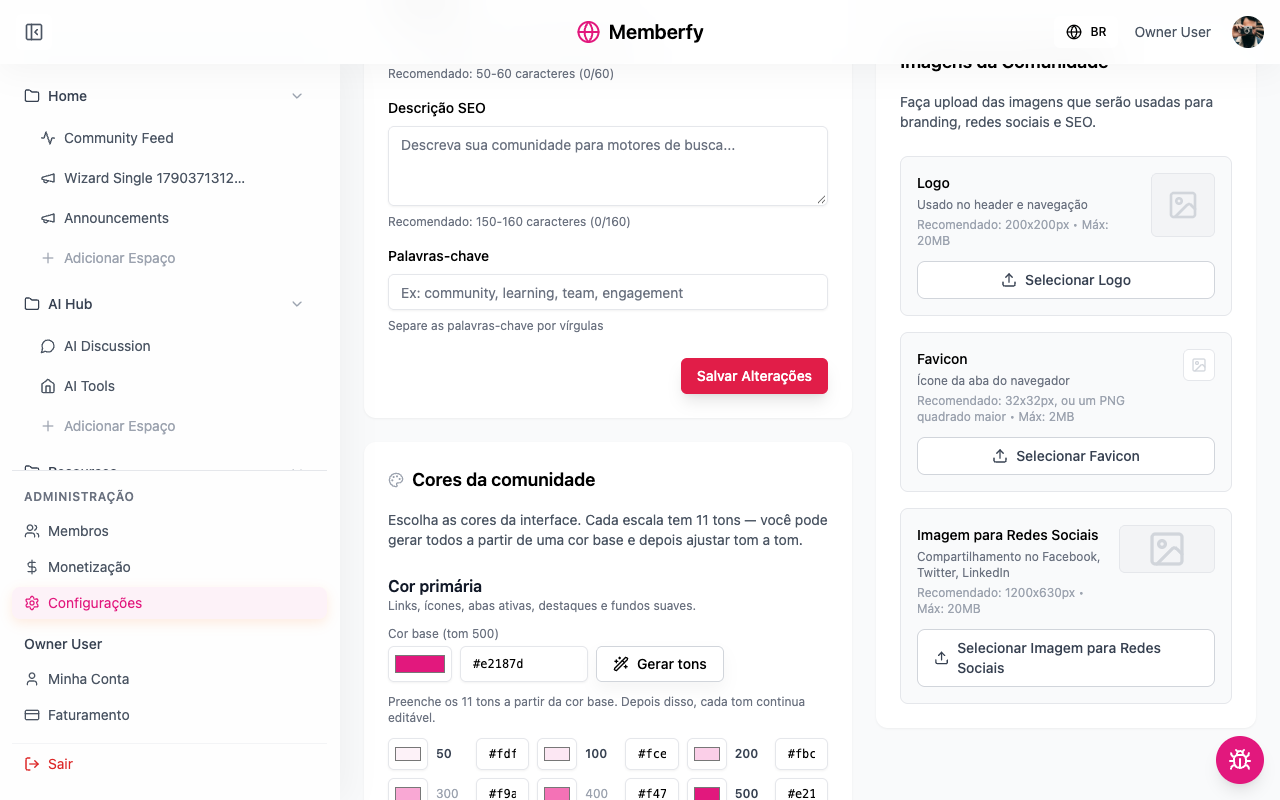
In Settings › General › Community Images:
| Image | Where it shows | Recommended | Maximum |
|---|---|---|---|
| Logo | At the top and in the navigation | 200×200 px | 20 MB |
| Favicon | In the browser tab | 32×32 px, or a larger square PNG | 2 MB |
| Social Media Image | In the link card on Facebook, LinkedIn, WhatsApp | 1200×630 px | 20 MB |
SEO Meta Tags
| Field | Recommended |
|---|---|
| SEO Title | 50 to 60 characters (the screen counts them) |
| SEO Description | 150 to 160 characters |
| Keywords | Comma-separated |
The link preview is your community's
When someone pastes the community's address into a conversation, the card shows your community's title, description and image, not Memberfy's. The page is served with that information already in it, so messaging apps read it without running anything.
Apps keep the preview for a while: after you change the image, the old card may keep showing for a few hours.
Who can
The owner and admins.
Step by step
Role: owner or admin.
- Settings › General, Community Images block.
- Select Logo, choose the file.
- Select Favicon.
- Select Social Media Image.
- In the SEO Meta Tags block, write the SEO Title, the SEO Description and the Keywords, then Save Changes.
- Test it: paste the community's address into a chat with yourself.
Example
Excel School. SEO title "Excel School — Excel from scratch to advanced, with a class" (58 characters). Description "Recorded lessons, weekly live sessions and a class for your questions. Start for free and subscribe whenever you like.". A 1200×630 image with the logo and the main tagline.
Tips
- In the social media image, keep the text in the center: some apps crop the edges.
- The favicon needs to be readable at 16 px: use the symbol, not the full logo.
- Write the SEO description as an invitation, not as a list of words.
Common errors and how to fix them
| Situation | What to do |
|---|---|
| The image won't upload | Check the maximum size and the format (PNG, JPG) |
| The WhatsApp card shows the old image | Wait a few hours; apps keep the preview |
| The favicon looks blurry | Use a square PNG with a simple design |
Frequently asked questions
Does the preview also work for links to spaces and posts? The card uses the community's information.
Do keywords help on Google? Not much. The title and the description matter more.
In the API
POST /api/upload/community/logo, .../favicon, .../ogimage and .../banner (multipart). See Uploads.