
Your profile
The member page, with its own link (/_/members/{id}) - the preview that opens when you click a name, the About, Background, Experience, Certificates, Badges, Activity and Credits sections, the Organization area (leader, direct reports and groups), editing the cover, company, country, languages, links and experience, privacy per section (Public, Members or Private) within the community's limit, Share and the optional public page.
Every member has a page in the community, with its own link: /_/members/{id}. It shows who the person is (cover, job title, company, country, languages, links, experience and the signup fields the community lets it show) and what they did there. Each part of the page has a visibility level, chosen by the person within the limit the community sets, and the API only hands each viewer what they may see.
The page belongs to one community, like the rest of the profile (see Account and profile): the cover, company and experience you add in one community don't show in the others.
What it's for
| Who | What for |
|---|---|
| Members | Knowing who someone is before sending a message, inviting them or booking a conversation; sharing a link to their own profile |
| The person | Introducing themselves: what they do, where they work, which languages they speak, where to find them |
| Admins | Seeing any member's full profile and deciding what the community lets pages show, including outside it |
The preview and the page
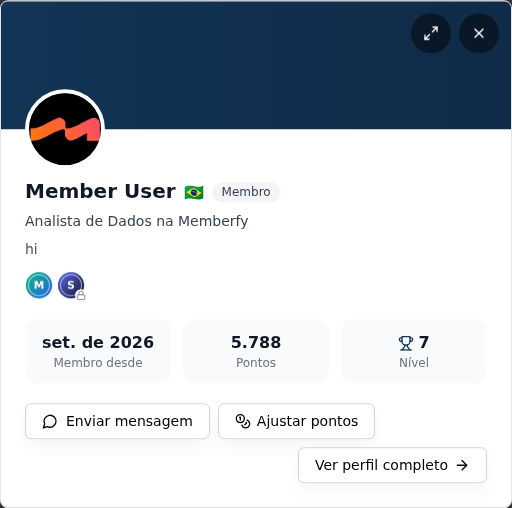
Clicking someone's name or avatar (in a post, a comment, a list) opens the preview, a short window that follows the page's compact header: without a cover, a thin line in the community's colors and the photo beside the name, with no colored block; with a cover, a short strip, with the photo over its edge. It has the avatar with the "online" dot, name with the country flag, role, "{job title} at {company}", the bio in up to 3 lines, up to 5 badges (the +N takes you to the page's Badges section) and three numbers: Member since, Points and Level. Below, Send message (or Add, when the community requires a connection before chatting) and, for the owner and admin, Adjust points.
In the top-right corner of the cover there are two round buttons: expand ("Open profile page") and close. Expand and the View full profile button at the bottom of the preview take you to the page and close the preview. Esc also closes it.
The preview has no tabs: everything else is only on the page.
A link opened directly (/_/members/{id}) shows the page to anyone signed in to the community. The old achievements link (/_/members/{id}/achievements, the one in the badge e-mail) opens the page at the first of the Certificates and Badges sections; links with ?tab= also scroll to the section.
The page
The header
The header is compact. Without a cover (most people), a thin line in the community's colors at the top and the photo beside the name, with no empty banner; with a cover, a short strip from the center of the image, with the photo over its edge. It has the avatar with "online", name with the country flag, role, "{job title} at {company}" and up to 6 badges; the +N takes you to the Certificates and Badges sections. A discreet second line brings together whatever exists: the job title, Member since date, Lead: name (linking to their page) and the main group. On your own page, with no job title or bio, a prompt ("Add a line about yourself") takes you to My Account › Profile. On a phone, the buttons share the screen width side by side.
The buttons:
- Edit profile, on your own page;
- Send message (or Add), on someone else's page;
- Share, which copies the page link ("Link copied");
- the … menu, with Adjust points (owner and admin, with engagement on), Remove connection (when you are connected) and Give badge (for whoever can give badges, on someone else's page).
The sections
The page has no tabs. The sections are stacked as cards: About, Background, Experience, Certificates (N) and Badges (N), separate, with the one that has items first, Activity (the latest 5 and See all activity, which loads the rest in place) and Credits, when you may see it. An empty section only shows on your own page (an empty Badges becomes a single hint line, with Give badge for whoever can give badges). In the community sits on the right on a computer, following the scroll, and right below the header on a phone, with the numbers, Leads and the groups (see below); Member since and the leader sit on the header line, without repeating. A certificate opens in a viewer on the page itself (see Certificates on the page). Old links (/achievements and ?tab=) scroll to the section.
| Section | What it has | Who sees it |
|---|---|---|
| About, Background, Experience | Described below | According to each section's privacy |
| Certificates and Badges | The issued certificates and the badges, each with its count. See The profile shows engagement | Everyone (certificates per the person's choice) |
| Activity | The person's posts and comments, newest first | According to the Activity privacy |
| Credits | The credits balance and statement | Only the person and the team |
What each section has
About: the Bio (up to 200 characters, with Show more past 4 lines) and the links (LinkedIn, Website, Instagram, GitHub, X and YouTube).
Background: Country, Languages and the custom fields the community lets the page show, as chips, with Show N more when there are many.
Experience: positions with company and period ("Feb 2023 – current"); the 3 most recent and See all (N).
In the community: Member since, Points, Level, Posts, Comments, Events and Courses completed. The profile's points and level are the person's total in the community, adding up every section: the same number as the overall ranking.
What is left this week, in In the community, when the person's level (or the next one) asks for activity in the week: "To stay at Kernel this week", with each requirement and the progress (Create post 2 of 3; with a space, Comment on post in Introduce yourself 0 of 2) and the note "Counts Monday to Sunday; whoever does not meet it moves down on Monday.", and "To move up to Root", with the points still missing. A requirement that is met gets the done mark. It also shows in the preview. Only the person and the team (owner, admin, moderator and finance) see it; another member does not see anyone's activity. A requirement tied to a space the viewer cannot access shows "in a space you cannot access" in place of the name; whoever opens the space sees the name. See Levels.
Organization, inside In the community: Leads N people and the Groups (the Leader, linking to their page, sits on the header line; with only groups, the Organization title disappears), following the org chart. The person and the team see all of their groups; other members only the groups they're in too. The leader and the number of direct reports show to anyone signed in to the community, never on the public page or the limited profile. With none of this, the area doesn't appear.
On your own page, whatever only you and the team see carries the note "Only you and the team see this". With nothing filled in, your page says "Your page is still empty. In Edit profile you can add your company, country, languages, links and experience."
Activity counts only what the viewer can open. The posts and comments in Activity and the numbers in In the community come only from spaces the viewer has access to: a post in a paid space doesn't appear, not even in the count, to someone who isn't subscribed. With Activity set to Private, the numbers of posts, comments, events and courses also disappear for anyone outside the team.
On a phone, the page is a single column, with In the community right below the header.
Networking
Whoever opens the page from Explore in a Networking space sees that space's Networking section: the labels (Available now, Top rated, Featured, New), Offers, Looking for, Specialties, Languages, Session types, Sessions completed, Minutes of conversation and the reviews, as the space allows. Beside it, in the spotlight:
- Available sessions: the week, with the days that have times ("6 times"), the times of the chosen day and Book session. On your own page: "Your times show here for whoever visits your profile."
- Unavailable now, when the person is paused or has no free time ("{name} has no free times right now."), with Explore other people.
Whoever has access to the space books directly in Available sessions, without joining the program. Without access to the space, the block says "You don't have access to this Networking space, so you can't book a session here."
Back to Explore takes you back to the showcase. Between participants in the same program, the page opens without the limited mode and Send message shows without a connection request (see When a connection is needed). What shows on the Explore card follows this page's privacy: a country set to Private shows no flag and doesn't filter.
Certificates on the page
Clicking a certificate on the member page opens a full-screen viewer without leaving the page: the image or PDF, the name, the issue date and the code, with Download PDF, Download image, Copy verification link, Add to LinkedIn (only for the certificate's owner) and View verification page. The open certificate stays in the address (?certificate=…): the link can be shared, and Back closes the viewer and returns the page to the same spot. A certificate you aren't allowed to see doesn't open. The Certificates space uses the same address.
Where each badge came from. The badge's origin (the course, the event or the workflow) is a link when you can open that space; the workflow link shows only to the owner and the admin. The date sits on a line of its own.
Edit profile
On your page, Edit profile takes you to My Account, where each part is a section (My Account also has View my profile, to go back to the page):
| Section | What it has |
|---|---|
| Profile | Photo, Full Name, Job title, Bio (up to 200 characters), phone and the signup fields the community asks for |
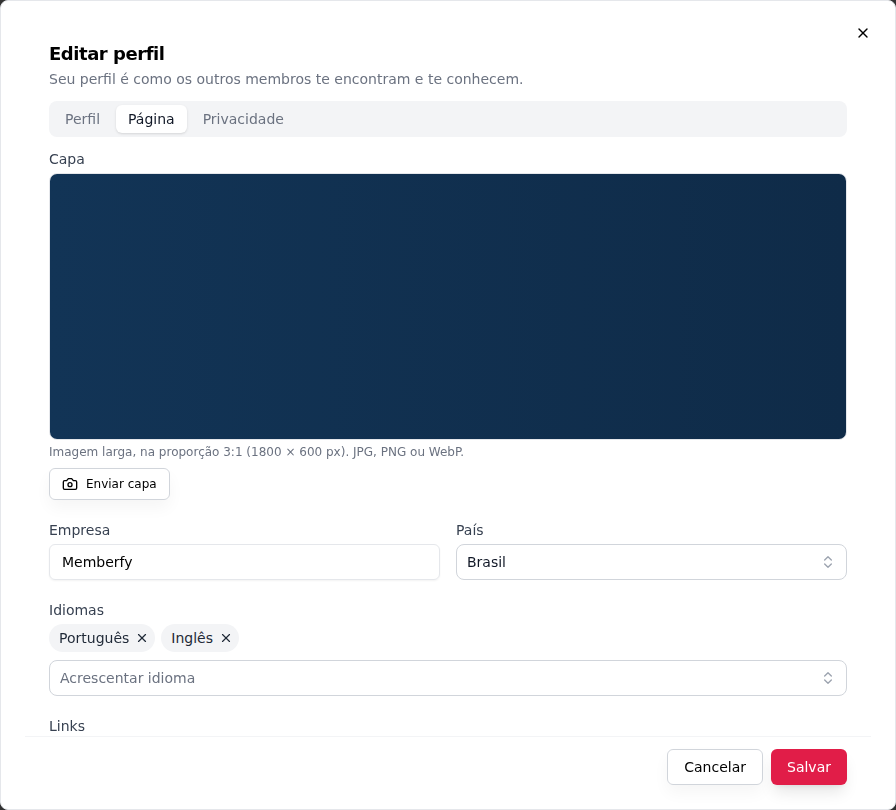
| Page | Cover (3:1, 1800 × 600 px; JPG, PNG or WebP; Upload cover, Change cover, Remove cover), Company, Country, Languages (Add a language), Links and Experience (Job title, company, Start, End or I currently work here; Add experience) |
| Privacy | Who sees each part of the page (below) |
The cover: still recommended at 1800 × 600 px, but the page shows only a short strip from its center (the preview, an even shorter one). Keep what matters in the middle of the image. Without a cover, "the header stays compact, with just your photo."
Save, on the bottom bar, stores what changed in the sections at once. A link must be a full address ("Use a full address starting with https://"), and in an experience the end comes after the start ("The end comes after the start").
Privacy
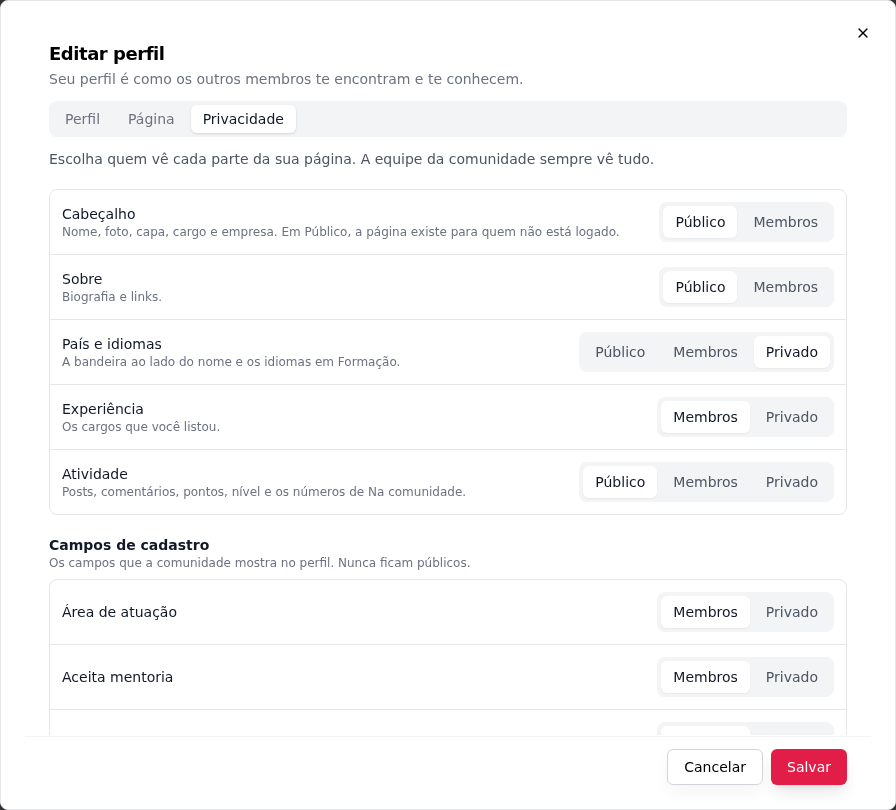
In My Account › Privacy: "Choose who sees each part of your page. The community team always sees everything."
| Level | Who sees it |
|---|---|
| Public | Anyone, even signed out (only when the community turns on public pages) |
| Members | People in the community (the default for everything) |
| Private | Only you and the team (owner, admin, moderator and finance) |
| Section | What it includes | Levels |
|---|---|---|
| Header | Name, photo, cover, job title and company. In Public, the page exists for people who aren't signed in | Public or Members |
| About | Bio and links | Public or Members |
| Country and languages | The flag next to your name and the languages in Background | Public, Members or Private |
| Experience | The positions you listed | Public, Members or Private |
| Activity | Posts, comments, points, level and the numbers in In the community | Public, Members or Private |
| Signup fields | One by one, the fields the community shows on the profile | Members or Private (never Public) |
People in the community always see your name. A field the community set to Always on the profile shows as "Always visible (the community's choice)" and can't be hidden.
The community's limit. Options more open than the community allows don't appear. Without public pages, the screen says: "This community has no public member pages: the most open level is Members." If the community lowers a limit, anyone who chose something more open gets the limit; the choice is kept and comes back if the limit is raised.
Step by step: making your page public
- The community must have public pages turned on.
- On your page, Edit profile and, in My Account, the Privacy section.
- Header to Public and, if you like, the other sections to Public.
- Save. To send the link: Share.
The public page
With public pages on in the community and the Header set to Public, the link /_/members/{id} also opens for people who aren't signed in. It shows only the sections set to Public: no "online", no Credits, no message or connection buttons, and never signup fields, e-mail, phone or groups. The public Activity lists only posts from spaces a signed-out visitor can open; points, level and badges appear only with Activity set to Public.
The public page is not indexed by search engines (noindex) and doesn't appear in any list without signing in. Setting the Header back to Members takes the page down at once.
For someone signed out, when the page doesn't exist or isn't public, the same card always appears: Sign in to see this profile ("This profile is visible only to people in the community."), with Sign in. The card doesn't reveal whether the person exists.
When a connection is needed
In a community where messages require a connection first (Add first, see Messages), anyone not connected to the person sees the limited profile: the gradient instead of the cover, avatar, name, job title, bio and role, without flag or company, and "Connect to see the profile.". Whatever the person set to Public also shows there.
The exception is Networking: two people active (or paused) in the same program see each other's full page and chat without a connection request.
For the team: member pages
Role: owner or admin.
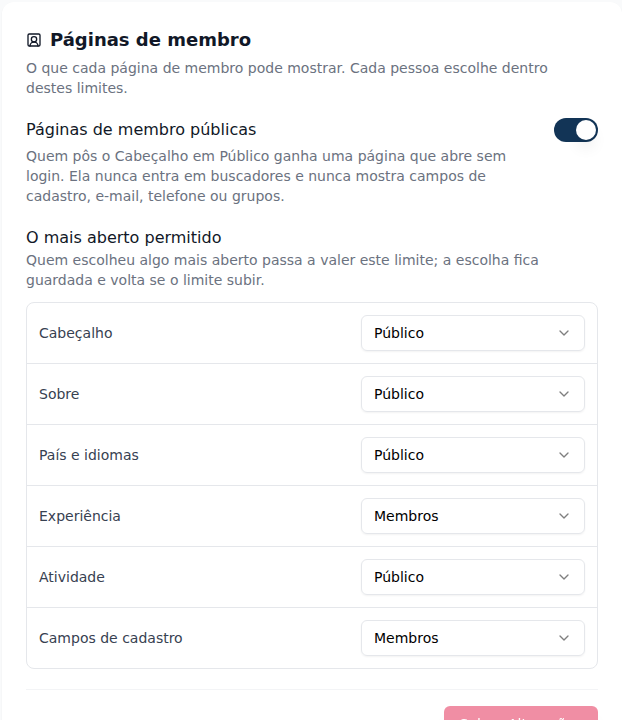
In Settings › Search and discovery, the Member pages card ("What each member page may show. Each person chooses within these limits."):
- Public member pages, off by default: when on, people who set their Header to Public get a page that opens without signing in.
- The most open level allowed, per section (Header, About, Country and languages, Experience, Activity and Signup fields): Public, Members or Private (only the person and the team). E.g. Experience at Members removes the Public option for everyone.
Save Changes stores it. Moderators and members can't change this.
Custom fields have their own option, On the member page. See Custom fields.
Examples
Association with a members showcase. The admin turns on Public member pages and limits Experience to Members. Ana sets Header and About to Public and posts the link on LinkedIn: whoever clicks sees her name, job title, company, bio and links without signing in; only the association's members see her experience.
Closed community. Public pages stay off. Members see each other through the page, with the signup fields the community shows; João sets City to Private and only the team sees it.
Common errors and how to fix them
| What shows | What to do |
|---|---|
| "Use a full address starting with https://" | Write the whole link, with https:// |
| "The end comes after the start" | Fix the experience dates |
| The Public option doesn't appear | The community hasn't turned on public pages or limited that section |
| A signed-out visitor sees Sign in to see this profile | The Header isn't Public, or the community has no public pages |
| The Activity tab (or section) doesn't appear | The person set Activity to a level you don't see, or there's nothing you can open |
Frequently asked questions
Does the page show up on Google?
No. Not even the public page: it carries noindex.
Do other members see my e-mail or phone? No. E-mail, phone, groups and tags stay with you and the team.
Where do I change my bio? In My Account › Profile (or Edit profile, on your page), in the Bio field. It's the same as before, up to 200 characters.
Is my page the same in every community? No. Each community has its own.
Through the assistant
get_member returns the page fields already filtered for whoever asks (also the leader, the number of direct reports and the groups); update_my_profile edits your page (cover by link or file, company, country, languages, links, experience and privacy), and the bio stays in update_me; list_member_page_activity lists the Activity. For the team, update_community_settings turns public pages on and changes the limits. See Tools · Members and the recipe Make my page public.
In the API
GET /api/members/{id} brings coverUrl, company, country, languages, links, experiences, profileFields, communityStats and sections, and, for the person and the team, sectionLevels and privacy. It also brings the optional leader (id, name, avatarUrl), directReportsCount and groups (id, name; primary group first), only with a session and absent when there is nothing to show; the person and the team get every group, other members only the ones they share, and none of it goes to the public page or the limited profile. PUT /api/members/me/profile stores the page (experience goes as the whole list; coverUrl: null removes the cover) and POST/DELETE /api/upload/cover/member uploads or removes the cover. GET /api/members/{id}/activity lists the Activity, with a cursor; a hidden section returns data: [] and pagination.hidden: true. Without signing in, GET /api/public/members/{id} and /activity, which answer the same 404 in every case where the public page doesn't exist. The settings are publicMemberPages and memberPageCeilings in PATCH /api/communities/{id}/settings. See Members in the API Reference. In the profile's and public page's engagement, levelName and levelImageUrl bring the level the community named and, only for the person and the team, levelProgress brings the week's progress.