
Studio
Record lessons, interviews and presentations with your team, guests without an account and your screen, in seven ready-made layouts, from the Apps button in the header. Go live in a Feed post, too. Rooms, backstage, multiple cameras, a name tag with name and title, themes and look, noise reduction and background, guest links, recording straight into a lesson, clips on request, a transcript with who speaks and captions, taking the recording to an episode, a lesson or the Feed, and each plan's recording and clip hours, and restreaming to YouTube and other networks.
The Studio records lessons, interviews and presentations with the community's team, guests from outside (without an account), each person's camera and the shared screen, in ready-made layouts, with the speaker's name and a text banner on screen. What the preview shows is what the video gets: a single file, in 1080p, that goes straight to the Media library and can become a lesson, an episode or a post without uploading it again.
After recording, the Studio transcribes the recording with the name of who speaks (the transcript becomes the video's captions) and, when you ask, picks the best moments to become clips.
The Studio also goes live: the live becomes a post in a posts space, the community watches it right in the Feed and, when the live ends, the recording becomes the replay on the same post (see Going live).
What it is for
| Community | Studio |
|---|---|
| Online school | The teacher records the lesson with the slides on screen and the camera beside them, and the recording goes into the course |
| Video podcast | Two people record the interview side by side and the file becomes an episode |
| Association | The board records the month's message in a grid and posts it to the Feed |
| Product community | The team records a launch demo with the full screen and the small camera in the corner |
| Expert community | The team interviews an outside guest, who joins by a link without an account, with their name in the lower third |
Where it is and who uses it
The Studio opens from the Apps button in the header (the grid icon), on the Studio card. The card only shows for people who may use the Studio. It opens inside the community, with the side menu collapsed, and has two tabs: Rooms and Recordings. For the owner and the admin, the gear at the top leads to the Studio settings.
| Who | Uses the Studio |
|---|---|
| Owner and admin | Always |
| Moderators | When Moderators is on in the Studio settings |
| People in a group | When the group is in the Studio settings |
| Everyone else | No: they see "No access to the Studio in this community" |
Studio settings
Role: owner or admin. The settings are in Settings › Video and streaming › Studio (/settings/studio), next to Meeting and Video. The settings search finds the section by studio, live or recording.
- Who uses the Studio: turn on Moderators ("Every moderator creates rooms and records.") and pick groups in Add group ("People in these groups also use the Studio."). Then Save.
- Live and payment from the balance: see Live quotas.
- Restream to other networks: the destinations for lives on YouTube and other networks. See Restream to other networks.
- Rooms’ default look: says whether the rooms use the platform's look or a community default look. The community default is created inside a room, with Save as community default (see Look). Back to the platform’s look deletes the community default; rooms with a look of their own stay as they are.
Rooms
A room is where the recording and the live happen. In the Rooms tab, each room shows in a card with a preview of the stage, in a grid or a list, with Live, Recording or Someone in the studio when that is the case, and when it was used. Search rooms filters by name.
- Create: New room, with Room name and Starting layout ("You can change it at any time, even while recording"), then Create and enter. Whoever creates it is the room's Host.
- Who sees the room: the owner, the admin and whoever is on its stage.
- Who manages it: the room's creator, the owner and the admin rename it, switch the layout and the look, add and remove people, and delete it.
- Delete: from the room's menu, Delete room. Recordings already made stay in the Media library. A room with a recording under way is not deleted.
- Each room has its own address: reloading the page takes you back into the room.
Before you go in
When you open the room, the Before you go in screen shows your whole camera, over the room's stage background, with your name tag (name and title), and the microphone level, with a choice of Camera and Microphone. You enter the studio with them as they are there, in Enter the studio.
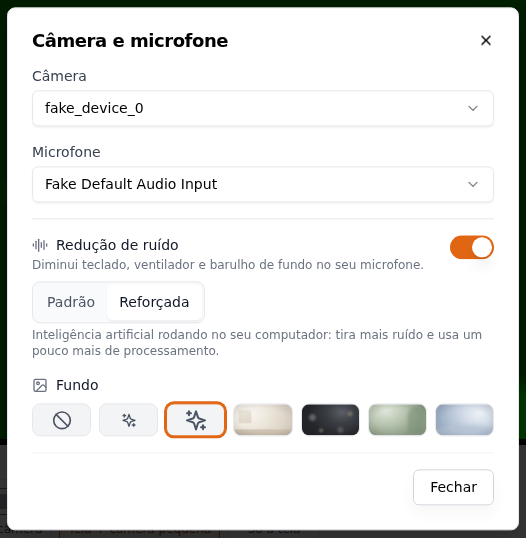
The same screen has noise reduction and background, the same effects as Meeting: Enhanced reduction (the default, computers only) or Standard and a background with no effect, a slight or strong blur, or one of four images. Inside the studio, they are under Camera and microphone. Enhanced starts on for everyone and removes much more keyboard, fan and street noise; if the computer can't keep up, the Studio goes back to Standard and says so. The recording keeps the effect: what the others see and hear is what gets recorded. The device remembers your choice for next time.
In the studio
- The video in the middle is exactly what the recording and the live show.
- The people strip, under the video, shows who is in the studio, with each person's microphone. Whoever is off scene shows faded.
- The side panel has the People and Look tabs (the Look tab only for whoever manages the room) and, below them, the studio Chat, always in sight: the messages stay among the people in the room and go neither to the live nor to the recording. On a phone, the chat opens from the messages button.
- The controls at the bottom, as in a call: Turn microphone off, Turn camera off, Share screen (and Stop sharing), Camera and microphone and Leave. Under Share screen, the Studio's own tab does not appear in the browser's list, so the video does not repeat inside itself.
- Each person's signal: bars in the people strip and on the preview show each person's connection ("Excellent connection", "Good connection", "Poor connection", "Connection lost"); on yours, also what you are sending ("Sending 720p"). See Video quality.
- If the connection drops, the Studio reconnects by itself ("The connection dropped; reconnecting…").
People
The People tab gathers who takes part in the room:
- Invite community members: search by name in Community members and click Invite to the studio. The person gets the invite in the Chat, on WhatsApp or, without those, in the bell.
- People outside the community: the guest link.
- Waiting to come in: the guests who asked to come in, with Let in and Refuse.
- Add a member to the stage, in the people strip's menu, puts on the stage someone from the team (owner, admin, moderator and finance) or who uses the Studio; anyone else is refused. The room's creator cannot be removed from the stage.
Whoever does not manage the room only sees the note "Everyone in the studio shows in the strip under the video."
Backstage: who is on scene
The Studio has a backstage: whoever enters the studio starts off scene. Only the room's creator, or the owner or the admin who opens an empty room, starts on scene.
- Off scene, the person is neither seen nor heard on the live or in the recording. They keep seeing and hearing what happens on scene.
- Backstage audio: next to the layouts bar, whoever manages the room chooses for everyone Only who is on stage (the default: whoever is off scene is heard by no one in the studio) or Everyone hears everyone (everyone hears each other, to agree on the next question without the audience hearing). The others see the choice, without changing it.
- Whoever manages the room uses each person's menu in the strip: Add to scene and Remove from scene. It works for members and guests, also while recording and live.
Swapping places, featuring and multiple cameras
- Drag: whoever manages the room drags a camera, on the video or in the people strip, onto another to swap the two. The order applies to the preview, the recording and the live.
- Feature: in the featured layouts, a double click on a person in the strip (or Make main, in their menu) puts them in the big frame. With nobody chosen, the featured frame is the shared screen or whoever is speaking.
- Several screens: each person shares up to 2 screens at the same time. With one screen on, the menu offers Share another screen. Each screen becomes a frame in the people strip ("Ana's screen", "Ana's screen 2"), which goes on or off scene, changes places, goes to the spotlight and gets a name in Rename screen; Stop sharing, on the frame, ends that screen. Each extra screen adds load to the sender's computer and internet.
- Taking a source off scene: the owner and the admin take any screen or extra camera of anyone off scene without stopping the stream: it leaves the recording and the live and comes back whenever they want.
- Multiple cameras: in Add camera, each person picks another camera on the same computer, which comes in as one more frame of theirs (up to 3 cameras per person; more cameras use more internet). Rename camera gives the frame a name (like "Top camera"), without turning the camera on again; Remove camera takes it off.
The name tag: name and title
Each person shows on the video with the name tag: the name and the title, when whoever manages the room turns on Show name tags ("Each person shows with the name and title they gave when joining.").
- Edit name and title: click your own name tag (or use Edit name and title, in your menu in the strip). What you save stays on your profile in this community and is already filled in for the next rooms.
- Whoever manages the room corrects other people's name tags ("…'s name and title"); that correction applies only to that room.
- The guest without an account also edits their own name tag inside the studio.
- Many changes in a row are refused for a minute ("Too many name tag changes in a short time.").
The layouts
| Layout | What it shows |
|---|---|
| Full screen | One source on the whole screen: whoever is speaking or the chosen one |
| 4 edge to edge | Up to 4 16:9 windows edge to edge, no margin |
| 4 with margin | Up to 4 16:9 windows with a margin and rounded corners over the stage background |
| 6 vertical 9:16 | Up to 6 vertical (9:16) frames side by side over the stage background; with more people, the frames wrap to a new line |
| Screen + camera on the right | The shared screen (or the chosen source) and a camera on the right |
| Screen + camera in PiP | The shared screen (or the chosen source) with a small camera in the corner |
| Spotlight | The chosen source large and the others in a strip below |
The room's creator, the owner and the admin switch the layout in the bar under the video, at any time, also while recording and live; the change shows on the video at the same moment. The featured layouts work without a shared screen: the big frame is the chosen person.
Other people's microphones
Whoever manages the room has, in each person's menu in the strip:
- Ask to turn on the microphone: the person sees "Ana asked you to turn on your microphone", with Turn on and Not now. No one has their microphone turned on by force.
- Mute: turns off the person's microphone; they see who did it ("Ana muted your microphone") and can turn it on again.
Video quality
Quality adjusts by itself to each person's internet. From the arrow next to the microphone or the camera, under Settings, each person chooses for their own device:
- Send resolution (maximum): Auto (the default) starts at 720p and moves to 1080p when the connection is excellent; 1080p, 720p or 360p set the ceiling.
- Receive resolution (maximum): caps the quality of other people's video to save data, or Audio only.
If the internet gets tight, what you receive drops before what you send: the video that goes to the recording and the live is the last to lose quality. The switch happens without the camera blinking. The same window has the microphone, the camera and noise reduction.
Look
The Look tab, for whoever manages the room, changes how the video looks. It has sections that open and close:
| Section | What it changes |
|---|---|
| Themes | Ready themes (Graphite, Ocean, Forest, Plum, Sand and Mono) and the community's Saved themes: one click applies the theme to this room |
| Name tags | Show name tags, the Name tag style (Block, Pill or Subtle), the Corners (Square or Rounded) and the colors Tag background, Name color and Title color |
| Banner | A wide strip at the bottom of the video, for a message (up to 280 characters): Show on screen, Update, Hide and Clear, and the colors Banner background and Banner text |
| Stage | The Stage background: a color or a Stage background image (Upload image, JPEG, PNG or WebP; Remove image) |
What you change shows on the preview at once. At the bottom:
- Save for this room keeps the look for this room only.
- Back to default returns the room to the community's default look.
- Save as community default makes this look the default for every room without a look of its own (see Studio settings).
Saved themes
Save as theme keeps the current look under a name, to use again in any room. The community has up to 30 themes.
- Who uses them: everyone who uses the Studio applies the saved themes in the rooms they manage.
- Who edits them: only the team (owner, admin and moderators) creates, renames, Update with the current look and deletes themes ("Only the team (owner, admins and moderators) creates, changes and deletes themes.").
- Deleting a theme does not change the rooms that already use that look.
Guests without an account
Someone from outside the community (an interviewee, a speaker) joins the studio by a guest link, without creating an account and without an e-mail. The room's creator, the owner and the admin handle guests, in the People tab.
The link
- In People outside the community, click Copy invite link. The link is created and copied: send it to the guest in a message.
- The room has one active link at a time. Make a new link changes the address: "The current link stops working. Anyone who has not joined yet will need the new one." Whoever already came in stays in the room.
- Under the link, "Came in by this link: …" shows who has already used it.
The link has no use limit of its own: it lets in as many people as the plan's limit of people per room (the same as Meeting), and each guest goes through the waiting room until someone lets them in. The link opens only that room. If it was created in another tab or session, the room says it already has an active link, and the address only shows when you make a new one.
What the guest sees
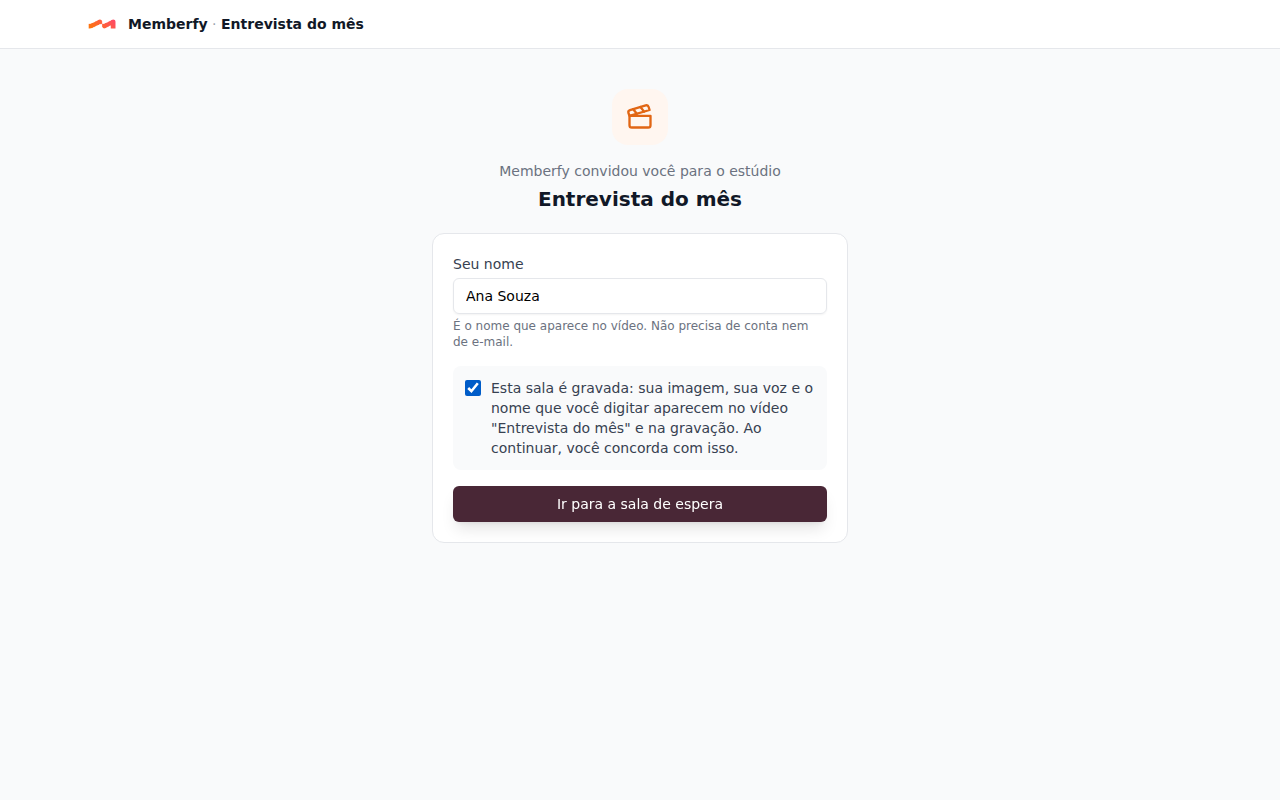
- Opening the link, the guest sees the community and the room. They type Your name, which is the name shown on the video, and tick the recording notice (their image, voice and the name typed appear on the video and in the recording). Without the name or the consent, they cannot go on.
- Go to the waiting room leads to Before you go in, where they check camera and microphone while waiting: "Waiting for the host to let you in."
- Once let in, they click Go into the studio. In the studio, they see the video as it is recorded, have the microphone, camera and screen controls and edit their own name tag.
If the link was replaced, revoked or does not exist, the page shows "This link does not work"; with the room full, "Link used up". Either way, the guest asks whoever invited them for a new link.
Letting in and removing
- Someone arrived: the room shows a notice at the top ("… is waiting to come into the studio."), and the People tab shows how many are waiting. In Waiting to come in, Let in or Refuse.
- Let in, off scene: like everyone, the guest comes in off scene. The team sees and hears the person, but they are not on the video or in the recording yet; the guest sees "You are backstage". Add to scene brings them to the video; Remove from scene takes them off again.
- Remove: in the guest's menu, Remove takes the person out of the studio at once, after confirming. The link they used stops working, so they cannot come back through it; to call other people, make a new link. Refuse on someone waiting does the same. The guest sees "You are out of the studio".
Recording
- Enter the studio. A recording only starts with someone from the stage connected to the room.
- At the top of the room, open the arrow of the Go live button and choose Record only (the other options are Go live and Schedule a live; see Going live). Only those on scene are recorded. If every recorder is busy, Getting the studio ready… appears: the recording waits in the queue and starts by itself when a recorder frees up. Cancel takes it out of the queue; after 10 minutes in the queue it leaves by itself and you try again.
- While recording, the top shows the recorded time. Stop ends it; anyone on the stage can stop.
- The recording goes through Saving the recording to the Media library… and ends with "… recording saved to the Media library", with Watch and Open the Media library.
Leave the studio does not stop the recording: it goes on while someone from the stage is connected and stops by itself when the stage is empty. What was already recorded is kept.
The recording also stops by itself at the limit of 4 hours per recording and when the hour balance runs out (see below). In every case, what was recorded is kept.
Recording for a lesson
In a video lesson of a course, the owner and the admin record the lesson's video straight in the Studio:
- In the lesson editor, under Add video (or Replace, if the lesson already has a video), click Record in Studio.
- The Studio opens a new room named after the lesson, on Before you go in. In the studio, a notice says the recording becomes the lesson's video when it is ready.
- Record as in any room: layouts, screen, text on screen and guests work the same.
- When the recording is ready, it becomes the lesson's video, with its transcript, and Back to the lesson takes you back to the editor. If the lesson already had a video, the recording replaces it.
If the recording cannot go into the lesson (the lesson was deleted or stopped being a video lesson while you recorded), the video stays in the Media library and the Studio says so; in the lesson editor, pick it from the library.
Where the recording goes
The Recordings tab lists the recordings of the rooms you see, with the status (Queued, Recording, Saving, In the library, Failed, Canceled), the duration and why it ended, and, when there are any, the clips ("Picking clips", "2 clips"). Each finished recording is a video in the Media library, named after the room. Click the recording's name to open its page: the video, Add to the collection, the Clips and the Transcript.
The recording counts in the community's video library like any uploaded video. With the library full, the Studio refuses the recording before it starts: free up space or expand the library.
Add to the collection
On the recording's page, Add to the collection puts the recording into the community's content, always with the same file, no copy, and with the transcript, if there is one. The same recording can be in all three places at once: in an episode, in a lesson and in a post.
| Button | What it does | Who sees it |
|---|---|---|
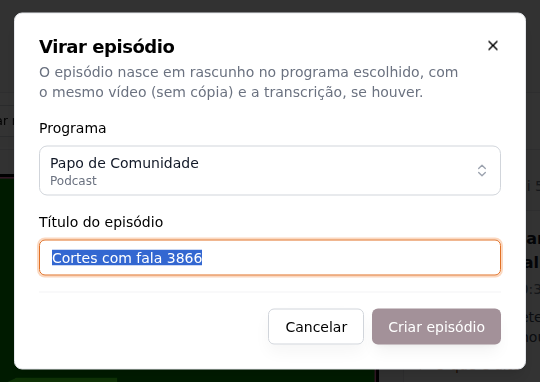
| Make an episode | Choose the Show (from Podcast or Videos) and the Episode title and click Create episode. "The episode is created as a draft in the chosen show, with the same video (no copy) and the transcript, if there is one." Review and publish it in the episode editor | Owner and admin |
| Use in a lesson | Choose the Course and the Video lesson and click Use in this lesson: the recording becomes the lesson's video, with the transcript as captions. If the lesson already has a video, the window warns that it will be replaced. Only the courses you can edit show up; a course with no video lesson asks you to create one first | Whoever uses the Studio |
| Post to the Feed | Choose the Feed Space, write a Text (optional) and click Publish: a post goes out with the recording's video | Whoever uses the Studio |
To record with the lesson already in mind, use Recording for a lesson: the recording becomes the lesson's video by itself.
Transcript and captions
On the recording's page, the Transcript section shows what was said, with the name of who speaks in each part: the Studio notes who is speaking while it records, in the room, and the name comes from there (the community member's name or the one the guest typed).
Before it's ready, the transcript goes through an automatic writing review (accents, grammar, names of people, of the room and of the community). It only fixes the writing: who speaks and the time of each part don't change, and a line that would change too much stays as it was heard.
- Transcribe: on a recording with no transcript yet, Transcribe first shows how much it will use ("Uses about … of the plan's transcription minutes.") and, with Transcribe, starts. It takes from the plan's transcription minutes, the same ones as episode transcripts; with no balance, it says "The plan's transcription minutes are used up for this period." Getting clips also transcribes, without using transcription minutes.
- Search: Search the transcript filters the parts by word.
- Clickable times: the time next to each part plays the video from there.
- Captions: once ready, the transcript becomes the video's captions, in the recording's player and wherever the recording goes: in the episode, in the lesson and in the Feed post. The transcript follows the file; there is no need to transcribe again in each place.
- A recording with no speech has nothing to transcribe: the transcript says it did not work (or that there was no speech) and makes no captions.
Clips
Clips are a recording's best moments, ready to become short videos. Nothing is automatic: clips only exist when someone asks for them, and nothing is published by itself. You review, adjust and save to the library what you want.
Getting clips
- On the Recordings tab, tick the finished recordings (up to 10 per request). The bar at the top shows how many are selected and the clips balance. On a recording's page, Get clips does the same for it.
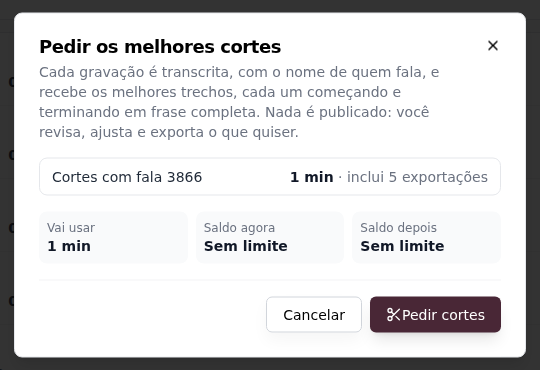
- Click Get clips. Before anything else, the Get the best clips window shows the estimate: the minutes of each recording and how many saved clips are included, and three numbers, Will use, Balance now and Balance after.
- Confirm with Get clips. "Requested. The clips are ready in a few minutes; you can leave this screen." In the list, the recording goes through Transcribing for clips and Picking clips until it shows how many clips came out.
Without enough balance for the request, nothing starts and nothing is charged. If the clips fail, the balance comes back ("The clips failed and nothing was charged. Ask again."). While a recording's clips are being made, it takes no other request.
What each clip has
Each recording gets 3 to 8 clips, from 15 seconds to 2 minutes, and each clip starts and ends on a full sentence. In the recording page's Clips section, each one shows:
- the title and the moment's score;
- the start and end, the duration and Speaking;
- the reason it was picked, in one sentence;
- What is said, with the text of the moment.
If the recording has no moment good enough, the section says "No moment good enough turned up in this recording."
Watch, adjust and save to the library
- Watch clip plays only that clip in the video.
- Adjust opens the Title, the Start and the End (in minutes and seconds, like 12:34), with 1 second earlier, 1 second later and Use the video's position. A clip runs from 3 seconds to 10 minutes and stays within the recording. Save keeps it. A clip already saved to the library that changes becomes a new clip to save; the video saved before stays in the library.
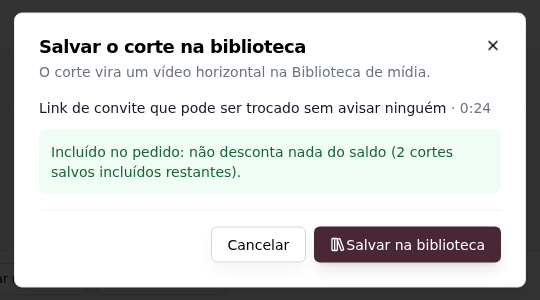
- Save to library turns the clip into a landscape video in the Media library. The Save the clip to the library window says beforehand whether the saved clip is included in the request or how much it takes from the balance. Once done, the clip shows In the library, and from there it becomes a post, a lesson or an episode like any video.
What each request costs
Clips have their own balance, in hours a month, counted by the recording minutes processed (every started minute counts):
| Plan | Clip hours a month |
|---|---|
| Starter | 1 h |
| Growth | 3 h |
| Business | 8 h |
| Scale | 15 h |
- Request: takes the duration of the requested recordings. The top of the Recordings tab shows the balance ("Clips balance: … of …"), and it renews with the plan's other quotas.
- Included saved clips: each request includes 5 clips saved to the library per started hour of recording (a 40-minute recording includes 5; one of 1 h 30, 10). Past the included ones, each saved clip takes its duration, rounded up to the minute. If saving fails, nothing is taken.
- An already transcribed recording costs less: in a new clips request for a recording that already has a transcript, it is not transcribed again, and the request uses about 1/5 of its minutes, with no included saved clips.
- Past the quota, from the Usage balance: with Pay recording, clips and transcription past the quota from the balance on, a request that goes past the clip balance buys 1-hour blocks from the prepaid balance (R$ 3.08 per processed hour; transcription, R$ 2.38 per hour). The estimate tells how much comes out of the balance ("Past the clip minutes, R$ 3.08 comes out of the balance (1 1-hour block)."); with no balance to cover it, the request doesn't start.
- A recording with no speech: it is charged once, on the first request, and takes no new request ("This recording has no speech, so there are no clips to propose.").
Recording hours
Every Memberfy plan includes Studio recording hours a month, for the whole community:
| Plan | Recording hours a month |
|---|---|
| Starter | 1 h |
| Growth | 3 h |
| Business | 8 h |
| Scale | 15 h |
- The top of the Studio shows the balance ("Recording balance: … of …") and when it renews. Every started minute counts.
- The balance renews like the plan's other quotas (see When a quota renews).
- No balance, no start: a recording only starts with at least 1 minute of balance.
- Warnings: with 30, 10 and 2 minutes of balance left, the studio warns during the recording.
- At zero, it ends and saves: when the balance runs out, the recording stops and what was recorded goes to the Media library.
- More hours from the Usage balance: with Pay recording, clips and transcription past the quota from the balance on in the Studio settings, shortly before the balance runs out Memberfy buys 1 more recording hour from the community's prepaid balance (R$ 2.97 per hour), and the recording goes on. The top shows how much came from the balance ("includes 1 h from the balance"). With no balance in the usage balance, it stops as above.
Going live
A Studio room goes on air with the same video as the preview: layout, shared screen, guests on video, lower third and banner. The live becomes a post in one of the community's posts spaces, and whoever opens that space watches it right there, in the Feed, with no separate link. It is recorded while on air and, when it ends, the recording becomes the replay on the same post.
Where to start
- In the Studio: inside a room, the Go live button, at the top. The arrow next to it opens Go live, Record only and Schedule a live.
- In New content: in a posts space, the menu next to New Content has Go live.
- In the Feed composer: when you open the composer, Go live shows next to Status, Drops, Podcast, Video and Poll.
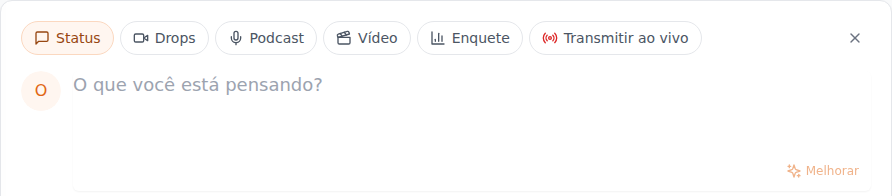
Both shortcuts show only to people who use the Studio. They open the Studio's room list ("Pick the room you will stream from (or create one with “New room”)"); once you enter the room, the Live settings open by themselves, already set to the space you came from, if you came from one.
Live settings
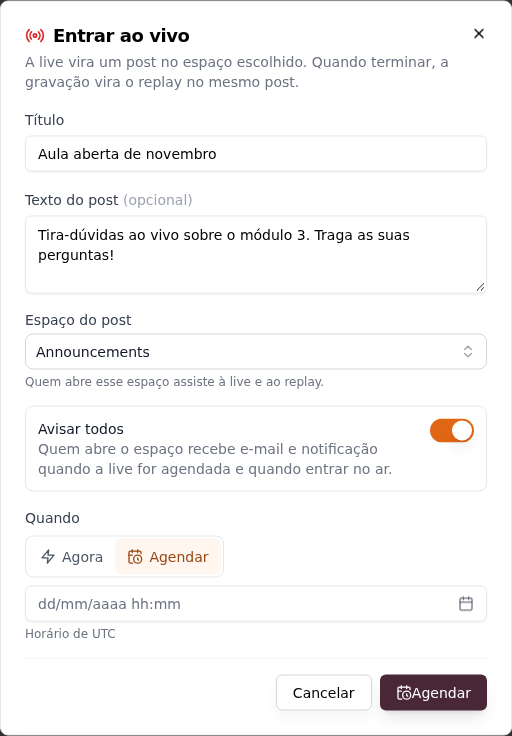
The Live settings gear, at the top of the room (for whoever manages the room), keeps the live post's details:
- Title: the title of the live and of the post.
- Post text (optional): what the live is about; it becomes the post's text.
- Post's space: a posts space where you can post. "Whoever opens this space watches the live and the replay."
- Notify everyone (on by default): whoever opens the space gets an e-mail and a bell notification when the live is scheduled and when it goes on air. The e-mail belongs to the Live streams category of E-mails from this community, on by default. Off, the post appears and nothing is sent.
With the live on air, the settings become read-only ("These can't change while the live is on air."): the post's title, text and space don't change until the live ends. The layout, the look, the name tags and who is on scene keep changing as usual.
Go live or schedule
- Go live: goes on air now. "The post shows in the space as soon as the video reaches the audience." If the settings don't have a title and a space yet, they open first, with Go live at the end.
- Schedule a live: opens the window with the date and time in the community's time zone, written under the field ("Time in America/Sao Paulo"). Once scheduled, the live already shows in the space as a Scheduled post, with the date and "Starts in …"; in the room, Go live now and Cancel the scheduled live.
To go on air, someone on the stage must be in the room with camera or microphone on ("Join the stage (camera or microphone on) before going on air."), and a recording in progress must stop first. While the studio gets ready, Preparing the studio… shows.
Who goes live
- Whoever uses the Studio and manages the room (its creator, the owner and the admin) creates, schedules, starts, ends and cancels its live.
- The space must be a posts space where the person can post.
- Space that approves posts: there, only the team goes live. For anyone outside the team, the Studio refuses: "This space requires post approval. Choose another space for the live or ask someone on the team to stream it."
On air

The top of the room shows how many people are watching (click to see who), the Live badge with the time on air and End the live. Everything you do in the room (changing the layout, sharing the screen, showing the lower third, bringing a guest on video) goes out on the live at once.
Restream to other networks
The Studio live can go out, at the same time, in the community and on YouTube (by connecting the account or by stream key), Facebook, Instagram, Twitch or any RTMP server (by stream key). The community keeps the post, the audience and the replay as always; the networks get the same video. The destinations belong to the owner and the admin.
The destinations
Role: owner or admin. Under Settings › Video and streaming › Studio, the Restream to other networks card lists the community's destinations, each with its network, address and the end of its key. The plan allows up to 5 destinations, and a live uses at most that number. There are two ways to add one:
By connected account (YouTube only). Connect YouTube opens Google: sign in, authorize and you come back to Memberfy with the destination ready ("Connected as Community Channel").
- YouTube: Memberfy creates the broadcast on the channel, starts it with the live and ends it at the end, without you copying a key. Under Edit, the Visibility on YouTube: Public, Unlisted or Private. The account needs a channel ("This Google account has no YouTube channel. Create the channel and connect again.") enabled for live streaming on YouTube.
- If the network disconnects the account (password changed, access revoked), the destination shows "Account disconnected: connect it again".
By stream key (any network). Add by stream key asks for the Network, a Name (like "Community channel"), the Server address (URL), as rtmp:// or rtmps://, and the Stream key. Where to find both on each network:
| Network | Where to find the address and the key |
|---|---|
| YouTube | In YouTube Studio, under Create › Go live › Stream: the stream URL and the stream key |
| Under Live video › Streaming software: the server URL and the stream key | |
| On Instagram from a computer, under Create › Live: the URL and the key. The key is valid for that live only | |
| Twitch | In the Creator Dashboard, under Settings › Stream: the primary key. The server is already filled in |
| Other RTMP | The rtmp:// or rtmps:// address and the key your streaming server gives you |
- The key is stored and isn't shown again: only the last 4 characters ("key ••••a1b2"). To change it, Edit; leaving it blank keeps the key. Changing the server address asks for the key again.
- Ask the key at each live: for networks where the key changes at each stream. The key isn't stored and is asked when going live. On Instagram it is always like this.
- Each destination has the Use … in lives switch: on, it comes already checked when going live. Remove ("Next lives won't go to this destination anymore. Past lives and replays stay in the community.") and, on a connected account, Disconnect ("Memberfy loses access to this account and next lives won't go to it. Videos already on the network stay there."). A destination on air isn't removed until the live ends.
Choosing the destinations when going live
In the Live settings, the owner and the admin see Restream to, with each destination and a box to check ("The checked destinations get this live along with the community."); Manage destinations leads to the card in the settings. It applies to going live now and to a scheduled live, when it goes on air.
- Instagram and destinations that ask the key at each live: checked, the destination opens the Key of this live on Instagram field. Without the key, the live doesn't start: "Enter the key of this live for Instagram, or uncheck the destination."
- With no destination checked, the live goes out in the community only, as before.
On air: each destination's status
With the live on air, the Restream panel shows each destination with its status: Waiting, Connecting…, On air, Failed or Ended, and Open, which leads to the live on that network. A network that fails doesn't bring down the others or the community live, and a dropped connection resumes by itself. When it fails, the destination says why:
| Reason | What to do |
|---|---|
| the network rejected the stream key | Check the key under Edit (or this live's, on Instagram) |
| the server refused the connection / the server didn't answer | The network is down or the address is wrong; the Studio tries again |
| secure connection (rtmps) failed | Check the network's rtmps:// address; the Studio tries again |
| the connection dropped; trying again | Nothing: the Studio reconnects by itself |
| the stream key is missing | Enter this live's key or uncheck the destination |
| the account was disconnected; connect it again in Settings | Connect the account again in the destinations card |
| YouTube's daily limit ran out; use the stream key | See YouTube's daily ceiling |
| the channel can't go live on YouTube yet | Enable live streaming on the channel, on YouTube |
A paid space doesn't restream
A live of a paid or restricted space stays in the community only: whoever pays for the content doesn't see it for free on an open network. In the live settings, Restream to warns "A live of a paid space doesn't go to external networks: it stays in the community.", and the live goes on air in the community only.
YouTube's daily ceiling
YouTube limits how many lives an app creates per day, and that limit is split among the communities. When your community's share runs out, YouTube by connected account stops until the next day: "This community's daily YouTube quota is used up. Remove YouTube from this live or use the key-based destination; it resets tomorrow." Many lives started with YouTube within a few minutes also wait a bit ("Wait … min or remove YouTube from this live."). YouTube by stream key doesn't count toward this ceiling: keep a key-based destination as a backup.
Who watches
Whoever opens the post's space watches the live and the replay: the same access rules as the space and the post. Nobody else gets the video, and the audience never enters the studio.
In the Feed, the live's post has the LIVE badge and the player:
- Automatic quality, up to 1080p: the player picks the best quality for each person's connection.
- Play, Pause, Mute and Full screen.
- Back to live: whoever paused or fell behind returns to the current moment with one click.
- Before it starts, the scheduled post shows when the live begins; when it ends, "The stream has ended. The replay will show up here shortly.", and then the replay, with the Replay badge.
Ending and replay
- End the live asks for confirmation: "The stream ends for everyone. The recording goes to the Media library and becomes the replay on the same post."
- Empty stage: if nobody on the stage stays in the room with camera or microphone, the live ends by itself after 2 minutes. Meanwhile the room warns "The live ends in … unless someone comes back to the stage", and the audience sees "The stream will end in … unless someone comes back to the stage." Whoever returns to the stage in time keeps it on air.
- The live also ends at the limit of 4 hours per live and when the month's minutes on air run out (with warnings at 30, 10 and 2 minutes). In every case the recording is saved and becomes the replay.
- The replay is a video in the Media library: like any Studio recording, it can become an episode or a lesson.
Live quotas
Going live is in every plan, with three quotas per community:
| Plan | People watching at once | Hours on air per month | Hours watched per month |
|---|---|---|---|
| Starter | 20 | 2 h | 15 h |
| Growth | 200 | 5 h | 30 h |
| Business | 1,000 | 10 h | 100 h |
| Scale | 4,000 | 20 h | 170 h |
- Hours on air: the time the community's lives stay on air, per started minute. Without at least 1 minute, the live does not start ("No live minutes left this period."); at zero, it ends and the recording is saved.
- Hours watched: the sum of each person's time with the player open.
- At the limit: when the live reaches the limit of people at once, or the month's hours watched run out, whoever is already watching keeps watching, and newcomers wait for a seat: the player shows "The stream is full, trying again." and retries on its own.
- The quotas renew like the plan's other ones (see When a quota renews).
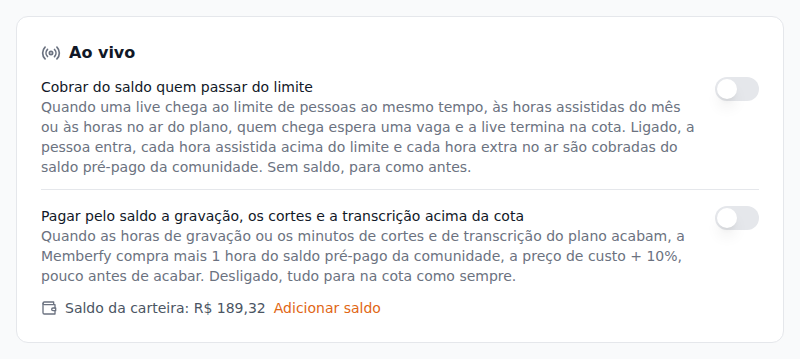
In Settings › Video and streaming › Studio, the Live card has two switches, off by default, that only the owner changes, with the Usage balance balance and the Add balance shortcut below:
- Charge the balance for people past the limit: whoever arrives past the limit of people at once or of hours watched gets in, and each hour watched past the limit comes out of the prepaid balance (R$ 0.90 per person, proportional to the time). Past the plan's hours on air, the live buys 1 more hour on air (R$ 2.97) instead of ending. With no balance, it stops as before: whoever is watching keeps watching, newcomers wait for a seat, and the live ends at the quota.
- Pay recording, clips and transcription past the quota from the balance: see Recording hours and What each request costs.
Through the assistant, the lives are created, scheduled, put on air, ended and canceled too (see MCP).
Through the assistant (MCP)
The assistant handles the Studio in the conversation: who uses it, the rooms, the stage, the look and the saved themes (applying a theme to a room, putting a background image on the stage, the community's default look), the order and the names of the cameras, each person's name tag, text on screen, guest links, letting in, bringing to the video and removing guests, starting and stopping the recording (also for a lesson), the recordings, the clips (asking with the estimate, adjusting and saving to the library), the transcript, taking the recording to an episode, a lesson or the Feed, and the lives (creating, scheduling, going on air, ending and canceling) and the restream destinations. Joining a room with camera and screen always happens in the app, and a guest joins only by the link. See Studio in the Podcast and Videos tools.