
Integrations & APIs
Personal API keys so your CRM, an automation (n8n, Zapier, Make) or a script can call the community's API, and webhooks that notify those systems when something happens. Modules and levels, the secret shown once, allowed IPs, revoking, creating, editing and testing a webhook, deliveries, resending, the ready-made integrations, the Usage block and what no key reaches.
In Integrations & APIs you connect the community to other systems: "your CRM, an automation or a script calls the API with a key of yours." The key replaces signing in on calls to the API, and it only does what you check.
There are three views, in the switch at the top (people who only see the keys don't see the switch):
- API keys: your system calls Memberfy. The team always; members, if the owner allows it.
- Webhooks: Memberfy notifies your system when someone joins, buys, subscribes, registers for an event or completes a course. Owner and admin.
- Integrations: ready-made apps built by Memberfy (Discord, Slack, Telegram, RD Station, HubSpot and shortcuts to Zapier, Make and n8n). Owner and admin.
Where it is
| What | Where |
|---|---|
| Your own keys (any role) | My Account, API keys section (/account?tab=apiKeys) |
| Everyone's keys, webhooks and integrations (owner and admin) | Settings › Integrations and APIs |
API keys for members. In Settings › Integrations and APIs, the owner decides with Members can create API keys, off by default in every community, existing ones included: people outside the team no longer see their keys, and the keys they have stop working (they are not deleted). Turning it back on brings those keys back as they were. The admin sees the option locked ("Only the community owner can change this option."), and the team (owner, admin, moderator and finance) can always create their own keys. With the option off, a member who opens API keys sees "API keys are not available to members".
Keys never go beyond what your role already allows, so allowing members opens nothing new: a member can, for example, take their own bookings to their calendar.
How it works
The key is yours
Each key belongs to you, in this community, and acts on your behalf: what it creates stays with you as the author. The permission for each call is what the key has checked and, at the same time, what your role allows today:
- Checking a module you can't access unlocks nothing ("A key never goes beyond what your role allows: checking a module does not grant access you do not have.").
- If your role is reduced, the key shrinks with it.
- If you leave or are removed from the community, the key stops (Stopped).
- You can have up to 5 active keys.
Modules and levels
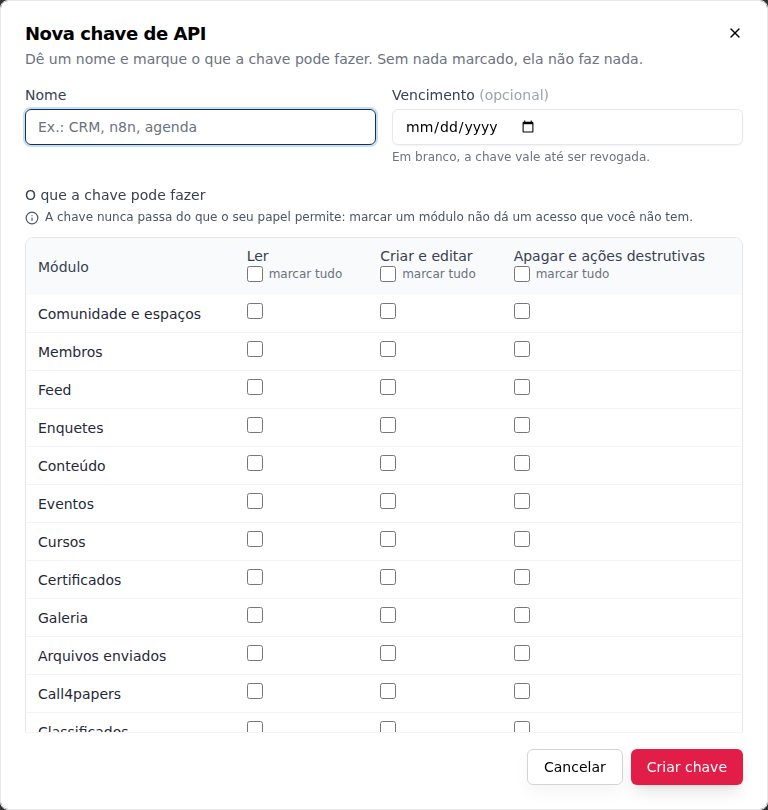
The grid has one row for each of the community's 33 modules and three independent columns:
| Column | What it unlocks |
|---|---|
| Read | Looking things up: lists, details, reports |
| Create and edit | Creating and changing |
| Delete and destructive actions | Deleting, and the actions that take something offline or undo it (list below) |
Each column has check all. With nothing checked, the key does nothing: the default is zero, and each module has to be unlocked on purpose. The columns don't add up: a key with only Delete and destructive actions on a module doesn't read or edit in it.
The modules: Community and spaces, Members, Feed, Polls, Content, Events, Courses, Certificates, Gallery, Uploaded files, Call4papers, Classifieds, Downloads, Store and products, Sales and subscriptions, Finance (read), Reports and logs, Campaigns, Surveys, Upvote, Channels, Gamification, Moderation, Bookings, Scheduling, Networking, Automations, Attendance, Visitors, Parcels, Support, Companies and My preferences.
Automations is read-only by key: Read lists and looks up workflows, versions, run history and deliveries; creating, editing, turning on, pausing, running, testing, canceling, approving and clearing refuse the key (403 API_KEY_BLOCKED) and stay in the app and the AI assistant only.
What requires "Delete and destructive actions"
Besides deleting, these actions require the third column, even though they are not deletions:
| Module | Actions |
|---|---|
| Sales and subscriptions | Cancel a subscription (your own or, by the team, someone else's) |
| Store and products | Unpublish a product |
| Members | Decline the community's invite; replace a person's entire list of tags or fields; reject a sign-up request |
| Courses | Leave a course |
| Certificates | Revoke a certificate; archive a template |
| Call4papers | Unpublish and close the call; withdraw and reject proposals; decline the reviewer or owner invite |
| Polls | Close a poll |
| Events | Stop the live stream |
| Downloads | Replace an item's file |
| Bookings | Cancel a booking |
| Campaigns | Cancel a campaign; restore an automatic email to the default text |
| Support | Cancel a ticket; take the ticket's room or resource out of use (the simulation, before confirming, falls under Create and edit) |
| Moderation | Each moderation decision (approve, reject, send back to the queue) |
| Companies | Decline a company's invite; close a company |
| Parcels | Discard a parcel |
| Networking | Reject someone's entry to the program; decline a session |
What no key reaches
Even with everything checked, the key gets "This action does not accept an API key." on:
- Money: refunds, payouts, payout details, Business Information and documents (KYC), checkout and purchase, saved cards, add-on purchases (by the member or by the team), plan changes, Pay now and the downsell offer.
- Account: sign-in, password, password recovery, email and phone.
- SuperAdmin: the platform management screens.
- The AI assistant: its MCP connection and authorization.
- The keys themselves: a key doesn't create, edit or revoke a key. That is only on screen, with you signed in.
- Private areas: Messages, notifications, browser and phone notifications (devices and preferences), Feedback, development plans, Recognition, Time Tracking and Improve with AI.
- Automation and integration secrets: the third-party secrets vault, the inbound addresses of the automations' webhook triggers and the workflow hooks.
- Acting as another member (the
X-MemberIdheader).
Everything else keeps the usual rules: what your role can't do on screen, the key can't do either.
Step by step: create a key
Role: any.
- Open Integrations & APIs (see Where it is) and click New key.
- Give it a Name ("E.g. CRM, n8n, calendar").
- Expiration (optional): a date when the key stops on its own. "Left blank, the key works until it is revoked."
- Under What the key may do, check only the modules and columns the integration needs.
- Allowed IPs (optional): one per line, IPv4, IPv6 or a CIDR range, up to 20. "Left blank, the key accepts calls from any IP."
- Click Create key.
- Copy the key and keep it in a secrets vault. Click I copied it.
"This is the only time the key is shown. It will not be shown again; if you lose it, revoke it and create another." Afterwards, the list shows only the start of the key (
mfk_7Hq2Lx9a…), which helps you recognize it.
The screen also shows the headers that go on every call: X-Api-Key with the key and X-CommunityId with the community. See Authentication › API key.
Manage the keys
Click a key in the list to open its detail: Key start, Owner, Created on, Expiration, Last used and What the key may do.
| Status | What it shows |
|---|---|
| Active | "The key is working." |
| Expired | The expiration date has passed |
| Revoked | Someone revoked the key (with the date and who revoked it) |
| Stopped | The owner left the community |
- Name and allowed IPs: the owner renames and changes the IPs at any time, without recreating the key. The detail shows the Last refused IP and when.
- Modules: can't be edited. "To change them, create another key and revoke this one."
- Usage: the calls made with the key in the current month and the previous 6.
- Revoke key: the key stops working on the next call, and this can't be undone. The usage history and the log entries remain.
Owner and admin: all keys
Owner and admin switch between My keys and All in the community. All in the community shows everyone's keys, with the owner, the modules, the last use and the status (never the secret), and they can revoke any of them. Renaming and changing IPs stays with the owner of the key.
The Usage block
Below the keys, owner and admin see Usage: "API calls made with a key and webhooks delivered, per month (UTC)." It covers the current month and the previous 6; open a month to see the calls by key and by owner.
Calls made with a valid key count. Calls refused before reaching the route don't: an invalid, revoked or expired key, an action that doesn't accept a key, an IP outside the list and a call above the per-minute limit. Webhooks delivered counts each event successfully delivered to a webhook; the test (Send test) doesn't count.
The Memberfy ceiling
The Memberfy team (SuperAdmin) sees each community's usage in its detail, on the Integrations & APIs card, and can store a Calls ceiling per month, a Webhooks ceiling per month and the Intended model (request package or fixed monthly fee). For now this "is only stored: nothing is blocked or charged, and the community does not see the ceiling". Going over the ceiling only shows the notice "Over the ceiling this month." to Memberfy; the community keeps using the API normally.
Webhooks
Role: owner and admin.
A webhook notifies another system the moment something happens in the community: "Notify another system the moment something happens in the community." Memberfy sends a signed POST to the URL you register, and your CRM, Zapier, Make, n8n or a script does the rest. Whoever writes the code that receives it will find the format, the signature and the retries in Webhooks for integrators.
The events
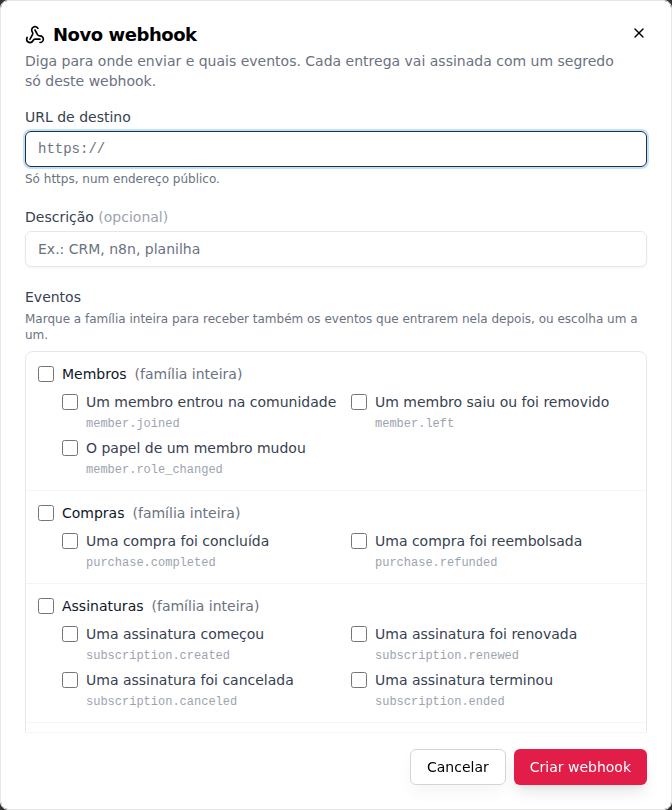
There are 97 events in 27 families (the two for levels and points, member.level_changed and member.points_changed). By topic:
| Topic | Families |
|---|---|
| People | member, message, badge |
| Money | purchase, subscription, checkout, coupon |
| Events and attendance | event, booking, attendance, visitor, parcel |
| Learning | course, lesson, quiz, certificate |
| Content and spaces | post, comment, reaction, space, download, classified, upvote |
| Forms and requests | form, survey, proposal, support_ticket |
Check the whole family to also receive events added to it later, or pick them one by one. The full list is in Webhooks for integrators, and what each event carries is in Webhook events. A member imported from a spreadsheet also triggers member.joined, with source: "import".
Step by step: create a webhook
- In Integrations & APIs, choose Webhooks in the switch at the top and click New webhook.
- Destination URL: "https only, at a public address." Zapier, Make and n8n give you this URL when you create a webhook trigger.
- Description (optional): "E.g. CRM, n8n, spreadsheet".
- Events: check the families or the events.
- Send from fixed IPs (optional): for destinations that only accept known addresses. Deliveries then come from two IPs, which the option shows; see Fixed IPs.
- Read the notice: "Events carry members' personal data, such as name, email and phone, to the destination. Only use an address you trust."
- Click Create webhook, copy the secret (
whsec_…) and store it in the destination system.
"This is the only time the secret is shown. Copy it now; if you lose it, rotate to get a new one." The secret lets the destination check that the delivery really came from Memberfy.
A community can have up to 10 webhooks; the list shows how many already exist ("3 of 10 webhooks in the community."). At the limit, delete one to create another.
Manage a webhook
The list shows each webhook with its URL (masked in the middle), events, status and last delivery. Click one to open the detail: URL, Events, Fixed IPs, creation date, Last successful delivery and, when there are any, Failures in a row.
| Status | What it means |
|---|---|
| Active | "The webhook is receiving the selected events." |
| Disabled | Someone disabled it; no events are sent until it's turned back on |
| Disabled after failures | The destination failed for too long, and Memberfy disabled the webhook (see below) |
The actions in the detail:
- Send test: sends a test event (
ping) now and shows the destination's answer ("Test delivered: HTTP 200 in 180 ms."). It's not retried and doesn't count toward usage. - Edit: changes the URL, the description, the events and the Send from fixed IPs option, without changing the secret (see Edit a webhook).
- Rotate secret: creates a new secret, shown once. "The current secret stops working right away": update the destination right after.
- Disable: deliveries stop right away and pending attempts are canceled. What happens while it's disabled isn't sent later.
- Turn back on: "Turning it back on sends a test first: the webhook only comes back if the destination answers successfully."
- Delete: the webhook stops receiving events, pending attempts are canceled, and this can't be undone.
Rotating, disabling and deleting ask for confirmation.
Edit a webhook
In the detail, click Edit: "Change the URL, description, events or fixed IPs. The secret stays the same." Adjust and click Save changes.
- "Deliveries already under way keep going to the old destination; only new events use the new settings." Retries and resends of an older delivery keep the URL and fixed-IP option it was created with.
- Changing the URL resets the consecutive failures, because it is another destination. The new URL goes through the same check as on creation.
- Editing does not turn it back on. A Disabled or Disabled after failures webhook stays off after saving ("Changes saved. Editing does not turn a disabled webhook back on."); use Turn back on, which sends a test first.
- The Change history records each edit with the before and after of each field (URLs masked).
Deliveries
The Deliveries section of the detail lists each send: the event, the status (Pending, Delivered, Failed, Canceled), the number of attempts and the answer. Filter by status and by event (All events, or Test (ping)).
Open a delivery to see the identifier (webhook-id), the Body sent and each attempt, with the HTTP status and the time ("HTTP 500 in 312 ms"), and when the next one is. Resend sends the delivery again, with the same identifier, in a new series of attempts; a delivery still in progress can't be resent.
When the destination fails, Memberfy tries again after 1 min, 5 min, 30 min, 2 h, 6 h, 12 h and 24 h. If the destination answers 410, or goes 72 hours without any successful delivery, the webhook becomes Disabled after failures, and the owner and admins get an email. Check the destination and click Turn back on. The details are in Webhooks › Retries.
Deliveries are kept for 30 days.
Change history
Below the list, the Change history shows "Who created, edited, tested, turned off, turned on, rotated or deleted a webhook or an integration, and when", including System when Memberfy disables a webhook after failures ("Turned off automatically after failures"). Each webhook's detail has the Changes tab, with only its own. The history is kept for 30 days.
Examples
Zapier tells the team about each purchase. Julia, the owner, creates a Webhooks by Zapier trigger, copies the URL and creates the Zapier sales webhook in Memberfy with the Purchases family. She clicks Send test, Zapier receives the ping, and from then on each completed purchase becomes a message in the team's channel, with the buyer's name and email.
The CRM that refuses unknown IPs. The CRM's firewall only accepts allowed addresses. Rafael creates the webhook with Send from fixed IPs, allows the two fixed IPs in the CRM and sends a test. When the CRM is down over a weekend, deliveries come back on their own through the retries; the ones that ran out of attempts he resends from the Deliveries section.
A member's bookings in their calendar. Carla, a member of a coworking space, creates the Calendar key with Read on Bookings and nothing else. Her script reads her own bookings and builds the calendar. If the script tries to cancel a booking, the API refuses: Delete and destructive actions on Bookings is missing.
The sales team's CRM. Rafael, an admin, creates the CRM key with Read on Members and on Sales and subscriptions, and the CRM server's IPs. The CRM pulls the new subscribers every hour. Refunding through the CRM doesn't work, not even with everything checked: money only on screen.
The automation that posts to the Feed. The community's n8n uses a key with Create and edit on Feed. When the key leaks in a screenshot, the owner opens All in the community, revokes the key and n8n's next call is already refused. The key's owner creates another.
Frequently asked questions
Why does the key get "no permission" on a module I checked? Two causes: the checked column isn't the action's (canceling requires Delete and destructive actions, not Create and edit), or your role can't do it even on screen. The key never goes beyond your role.
I lost the key. Can I see it again? No. Revoke it and create another.
How many calls can I make? Up to 120 per minute, adding up all your keys in this community. Above that, the API asks you to wait a few seconds. See Authentication › Call limit.
Can I create or revoke a key through the AI assistant?
No. The assistant lists the keys (yours and, for owner and admin, the community's), but creating, editing and revoking is only on screen. See list_integrations.
Where do I see what a key did? Every key created, renamed, with its IPs changed or revoked, and every write made with a key, is recorded "via key {name}". See Logs › API keys.
Does a key from one community work in another? No. The key is valid only in the community where it was created.
Why don't I see Webhooks in the switch? It's for the owner and admins only. Other roles only see their own keys.
The webhook is Disabled after failures. Do I lose the events?
The ones that happened while it was disabled aren't sent. Once it's turned back on, the next ones arrive again. If the destination answered 410, it asked to stop: check the URL before turning it back on.
The destination got the same event twice.
It can happen (an answer lost on the way, a resend). The destination should ignore the repeat by the webhook-id header. See Webhooks › Respond and process.
Ready-made integrations (Discord, Slack, Telegram)? Available, in Integrations: Discord, Slack, Telegram, RD Station and HubSpot, plus shortcuts to Zapier, Make and n8n. See Ready-made integrations.
Through the assistant and the API
- Through the AI assistant:
list_integrations("Which API keys do I have?"; owner and admin also see the webhooks, "Is any webhook failing?", and, withtype: apps, the ready-made integrations, always read-only),list_logswithtype: apiKeysandlist_activity_logswithsource: apiKeys("What did the n8n key do this week?"). - Webhooks through the API: see Webhooks › Manage through the API; the format, the signature and the events in Webhooks and Webhook events.
- Through the API: the
/api/integrations/api-keysroutes (list, create, view, rename and change IPs, revoke, usage) work only with the on-screen sign-in, never with a key. See Authentication › API key and the reference.