
Add-ons
Extras only plan holders can buy, sold with the plan in a single payment or added later at a prorated price, and that follow the plan when it's past due, paused or canceled.
An add-on (the upsell) is a product that only makes sense on top of a plan: the Coworking extension on top of Growth, group mentoring on top of the Student plan, an extra-members pack on top of Scale. Anyone without the plan can't see the add-on or buy it.
What it's for
| Community | Plan | Add-on | Why |
|---|---|---|---|
| SaaS (Memberfy's catalog) | Starter, Growth, Business, Scale | Coworking Extension R$ 450/month · Planning & HR Extension R$ 950/month | The extension only exists on top of a plan |
| SaaS | Scale | +2,000 members pack, R$ 99/month | Only makes sense on the largest plan |
| Online school | Student | Group mentoring, R$ 100/month | Non-students have nothing to be mentored on |
| Coworking space | Resident | Locker, R$ 60/month | Only residents use lockers |
Without add-ons, the same effect would take a new plan for every combination ("Growth with coworking", "Growth with HR", "Growth with both"). With them, there's a single plan and the extra is added on top.
The rules of an add-on
- Requires the plan: only someone with one of the plans active sees the add-on and can buy it. Without the plan, the payment is refused: "This add-on requires an active plan. Subscribe to one of the required plans before buying it."
- Follows the plan: a past-due or paused plan suspends the add-on (and restores it when the plan comes back); an ended plan ends the add-on.
How it works
Where it's set up
The list of add-ons lives on the plan. In Monetization › Plans, when you create or edit a plan, the Add-ons (upsell) section lists the products that can be added to it, and you tick the ones that apply to that plan.
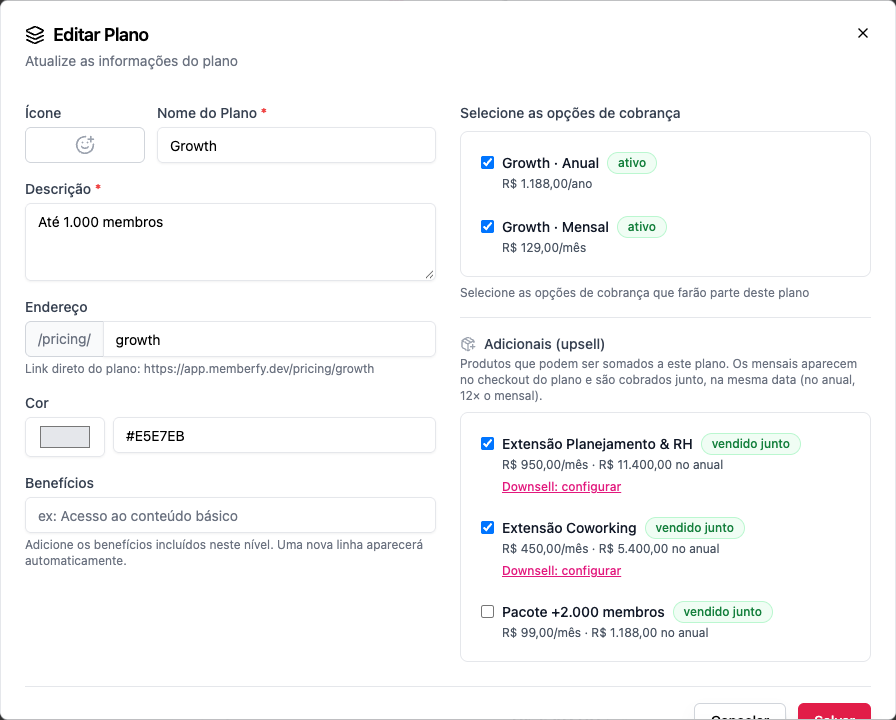
For each add-on on the list, choose:
| Option | What it means |
|---|---|
| sold with the plan | Shows up on the pricing page right after the plan is chosen, to tick and pay together |
| plan holders only | Doesn't show up when buying the plan; existing subscribers buy it later, from the Billing page |
On the product's own Plans tab, you can see which plans it's an add-on of ("Add-on of: …"), read-only: "The list lives on the plan: in Monetization › Plans, edit the plan and tick the product under "Add-ons"."
Add-on rules
- It's a monthly billing option, outside any plan. An option that's already a way to pay for a plan can't be another plan's add-on: "A product that is a plan's billing option cannot be another plan's add-on."
- Priced at the plan's pace: on a monthly plan, it charges the add-on's monthly price; on an annual plan, it charges 12 times the monthly price, within the same yearly installments.
- Weekly and daily plans don't offer add-ons, and neither do plans with a free trial, until the trial ends.
- The plan's contract length doesn't lock in the add-on: it can be removed at any time.
A single payment
Bought together with the plan, everything becomes one order: one PIX, one boleto or one card transaction. From then on, the plan and its add-ons renew on the same date, in a single order. The platform fee's fixed R$ 2.49 applies once per order, not once per item.
Adding an add-on later
Existing subscribers add an add-on from Billing › Add an extension:
- The screen shows the prorated amount until the plan's next date ("Today: R$ 225.00 (prorated until 11/20)") and what comes after ("Then: R$ 450.00 with the plan, every charge.").
- If the next charge is less than 3 days away, or the prorated amount is under R$ 10, nothing is charged now: the add-on goes straight into the plan's next charge ("Nothing charged now…").
- Payment uses the saved card by default; PIX and boleto work too.
Removing an add-on
Canceling an add-on takes effect at the end of the period: it stays until then and isn't in the next charge ("Canceled add-ons stay until the end of the period and are not in the next charge.").
Taking a product off a plan's list while the plan has subscribers to that add-on is refused ("This add-on cannot be taken off the plan: N subscription(s) of the plan's subscribers would be canceled right away…"): end those subscriptions first.
Who can
Set up add-ons on the plan: owner and admin. Buy them: anyone with the plan.
Step by step: sell an add-on together with the plan
Role: owner or admin.
- Create the add-on in Monetization › Options › Create billing option: a name (e.g. Coworking Extension), a monthly price (R$ 450), the Monthly interval, and payment methods. Don't tick any plan on the Plans tab.
- Open Monetization › Plans, and on the plan (e.g. Growth) open the row's menu and choose Edit.
- Under Add-ons (upsell), tick Coworking Extension and leave it sold with the plan.
- Save.
- Repeat on the other plans that should offer the add-on.
What the buyer sees
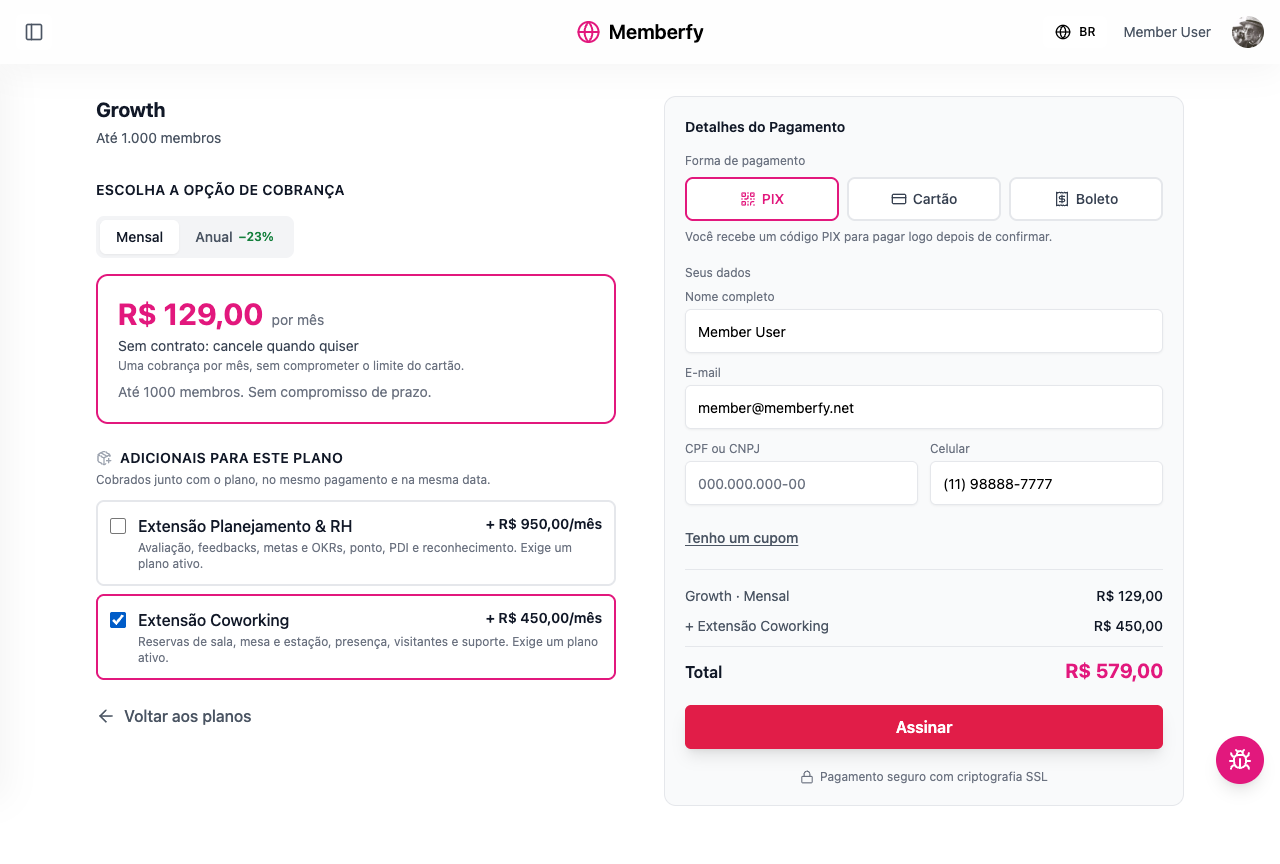
On the pricing page, after choosing the plan and the option, Add-ons for this plan appears ("Billed with the plan, in the same payment and on the same date."). Each add-on shows its price at the option's pace: + R$ 450.00/month on monthly; + 12× R$ 450.00 · R$ 5,400.00 a year on annual. The payment summary lists the plan and each add-on, and the total.
Examples with numbers
The fee is 6.99% of the total + R$ 2.49 once per order.
Growth Monthly (R$ 129) + Coworking Extension (R$ 450), bought together. A total of R$ 579.00 a month. Fee: R$ 40.47 + R$ 2.49 = R$ 42.96. The community keeps R$ 536.04 a month.
The same two, bought separately. Two orders, two fixed fees: (R$ 9.02 + R$ 2.49) + (R$ 31.46 + R$ 2.49) = R$ 45.46. The community keeps R$ 533.54. Selling them together leaves R$ 2.50 more a month for the community, and a single billing date for the member.
Growth Annual (R$ 1,188) + Coworking Extension on annual (12 × R$ 450 = R$ 5,400). A total of R$ 6,588.00 a year, in up to 12 card installments. Fee: R$ 460.50 + R$ 2.49 = R$ 462.99. The community keeps R$ 6,125.01.
Adding Coworking mid-month. Growth renews on the 20th; on the 5th, 15 of 30 days are left. Today: R$ 450 × 15/30 = R$ 225.00. From the 20th on, R$ 579.00 a month, in a single order.
Common errors and how to fix them
| Message | What to do |
|---|---|
| This add-on requires an active plan… | The person needs to subscribe to one of the plans first |
| This plan option does not take add-ons. | The option is weekly or daily, or has a free trial |
| This add-on is not on the chosen plan's list. | Tick the product under Add-ons on the plan |
| This add-on cannot be bought together with the plan. | It's set to plan holders only: buy it later, from the Billing page |
| You already subscribe to this add-on. | Nothing to do: it's already on the subscription |
| Add-ons can only be added to an active plan with no cancellation scheduled. | Bring the plan up to date or reactivate it first |
| One of the add-ons does not exist in this community or was deleted. | Remove the deleted product from the plan's list |
Frequently asked questions
Can an add-on have a free trial? The trial belongs to the plan. A plan with a trial doesn't offer add-ons until the trial ends.
If the member cancels the plan, does the add-on continue? No. A plan canceled at the end of the period also stops the add-on from renewing; a plan ended right away ends the add-on with it.
Can I discount an add-on? Yes: with a coupon that includes the add-on, or with a downsell for people who skipped it.
On an annual plan, is the add-on annual too? Yes: it follows the plan's pace and charges 12 times the monthly price, in the same payment and the same yearly installments. When the plan renews, it renews too.
Can one add-on apply to several plans? Yes. Tick it in the Add-ons section of each plan that should offer it.
Does an add-on unlock spaces? Yes, like any product: add it under the space's Who gets in › Products.
In the API
PUT /api/subscription-groups/{id} with addOnProductIds; POST /api/checkout with addOnProductIds; POST /api/subscriptions/{id}/add-ons/quote and POST /api/subscriptions/{id}/add-ons. See Subscriptions and Checkout.