
Media library
The community's audios and videos in one place, at Administration › Media library. Search and filter, where each file is used, reuse without copying (storage and conversion count once), files from paid content and deleting from every place.
The Media library gathers the audios and videos uploaded in the community: those of posts, Drops, lessons, event recordings, Podcast and Videos episodes, the Feed's Podcast and Video (see Feed) and the welcome video. A file uploaded once can be used again somewhere else, without uploading it again and without becoming a copy.
Images and videos from messages are not in the library.
What it's for
| Community | Media library |
|---|---|
| Online school | The recorded lesson also becomes the show's open episode, with the same file |
| Association | The assembly recording goes to the Feed as audio, without uploading it again |
| Product community | The team finds a launch video by name and sees how many posts it is in |
| Any community | Delete a file that should not be online, from every place at once |
How it works
Who sees what
| Who | What they see |
|---|---|
| The team (owner, admin, moderator and finance) | Every audio and video of the community, on the Media library page and in the From the library button |
| Members | Only the files they uploaded themselves, in the From the library button |
The page is at Administration › Media library, in the side menu, and only the team sees it. Anyone else who opens the address sees "Only the team opens the Media library".
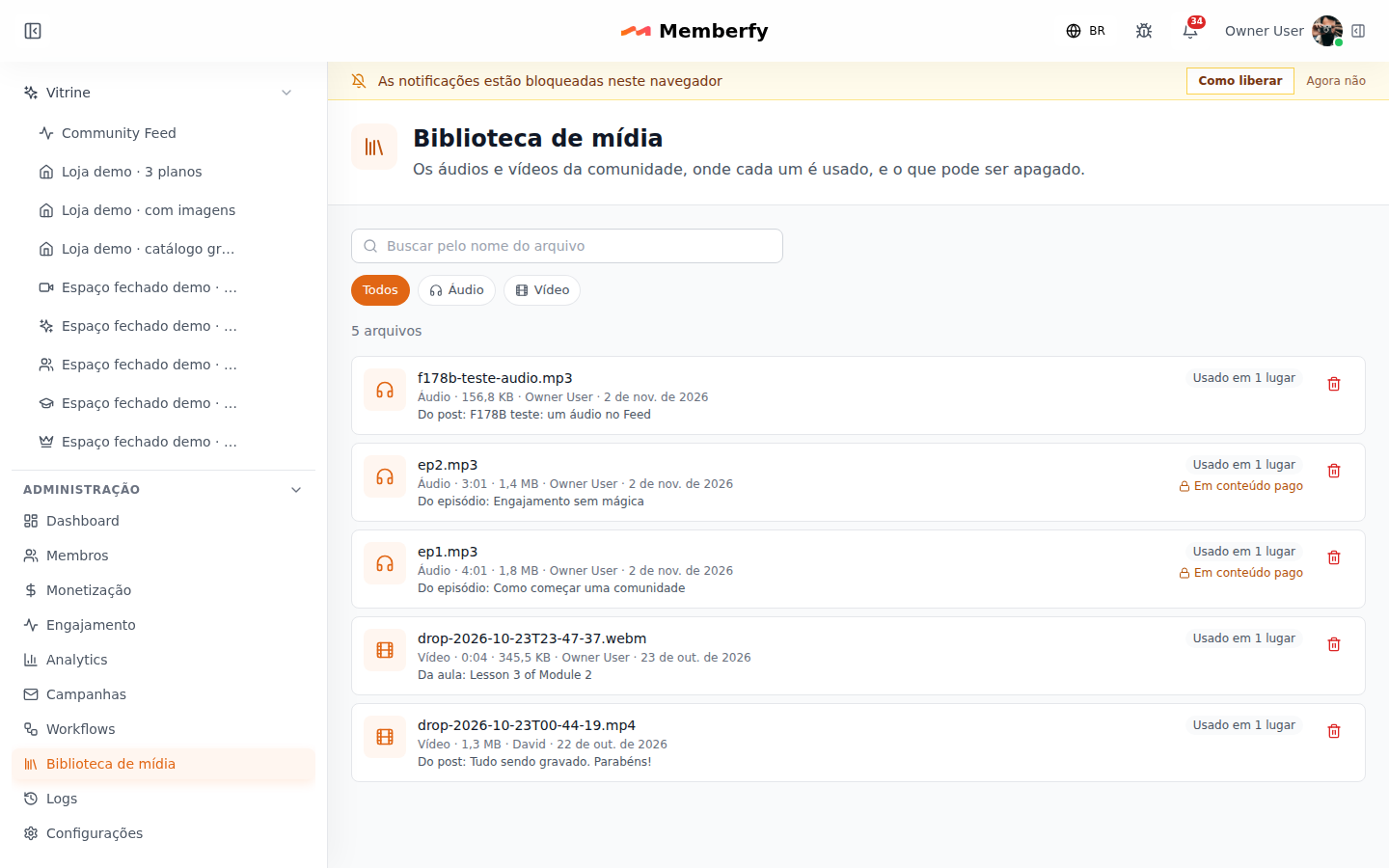
The list
At the top, Search by file name and the filter All, Audio or Video; below, the total ("5 files"). Each file shows:
- the file name and type, the duration, the size, who uploaded it and the date;
- where it came from: "From the post: …", "From the episode: …", "From the lesson: …", "From the recording: …", "From a comment: …" or the welcome video;
- Used in N places: how many places it is in, counting the original upload;
- In paid content, when one of those places is paid (see File from paid content).
Reuse without copying
Where audio or video goes in, the From the library button opens Pick from the library: "The file is reused, not copied: storage and conversion count once."
| Where | What goes in |
|---|---|
| New Status › Podcast and Video, in the Feed | An audio or a video; in the Episodes tab, a published episode, which goes as a card |
| The episode editor, in Podcast and Videos | The episode's audio or video |
| The lesson editor, in Courses | The lesson video |
| The Content post | The post video |
The file stays one: its size counts once in the plan storage, the conversion for streaming happens once and, in an episode, a finished transcript of one serves another that uses the same file, without spending minutes again. Each place keeps its own access rules: whoever opens the post sees the post, whoever can listen to the episode listens to the episode.
Only the team or whoever uploaded the file can reuse it. Changing the media of one place or deleting the post does not delete the file while another place uses it.
File from paid content
A file used in paid content (an episode, a lesson of a paid course, a paid event's recording, a post or space of a plan) shows In paid content. When you pick it, the window asks first: "Publish a file from paid content?", "This file is in paid content; publishing it here opens it to everyone who sees this place." It only goes in with Publish anyway.
- In an episode, only the owner and the admin reuse a file from paid content; the presenter and the uploader get "This file is in paid content. Only an owner or admin can publish it in another episode."
- In the Feed, an episode's file goes in as the episode card, which keeps the episode's access (whoever cannot listen sees the offer, never the file). Any other file from paid content does not go in on its own: "This file is part of paid content and cannot be posted on its own here."
Delete from every place
The trash can of each file belongs to the owner and the admin. It opens "Delete this file everywhere?", with the list of where it is used ("Used in 1 place: Feed post: … (where it was uploaded)") and the note "The posts, lessons and episodes stay; only the file goes. The storage goes back to the community." Delete from the library confirms.
After that, each post, episode, lesson or recording that used the file stays in place and shows Media removed. The storage it took goes back to the community.
Step by step
Find where a video is being used
- Open Administration › Media library.
- Filter by Video and type part of the name in Search by file name.
- Read Used in N places and the source; the trash can shows the full list of uses before anything happens (Cancel leaves without deleting).
Post an audio you already uploaded to the Feed
- In the Feed, New Status › Podcast.
- From the library, pick the file and write the text, if you want.
- Publish.
Common errors and how to fix them
| Message | What to do |
|---|---|
| Only the team opens the Media library | The page belongs to the team. Members reuse their own files with the From the library button |
| Only the team or whoever uploaded the file can reuse it. | Ask the uploader, or someone on the team, to publish it |
| This file is in paid content. Only an owner or admin can publish it in another episode. | Ask the owner or the admin |
| This file is part of paid content and cannot be posted on its own here. | In the Feed, post the episode as a card (Episodes tab) |
| This file is used somewhere else. To delete it, use the Media Library. | Delete it with the library's trash can, which takes the file out of every place |
| Media removed on a post or episode | The file was deleted from the library. Upload another one or pick another from the library |
Frequently asked questions
Does reusing a video use storage again? No. The file is one; storage and conversion count once.
Do members see other members' files? No. Outside the team, each person sees only what they uploaded.
Does deleting a post delete its video? Only if no other place uses the video. To take the file out of every place, use the library's trash can.
Are photos in the library? No. The library keeps only audios and videos.
Through the assistant
The assistant lists and searches the library (list_media_library_items), shows where a file is used (get_media_library_item) and deletes it from every place after your yes (delete_media_library_item). To reuse a file, it passes the file id in the destination's media field. See Tools · Podcast and Videos.