
Releases
Networking is here, a space module for people in the community to find each other and book conversations, and every member now has their own page. Also new: recognition types with art, the chat on your photo with status and last seen, the Ranking podium, the Survey results dashboard, clearer cycles in Performance Review and Goals & OKRs, the 1:1 management dashboard, and screens with the same tabs and navigation across the app.
Today's highlights:
- Networking
- Member page
- Side column in the Feed
- Recognition with types and art
- Chat on your photo, with status
- Browser and phone notifications
Networking
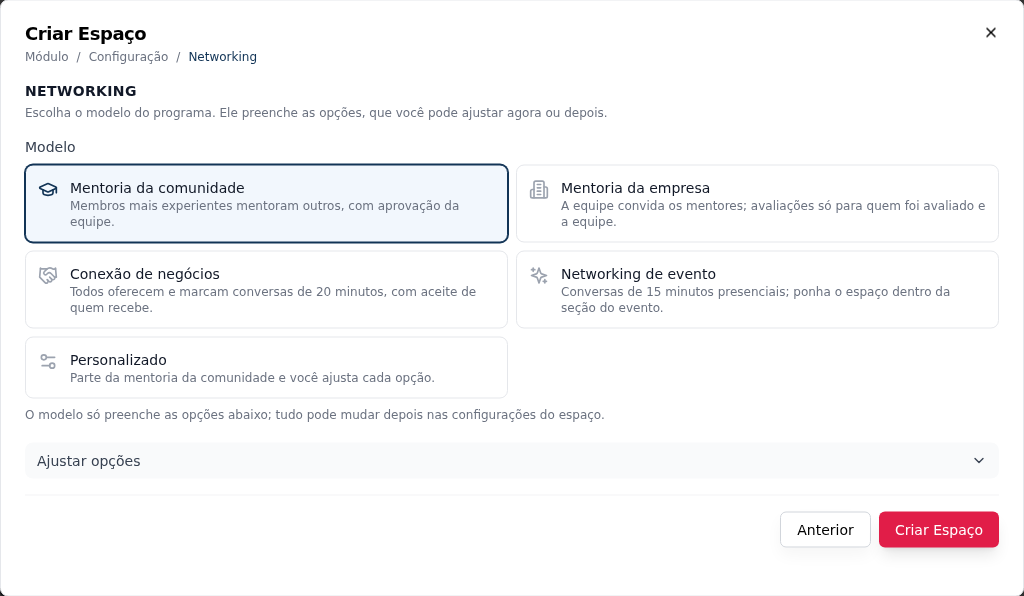
What it is. A new space module, in the Community tab of Create Space. People who can help join the program and open their calendar; people looking for help (or business) find the right person in Explore, pick a time and book a session, with the reason for the conversation. Afterwards, both say in How did it go? whether the session happened and, if the space asks for it, rate each other. Sessions turn into numbers on the profile, labels, badges and points. A session is always free: it uses no credits and no payment.
Why it matters. Mentoring, business matchmaking and event networking usually live in spreadsheets and chat groups. Now the community runs the program in a space, with each person's calendar, the calendar invite, the reminder and the emails, and knows how many conversations actually happened.
Where it is. In the menu, Add Space › Community › Networking. Each space is a program.
How to start.
- Create the space and pick the Model: Community mentoring, Company mentoring, Business connections, Event networking or Custom. The model fills in every option; Adjust options changes whatever you want before creating.
- Choose who can offer sessions and whether joining is direct or needs approval.
- Share the space: whoever joins as a mentor sets up their calendar, and everyone else books through Explore.
Example. An association opens "Career mentoring": senior members join with the team's approval and offer 30-minute sessions; newer members search by specialty in Explore, book on the mentor's calendar and, after the conversation, answer How did it go?.
The program's emails (request to join, approved entry, session request, How did it go?) have the new Networking category in This community's emails, on by default. People in the same program chat without needing a connection. See Networking.
Member page
What it is. Every member has a page in the community, with its own link. It shows who the person is (cover, job title, company, country, languages, links, experience and the signup fields the community lets it show) and what they did there, in the Overview, Activity, Achievements and Credits tabs. Clicking a name opens a short preview, with View full profile.
Why it matters. People get to know each other before starting a conversation, and each one decides what to show. Privacy has 3 levels, chosen for each part of the page: Public, Members or Private. The community's team always sees everything.
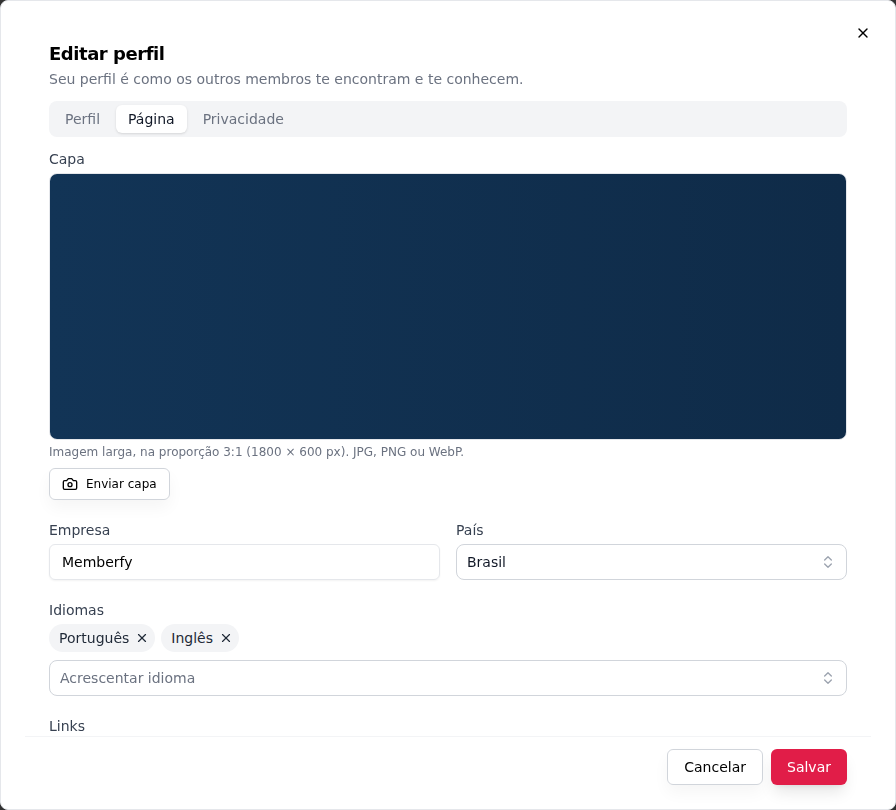
Where it is. On your page, Edit profile, with the Profile, Page and Privacy tabs. For the team, Settings › Search and discovery, in the Member pages card.
How to start.
- Open your page and, in Edit profile › Page, add the cover, the company and your experience.
- In Privacy, choose the level for each part.
- For pages that open to people who aren't signed in, the owner or an admin turns on Public member pages (off by default) and sets the most open level allowed for each part.
Example. A mentor leaves her header and experience as Public and her activity as Members: her link, sent to someone outside the community, shows who she is, without her posts. The public page isn't indexed by search engines.
Custom fields have a new On the member page option: never, the person chooses, or always. Sensitive fields (phone, documents, health, address…) start at never. See Your profile and Custom fields.
Side column in the Feed
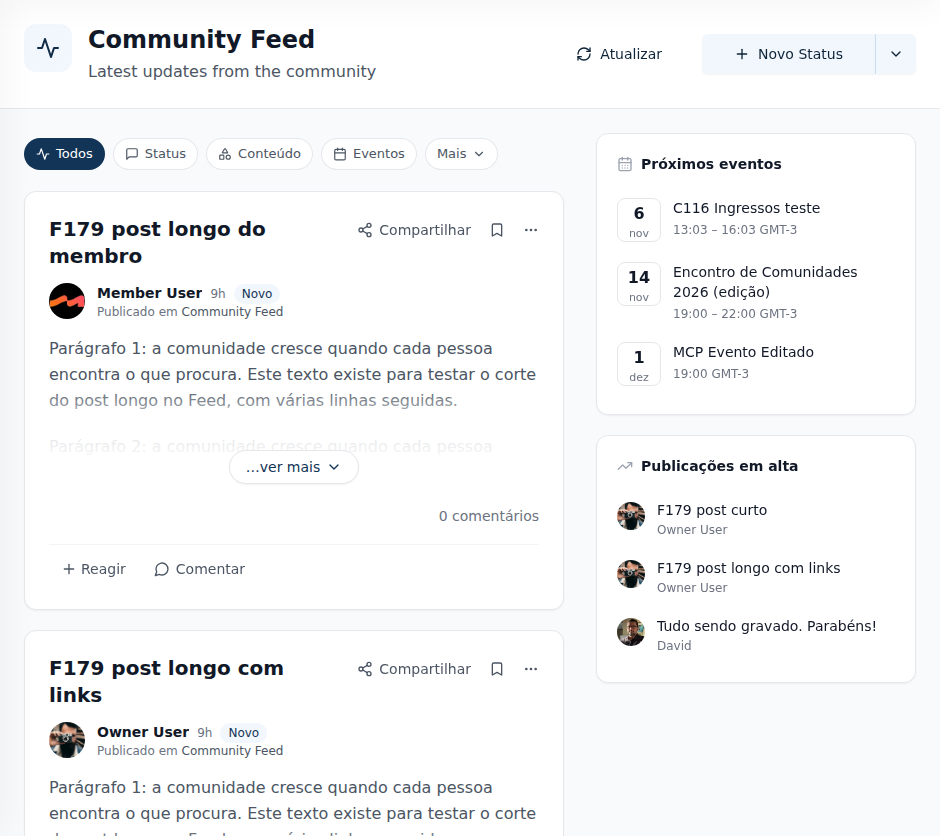
What it is. Next to the list, the Feed shows a column with up to four cards: Upcoming events and Trending posts, on by default, and New members and Leaderboard, which the team can turn on. Each card shows only what the person can open.
Why it matters. Whoever opens the Feed sees the next meetup and what's moving the community right away, without looking for it.
Where it is. In the Feed. To choose the cards, the owner or an admin edits the Feed space, under Side column.
How to start.
- Open the Feed: events and trending posts are already there.
- To change it, edit the space and turn each card on or off under Side column.
Example. A community with monthly meetups keeps Upcoming events and turns on New members, so newcomers are welcomed right at the door. On a phone, the cards become a carousel above the filters.
See Side column.
Recognition with types and art
What it is. Every recognition now has a type (Appreciation, Welcome, Milestone, Award, Event shout-out, Course completed or Work anniversary), and each type has its own art and phrase. The card opens with the art and reads "X recognized Y", and the wall shows two columns when there is room. Whoever gave or received it downloads the Card to share and, when allowed, uses Post on LinkedIn.
Why it matters. A thank-you, a milestone and a welcome no longer look the same on the wall and in the Feed, and the recognition leaves the community on a good-looking card.
Where it is. In the Recognition space, in the Type field of Recognize. For the owner and the admin, Edit space › Types and art: turn each type on or off and upload the community's own art.
See Recognition.
Chat on your photo, with status
What it is. The chat opens from your photo, at the top right, in a panel with your conversations, people and your account. You choose your status: Available, Busy (messages arrive without sound) or Unavailable; Away shows up on its own after 10 minutes without activity. People who are out of the app show when they were last online, and everyone decides whether to show theirs.
Why it matters. You can tell whether it's a good time to message someone, and ask for quiet without disappearing from the chat.
Where it is. On your photo, at the top. The status sits next to Conversations and People; Show when I was last online is in the chat's gear.
See Messages.
Browser and phone notifications
What it is. The community lets people know right away, on the computer and on the phone, when someone messages or mentions them, even with the community closed. For now, two categories send notifications: Messages (a new message, a connection request and an accepted connection) and Channels: mentions and replies. Several messages in a row from the same person become a single notification, and tapping it opens the conversation or the thread.
Why it matters. Nobody has to keep the tab open to avoid missing a conversation, and the community is one tap away on the phone's screen.
Where it is. Each person turns them on on their own device: in the window that shows up right after signing in, in the colored band under the header (Turn on) or in My Account › Notices, on the Browser and phone card. That's also where the main switch, the categories, Show the message text (off by default: the notification only says who and what) and the Devices list, with Send test and Remove, live.
How to start.
- Sign in to the community and tap Turn on in the window or the band.
- Allow notifications when the browser asks.
- In My Account › Notices › Browser and phone, use Send test to check.
On the iPhone and iPad, notifications arrive through the app installed on the home screen (iOS 16.4 or newer): in Safari, Share › Add to Home Screen, open it from the new icon, log in again with your e-mail and password and tap Turn on.
See Browser and phone notifications.
Improvements
- Ranking with a podium and levels. The top three on a podium, tied positions marked with =, names for the nine levels (from Newcomer to Legend), badges in the list, how far each person moved up or down and a new My engagement. See Ranking.
- Survey results as a dashboard. One header, the sections as tabs, cards with responses, response rate and NPS, the Responses per day chart and one card per question. In an anonymous survey, the chart counts published batches, never the time someone answered. See Surveys.
- A clearer Performance Review. The cycles list with numbers, filters and fuller cards; a scale of 2 to 10 levels, named however the community wants; Template and score in two columns and a new questions editor; and, for the owner and the admin, who reviews whom. See Performance Review.
- Goals & OKRs with a score and the current cycle. The current cycle up front, the cycle result (overall progress and KRs met, partial and missed) and the OKR score from 0 to 1. See Goals & OKRs.
- A 1:1 management dashboard. Anyone who leads someone opens the 1:1 space in Manage, with their team's adherence and dates (the owner and the admin see the whole community); Mine has your own 1:1s. See 1:1.
- Manage and Mine in Certificates, Development Plan and Performance Review. Whoever runs the space opens the management view, and each person has their own in Mine.
- Support tickets like a help desk. A header with Resolve or Reopen, the conversation as a timeline, Reply and Internal note in the same box, photo attachments and an editable Details panel. See Support.
- A fuller member page. A compact header with the leader and the main group, Certificates and Badges sections, certificates opened in a viewer, each badge's origin linked and Grant badge in the menu. See Your profile.
- The course page. The title under the cover, underline tabs, a leaner side column and a single action button; for the team, the builder with a drag handle. See Courses.
- Simpler Networking. Whoever opens the space books a session right away, without joining the program; only becoming a mentor is a request. And the team can limit who may ask to be a mentor by groups, tags or badges. See Networking.
- The Feed's side column in tabs. On narrower screens, the cards become a single card with tabs, and Upcoming events shows up to 5. See Feed.
- My account reorganized. Sections in groups, your profile edited right there with a single All saved bar, Billing inside My account and Report a problem at the top of the app. See Account and profile.
- The same screens across the app. Underline tabs for sections, a Back that goes up one level, the same management bar in every module and the create button always in the space header.
- Person card in Channels. Clicking a mention or an author's name opens the person's card, with Send message. See Channel.
- A more elegant post card. In the Feed, a Content post card has the cover edge to edge, the title up front and the author with Posted in {space}. The post page uses the same header and the new width. See The post card.
- The same filters and list navigation across the app. Before, each screen filtered its own way (tabs, rows of buttons, dropdowns). Now sales, members, subscriptions, coupons, products, logs, listings, courses, campaigns, workflows, scheduling and the other lists use the same pieces: search first, each filter in a button with a menu, active filters as chips with × and Clear filters. On a phone, the filters sit in Filters (N). Screens with many areas, like Members, Monetization and My Account, got a section menu on the left. And the filter lives in the link: reloading or sending the address opens the same view. See Lists and filters.
- Feed filters on a single line. The Feed's types become smaller pills; the ones that don't fit go to More ▾. See Filters.
- The unread message count fixes itself. Before, after reading and replying to someone's first message, Chat could keep one unread until you reloaded the page. Now the count follows what you've read. See Messages.
- Site: the Networking module got its own page, and the Feed page now shows the side column.
- New security and privacy controls.
- New security controls on API keys.
- Automations module on API keys (read). A key with Read on Automations lists and looks up workflows, versions, run history and deliveries; creating, editing and running stay in the app and the AI assistant. See Integrations & APIs.
Fixes
- Workflows show each trigger's name. The workflow list and history showed the code of some triggers (like a workflow called by another one). Now they show the name, like the editor does. See Workflows.
- "1 request", not "1 requests". The management bars of Scheduling, Classifieds, Parcels, Downloads and Upvote now use singular and plural.
- Renewal on the right day. A subscription started on the 29th, 30th or 31st used to slide to the 1st to 3rd after February. Now it stays on its original day and, in shorter months, renews on the last day of the month. Subscriptions started between the 1st and the 28th don't change.
For developers
API
- Networking: the new routes are under
/api/networking(settings, showcase, profiles, participation, request queue, sessions, reviews, session types and badges). Canceling and rescheduling use/api/bookings/{id}/canceland/reschedule. See Networking. - Member page:
GET /api/members/{id}returnscoverUrl,company,country,languages,links,experiences,profileFields,communityStatsandsections;PUT /api/members/me/profilesaves the page;POST/DELETE /api/upload/cover/memberhandle the cover;GET /api/members/{id}/activitylists the Activity; without signing in,GET /api/public/members/{id}and/activity. ThepublicMemberPagesandmemberPageCeilingssettings are inPATCH /api/communities/{id}/settings, and custom fields acceptprofileVisibility. See Your profile › In the API. - Feed:
GET /api/feed/sidebar?spaceId=returns the side column's widgets, already filtered for whoever asks;POST /api/spacesandPUT /api/spaces/{id}acceptfeedWidgets. TheGET /api/feed/recommendationsroute was removed. See Feed › In the API. - Recognition:
POST /api/recognitionsacceptstype, and every recognition returnsrecognitionType,typeLabel,typePhrase,artUrl,canShareandcanPostToLinkedIn.GET /api/recognitions/typeslists the types;PUT /api/recognitions/types/{type}turns one on or off, andPOST/DELETE /api/recognitions/types/{type}/artuploads or removes the community's own art. See Recognition. - Chat:
PATCH /api/chat/meacceptschatStatus(AVAILABLE,BUSYorUNAVAILABLE); people online returnstatus(includingAWAY), and people offline returnlastSeenAtwhen both people keepchatShowLastSeenon. See Messages. - Surveys:
GET /api/surveys/{id}/resultsreturnsactivity, responses per day, counts only. Performance Review:scaleLabels(2 to 10 names) when creating or editing a draft cycle. Goals & OKRs:scorefrom 0 to 1 on cycles and objectives. - Networking:
PUT /api/networking/host-rulestores who may ask to be a mentor (groupIds,tags,badgeIds), andGET /api/networking/configreturnshostRestrictedandhostEligible. Members:GET /api/members/{id}returns, with a session,leader,directReportsCountandgroups.
MCP: technical details
- Networking: the new tools cover the program (
get_networking_settings,update_networking_settings,update_networking_badges), search (search_networking_profiles,get_networking_profile), joining (join_networking,update_my_networking_profile,leave_networking), the queue and the people, for the team (list_networking_requests,decide_networking_request,list_networking_participants…), and sessions (book_networking_session,list_networking_sessions,accept_networking_session,review_networking_session…).create_spaceandupdate_spaceaccept thenetworkingargument. See Tools · Networking and recipes 105 to 108. - Member page:
update_my_profileedits your page,list_member_page_activitylists the Activity,get_memberreturns the new fields already filtered,update_community_settingsacceptspublic_member_pagesandmember_page_ceilings, and custom fields acceptprofile_visibility. See recipe 101. - Feed:
get_feed_highlightsreplacesget_feed_recommendations, which left the server, and answers "what's trending?" and "what are the upcoming events?";create_spaceandupdate_spaceacceptfeed_widgets. The server now has 923 tools. Seeget_feed_highlightsand recipes 102 to 104. - Recognition:
list_recognition_types,update_recognition_type,upload_recognition_type_artandremove_recognition_type_art;create_recognitionacceptstype. See Tools · Members. - Chat:
update_my_chat_preferencestakesstatusandshow_last_seen. See recipes 109 and 110 in Recipes. - Browser and phone notifications:
get_my_push_preferences,update_my_push_preferences,list_my_push_devices,remove_my_push_device(asks for confirmation) andsend_test_push, always only with the data of whoever asks. See Through the assistant. - 1:1:
get_one_on_one_dashboardreturns the Manage dashboard. Performance Review:scale_labelsandlist_review_cycle_assignments(who reviews whom). Goals & OKRs:scoreand the cyclesummary. Surveys:get_survey_resultsreturnsactivity. Networking:host_rulelimits who may ask to be a mentor.