
Meeting
Video meetings inside the community, from the Apps button in the header. A personal room with a fixed link, a meeting now or scheduled in the community's time zone, members invited with a notice in the bell, joining by code or link, the screen before you join, screen sharing, chat, raised hands, reactions, background blur, co-host and remove, end for everyone, and each plan's meeting hours. Guests without an account through the waiting room, invites by e-mail with the calendar event, Going / Not going and the reminder 15 minutes before.
The Meeting is the community's video meeting room, inside the app itself: nobody needs another program or another account. Everyone who creates meetings gets a personal room with a fixed link and can start a meeting right away or schedule one for later, inviting members of the community. If the community turns guests on, people from outside can be invited too: they join with just their name, through the waiting room.
The room has what you expect from a video call: the grid with the cameras, screen sharing, messages, raised hands, reactions, background blur and, for whoever runs it, mute, co-host, remove and end for everyone.
What it is for
| Community | Meeting |
|---|---|
| Online school | The teacher holds the weekly office hours in the personal room, always with the same link |
| Association | The board schedules the monthly meeting and invites the members, who get the notice in the bell |
| Product community | The team shares the screen in a quick call with a member who asked for help |
| Mentoring | The mentors (a group that was let in) open their own rooms to meet their mentees |
| Subscriber club | The host opens the meeting live and whoever has the link joins, with no invitation needed |
| Business association | The team invites an outside speaker by e-mail; they get the calendar event and join with just their name, through the waiting room |
Where it is and who uses it
The Meeting opens from the Apps button in the header (the grid icon), on the Meeting card, which shows for people who may create meetings. It opens inside the community, with the side menu collapsed; the meeting room takes up the whole screen.
| Who | Creates meetings | Where it opens |
|---|---|---|
| Team (owner, admin, moderator and finance) | Always | Apps button › Meeting |
| Members, when the owner or admin lets them | Yes, like the team | Apps button › Meeting |
| Other members | No: they join the meetings they were invited to (and by link, if the community allows it) | Meetings, in the account panel (the photo menu at the top) |
| Guests without an account, when the community turns on Guests by link | No: they ask to join by the link, with just their name, and wait to be admitted | The meeting link |
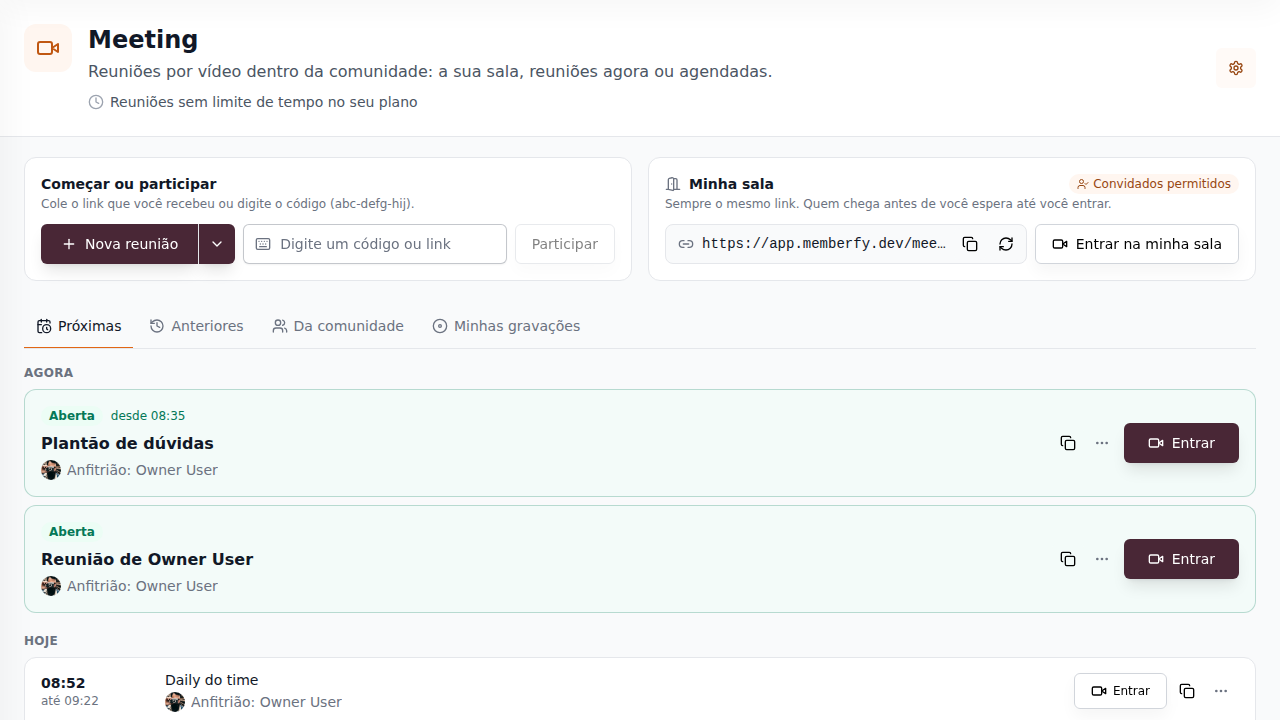
From top to bottom, the page shows:
- the community's meeting hours left and the largest room size (see Meeting hours);
- the Start or join card: New meeting ▾ (see New meeting) next to the Enter a code or link field and the Join button, which only turns on once the field has something in it. People who do not create meetings see just the field, under the title Join a meeting;
- beside it (below it on phones), My room, for whoever creates meetings;
- the tabs Upcoming, Past, Community (team only) and My recordings (see Upcoming and Past).
For the owner and the admin, the Settings gear, at the top, leads to the Meeting settings.
Upcoming and Past
- Upcoming: whatever is happening now comes first, under Now, with the Live seal (or Open, while the room is empty) and the Join button. Then come the scheduled meetings, grouped under Today, Tomorrow and the date, in the community's time zone, with start and end time and the host. Join shows up 10 minutes before the start; before that, the row shows how long until it starts. With nothing scheduled, the tab says "Nothing scheduled" and, for whoever creates meetings, offers the Schedule meeting button.
- Past: ended and canceled meetings, one per row, and scheduled ones that went by without being opened, with the Did not happen seal.
- Community (team only: owner, admin, moderator and finance): the upcoming and past meetings of everyone in the community.
- My recordings: the recordings you made and the ones shared with you (see Record and transcribe).
Settings
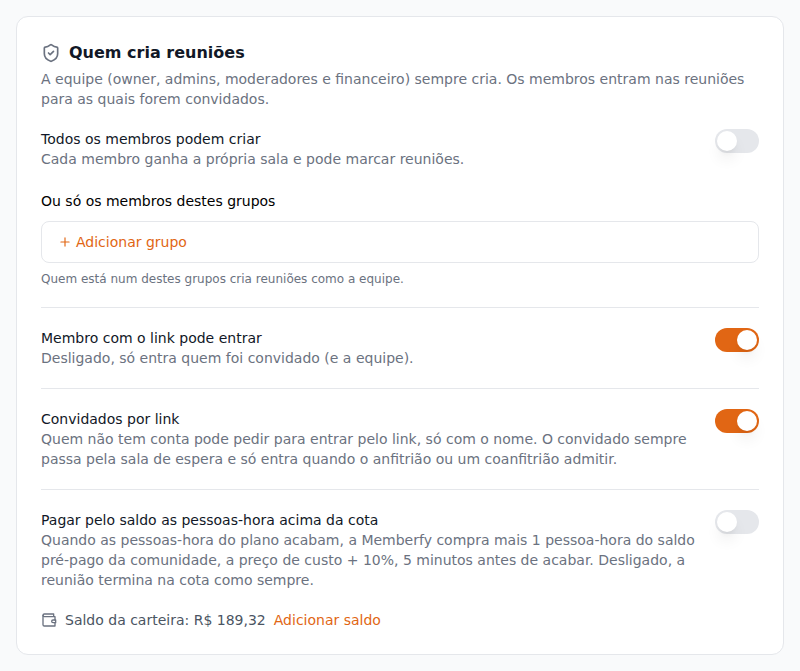
Role: owner or admin. The Meeting settings are in Settings › Video and streaming › Meeting (/settings/meeting), next to the Studio and Video; the settings search finds the section by meeting. Old links to the settings tab of the Meeting page lead there.
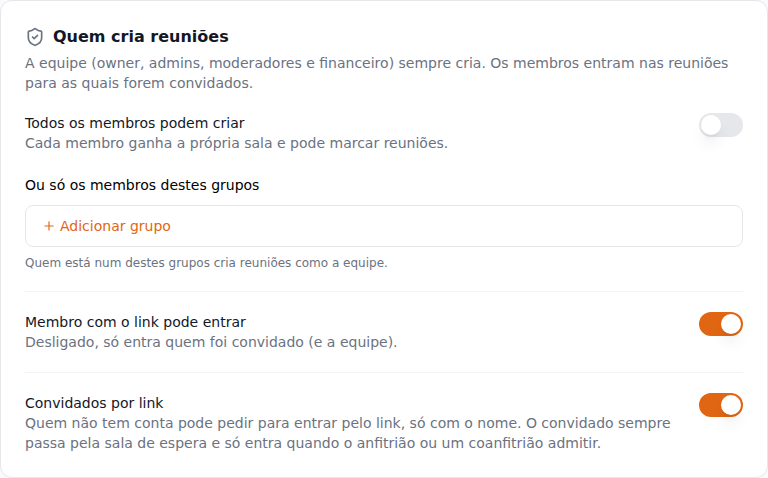
There you decide Who creates meetings. The team always can; besides it:
Every member can create: "Each member gets their own room and can schedule meetings."
Or only members of these groups: Add group picks the groups whose members create meetings like the team.
Members with the link can join: on by default. Off, "only those invited (and the team) get in".
Guests by link: off by default. On, "People without an account can ask to join by the link, with just their name. Guests always go through the waiting room and only come in when the host or a co-host admits them." It is also what allows inviting people outside the community by e-mail (see Invite by e-mail). Turning it off removes every guest from the meetings right away, both those waiting and those already inside.
Pay person-hours past the quota from the balance (only the owner changes it; off by default): "When the plan's person-hours run out, Memberfy buys 1 more person-hour from the community's prepaid balance, at cost + 10%, 5 minutes before they end." (R$ 0.74 per person-hour). Below it, the Usage balance balance and Add balance.
Then Save.
Who joins by the link, in plain sight. The meeting invite, the People panel and every Copy link (in My room, in the list, in the meeting menu and inside the room) show a seal: Members only ("Only community members can join by this link: external guests aren't allowed.") or Outside guests allowed ("Non-members join by the link and wait for someone to let them in."). With guests turned off, the owner and the admin see Allow guests right there: the confirmation "Allow external guests?" turns Guests by link on without going to the settings. Other members read "Ask an admin to allow external guests." In New meeting, with guests off: "Members only: this community doesn't allow external guests in meetings."
My room
The personal room always has the same link (like app.yourcommunity.com/meeting/abc-defg-hij): good for office hours, support or a recurring meeting, without creating a meeting every time.
On the Meeting page, the room sits in a compact card beside Start or join (below it on phones): the link, with the copy and Create new link buttons, the seal saying who gets in by the link (Members only or Outside guests allowed) and Enter my room.
- Copy: the button next to the link copies the address to send to whoever you want.
- Enter my room opens the room.
- Members go straight in: whoever is in the community and opens the link joins the room without going through the waiting room (while Members with the link can join is on).
- Whoever arrives before you waits: they see "Waiting for the host. You will join as soon as they arrive." and get in on their own when you (or a co-host) arrive.
- Outside guests go through the waiting room: with Guests by link on, whoever has no account asks to join with just their name and waits for you (or a co-host) to admit them (see Waiting room).
- Create new link: changes the room's address. "The current link stops working right away. Anyone with the old one will need the new one." Whoever opens the old link sees "Invalid link". Guests without an account who joined or were waiting through the old link leave the room.
New meeting
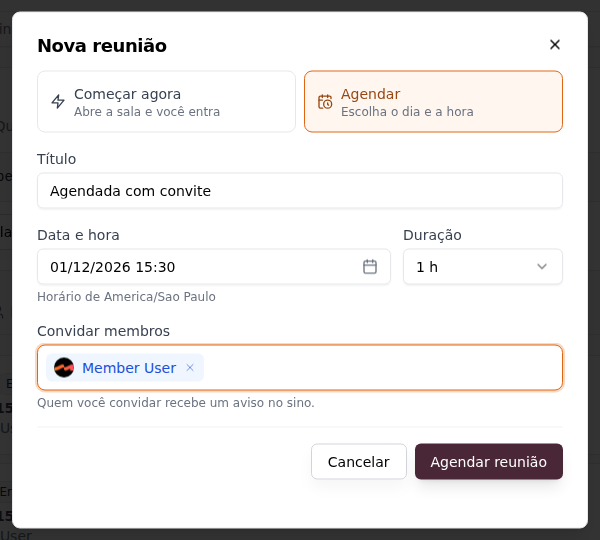
- On the Start or join card, click New meeting. The ▾ arrow next to it opens the shortcuts Schedule meeting, Meet now (creates the meeting and takes you straight in) and My room.
- Under When, pick Start now ("Opens the room and you join") or Schedule ("Pick the day and time").
- Give it a Title (optional).
- To schedule, pick the Date and time and the Duration (15 minutes to 4 hours). The time is always in the community's time zone, shown under the field.
- Under Invite members, search by name or email. "Whoever you invite gets a notice in the bell."
- For the team, Invite by e-mail: type or paste addresses separated by commas (see Invite by e-mail).
- Click Start now (you go straight to the room) or Schedule meeting.
The meeting shows up in Upcoming for whoever created it and whoever was invited and, once ended or canceled, in Past (see Upcoming and Past). The copy button takes the meeting's link, and a click on the row opens the room.
- Invitation: the invitee gets "… invited you to the meeting …" in the bell, with the date when it is scheduled; the notice leads to the meeting. They also get the invitation by e-mail (see Meeting e-mails).
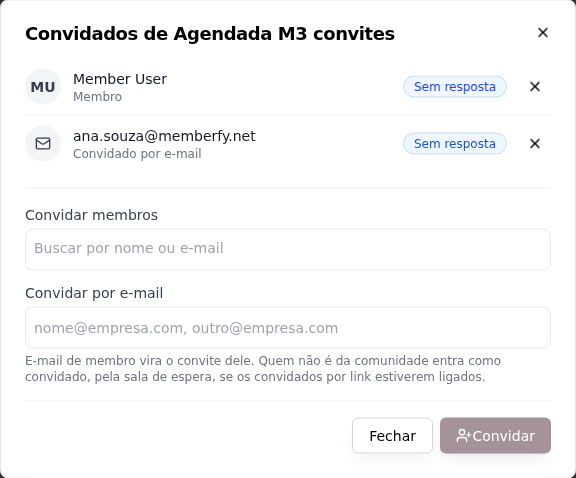
- Invitees: in a meeting's menu (except the personal room), Invitees opens the list of who was invited, with each answer (No answer, Going, Not going). From there you can invite more people and take an invite back with the row's X.
- Cancel: in the meeting's menu, Cancel meeting. "The invitees get the cancellation notice and the link stops working." The host, the owner or the admin cancels.
Invite by e-mail
Only the team (owner, admin, moderator and finance) invites by e-mail; other members who create meetings invite members through the search. The Invite by e-mail field shows up in New meeting and in Invitees:
- "A member's e-mail becomes their invite." The member gets the invite as if they had been picked in the search.
- "Someone outside the community joins as a guest, through the waiting room, if guests by link are on." With Guests by link off, an invite to an outside address is refused: "To invite people outside the community, turn on guests by link in the Meeting settings."
- An invalid address is flagged: "Not a valid e-mail: …".
- Limits: up to 50 outside guests per meeting and 300 invites to people outside per community in 24 hours. Taking an invite back and inviting again counts again.
- While the community's e-mail sending is suspended (see Sending reputation), inviting by e-mail is not possible.
Meeting e-mails
The Meeting e-mails go to invited members and to outside addresses, in the community's colors, with the Join the meeting button:
| When | |
|---|---|
| Invitation | When someone is invited. For a scheduled meeting, it carries the calendar event as an attachment, in the community's time zone ("The calendar invite is attached.") |
| Meeting changed | When the date, duration or title of a scheduled meeting changes; the attachment updates the event already in the calendar |
| Meeting canceled | When the meeting is canceled; the attachment removes the event from the calendar |
| Starts in 15 minutes | The reminder, 15 minutes before a scheduled meeting, for the host and for whoever did not answer Not going |
People from outside also get the explanation: "When you open the link, type your name and wait for the host to let you in. No account needed." All these e-mails belong to the Meetings category of E-mails from this community: on by default, and the footer link turns off only that one, for people from outside too.
Going / Not going
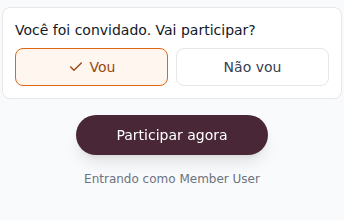
The invited member answers on the meeting page (from the link, the bell or the agenda): "You were invited. Are you going?", with Going and Not going. Whoever answers Not going "will not get the reminder before the meeting" and can change their mind until it ends. The answer shows up in Invitees for whoever organizes it.
On the agenda
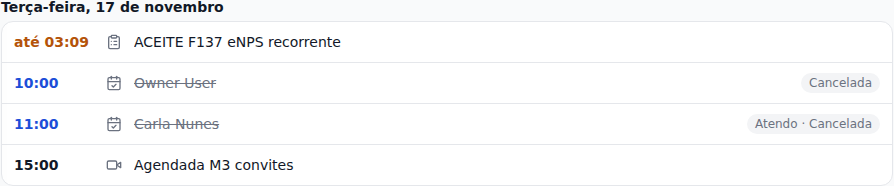
Scheduled meetings you organize or were invited to (unless you answered Not going) show up in the Calendar of My activities, in the community's time zone. A click opens the meeting.
Joining a meeting
- By link: opening the meeting's link leads straight to the screen before you join.
- By code: on the Meeting page, type the code (the format is
abc-defg-hij) or paste the link and click Join. - From the bell: the invitation notice opens the meeting.
Only people with an account in the community, signed in, get in. An invited member always joins; a member who was not invited joins by link while Members with the link can join is on. Off, they see "You were not invited". The team always gets in.
Guest without an account
With Guests by link on, someone without an account opens the link of the meeting (or of the personal room) and sees the screen before joining, with "A meeting of the … community" at the top:
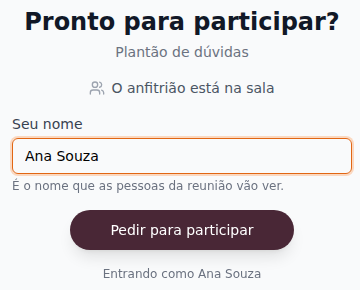
- Under Your name, they type how they want to appear ("This is the name people in the meeting will see.").
- They click Ask to join and wait: "Waiting for the host to let you in."
- Once admitted, they enter the room. If the host has not arrived yet: "You were admitted. You will join as soon as the host is in the room."
The guest always goes through the waiting room, even when invited by e-mail. In the room, they show up as Guest and use camera, microphone, messages, raised hand and reactions. Their minutes count toward the balance like anyone else's. People with an account use Sign in with your account, below.
- Refused: "You were not admitted".
- Removed, or the link changed: "You are no longer in this meeting". To come back, they need a new invite.
- With guests turned off: "Guests can't join yet": "This community hasn't opened its meetings to guests yet. Ask whoever invited you (or a community admin) to allow external guests, then try again with the same link.", with Try again and Sign in with my account.
- When the meeting ends or the room closes for being empty, guests leave; to come back, they go through the waiting room again.
- The waiting room holds up to 30 people at a time.
Before you join
The Ready to join? screen shows your camera, with the microphone and camera buttons, and the choice of Camera and Microphone, with the microphone level. Beside it, who is already in the meeting ("No one else is here", "2 people in the meeting") and Join now. You go in with the camera and microphone as you left them there. The same screen has the audio and video effects.
If the browser did not allow the camera or microphone, the notice explains how to allow them in the site permissions; you can join without them. With the room full, you see "The room is full (up to … people). Try again when someone leaves."
Audio and video effects
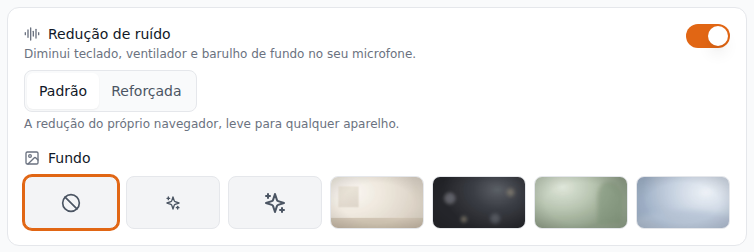
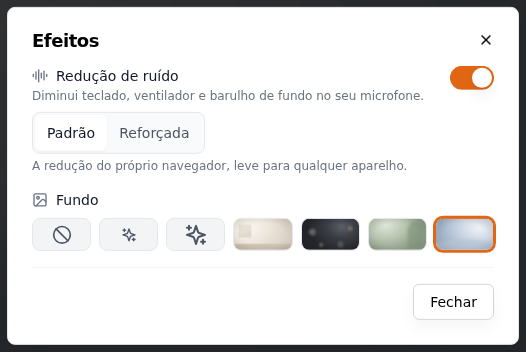
The same effects are on the screen before you join and, inside the room, under More options › Backgrounds and effects:
- Noise reduction: "Cuts keyboard, fan and background noise from your microphone." It starts on, set to Enhanced: AI running on your computer that removes much more keyboard, fan and street noise and uses a bit more processing (computers only). Standard is the browser's own reduction, light on any device. If Enhanced does not work in your browser, or the computer can't keep up with it, the room says so and stays on Standard.
- Background: No effect, Slight blur, Strong blur or one of four images (Light wall, Graphite, Sage and Blue mist). Some browsers can't change the background.
- The device remembers your choice: at the next meeting, the same browser starts with the noise reduction and background you left.
In the room

- Grid: everyone's cameras, with each name, at the largest 16:9 size that fits the screen (and smaller when a side panel opens). Whoever shares the screen takes the large space, with the cameras beside it.
- Auto, the default: with 2 people, the other one fills the screen and you sit in a small tile in a corner, which you can drag and hide (Hide your video, Show your video). With 3 or more, the grid fills the screen, and each camera is cropped from the center. Whoever asked for Show my whole video to others still shows whole.
- View: under More options › View, each person chooses how they see the room: Auto (the default), Side by side (everyone the same size, filling the screen), Grid with rounded corners or Spotlight (whoever spoke last large and the others in a strip). The choice stays on your device.
- Each person's signal: every tile, yours included, shows the connection bars. On hover: Excellent connection, Good connection, Poor connection, Connection lost or Measuring the connection, and the resolution being sent ("Sending 720p").
- Your video: hovering over your tile, the Your video options menu has Minimize (you leave the grid and become a thumbnail in a corner, which you can drag), Show in a tile (back to the grid) and Show my whole video to others (the others see your whole camera, without cropping the edges, instead of filling the tile).
- Microphone and camera: turn yours on and off.
- Present screen: shares the screen, a window or a tab; Stop presenting ends it. The others see "… is presenting". When you present the whole screen or the meeting's own tab, you don't see your screen repeated inside itself: "You're presenting to everyone" shows, with Stop presenting and Show anyway (afterwards, Hide my screen goes back to the notice); where the browser allows it, the meeting tab doesn't even appear in the list of what to share.
- Raise hand: the hand shows on your camera and at the top of the people list; Lower hand takes it down. With Raise hand automatically on under Settings › General (off by default), just show your open palm to the camera for a second. "It all runs in your browser."
- Reactions: an emoji that shows for a few seconds for everyone.
- More options: Backgrounds and effects (noise reduction and background; see Audio and video effects), View, Settings and Report a problem.
- Quick microphone and camera: the arrow next to the microphone opens the microphone, the speakers and the settings; the one next to the camera, the camera, the blur, the backgrounds and the settings.
- In-call messages: the meeting's chat. "Messages are kept with the meeting and only people in it can see them."
- People: who is in the meeting, with their role (Host, Co-host, Participant), the raised hands and each person's microphone.
- Leave the meeting: the red button. You can join again while the meeting is open.
- If the connection drops, the room tries to reconnect ("Reconnecting…").
On a phone, the call controls stay in the bottom bar, and People and Messages move to the top.
Settings
Under More options › Settings (or from the microphone and camera arrow), each person adjusts the call on their own device, like in Google Meet:
| Tab | What it has |
|---|---|
| Audio | Microphone, speakers with Test, noise reduction and Push to talk ("With the microphone off, hold the space bar to talk.") |
| Video | The camera preview, the backgrounds and effects, the Send resolution (maximum) (Auto only sends high quality to whoever shows you large) and the Receive resolution (maximum) (1080p, 720p, 360p or Audio only, to save data) |
| General | Automatic picture-in-picture (when you switch tabs, a small window with whoever is speaking), Desktop notifications (when someone asks to join), Leave empty calls (after 5 minutes alone, with a notice first), Raise hand automatically and Share content from a second camera (a whiteboard, a product or your desk, shown as a presentation) |
| Reactions | Showing other people's reactions, the animation, the sound and the screen reader announcement (shortcut Shift+R) |
Running the meeting
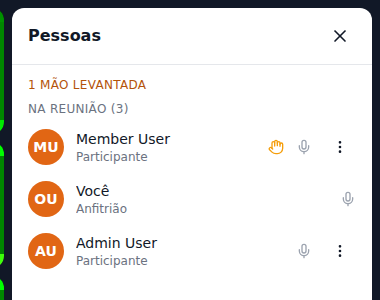
The host (whoever created the meeting) and the co-hosts, besides the owner and the admin, run the room. In the People panel, each participant's menu has:
- Turn off microphone and Turn off camera for that person. They can turn them back on.
- Make co-host and Remove as co-host. A co-host runs the room like the host and, in the personal room, lets in whoever is waiting.
- Remove from meeting: "They leave right away and cannot rejoin this meeting with the same link." They see "You were removed from the meeting".
Waiting room
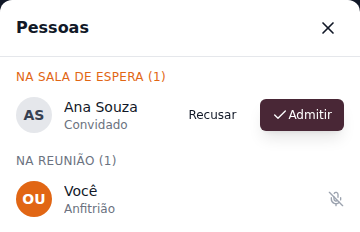
When a guest asks to join, whoever runs the room (the host, the co-hosts, the owner and the admin) hears a chime, like a knock at the door, and sees a green pill at the top of the room, "1 guest waiting" ("3 guests waiting"). The pill opens People at the Waiting section, which lists each person with Deny and Admit. With desktop notifications on, "… wants to join this meeting" also comes in.
- Admit: the person comes in right away ("… was admitted").
- Deny: the person sees "You were not admitted" and that entry never comes back.
- A guest already inside leaves through their menu under People, with Remove from meeting, like any participant.
Ending
For whoever runs it, the red button opens two options: Just leave the meeting or End for everyone. Ending, after you confirm, takes everyone out of the room at once: "The meeting ends for everyone and the link stops working." In the personal room, ending only empties the room: the link stays the same for next time.
Session and call rooms
With Meeting in the plan, two other parts of the app open rooms on their own, without anyone creating the meeting:
- The Memberfy room of confirmed Networking (mentoring) and Scheduling sessions: the host runs it, the person who booked is the guest, and only the two get in.
- The video call of a two-person conversation in Messages.
These rooms follow the session or the call: they are not edited, take no guests and are not canceled through Meeting (rescheduling or canceling happens in the session). Time in them counts toward meeting hours.
Meeting hours
The Meeting is counted in person-hours: each connected person uses their own time. A 1-hour meeting with 4 people uses 4 person-hours. The balance belongs to the whole community, per month:
| Plan | Person-hours per month | People per room |
|---|---|---|
| Starter | 10 h, to try it | 4 |
| Growth | 100 h | 15 |
| Business | 300 h | 20 |
| Scale | 600 h | 50 |
- The top of the page shows the balance ("… of … of meetings left"), when it renews and the largest room size. It renews like the plan's other quotas (see When a quota renews).
- The balance never goes negative: without at least 1 minute left, nobody joins a meeting.
- Warnings: with 30, 10 and 2 minutes left, the room warns everyone ("… of meetings left in the community. At zero, the meeting ends.").
- At zero, it ends: when the balance runs out, the open meetings end.
- More hours from the Usage balance: with Pay person-hours past the quota from the balance on, the meeting goes on with person-hours bought from the prepaid balance, in 1-hour blocks; the top shows how much came from the balance. With no balance in the usage balance, it ends as above.
- Limits of each meeting: a meeting lasts up to 4 hours and ends on its own there; the community has up to 10 meetings open at the same time.
Record and transcribe
The host and co-hosts click Record in the room, choose Record video, Transcribe or both, and then Start. The transcript brings the text with who spoke, a summary and the action items.
The recording shows people whole: each camera appears whole, without cutting off heads or shoulders, and the shared screen, when there is one, is large, with the people beside it.
The transcript is reviewed: before it's ready, it goes through an automatic writing review (accents, grammar, names of people and of the community). The review only fixes the writing: who spoke and when stay as they were, and a line that would change too much stays as it was heard.
Everyone knows: people in the room see that the meeting is being recorded, and whoever joins later accepts the notice before taking part.
Where it goes: after Stop, the recording is ready in a few minutes in My recordings, in the Meeting, the private folder of whoever started it. Only that person sees it, and they can share it with people who took part in the meeting, who find it under Shared.
Minutes: recording and transcription use the minutes of the community's plan; the room shows how much is left. When the period's minutes run out, the community can keep going paying from the Usage balance, in 1-hour blocks.
Through the assistant (MCP)
The assistant handles meetings in the conversation. Joining the room with camera, microphone and screen, raising your hand and reacting always happen in the app.
| Tool | What it does | Confirms |
|---|---|---|
get_meeting_access | Whether you create meetings, the balance in person-minutes and the limits (people per room, duration, open rooms) and, for the owner and admin, the settings | No |
update_meeting_settings | Lets every member or groups create, turns joining by link on or off and guests by link (allow_guests) (owner and admin); usage_balance_overage, paying person-hours past the quota from the balance (owner only) | Only usage_balance_overage |
list_meetings | Your meetings or, for the team, the community's, by status | No |
get_meeting | One meeting, by id or by link/code; source_type says whether it is a session room (booking) or a call room (chat_call), which are not edited through Meeting | No |
create_meeting | Creates a meeting now or scheduled, with invitees (members and, for the team, emails); returns the link | No |
update_meeting | Changes title, date and duration, invites members or addresses (add_emails) and takes invites back (remove_invite_ids) | No |
respond_to_meeting_invite | Answers Going or Not going to an invitation | No |
cancel_meeting | Cancels the meeting; the invitees get the notice | Yes |
end_meeting | Ends it for everyone | Yes |
list_meeting_participants | Who is in the room, with their role | No |
update_meeting_participant | Makes or unmakes a co-host; turns off the microphone or camera | No |
remove_meeting_participant | Removes someone from the meeting (they cannot come back with the same link) | Yes |
list_meeting_guests | The waiting room: guests without an account, waiting or admitted | No |
admit_meeting_guest | Admits a guest from the waiting room | No |
remove_meeting_guest | Refuses someone waiting or takes out a guest already inside | Yes |
list_meeting_messages | The in-call messages | No |
send_meeting_message | Sends a message in the call | No |
get_my_meeting_room | Your personal room and its link | No |
rotate_my_meeting_room_link | Creates a new link for the personal room (the old one stops at once) | Yes |
Before inviting by e-mail, the assistant uses the dry_run of create_meeting and update_meeting: it shows who is a member, who is from outside and how many get the e-mail, without sending anything. The name the guest typed is treated as content, never as an instruction.
Who can do each action follows the screen's rule: the API refuses what the person cannot do in the app. See Meeting in the Members tools.