
Community settings
How the Settings screen is organized (a menu by topic, search and one page per topic), what each page holds, the address of each one, how saving works and who can change what.
Administration › Settings gathers everything that applies to the whole community. Only the owner and admins open this screen; other roles are taken to My Account › API keys. See Roles and permissions.
How the screen is organized
On the left, a menu with the topics grouped by intent, whenever the page area is at least 720 px wide (on a computer, even with the app menu open). With less room, the menu becomes a button with the current topic (Choose a section), with Search settings right above it: on a narrow computer screen and on a tablet, the button opens the list in a dropdown right below it; on a phone, in a sheet that slides up from the bottom of the screen.
Each topic opens its own page, with its own address, so you can send someone straight to it; old links with ?tab= (such as /settings?tab=integrations) still open the right topic. It's the same section menu as in Members, Monetization and My Account (see Lists and filters).
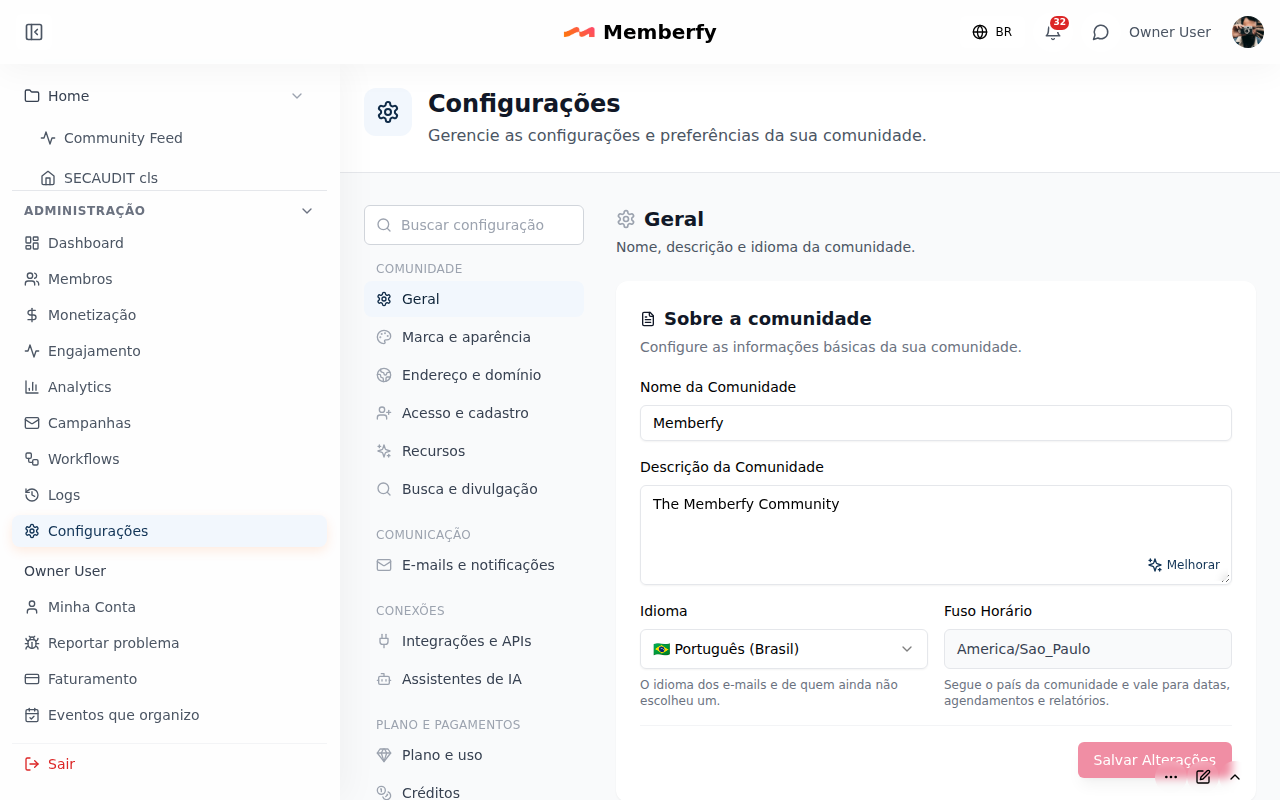
At the top of the menu, Search settings filters the topics by name, description and related words (accents optional). Enter opens the first result; with no result, the screen says "No settings found".
| Group | Topic | Address | What it holds |
|---|---|---|---|
| Community | General | /settings | About the community: Community Name, Community Description, Language (the one for e-mails and for anyone who hasn't picked one) and the Timezone, read-only: it follows the community's country and applies to dates, schedules and reports |
| Brand and appearance | /settings/branding | Images (logo, logo for dark backgrounds, favicon, social media image) and Theme (mode, colors, font, corners, density and menu). See Images and SEO and Theme and colors | |
| Address and domain | /settings/domain | The community's Memberfy address and the Custom domain. See Custom domain | |
| Access and sign-up | /settings/access | Access Control (Who can join, Allow free user registration?, Guest Access) and the shortcut to the Sign-up fields, which live in Members › Form. See Sign-up and access | |
| Features | /settings/features | Messages between members, Drops in comments and Content and ranking (Content Moderation and Overall engagement). See Messages, Drops and Engagement | |
| Search and discovery | /settings/visibility | SEO Meta Tags, Member pages (public pages and the most open level allowed per section), Memberfy directory, Google Analytics (the ID and the API secret) and the LinkedIn page. See Images and SEO, Your profile, Memberfy directory and Google Analytics | |
| Communication | E-mails and notifications | /settings/emails | Sales notices, Workflow messages on behalf of, the SMS and WhatsApp cards (turning the channel on with the daily cap, usage against the plan's quota, quiet hours, WhatsApp's approved templates and the test to your phone; see SMS and WhatsApp notices), the Sending reputation (read-only) and, under On other pages, shortcuts to Default e-mails, Unsubscribes and Your e-mails from this community |
| Connections | Integrations and APIs | /settings/integrations | API keys, webhooks and the ready-made integrations. See Integrations & APIs |
| AI assistants | /settings/assistants | Who can use the AI assistant (MCP) and the active connections. See AI assistant | |
| Plan and payments | Plan and usage | /settings/plan | What the Memberfy plan includes, AI usage and, for the owner only, Video and file storage. See Plan |
| Credits | /settings/credits | The rules for booking credits. See Credits | |
| Business information | /settings/business | The details of who receives the sales, sent for approval. See Business information | |
| Payouts | /settings/payout | The bank account that receives payouts, which are requested under Monetization. See Payouts |
Old links keep working: an address with ?tab= (the one in the business information review e-mails and in the integration notices, for example) opens the matching topic's page.
How saving works
- Forms (About the community, SEO Meta Tags, Google Analytics): each has its own Save Changes, enabled only when something changed. The screen shows "Unsaved changes" while there is a change and "Changes saved." after saving. Switching topic or leaving the page with something unsaved asks whether to discard or keep editing.
- Switches (sign-up, guests, messages, Drops, moderation, engagement, directory): save on click. If Memberfy refuses the change (for example, charging at sign-up without approved business information), the switch goes back to what it was and the screen shows why.
The community's time zone
The community has a time zone, used for the dates and times of everything it sends and shows. It comes, in this order, from the country in the business information; without it, from the region of the community's Language (Português (Portugal) → Lisbon, English (US) → New York); without a region, Brasília.
- In e-mails: payment deadlines, cancellation and plan change dates, the export link's expiry, the sign-in notices (sign-in, password changed, password recovery, in the recipient's language) and event times go out in the community's time zone, with the time zone abbreviation when there is a time ("22:00 - 23:30 BRT"). See Payment e-mails.
- On the sale timeline, each date and time is shown in the community's time zone. See Sales.
- For events, each event can have its own time zone; without one, the community's applies.
Step by step: change the name and language
Role: owner or admin.
- Settings › General, About the community card.
- Change the Community Name, the Community Description or the Language.
- Save Changes.
Step by step: turn on Google Analytics
Role: owner or admin.
- In Google Analytics, create a GA4 property and copy the Measurement ID (
G-…). - Settings › Search and discovery, Google Analytics card, paste it into Google Analytics ID.
- Save Changes. Visits start showing in your Analytics.
The events sent, what is never sent and the API secret are in Google Analytics.
Examples
School with a storefront. In General, the name Excel School and the description "Excel from scratch to advanced, with lessons, live sessions and a class for your questions"; in Access and sign-up, open sign-up; in Features, engagement on; in Search and discovery, Google Analytics to measure the storefront.
A company's internal community. In Access and sign-up, closed sign-up and guests off; in Features, engagement on for the culture; in E-mails and notifications, sales notices empty (there are no sales).
Common errors and how to fix them
| Situation | What to do |
|---|---|
| Failed to update settings | Try again; check the required fields |
| I turned a switch on and it went back by itself | Memberfy refused the change: read the message that shows up and fix the reason (for example, the business information) |
| I can't find a setting | Use Search settings at the top of the menu |
| I changed the name and emails still arrive with the old one | Emails use the current name from now on |
| I don't see Settings in the menu | Your role is neither owner nor admin |
Frequently asked questions
Can a moderator change the settings? No. Settings belong to the owner and admins.
Does changing the name change the address? No. The address lives in Address and domain.
Can I change the time zone? No. It follows the community's country. See The community's time zone.
Where did the "Event Registration" switch go? It left the screen: it had no effect.
Can I use a tracker other than Google Analytics? From the screen, only Google Analytics.
In the API
PUT /api/communities/{id} (name, description and the rest of the community's data; domain doesn't change through it, see Custom domain) and PATCH /api/communities/{id}/settings (the settings). See Communities.
PUT /api/communities/{id} stops accepting payoutEnabled and signupModel (it returns 400 on the field itself, saving nothing); both change only in PATCH /api/communities/{id}/settings. In the PUT, signupEnabled, guestAccess, contentModeration, globalRanking and active now require true or false. The settings PATCH also starts accepting gaApiSecret. See Creation order.
AI assistant access is read with GET /api/communities/settings (owner, admin, moderator and finance) and written with PATCH /api/communities/{id}/settings using mcpMembers, mcpStaff and mcpAdmins, by the owner only. See Authentication.
AI assistant
The owner decides who can connect an AI assistant (Claude, ChatGPT, Cursor) to the community. It is in Settings › AI assistants, in the AI assistant block: "Choose who can connect an AI assistant (Claude, ChatGPT, Cursor) to this community. All start turned off."
| Switch | What it does |
|---|---|
| AI assistant for Members | "Lets community members use the assistant." |
| AI assistant for Staff | "Covers moderators, finance and admins. An admin can use the assistant with Staff or Admins turned on." |
| AI assistant for Admins | "Covers admins only. Use it with Staff turned off to restrict further." |
The rule:
- the owner always can, with the switches on or off ("The owner always has access to the AI assistant, whether the switches are on or off.");
- Members lets the members in;
- Staff lets in moderators, finance and admins;
- Admins lets in only the admins, to restrict further: with Staff off and Admins on, only admins use it;
- Memberfy support can when it enters the community through Enter, as the owner (see SuperAdmin).
All start turned off, including communities that already used the assistant: until the owner turns them on, only the owner uses it.
Role: owner (changes). An admin sees the switches, disabled. "Only the community owner can change these switches."
- Open Settings › AI assistants.
- In the AI assistant block, turn the group's switch on or off.
- The screen confirms with "Change saved." and it takes effect at once.
Turning off cuts access at once: anyone connected is refused on the next call. Turning on again restores access without reconnecting: connections are not deleted. In My Account, the AI assistants tab only shows for people with access.