
Call for papers
Receive proposals for talks, workshops and panels, organize them into tracks, review them with a committee (including blind review), negotiate terms with each speaker and close the agreement, all in a space inside your community.
The Call for papers module receives proposals for an event, organizes them into tracks and takes each proposal from submission to a closed agreement with the speaker, with reviews, scores and counter-proposals when you need them.
What it's for
| Community | Call for papers |
|---|---|
| Association | The annual conference's talks, in 4 tracks |
| Tech community | The monthly meetup's workshops |
| Company | The presentations for the internal innovation event |
How it works
The space: one call or several
| One call | Several calls | |
|---|---|---|
| The space is | The call itself ("The whole space is a single call, and nothing else.") | A permanent space ("open calls whenever you want") |
| Good for | A single event | Organizers who run events often |
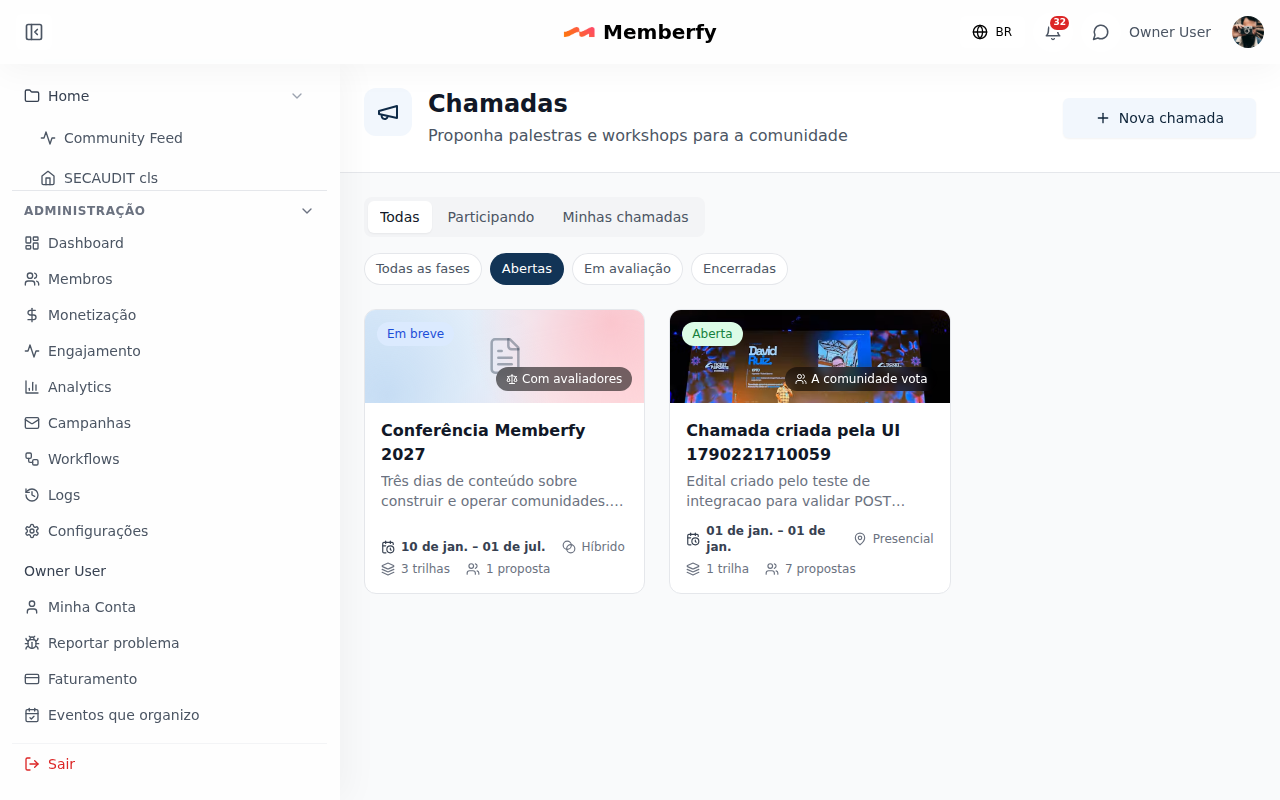
In a Several calls space, the list has two cuts (see Lists and filters):
- View, in the switch at the top: All, Participating (the calls you sent a proposal to) and My calls (the ones you organize; it shows for people who can open calls or edit one). On a phone, the names shorten to Joined and Managing.
- Phase, in pills: Any phase, Open, Under review and Closed.
The view and the phase live in the page address.
Who can open a call
In a Several calls space, Who can open a call says who creates a new call:
| Option | Who opens |
|---|---|
| Staff (the default) | Owner, admins, moderators and finance |
| Admins | Only the owner and admins |
| Members | Any member of the community |
The choice appears when creating the space and in Edit space, only with Several calls (in a single-call space, nobody opens another). Whoever can't open a call doesn't see the New Call button. Whoever opens a call becomes one of its owners.
The call type
| Simple | Advanced | |
|---|---|---|
| Tracks | Yes | Yes |
| Who decides | You read and decide directly | Reviewers per track give a score from 1 to 5 with an internal note |
| Blind review | — | Optional: the reviewer doesn't see who wrote it |
| Counter-proposal | No | Yes, in rounds, until it closes |
| Community vote | No | Optional |
Switching from advanced back to simple turns off reviews, voting and counter-proposals.
What the call defines
The submission period, tracks, event dates, format (in person, online or hybrid), speaker benefits, who covers travel, accommodation and meals (nobody, the organization or the speaker) and the speaker fee (none, fixed or stated by the proposer). The fee is recorded in the agreement; payment happens outside the platform.
The call's statuses
Draft → Open (Open for proposals) → Under review → Deciding → Closed → Archived. A published call appears in the Feed; it only leaves the Feed when it's a draft or archived.
A proposal's path
- A member submits the proposal to a track, before the deadline.
- In an advanced call, the track's reviewers give a score from 1 (No) to 5 (Excellent), with a note only the organization sees.
- The organization accepts, rejects or makes a counter-proposal.
- The speaker confirms (or withdraws the proposal).
- The closed proposal keeps the agreed terms.
Proposers receive emails at each step. Anyone who has submitted gets the Speaker system tag on their profile.
The emails
| Who receives it | When | |
|---|---|---|
| Proposal received | The person who submitted | On sending |
| Counter-offer, with the reply deadline | The person who submitted | The organizers make a counter-offer |
| Counter-offer withdrawn | The person who submitted | The organizers withdraw it |
| Accepted, with the terms | The person who submitted | Acceptance |
| Rejected, with the note | The person who submitted | Rejection |
| Invitation to submit | The invited member | The organizers invite |
| Reviewer assigned | The reviewer | Joins a track |
| The speaker replied | The call's owners | A reply, acceptance of the counter-offer, or withdrawal |
The note you write when accepting, rejecting, making a counter-offer or inviting goes in the email. See Call for papers emails.
Who can
| Action | Who |
|---|---|
| Create the space | Owner and admin |
| Open a new call (with Several calls) | As set in Who can open a call: Staff (the default), Admins or Members |
| Manage the call | The call's owners, all with the same powers |
| Review | The reviewers assigned to each track |
| Submit | Members who see the space |
Step by step: open a call
Role: owner or admin.
- Add Space › Call for papers, Next.
- Fill in the space (title, visibility) and, under How many calls, choose One call or Several calls. With one call, choose the Call type (Simple or Advanced); with several, Who can open a call, and each call picks its own type.
- With one call, click Next and, in the Call step, fill in the general details, tracks, benefits, submission rules and, for an advanced call, the review settings and costs. The call is checked before the space exists (with a required field missing, nothing is created) and, on creating, the window ends open on the call.
- Publish: the call becomes Open and appears in the Feed.
Example
A conference with 4 tracks and a committee. An Advanced call, blind review, 2 reviewers per track, a 30-day deadline. At the end, the committee sees the scores, the organization accepts 24 proposals, sends a time-slot counter-proposal to 3, and the speakers confirm on the platform itself.
Frequently asked questions
Can non-members submit? They need an account in the community. With open sign-up, the person creates an account and submits.
Does the call create the program's events? Not automatically. Once proposals are accepted, create the events in the Events space.
Can I reopen a call? Yes; its Feed item comes back, without duplicating.
E-mail notice
When you open a call for the first time, the team sees the Notify by e-mail · N people box, checked by default: 10 minutes later, whoever has access to the space and kept the Calls for papers category on gets an e-mail. It goes out once per item; editing or publishing again doesn't resend. See New content notices by e-mail.
In the API
56 endpoints under /api/call4papers. See Call for Papers.