
Invite members
The ways to bring people into the community (email invite, spreadsheet, New Member and open sign-up), who can invite and with which role, groups and tags on the way in, the result for each email, and the care to take with consent.
There are four ways for someone to join the community: you invite them by email, you import a spreadsheet, you create the member with their details already filled in, or they sign up on their own. This article covers the email invite, New Member and open sign-up; the spreadsheet has its own article: Import members from a spreadsheet.
What each one is for
| Path | When to use it | Example |
|---|---|---|
| Invite Members | One or more people you already know (up to 500 emails at a time) | A school's class of 30 students; the 12 residents of a coworking space |
| Import spreadsheet | A list with name, phone and other details, from any .xlsx or .csv | The 2,000 attendees of an event. See Import members |
| New Member | One person, with name, job title and photo already filled in | The new HR manager, added by the team |
| Open sign-up | Anyone with the address can join | An open community that grows by word of mouth |
| Purchase | Whoever subscribes to a plan or buys a product joins when they pay | A course sold to people who aren't members yet |
How it works
Who can invite
The owner and admins. A moderator can see the Members screen, but can't invite or import.
With which role
In an invite and in New Member, the Role can be Member, Moderator, Admin or Finance. Nobody joins as Owner through an invite: to have another owner, invite the person as an admin and then, as an owner, promote them. See Roles and permissions.
The invite puts the person in the community right away
There is no "pending acceptance". The moment you send the invite, the person is already a member, with the role you chose:
- someone who isn't a member of this community yet gets an account in it, with no password, and receives a link to set their password. This also applies to someone who already belongs to another Memberfy community: accounts are per community, so the person creates this community's password through the link, and the other community's password doesn't open this one;
- someone who is already a member of this community gets no email and keeps their role: if you chose groups or tags, they get the ones they're missing (Updated); otherwise they show as "Already a member of this community";
- the name: in New Member, through the API or the assistant, the name you type is the new account's name, and the invitation email already goes out with it. Without a name, the account starts with the part of the email before the @ (maria, from [email protected]), and the person can change it later in My Account. See Name;
- someone who asked not to take part in this community (declined an import invite) isn't invited again: they show as "Asked not to take part in this community" and no email goes out. This also applies to New Member. See Decline the invite.
Groups and tags on the way in
At the top of the window, besides the Role, you choose Groups and Tags for all the invitees. New groups and tags are created right there by typing the name (Create group "March class"). The chosen groups add to the default group. Existing members gain the groups and tags without losing the ones they have.
The result for each email
After Send Invites, the window shows the counts ("28 invited · 2 updated · 1 skipped") and one line per email:
| Result | What it means |
|---|---|
| Invited | The person joined and got the email |
| Updated | Already a member; got the chosen groups and tags, no email |
| Skipped | Didn't join, with the reason: Invalid e-mail, Repeated in the list, Already a member of this community or Asked not to take part in this community |
One email with a problem doesn't bring down the others: each line succeeds or fails on its own.
Who gets an email
| Situation | |
|---|---|
| A person who isn't a member of this community yet, even if they belong to another one (inviting one or several people, or New Member) | You're invited to…, with the Set my password button |
| Open sign-up | Welcome email |
Every invitee gets an email, even in a bulk invite with dozens of addresses.
The link to set the password
- It's valid for 7 days and can only be used once.
- It opens the community's Set your password page: the person types the password twice and then signs in with their email and the new password.
- The password needs at least 8 characters, with an uppercase letter, a lowercase letter and a number.
- Nobody, not even whoever sent the invite, ever knows the password: invites no longer come with a temporary password.
| What shows up | What to do |
|---|---|
| This link has expired. | The 7 days are up. The person uses Forgot password? at sign-in, or you invite them again |
| This link was already used. | The password is already set. Sign in with it, or use Forgot password? |
| Invalid link. | The link was only partly copied. Open it straight from the email, or use Forgot password? |
Default groups
If the community has a default group ("Everyone joins this group"), newcomers join it automatically. See Groups and org chart.
Step by step: invite by email
Role: owner or admin.
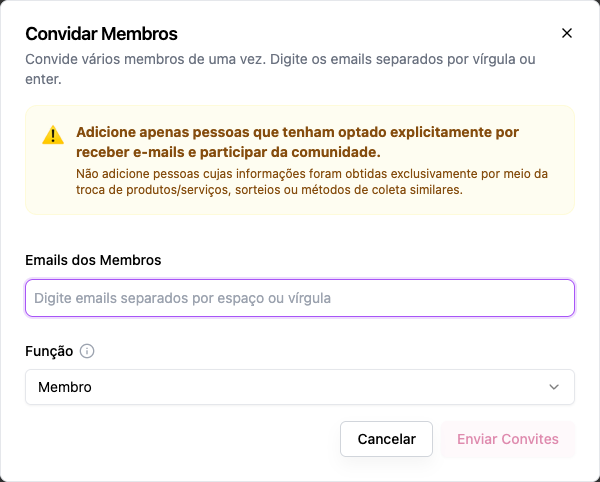
- Administration › Members, Invite Members button, Type e-mails tab.
- At the top, choose the Role for all of them and, if you like, the Groups and Tags.
- In Member Emails, type the emails, separated by commas, spaces or Enter (up to 500 at a time).
- Send Invites. The window shows the result for each email: invited, updated or skipped, with the reason.
Step by step: New Member
Role: owner or admin.
- Administration › Members, New Member button.
- Full Name and Email (required), Title (the job title, e.g. Senior Product Manager), Role and, optionally, the Avatar (JPG, PNG or GIF, up to 50 MB).
- Add Member. The person receives the email with the link to set their password.
Step by step: open sign-up
Role: owner or admin.
In Settings › Access and sign-up › Access Control, choose Open under Who can join. Anyone who opens the community's address sees Sign Up. See Sign-up and access.
Good practice: only people who asked
The window opens with the warning: "Only add people who have explicitly opted in to receive emails. Do not add people whose information was obtained solely through exchanges of products/services, giveaways or automated collection methods. You will be banned and your data deleted if we receive complaints.", with the link Read the invite policy and the strike system. Besides being the right thing to do, it keeps the community's emails out of spam. Inviting people who didn't ask has consequences: see the Invitation and member import policy.
Examples
A school with a class of 30 students.
- In Invite Members, choose Member and, under Groups, create March class by typing the name.
- Paste the 30 emails and send: they all join already in the group.
- Each student receives the email with Set my password. It's worth telling the class to look for it, including in spam.
- The class's space, opened to the group, shows up for them.
A coworking space with a new resident. New Member with name, email, title (Designer at Studio X) and photo, as Member. They get the email to set their password and already appear on the board.
A company bringing in its accountant. Invite the accountant alone, as Finance. They get the email and see only Monetization.
Common errors and how to fix them
| Message | What to do |
|---|---|
| Add at least one email | Type an email |
| Already a member of this community | The person is already in; change their role in Members if needed |
| Asked not to take part in this community | The person declined an invite from this community; they only come back by joining on their own |
| Invalid e-mail / Repeated in the list | Fix the address or remove the repeat; the other emails go ahead as usual |
| Invite at most 500 e-mails at a time. | Split the list, or use the spreadsheet import |
| This community has been suspended by Memberfy… | Invites are blocked during the suspension. See Suspension of joining and sales |
| Invite refused for lack of permission | Ask an owner or an admin |
| You do not have permission to assign the owner role. | Invite as admin and promote later |
| Name and email are required (New Member) | Fill in both |
| The person says they got nothing | Ask them to check spam. If the link has already expired, point them to Forgot password? |
Frequently asked questions
Can I import a spreadsheet of members? Yes: the Import spreadsheet tab of the same window. See Import members from a spreadsheet.
Does the invite expire? There is no pending invite: the person is a member from the moment it's sent. What expires is the link to set the password, after 7 days; after that, they get in through Forgot password?.
Can I invite someone as a subscriber? The invite grants a role, not a subscription. To open a paid space to an invitee, put them in a group and open the space to that group.
I invited someone with the wrong role. Change it in Members by editing the person. See Manage members.
In the API
POST /api/members/invite (emails or people: [{ email, name }], role, groupIds, tags; one result per email in data.results) and POST /api/members (one person at a time, with a name; it also works for someone who already has an account in another community, who gets the link to set this community's password; someone already in this community: 400). See Members.