
Logs
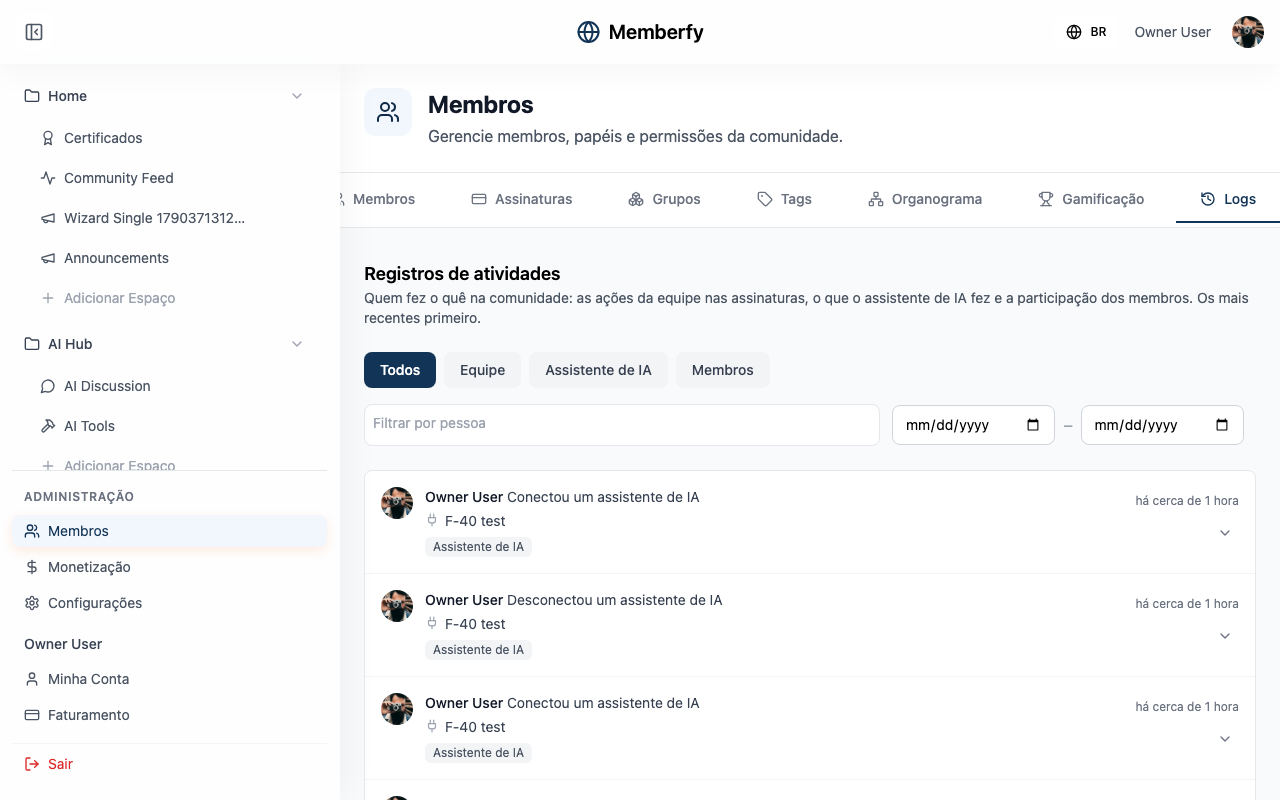
The Logs page, under Administration. The timeline of everything the community records (team, platform, AI assistant, members, e-mails, imports, financial, moderation and API keys), the filters, the details of each entry, who sees what and what never shows up.
The Logs tell everything the community records, in one place, newest first: "actions by the team, the platform and the AI assistant, member participation, e-mails, imports, financial and moderation."
They live in Administration › Logs.
What it's for
| The team wants to know… | In the Logs |
|---|---|
| Who made Ana an admin, and when | Team, searching for Ana |
| Who changed the community settings | Team, opening the entry: what changed, field by field |
| Who canceled someone's subscription | Team, filtered by the person |
| What the AI assistant did yesterday | AI assistant, with the day in From and To |
| Whether the community's sales were turned on | Platform |
| How much was sold, refunded and paid out | Financial |
| When the last campaign went out, and to how many people | E-mails |
Who can
| Role | What they see |
|---|---|
| Owner and admin | Every type |
| Finance | Only Financial: sales, refunds and payouts |
| Moderator and member | Don't see the page |
| API keys | The API keys: created, renamed, with IPs changed or revoked, and each write made with a key (see below) |
How it works
The log types
| Type | What goes in |
|---|---|
| Team | Role changes, member removals (with the reason, when the team wrote one: "Removed Ana from the community. Reason: …") and departures, a group exit when the Valid until ends ("left the group … (validity ended)", see Groups), changes to the community's data and settings, the actions on subscriptions (cancel, reactivate, discount, complimentary, extension, add-on, payment link; see Subscription management) and the visit fixes in Attendance |
| Platform | What Memberfy decided about the community: business and payout details approved, rejected or changed, sales turned on or paused, new member entry suspended or resumed, native live streaming turned on or off, and every time Memberfy support enters the community ("Memberfy support signed in to the community as the owner") |
| AI assistant | What an assistant connected through MCP did: connecting and disconnecting, each tool used and each blocked or refused action |
| Members | Member actions that earn engagement points: posting, commenting, liking, going to an event, enrolling, completing a lesson, logging in for the day. See Gamification |
| E-mails | The sends of e-mail campaigns, with recipients, deliveries, opens and clicks |
| Imports | The member imports that ran, with created, updated, skipped and invited |
| Financial | Sales (paid, declined and pending), refunds and payouts, always with the gross amount |
| Moderation | The latest decision on each moderation item: approved, rejected or sent back to the queue |
All shows the nine types together (for finance, only theirs).
Each entry shows who did it, what they did, on what and when, in one sentence ("Changed Ana Souza's role from Member to Admin"). A member action also shows the points ("+5 points"). Three badges say who really acted:
- via assistant: the person did it through the AI assistant, not on the screen.
- via API key: a system did it using the person's API key.
- Memberfy: it was the Memberfy team, on behalf of the platform, including what support did after entering the community through Enter (see SuperAdmin).
An action over the daily cap shows "daily cap reached, no points".
Workflows
The Workflows source, with what the Write to log blocks of workflows recorded: the level (Info, Warning or Error), the message, the workflow, the block and the run's person, with a filter by workflow and by level. Only the owner and the admin read this source, because the message may contain any variable.
API keys
What API keys do is recorded under the API keys source: a key created, renamed, with its IPs changed or revoked, and every write or deletion made with a key, with its result and the phrase "via key {name}" ("POST /api/status via key n8n"). Reads are not recorded. A refused write (blocked action, IP outside the list, per-minute limit) shows up at most once per minute per key and reason.
A call made with a key shows its owner and the via API key badge; managing keys (creating, renaming, revoking) shows as an action on the screen. Search finds the key's name and the path called. Only owner and admin see this type. Webhook changes don't go here: they're in the Change history of the Webhooks tab.
The filters
The bar at the top of the list starts with the search; each filter is a button that opens a menu. On a phone, the filters sit under Filters (N).
- Search: "Search by name, title, file, campaign…". Finds by the name of who acted or of what was affected, the title, an import's file, the campaign or the assistant's tool.
- Type: All, Team, Platform, AI assistant, Members, E-mails, Imports, Financial, Moderation, API keys and Workflows (the last two only for the owner and admins). With the Workflows type, Workflow and Level show up too.
- Person: type in Filter by person, or click someone's name in an entry ("Show only this person's activity"). Shows what that person did.
- Period: From and To, in days of the community time zone.
- Each chosen filter becomes a chip with ×; Clear filters shows everything again.
The filters stay in the page address: copy the link to send the same view to someone on the team. At the bottom, "Page 1 of 4 · 72 entries".
The details
Click Show details to open the entry:
- Team: the Role of who acted and What changed, field by field, before → after (for example, Discount became 20%). A long text, such as the community description, shows only as changed, and a secret, such as the Google Analytics key, never shows up.
- AI assistant: the status (ok, error, refused, awaiting confirmation), the Duration, the Connected assistant and the tool.
- E-mails: Recipients, Delivered, Opens, Clicks and Bounced, and whether the send was automatic.
- Imports: Rows in file, Created, Updated, Skipped and Invited.
- Financial: the Gross amount, the Installments, the Payment method and whether it was a Renewal.
- Moderation: the Reason, when there is one.
The links
What was affected becomes a link when the app has a screen for it:
| Entry about… | Opens |
|---|---|
| A member | The member card in Members |
| A subscription | Its detail in Members › Subscriptions |
| A sale | The sale in Monetization › Sales |
| A payout | Monetization › Payments |
| A campaign | The campaign in Campaigns |
| The community | Settings |
| A post, event, listing, download, gallery image, visit or course | The item, or the space it lives in |
An item that was deleted shows as "… no longer available" (for example, "Subscription no longer available"). For finance, members, campaigns and settings stay as plain text, because finance doesn't open those screens.
Step by step: who made Ana an admin
Role: owner or admin.
- Administration › Logs.
- Click Team.
- In the search, type Ana.
- The entry "Changed Ana Souza's role from Member to Admin" shows who did it and when. With the via assistant badge, it was asked of an AI assistant.
Examples
An assistant that got a request wrong. Marina asked Claude to create an event, and it said there was an error. In Administration › Logs, type AI assistant, she opens the latest entry: status error and the tool create_event. She fixes the request in the conversation, and the next entry shows ok.
Closing the month in finance. Paulo, from finance, opens Administration › Logs and lands straight on Financial. With From on the 1st and To on the last day of the month, he sees each sale, refund and payout, with the gross amount, and clicks a sale to open it in Monetization › Sales.
Frequently asked questions
Does the tab's old address still work? Yes. A saved link to Members › Logs opens Administration › Logs, with the same person and the same type in the filter.
Does what someone wrote to the assistant show up here? No. The conversation stays in the assistant. Here you only see what it did in the community, without the call's arguments.
Do bank details, e-mails or fees show up? No. The Logs never show bank accounts, documents, the e-mails of campaign recipients, fees or net amount. For sales, only the gross amount.
Can an entry be deleted? No. The logs are the community's history.
Do the logs show who viewed what? No. Only actions.
Through the assistant and the API
- Through the AI assistant:
list_logs, with the same types and filters ("Who made Ana an admin?";type: apiKeys, "What did the n8n key do this week?"). Thelist_activity_logstool keeps reading the old timeline (team on subscriptions, assistant and members). - Through the API:
GET /api/logs(owner and admin; finance only withtype=financial), withtype,actorMemberId,from,to,search,pageandlimit(type=apiKeysfor API keys). Each item bringstype,action,actor(withvia:app,mcp,api_key,superadminorsystem),target,summary,createdAtanddetails. The old timeline stays atGET /api/activity-logs, which also brings theapiKeyssource (the API keys). See Activity Logs.