
Manage members
The member list, filters and search, editing someone's profile, changing their role, adding tags and groups, removing someone from the community, and the rules about who can change whom.
Everything about the people in your community lives in Administration › Members. That's where you find someone, adjust their profile, change their role and remove anyone who shouldn't stay.
What it's for
- Finding a person by name or email.
- Promoting someone to moderator or admin.
- Fixing someone's display name or photo.
- Organizing people with tags and groups.
- Taking someone out of the community.
Who can open it
The owner, admins and moderators can open Members. Finance can open it too, but only sees the Subscriptions section. What each of them can do there:
| Action | Owner | Admin | Moderator or finance |
|---|---|---|---|
| View and search members | ✔ | ✔ | ✔ |
| Add and remove tags | ✔ | ✔ | ✔ |
| Change someone's groups and the Valid until | ✔ | ✔ | — |
| Create and edit groups | ✔ | ✔ | ✔ |
| Invite and create members | ✔ | ✔ | — |
| Edit someone's profile and change their role | ✔ | ✔ (except an owner's) | — |
| Remove someone | ✔ | ✔ (except an owner) | — |
| Change another owner | ✔ | — | — |
How it works
The sections
The sections sit in a menu on the left of the page when it is wide enough; with less room (on a phone, or on a computer with the app menu open), the button with the current section and Choose a section opens the list in a drawer. Each person only sees the sections for their role. Each section has its own address (/members?tab=subscriptions, ?tab=gamification…), so you can send someone straight to it.
| Section | What's in it | Who sees it |
|---|---|---|
| Members | The list of people | Owner, admin, moderator and finance |
| Subscriptions | Who subscribes to what, how much they pay and when the next charge is. See Subscription management | Owner, admin and finance |
| Groups | Classes, teams and departments. See Groups and org chart | Owner, admin, moderator and finance |
| Tags | The tags in use. See Tags | Owner, admin, moderator and finance |
| Org chart | Who reports to whom | Owner, admin, moderator and finance |
| Gamification | Turning points on and off and how much each action is worth. See Gamification | Owner and admin |
| Logs | Who did what in the community: team, AI assistant and members. The section moved out of here: the Logs are now the Administration › Logs page, with all of the community's records. See Logs | Owner and admin |
The list
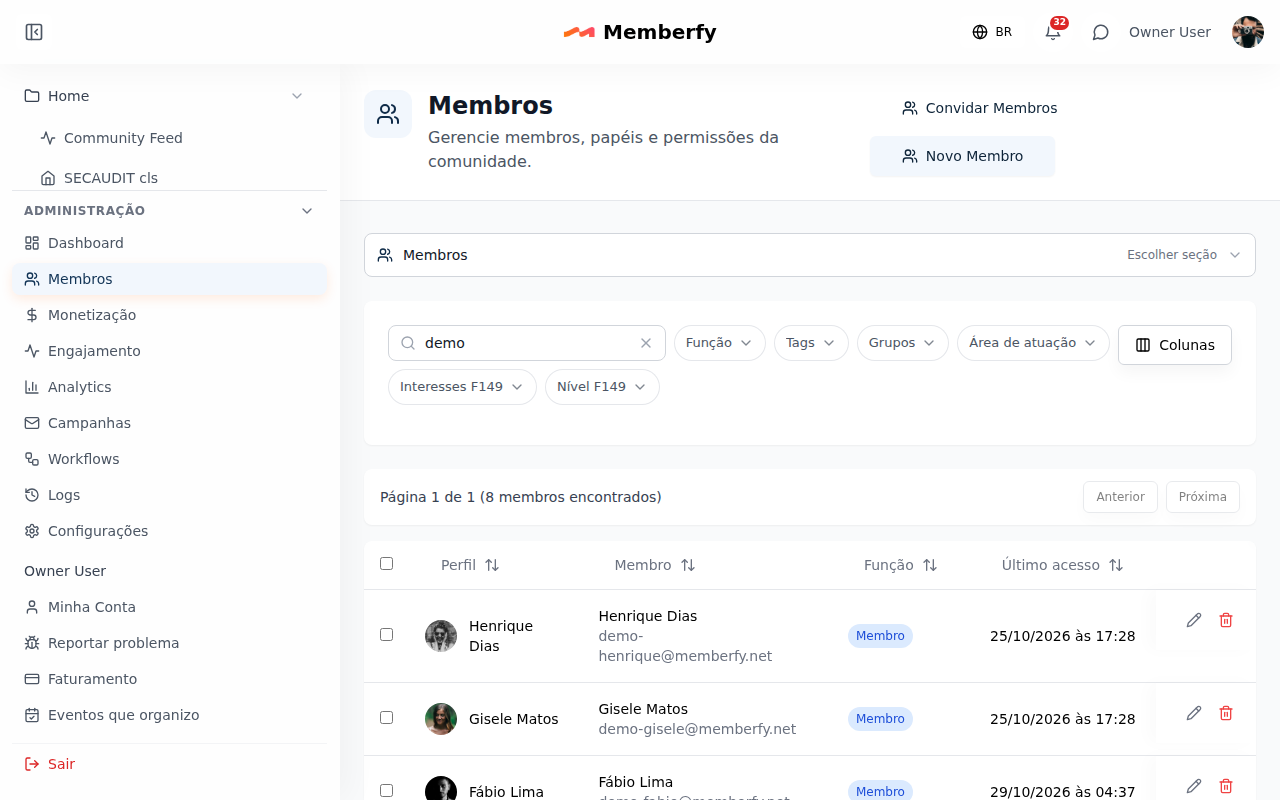
Each row shows the Profile (display name), the Member (the account's name and email), the Role, the Tags and Last access (or Never). Last access updates at most every 5 minutes: someone who just signed in may show up a few minutes late.
At the top, the filter bar, with the search first and each filter in a button with a menu (on a phone, under Filters (N)):
- Role: All Roles, Owner, Admin, Moderator, Finance or Member;
- Tags and Groups, with one or more values;
- one filter for each list-type custom field (single or multiple choice), such as Area of expertise;
- each chosen filter shows as a chip with ×, and Clear filters removes them all. The filters live in the page address.
The list is paginated ("Page 1 of 3 (64 members found)"), with Previous and Next.
- Columns: choose what the list shows. Under Standard, the usual columns; beyond them, Job title, Tagline, Phone, Groups, Tags, Plan (the person's current subscription; not shown to the moderator), Member since and, under Custom fields, each of the community's custom fields. Reset to default goes back to the usual columns. The choice is kept per community, in this browser.
- Sort: click the header of Profile, Member, Job title, Role, Member since, Last access or a custom field ("Sort by Job title"); click again to reverse. On a custom field, people who left it empty come last.
- Search all fields...: the search looks in the name, email, job title, tagline, tags, groups, text and list custom fields and, with 4 digits or more, the phone. Case and accents don't matter: joao finds João.
- The pagination also shows above the list, not just below it.
Filter by period
Besides the filters on the screen, the list takes two period filters. They come from the Dashboard or from the page address, and show as a chip with an × to remove:
| Chip | Who shows up | How to get there |
|---|---|---|
| Active from … to … | Whoever did something in the period: posted, commented, reacted, answered an event, studied in a course or earned points (the same rule as the Active members card; just reading does not count) | Click the Active members card or a point on the Dashboard's Engagement chart, or open /members?activeFrom=2026-10-08&activeTo=2026-10-14 |
| Joined from … to … | Whoever joined the community in the period | Open /members?joinedFrom=2026-10-01&joinedTo=2026-10-31 |
- The dates are whole days in the community's time zone, first and last day included. In the address, both dates are required (YYYY-MM-DD).
- Whoever joined and already left does not show up under Joined: the list shows only who is still in the community. So it can have fewer people than the Growth card's "joins".
- The periods add up with the search and the role, tag and group filters; Clear filters removes everything, including the period.
What belongs to the account and what belongs to the profile
When editing, the fields split like this:
| Field | Comes from | Who can change it |
|---|---|---|
| Community Display Name | Profile | The person themselves (changes their name everywhere), and the team only for someone with a lower role, only in this community (Name) ("Empty = global name") |
| Tagline | Profile | The team and the person themselves |
| Avatar | Profile | The team and the person themselves (JPG, PNG or GIF, up to 50 MB) |
| Role | Profile | Owner and admins |
| Full Name (Global) | Account | The person, in My Account. The team fixes it through the display name when the account still has the name taken from the email and the person is only in this community |
| Email (Global) | Account | Only Memberfy support: "Only Memberfy support changes the login email." |
See Account and profile.
Step by step
Find someone
- Administration › Members.
- Type part of the name or email in Search all fields....
- For lists of people: use the Role, Tags or Groups filters.
Change the role
Role: owner or admin.
- Find the person and open the editor (Edit Member Profile).
- In Role, pick the new role.
- Save changes. The person's menu and buttons change on the next screen they open.
Rules: only an owner can make someone an owner or change an owner; the Finance role is granted by an owner or an admin.
Edit the profile
Role: owner or admin.
Open the editor, change Community Display Name, Tagline or Avatar, and save.
Add tags and groups
Role: owner, admin, moderator or finance for tags; owner or admin for groups.
- Tags: right in the table's Tags column, or in the editor. See Tags.
- Groups and leader: open the person's Place in the organization. Each group can have a Valid until: at the end of that day the person leaves the group by themselves, without being told. In the list, a group with an end date shows until 12/31/2026. See Groups and org chart › Valid until.
Remove from the community
Role: owner or admin.
- Open the person's menu and choose Remove Member.
- If you want, write the Reason (only the team sees it), up to 500 characters ("E.g.: asked to leave by e-mail").
- Confirm. The screen warns you what is lost: the profile data, the activity history, and the contributions and achievements in this community.
The reason is kept only in the Logs, which only the owner and the admin read ("Removed Ana from the community. Reason: …"). The person never gets the reason, and it does not go in the leave event or in webhooks.
Removing takes the person out of this community: they stop being a member here and remain in any other communities they belong to. To come back, they need a new invite or open sign-up.
The person's identified responses in surveys are permanently deleted, and the results recalculate; anonymous ones stay, because there is no way to know whose they are.
Removing someone does not cancel their subscriptions. If the person pays for a plan, cancel the subscription first so they don't keep being charged.
Removing does not erase the data. The person's profile is kept. If they asked to be forgotten, see Handle an erasure request.
Examples
Promoting a dedicated student to moderator. Search for Gisele, open the editor, set Role = Moderator, save. She now sees Administration › Members, can pin posts and moderate comments.
Registering a company. Studio X signs up its team to the community: instead of a profile for the company, register it in the Companies section and invite the people on its team. See Companies.
Finding people who never signed in. In the Last access column, look for Never: those are people who were invited and never came in. Send them the Forgot password? route.
Common errors and how to fix them
| Message | What to do |
|---|---|
| Only an owner or a SuperAdmin can remove, demote or change an owner. | Ask another owner |
| Only an owner or a SuperAdmin can make someone an owner. | Ask an owner |
| Only owners and admins can assign the finance role. | Ask an admin |
| You do not have permission to modify this profile. | You are a moderator or a member |
| Role is required | Pick the role before saving |
| File must be at most 50MB | Use a smaller image |
Frequently asked questions
Can I change a member's email? Not from the community: only Memberfy support can, because the email is the person's login.
Why can't an admin edit the owner? That's the owner's protection: no admin action reaches an owner.
Can I export the member list?
Through the API (GET /api/members), paginated.
Are removing and banning the same thing? There is no ban. Removing takes away the member; if sign-up is open, the person can sign up again.
In the API
GET /api/members (search, role, sortBy and the periods activeFrom/activeTo and joinedFrom/joinedTo: YYYY-MM-DD dates, inclusive, in the community time zone; one side alone leaves the other open; an invalid date or a start after the end returns 400; with activeFrom = today − 6 days and activeTo = today, pagination.total is the Active members card's number), PUT /api/members/{id}, PUT /api/members/{id}/role, DELETE /api/members/{id} (with an optional reason, up to 500 characters, otherwise 400 on reason; kept only in the Logs, in details.after.reason of member.removed). GET /api/members?fields=groups returns groups[].expiresAt to the owner and the admin. See Members.