
E-mail campaigns
How the team builds and sends an announcement by e-mail to the community: the two-step editor, blocks, variables, audience, test, sending quota, the list with the last 30 days' numbers, duplicating, unsubscribing and the e-mails that always arrive.
Campaigns is the community area where the team writes an announcement, chooses who receives it and sends it by e-mail. It lives under Administration, next to Members and Monetization (/campaigns); it is not a space module.
The community's questionnaires don't live in Campaigns: they are the Surveys space module, which sends its own e-mail invitation when a survey opens.
Every campaign carries the community's name as the sender, the owner's contact e-mail for replies, a link for the person to unsubscribe, and a notice that Memberfy measures opens and clicks.
What it's for
| Community | Campaign |
|---|---|
| School | The notice that enrollment for the new cohort has opened |
| Association | The conference recap, for every member |
| Coworking | A note only for the residents group |
| Mentorship | The news for whoever has the tag March cohort |
How it works
Who does what
| Who | What they do |
|---|---|
| Owner and admin | Everything: create the draft, check the audience, send the test and send the campaign |
| Moderator and finance | See the area and the campaigns, create and edit drafts, check the audience and send tests to themselves. They do not send |
| Member | Does not see the area |
The area shows under Administration for the whole team. Whoever opens New campaign without being able to send reads "Only the owner and admins send campaigns. You can write the draft and send tests to yourself."
The editor, in two steps
1. E-mail and audience. First, what goes on the envelope:
| Field | What it's for |
|---|---|
| Campaign name | Only the team sees it; it helps you find the campaign later |
| Subject | The e-mail's subject. Takes variables: {{nome}} becomes each person's first name |
| Preview text (optional) | The phrase that appears next to the subject in the inbox |
| Audience | Who receives it (see The audience) |
Continue to content takes you to the second step; Edit, in the summary of the first, goes back to it.
2. Content. The e-mail shows as it will arrive, with the community's logo and colors (the ones in Settings; with no logo, the community's name) and, in the footer, the owner's contact ("Questions? Talk to the person in charge, Ana: [email protected]"), the unsubscribe link and the measuring notice.
- Click a block to edit it, right in the e-mail. In text, select a passage for Bold, Italic, Heading, List, Numbered list and Link, or use Insert variable.
- Components, in the side panel, holds every block: drag it to the spot in the e-mail where you want it (the line shows where it lands) or click to put it right below the selected block. Blocks in the e-mail also drag by their handle (Drag to move the block), and each one has Duplicate block and Remove block.
- View as Desktop or Phone changes the width; See real preview shows the e-mail built by the server, with your data in the variables.
Only a draft can be edited: a campaign that has been sent does not change and cannot be deleted.
The blocks
| Block | What it holds |
|---|---|
| Text | The message, with formatting. The variables work here too |
| Button | Button text and Button link, which starts with https:// |
| Image | An uploaded image (Upload image: JPEG, PNG or WebP, up to 50 MB, reduced to 1200 px at most) or a pasted address (https://), with the Image description for whoever cannot see the picture |
| A course, An event, A product | 1 to 6 items, chosen in the block itself. One item goes out as a full-width card; two or more, in a grid of 2 per row on desktop and 1 per row on a phone, in the order chosen |
| Latest posts, Upcoming events, New courses, New classifieds | Automatic content, read at send time (see Blocks with the community's content) |
In the course, event and product blocks, the list shows only what can go in the e-mail (what everyone in the audience can see), with search and Load more. Tick one or more ("Chosen (2 of 6)") and confirm with Use this; the block's pencil changes the choice.
Per-recipient variables
Write a variable between double braces in the Subject, the Preview text or a Text block, and each person gets the e-mail with their own data: "Hi, {{nome}}! You already have {{pontos}} points." becomes "Hi, Maria! You already have 1,250 points.".
| Variable | What it becomes | Example |
|---|---|---|
{{nome}} / {{first_name}} | The person's first name, as shown in the community (with no name, "friend") | Maria |
{{nome_completo}} / {{full_name}} | The full name in the community | Maria Souza |
{{lider}} / {{leader}} | The direct leader in the org chart; without one, the leaders of the person's groups, as a list | Ana and Bruno |
{{grupos}} / {{groups}} | The groups the person belongs to, the primary first | Product and Diversity committee |
{{tags}} | The person's tags | mentor and founder |
{{nivel}} / {{level}} | The name of the level in engagement: the default one (like Newcomer) or the name the community gave it | Contributor |
{{nivel_numero}} / {{level_number}} | The level's number (1 is the first) | 3 |
{{pontos}} / {{points}} | The person's total engagement points in the community, adding up every section: the same number as the profile and the overall ranking | 1,250 |
{{posicao_ranking}} / {{ranking_position}} | Position on the overall engagement leaderboard, by the same total; empty for someone with no points yet | 7 |
{{plano}} / {{plan}} | The plan or plans the person subscribes to today | Annual Plan |
{{membro_desde}} / {{member_since}} | The date the person joined the community | March 3, 2025 |
{{comunidade}} / {{community}} | The community's name | Memberfy Community |
{{campo_<key>}} / {{field_<key>}} | The value of one of the person's custom fields | Studio X |
Numbers, dates and lists come out in each person's language. The English names also work ({{first_name}}, {{full_name}}, {{leader}}, {{groups}}, {{level}}, {{points}}, {{ranking_position}}, {{plan}}, {{member_since}}, {{community}}), and case does not matter.
- When the data is missing: write a fallback after a vertical bar:
{{leader|our team}}becomes the leader's name or, for someone with no leader, "our team". - With no fallback, the variable vanishes without leaving an extra space: "Best wishes from the {{groups}} team." becomes "Best wishes from the team." for someone in no group.
- A variable that does not exist is refused on save, schedule and send: "The text uses a variable that does not exist: …". So a raw
{{xyz}}never reaches an inbox. - Text only: a variable inside a link or the address of a button or image is not filled in.
- Preview and test show your data: See it as a person gets it and Send test to me fill the variables with the data of whoever asks.
{{tags}}shows all of a person's tags. If the community uses internal tags (overdue, watch), each person reads theirs in the e-mail. Use{{tags}}only when every tag is presentable; to pick people by tag, use the Audience.
In the editor, Insert variable lists the variables with an example of each, in two groups: Standard (the ones in the table above) and Community fields, the custom fields such as {{field_company}}. You can also type the variable in the text. Through the assistant, list_campaign_variables shows the list.
The audience
Under Audience, choose Everyone or Choose the audience: Groups, Tags and People, combined as a union. Whoever is in more than one criterion receives it only once.
Exclude. Below who is in, the Exclude box offers the same Groups, Tags and People. Anyone matching any exclusion does not receive it, even if they are in an included group or tag: the exclusion applies over everything included, Everyone too. On its own it picks nobody; something must be included.
By custom field. The audience can also include or exclude by a choice custom field, like a group or a tag: "City is one of New York, Boston", "Interests contains any of Data, AI", "Accepts sales contact: Yes". It is in the Fields section, under Choose the audience and under Exclude: Add condition, choose the field, How to compare and the options.
| Field type | How to compare |
|---|---|
| Single choice | is one of |
| Multiple choice | contains any of (the default) or contains all of |
| Yes/no | Yes or No |
- Up to 10 conditions per campaign, audience and exclusion together ("Up to 10 field conditions, audience and exclusion together."). Whoever has not filled in the field is not picked.
- Only single choice, multiple choice and yes/no fields shown on the member page count: a closed field (visibility Never) or a sensitive one cannot be used, because sensitive data never picks a mailing list.
- In a campaign for whoever has access to an item (like one created from a piece of content), you cannot include by field; excluding by field still applies.
- If the field changes later, the condition shows a warning, and the preview and the send already use the new rule:
| What changed | The warning |
|---|---|
| The field was deleted | "The field was deleted: this condition picks no one." |
| The field was set to Never | "The field was set to “Never” on the member page: this condition picks no one." |
| The field changed type | "The field changed type: this condition picks no one." |
| An option was removed from the field | "These options were removed from the field and no longer count: …"; with contains all of, no one is picked |
When sending, the window warns how many field conditions no longer pick whom they picked. An option removed from the field stays saved in the condition (the campaign saves normally), but it does not count.
Example. To reach people who signed up in 2023 and 2025 but have not come back in 2026: in Choose the audience, pick the groups Inscritos 2023 and Inscritos 2025; under Exclude, the group Inscritos 2026. Someone in both 2025 and 2026 is left out.
The Audience preview (after saving the draft) shows how many people will receive it and how many are left out, with the reason: they unsubscribed, have an e-mail that does not accept messages (permanent bounce) or marked e-mails as spam. It also shows a sample of who receives it, with the e-mail partially hidden. With an exclusion, the preview and the send dialog also show how many it removed: "1,240 in the selection, 312 excluded by the rule".
- Only community members are included; deleted profiles are left out.
- A send goes to at most 20,000 people. Above that, narrow the audience.
- Someone who unsubscribed does not return to an audience: if the team tries to add that person by hand, the choice is refused. Only the person can opt back in.
People who can access a post. In a campaign created from a post, Audience has a third mode, People who can access {title}: only people who can open the post in the app at send time receive it. See Send a post by e-mail.
Sending quota
To protect the reputation of the community's e-mails, each community has a sending quota: 2 per day and 14 per week; the month is the sum of the weeks. Each send to an audience counts as one, whatever the audience's size. Day, week and month follow the community's time zone.
- A test does not count.
- The quota shows in the send and schedule windows ("Quota left after this send") and, in the campaign list, as a discreet line ("Sends left: 2 today, 14 this week, 60 this month.").
- Scheduled, repeated and automatic sends also count, one per send, when they go out.
- If a send would exceed any limit, it is refused before it starts, saying which limit and when it frees up. Nothing is sent halfway.
- Only Memberfy's SuperAdmin changes a community's quota; owners and admins cannot edit it.
Opens and clicks
Memberfy always measures opens and clicks on links; it cannot be turned off. The numbers are totals, with nobody's name, and appear under Sends: Recipients, Delivered, Opens, Clicks, Bounces and Complaints. An open is an estimate: some e-mail apps open messages on their own. The e-mail footer tells the person the measuring exists.
Unsubscribing
Every campaign e-mail carries an Unsubscribe link (and the unsubscribe button that e-mail providers show). The page "Manage the e-mails you receive" lets the person choose, per community:
| Choice | What changes |
|---|---|
| Stop receiving announcements | Leaves the campaigns. Still receives the community's notices (event reminders, certificates…) |
| Stop receiving all e-mails | Also stops the community's notices. The e-mails in the list below still arrive |
Unsubscribing applies to the e-mail address in that community; in another community the person keeps receiving. A click on the provider's button counts as announcements. The person can come back through the I changed my mind, send me e-mails again link or, logged in, through the E-mails from this community card in My Account, with a choice by category, where campaigns are Team announcements (see E-mails from this community).
The Opt-outs section shows the team who asked not to receive, with the e-mail partially hidden, the scope (Campaigns only: gets no campaigns but still gets the community's other e-mails; or All e-mails: gets no e-mail from the community, except account security and purchase e-mails) and the source (E-mail link, One click in the e-mail or Profile preference).
E-mails that always arrive
Even with all e-mails blocked, the person still receives: password recovery and change, login alerts, access and verification codes, purchase and renewal receipts and legal notices. The card in My Account says so.
Step by step
Create, test and send
- Under Administration, open Campaigns and click New campaign.
- E-mail and audience: fill in Campaign name, Subject and, if you want, the Preview text; choose the Audience (Everyone or Choose the audience). To leave someone out, use Exclude. Click Continue to content.
- Content: drag the blocks from Components into the e-mail and write right in them.
- Click Save draft and check the Audience preview.
- Click Send test to me: the e-mail reaches only your address, with [Test] in the subject, and does not use the quota. There is a limit of tests per hour.
- Role: owner or admin. Click Send now. The dialog "Send this campaign now?" shows how many people receive it, how many were left out and the quota left. With an exclusion, it also shows "N in the selection, M excluded by the rule". Check "I confirm these people are members of my community and agree to receive announcements." and confirm with Send now.
A send cannot be recalled. The e-mails go out in batches, so a large community takes a while to deliver everything; the Sends numbers update as they arrive. Campaign e-mails do not delay security and purchase e-mails.
The Sends numbers refresh by themselves when a send finishes, without reloading the page.
Duplicate a campaign
From the row's menu in the list, or the detail's bar, Duplicate creates a new draft, "Copy of {name}", with the original's subject, preview text, blocks and audience, and opens it in the editor. Uploaded images get their own copy: deleting the image of one does not affect the other. A repeating campaign keeps the same days and time, but starts as a draft until someone schedules it. Sends, numbers and scheduling are not copied. Automatic e-mails are not duplicated: there is one of each type per community.
Delete a draft
Open the draft and use Delete draft. Campaigns already sent cannot be deleted.
Send a post by e-mail
A published post or article becomes a campaign in one click, already laid out and with the post's own audience. Role: team (owner, admin, moderator, finance); only the owner and the admin send.
- In the post's … menu (on the card in a Content space, on the post's page or in the Feed), click Create email.
- Memberfy creates a draft and opens the campaign editor with it. Nothing is sent and the quota is not used.
- Review it, save, check the Audience preview, send the test and send or schedule it, as with any campaign.
What the draft brings.
| Field | Comes from |
|---|---|
| Campaign name and Subject | The post's title |
| Preview text | The subtitle (empty if the post has none) |
| Body | The cover image, the title, the whole text and the Read in the community button, which opens the post |
| Extra buttons | Watch in the community, when the post has a video, a Drop or a player; Vote in the community, when it has a poll. Both lead to the post |
The buttons come out in the community's main language. An image pasted into the text as an embedded file does not go into the e-mail; the cover does. Once created, the draft is a campaign like any other: you can change the text, the blocks and the audience.
The audience: People who can access {title}. The draft comes with this mode selected under Audience, next to Everyone and Choose the audience, with the count "{n} people today · recalculated on every send". Only people who can open the post in the app receive it, by the rules in Visibility and access: for an open post, every member; for a subscribers' post, a space tied to a product or a group, or one with a padlock, only those who have access. The audience is computed again on every send, scheduled and repeating ones included: whoever lost access (canceled subscription, left the group) drops out, and whoever gained it comes in. The mode does not add up with groups, tags or people, but the Exclude box still applies, and people who unsubscribed from campaigns stay out, as always.
Changing the audience. You can pick another mode. The editor, and the send and schedule dialogs, warn: "This email carries the full text of "{title}". With another audience, it may reach people who can't access that content." It is a warning; the send is not blocked.
When it can't be done.
- The option only shows on a published, approved post. A post that is a draft, private, or pending or rejected in moderation does not become a campaign.
- If, after the draft, the post is deleted, unpublished or goes back to moderation, the send is refused and the editor says nobody would receive it: pick another audience.
- The mode only exists in campaigns; workflows do not offer it.
- People who already got the new post notice receive the campaign too.
The campaign list and the numbers
Last 30 days, at the top of Campaigns, adds up every campaign and automatic e-mail: Sent, Open rate, Click rate and Unsubscribes, each compared with the previous 30 days ("+120 vs. previous period"; the rates in percentage points). The Sends per day chart shows the current period and the previous one as a dashed line. As in the Dashboard, when the previous period is too small the difference shows in numbers, not as a percentage; with no send before, "No comparison". The line Updated at 14:32 says when the numbers were calculated, in the community's time zone: they refresh on their own every minute while the page is open, and the Refresh button fetches them right away.
Below, the campaigns table: Campaign, Status, Audience, Date, Sent, Open rate and Click rate, with the filter bar on top: the search by name or subject, the Period button (the send period, below) and the status in pills (All and each status, on a single line; the ones that don't fit go to More). The table sorts by column. For repeating campaigns, the table's numbers are from the last send. Clicking a row opens the detail: Performance (open and click rate, delivered, opens, clicks), the Sends over time chart, the Details (type, when, audience, next and last send) and the e-mail preview, with Edit, Duplicate and Manage campaign.
Filter by send period
The list takes the Sent from … to … filter: only the campaigns (manual and automatic) with a send that went out in the period, counted by the day the send started, the same rule as the Last 30 days numbers. It comes from the Dashboard (a point on the Campaigns chart opens the day; See this week's campaigns, the week) or from the address, /campaigns?sentFrom=2026-10-08&sentTo=2026-10-14. The dates are whole days in the community's time zone, first and last included. It can also be chosen in the bar's Period button (From and To). The period shows as a chip next to the status filters, with an × to remove, and adds up with the status and the search.
Scheduling, repeating and following up
Role to schedule, pause, resume and cancel: owner or admin. In place of Send now, Schedule send opens the "Schedule the send" window, with the Send type:
| Type | When it goes out |
|---|---|
| Once | On the chosen date and time |
| Every day | Every day, at the chosen time |
| Weekdays | On the chosen days of the week, at the chosen time |
The date and time apply in the community's time zone, and the local time holds when daylight saving changes. A time in the past is refused.
- The quota is used when the send goes out, not when you schedule. Each repeated send uses one send. If there is no quota at that time, or the time passed more than 12 hours before the send could go out, the send is skipped and recorded, and the owner gets an e-mail (once per send). A skipped one-off send goes back to draft.
- At each send, the audience and the content are read again: whoever joined the community receives it, whoever left or unsubscribed does not. Automatic blocks show only what is new since the previous send (on the first one, the last 7 days).
- With nothing new, it does not send. The send is skipped and recorded as "Skipped: there was nothing new to send." Text, button and image count as content, so a text-only campaign always sends.
- Pause holds what has not gone out and keeps the next date; Resume continues only with what was missing; Cancel campaign ends it, and what already went out stays sent. The statuses are Draft, Scheduled, Sending, Sent, Paused and Canceled.
- A campaign that is no longer a draft cannot be edited: use the Sending panel to reschedule, pause or cancel.
Following the sends
Under Sends, each send shows Recipients, Delivered, Opens, Clicks, Bounces and Complaints (and the unsubscribes), and All sends combined adds everything up. It is numbers only: nobody's name or e-mail. A skipped send shows the reason. See it as a person gets it opens the e-mail as it would go out now, without sending or using quota.
Blocks with the community's content
Besides Text, Button and Image, the e-mail accepts blocks that pull in the community's own content:
| Group | Block | What it shows |
|---|---|---|
| Automatic content | Latest posts | 1 to 10 posts, from one space or from every open space |
| Upcoming events | 1 to 10 events starting in the next days (1 to 90) | |
| New courses | The courses published since the previous send | |
| New classifieds | The new ads since the previous send | |
| Fixed content | A course, An event, A product | 1 to 6 cards linking to the chosen items (the product leads to the store), in a grid of 2 per row |
Each block accepts an optional section title. The content is read at send time.
- Only what everyone in the audience can see goes in: approved, live content, in spaces and sections open to all members (no plan, group or product required, and not private). No paid content goes in the e-mail. The picker only offers items everyone sees; if an item stops being visible later, it drops out of the e-mail, and a block left with no items drops out entirely.
- The Image block accepts Upload image (JPEG, PNG or WebP, up to 50 MB, reduced to 1200 px at most), Replace image and Remove image; or a pasted address.
- A send with no content at all is refused.
E-mails and sends
The e-mail and the send become separate things. The area gets the sections E-mails, Sends, Automatic, Default e-mails and Opt-outs, in a menu on the left (on narrow screens, or with the app menu open, the sections become the Choose a section button, which opens the list in a drawer):
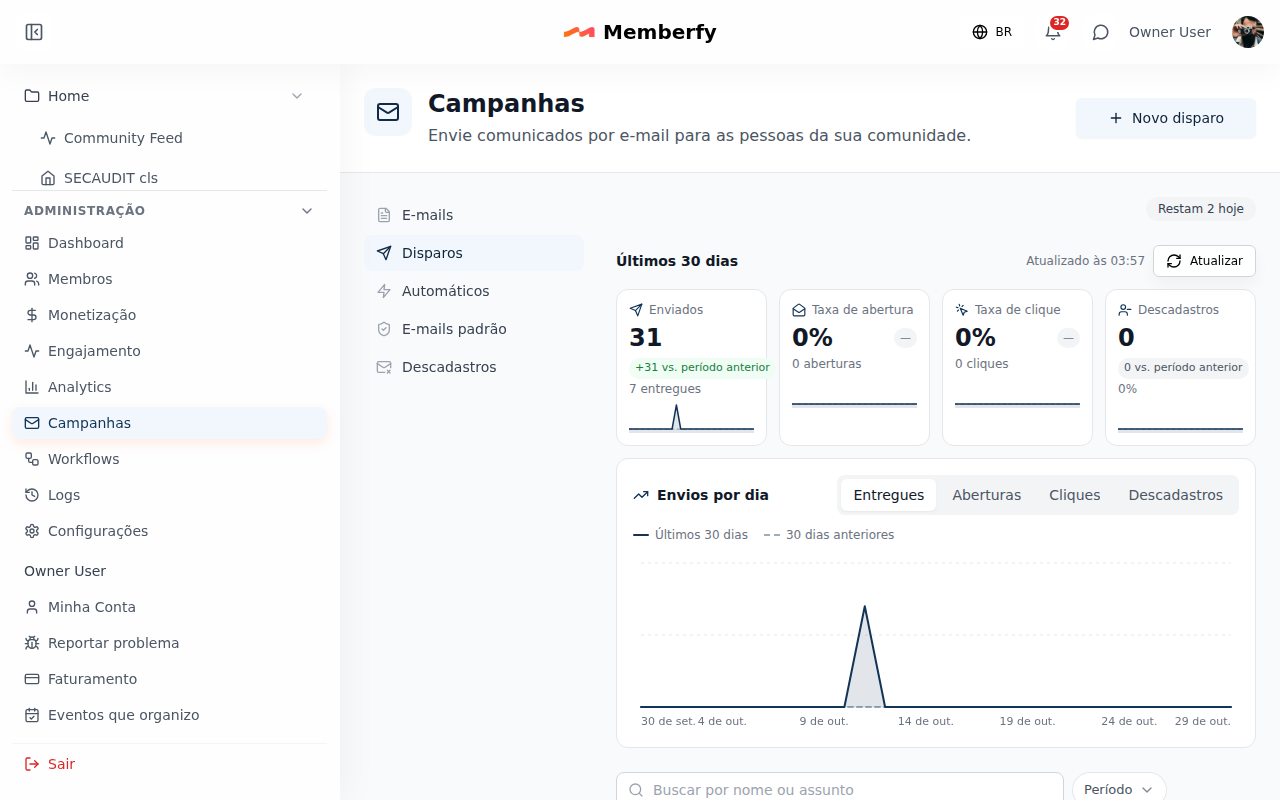
- E-mails is the library: each e-mail is written once and used in as many sends as you like. New e-mail opens the usual editor, with the E-mail name (only the team sees it).
- Sends are the former campaigns: the audience, the scheduling and the numbers. New send starts with the e-mail: pick one from the library or Write a new e-mail, which is saved in the library.
Languages. An e-mail has one version per language, with a Main one. Each person gets the version in their language and, without a version in that language, the main one. In the editor, the Language selector switches the version (without a version: "People who read in that language get the main one until you save this one"); Make main and Delete this version are there too.
Used in. Each e-mail shows "Used in N places", and Where this e-mail is used lists the sends and default e-mails that use it. Changing an e-mail in use changes the next sends of those (what already went out stays in the report), so saving asks for confirmation ("This e-mail is in use"). An e-mail in use cannot be deleted: the message says where it is. Changing the content inside a send changes the library e-mail; if another send also uses it, this one gets a copy.
Duplicate creates a copy of the e-mail with all its versions. Send me a test sends the open version only to whoever is signed in, with their details in the variables.
The e-mails the platform sends on behalf of the community (welcome, invitations, receipt, event registration) can be replaced under Default e-mails. See Default e-mails.
Automatic e-mails
In the Automatic section, the owner and admins have the New automatic campaign button, which creates a campaign scheduled for every day or for weekdays. The section shows the ready-made templates (such as Weekly updates) and Your recurring campaigns. Under Campaigns, the default send is the one-off one.
The Automatic section holds ready-made e-mails the platform maintains. The first is Weekly updates: a weekly summary with Latest posts, New courses, Upcoming events and New classifieds (choose which go in).
- It comes off, in every community. No community sends bulk e-mail on its own. The whole team sees the section; only the owner and admins turn it on and adjust it.
- To Turn on, the window asks you to confirm it will send e-mail in volume, on the chosen day and time, without you pressing anything. You can turn it off whenever you want.
- Adjustable: day, time, subject, introduction and blocks. Restore default resets everything and turns it off.
- A week with nothing new does not send. The introduction alone does not trigger it.
- It respects unsubscribes, only carries content everyone sees, counts toward the quota and appears in the list and in the reports like any campaign. It cannot be sent, scheduled, edited or deleted from the ordinary screens.
Protecting the sending reputation
- Quota: scheduled, repeated and automatic sends also count, one per send, when they go out.
- First sends: while the community has not completed any send, the audience is limited to 500 people; above that, the send is refused before using quota.
- Automatic pause: if a send has passed 50 e-mails and more than 5% came back as an address that does not receive (permanent bounce) or more than 0.3% became spam complaints, the campaign pauses on its own (and so does the repeat), what is missing does not go out and the owners get an e-mail, once. Resuming is the owner's or admin's decision.
- Sending reputation: if unsubscribes or spam complaints from Campaigns and Automations go over the limit in the last 7 days, the community's sending is suspended for a while.
What does not exist yet
Not available yet: segmentation by behavior (for example, who did not open the last e-mail), A/B tests, importing contacts from outside the community, and sending by SMS or WhatsApp.
Examples
A notice to a cohort. The team creates "Opening class", chooses the group March cohort, sends the test, checks that 38 people receive it and 2 are left out (unsubscribed) and the owner sends.
Past sign-ups, minus those who came back. Audience: groups Inscritos 2023 and Inscritos 2025; Exclude: group Inscritos 2026. The preview shows "1,240 in the selection, 312 excluded by the rule" and how many of the remaining 928 are left out for unsubscribing or bouncing.
An announcement to everyone. A short note, with a button to the community, for Everyone. If it is the third send of the day, Memberfy refuses before starting and says when the quota frees up.
Common errors and how to fix them
| Situation | What to do |
|---|---|
| Give the campaign a name. / Write the subject. | Fill in the fields and save |
| Every button needs text and a link starting with https://. | Check the button |
| Choose at least one group, tag or person, or send to everyone. | Set the audience |
| The audience is over 20,000 people… | Narrow the audience or split into campaigns |
| Daily, weekly or monthly limit reached | The message says which and when it frees up; wait or talk to Memberfy |
| A person chosen by hand is refused | They unsubscribed: only they can opt back in |
| The Send now button does not appear | Only the owner and admins send |
| The content that defines this campaign's audience was deleted. Choose another audience. | The post left the community: choose Everyone or Choose the audience |
| This content is not published or is private… | The post went back to draft, became private or is in moderation: publish it again or change the audience |
| Create email is not in the post's menu | Only the team sees it, and only on a published, approved post |
Frequently asked questions
Can the person reply to me? Yes: replies go to the owner's contact e-mail.
Can I see who opened it? No. The numbers are totals, with nobody's name, and opens are an estimate.
If someone unsubscribes, do I lose contact? Only by campaign e-mail. The community's notices continue, unless the person blocks them all, and security and purchase e-mails always arrive.
Is the quota per e-mail sent? No: it is per send. A send to 5 people and another to 5,000 use one each.
In the API
GET and POST /api/campaigns (the GET filters by status and by the send period sentFrom/sentTo: YYYY-MM-DD dates, inclusive, in the community time zone; one side alone leaves the other open; an invalid date or a start after the end returns 400), GET, PUT and DELETE /api/campaigns/{id} (draft only), POST /api/campaigns/{id}/audience-preview, POST /api/campaigns/{id}/test, POST /api/campaigns/{id}/send (body consent: true, answers 202), GET /api/campaigns/quota, GET /api/campaigns/stats (the numbers for the period and the previous one), GET /api/campaigns/block-items (the items a block accepts), POST /api/campaigns/{id}/duplicate, GET /api/campaigns/variables (the variable list, with name, description and example in the requester's language), GET /api/campaigns/opt-outs and GET and PUT /api/members/me/email-preferences. Public unsubscribing lives at /api/public/unsubscribe/{token}. See the API reference.
The audience takes exclude (groupIds, tags, memberIds): anyone matching it is out, even when included. Groups and people outside the community are refused (422). The audience preview returns candidatesBeforeRule (how many were in the selection) and excluded.byRule (how many the exclusion removed). Inclusion and exclusion accept fields, with { fieldId or key, operator, values }: oneOf (select), containsAny and containsAll (multiple choice), isTrue and isFalse (yes/no). Up to 10 conditions; a closed or sensitive field, a new option that does not exist or more than 10 conditions return 422 on the condition's parameter; an option the campaign already had and that was removed from the field stays as it was, does not count and comes back as optionRemoved. GET /api/campaigns/{id} and the PUT bring audienceWarnings and the preview, fieldWarnings (reason: fieldNotFound, fieldClosed, fieldTypeChanged or optionRemoved).
The library is at /api/emails (GET, POST, GET, PATCH and DELETE /{id}, PUT and DELETE /{id}/versions/{language}, GET /{id}/usages, POST /{id}/duplicate, /preview and /test), for the team; POST and PUT /api/campaigns take emailId (so subject is no longer required) or the content as before, which creates the library e-mail; the responses carry emailId and email. Deleting an e-mail in use returns 409 with the usages in data.usages. The default e-mails live at /api/email-overrides; see Default e-mails.
From a post. POST /api/campaigns/from-content with { "contentId": "…" } (team; a member gets 403) creates the draft and answers 201 with the campaign; a post from another community or a deleted one gives 404, and a draft, private or not approved post 422. The audience accepts itemAccess: { "type": "content", "id": "…" }, exclusive (422 alongside all, groups, tags or people; exclude applies). The audience preview returns itemAccess { type, id, title, status }, and sending a post deleted or closed after the draft answers 422. Campaigns carry sourceItem: { type, id }, and the Content list, the post detail and the Feed carry canCreateCampaign. Workflows refuse itemAccess with 422.