
Gamification
The Gamification section in Members, for the owner and admins. How to turn the community's points on and off, how much each action is worth, the levels with minimum points and weekly activity, when someone moves up and when they move down, and how it differs from the Overall engagement.
Gamification decides whether taking part in the community earns points and how much each action is worth: posting, commenting, liking, attending an event, completing a lesson. The points feed the Engagement and members' levels.
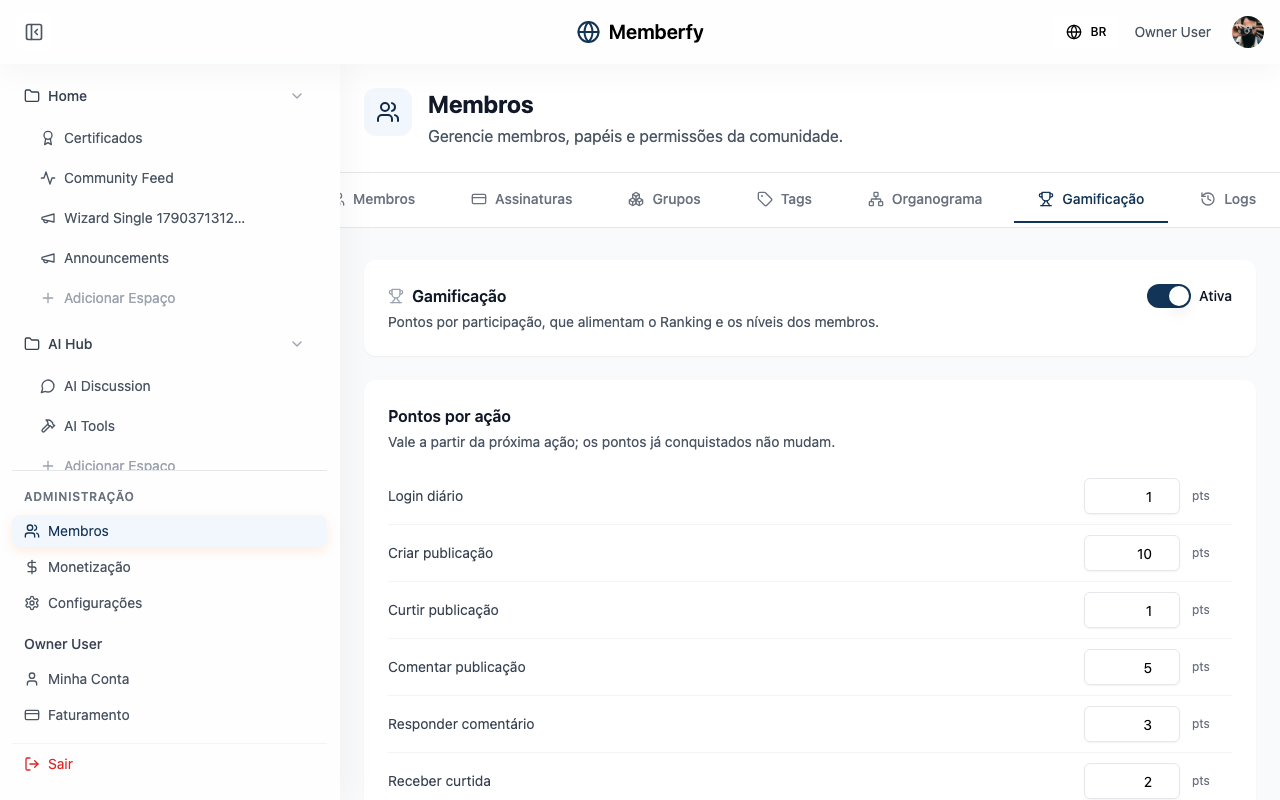
It lives in Members › Gamification: "Points for taking part, which feed Engagement and members' levels." The section has two tabs: Points, with how much each action is worth, and Levels, with the community's ladder of levels (see Levels).
What it's for
| Community | How to tune the points |
|---|---|
| Online school | Give Complete lesson more weight than Like post, to reward people who study |
| Customer community | Value Reply to comment, to recognize people who help others |
| Events community | Raise Participate in event, to reward people who show up |
| Community that doesn't want competition | Turn gamification off |
Who can
The owner and admins. Moderators and finance don't see the section.
How it works
Turning it on and off
The switch at the top of the section shows On or Off. Gamification is on when the community is created.
While it is off, "no action earns points. Points already earned are kept." When you turn it back on, actions count again from then on; what happened while it was off doesn't count.
Points per action
Each action has its own value, a whole number from 0 up. The default values:
| Action | Points |
|---|---|
| Daily login | 1 |
| Create post | 10 |
| Like post | 1 |
| Comment on post | 5 |
| Reply to comment | 3 |
| Receive like | 2 |
| Create event | 20 |
| Participate in event | 20 |
| Create course | 30 |
| Enroll in course | 10 |
| Complete lesson | 25 |
| Recognize a colleague | 0 |
| Be recognized | 0 |
| Host a Networking session | 20 |
| Attend a Networking session | 10 |
| Review a Networking session | 3 |
| Host a Networking group session | 30 |
| Listen to or watch an episode to the end | 10 |
| Comment on an episode | 5 |
A change "applies from the next action on; points already earned do not change." An action set to 0 stops earning points, without turning the others off.
The last two come from the Recognition space and start at 0. With points, Recognize a colleague counts for up to 3 recognitions a day, and Be recognized counts once a week per author; deleting the recognition takes back the points it gave.
The four Networking actions come from the Networking space. Points are given 3 days after the session ends, only when at least one of the two confirmed it happened; the same pair scores once a week across every Networking space, and each person scores at most 10 sessions a week. Host a Networking group session is already listed, but group sessions aren't available yet.
Listen to or watch an episode to the end (90%, without skipping to the end) and Comment on an episode come from the Podcast and Videos spaces and count once per episode and per person.
Daily cap per action
Each action can have a daily cap: the most times per day, in the community's time zone, it gives a person points (1 to 10,000; with no cap, it always counts). Over the cap, the action happens as usual but gives no points and does not count for badge rules. In Logs, it shows "daily cap reached, no points".
Example: with a cap of 20 on Comment on post, the day's 21st comment is posted, without the 5 points.
On screen, the cap is the Max per day column, next to each action in Points per action: "Daily maximum per person: past it, the action happens but gives no points and does not count for badges. Blank means no limit." Through the API, dailyCaps in PUT /api/gamification/config (such as { "COMMENT_POST": 20 }; null removes it); through the assistant, update_ranking_rules.
Gamification and Overall engagement
They are two different switches:
| Switch | Where | What it does |
|---|---|---|
| Gamification | Members › Gamification | Whether actions earn points |
| Overall engagement | Settings › Features | Whether the whole community's engagement shows to members |
With gamification off, engagement stops changing, because nobody earns new points.
Levels
Each person is at a level, shown in the ranking, on the podium, in My engagement, on the profile and on the member page. The community builds its own ladder: 2 to 20 levels, each with a name, minimum points, an optional image and, if you want, activity in the week: "at least 3 posts in the week", "2 comments in the Introduce yourself space". That way the level shows who takes part now, not only who piled up points once.
A community that never touches the levels keeps the usual 9, from Newcomer to Legend, with no requirements: nothing changes in the ranking or in anyone's level.
The levels editor
On the Levels tab, each row is a level, from the first to the last:
| Field | What it is |
|---|---|
| Name of level | Up to 40 characters, not repeating another level (e.g. Kernel) |
| Minimum points | The person's total points in the community to be at the level. The first starts at 0, and each level asks for more than the one before |
| Choose image | An optional image, shown next to the name |
| Activity in the week | Up to 5 requirements: the Action, How many times (1 to 1,000 times a week) and, for actions that happen in a space, the Space (or In any space) |
- "The first level has no requirements: it is everyone's floor."
- "All requirements apply together, Monday to Sunday." A level with no requirements shows "No requirements: the points are enough."
- The actions are those on the Points tab, except the team's adjustment, which is not something the member does. An action turned off in the points rules shows as "Turned off in the points rules", and a requirement that uses it warns: "This action is turned off and is not counting." To count, the action has to be on, even at 0 points.
- A requirement with a space counts only what happens in that space, from the moment this change arrives.
- Add level and Add requirement add; Remove level and Remove requirement take away.
- A level can open spaces and sections in Who gets in: whoever reaches it gets in at once, and the bell says "Your level opened the Veterans' Room space" (or "Your level opened the … section"), once per space or section. See Visibility and access.
- A level that opens a space or a section in Who gets in cannot be removed: saving is refused with the list of spaces and sections. On save, the refusal shows "Where it is in use:" and the list of sections and spaces. Take the level off there (or choose another) and save again. See Visibility and access.
The rule
The rule text sits at the top of the tab, with the community's time zone:
"To move up, a person needs the points and to meet the level's requirements this week: the move up happens at once. To stay at the level, they must have met the requirements in the previous week; whoever did not drops on Monday at 00:00 (America/Sao_Paulo). The week runs from Monday to Sunday. Taking points away drops the level at once."
| When | What happens |
|---|---|
| Moving up | At once, on every action or change of points: the person goes to the highest level whose points they have and whose requirements they already met this week. An action worth 0 points can also move someone up, if it was the missing requirement |
| Staying | The previous full week counts. Someone who moved up on Wednesday and met the requirements that week stays at the level for the whole next week, even doing nothing in it. Nobody drops just because the week turned |
| Dropping on Monday | At 00:00 on Monday, in the community's time zone, whoever did not meet their level's requirements in the week that ended moves down to the highest level that week supports. A level with no requirements always holds |
| Dropping for points | At once, when a negative adjustment (by the team or a workflow) leaves the person below the level's minimum points |
A points recalculation and a member import never move anyone up or down. With gamification off, everyone's level stays put.
Saving and the preview
On save, the "Save the levels?" dialog shows how many people change: "Moving up a level: 4. Moving down a level: 12." (or "With this change, nobody changes level right now."). "The recalculation runs in the background and does not fire the level triggers." Save levels confirms, and "Levels saved" appears.
A level used by an access rule cannot be removed: "A removed level is used by an access rule."
What is left this week
On the profile and on the member page, when the level has requirements, the block "To stay at Kernel this week" shows each requirement and the progress: Create post 2 of 3; with a space, Comment on post in Introduce yourself 0 of 2, and the note "Counts Monday to Sunday; whoever does not meet it moves down on Monday." Below it, "To move up to" the next level, with the points still missing and its requirements this week. A requirement that is met gets the done mark.
The person and the team (owner, admin, moderator and finance) see this block. Other members do not see anyone's activity. A requirement tied to a space the viewer cannot access (private, plan-only or deleted) shows without the space's name, with "in a space you cannot access" in its place (Comment on post in a space you cannot access 0 of 2); whoever opens the space sees the name. See The profile shows engagement.
Automating with workflows
The Moved up a level, Moved down a level (with the reason) and Reached N points triggers sit in the Levels and points block of workflows, and the Level and Points rules in the Engagement group of the Condition: "Moved down from Kernel → remove from the Kernel group" runs on Monday for whoever did not keep up.
Step by step
Change how much an action is worth
Role: owner or admin.
- Members › Gamification.
- Under Points per action, change the number next to the action (for example, Complete lesson to 40).
- Save. "Saved." appears.
Build levels with weekly activity
Role: owner or admin.
- Members › Gamification, Levels tab.
- Change each level's Name of level and Minimum points, or click Add level.
- On a level above the first, Add requirement: pick the Action, How many times a week and, if you want, the Space.
- Save. Check in the "Save the levels?" dialog how many people move up and down, and click Save levels.
Turn gamification off
- Members › Gamification.
- Click the switch until it shows Off. The points fields are locked.
- Save.
Example
A school that wants to reward studying. Excel School raises Complete lesson from 25 to 40 and lowers Like post from 1 to 0. The following week, a student who completes 5 lessons earns 200 points for them; liking posts no longer counts. The points she already had stay the same.
A sysadmin community that wants to reward those who show up every week. The Kernel level asks for 500 points and Create post 3 times a week. Ana has 600 points and published 2 posts this week: she stays at the level below, and her profile shows Create post 2 of 3. On Thursday she publishes the 3rd post and moves up to Kernel at once. The next week she publishes nothing and stays Kernel, because she met the week that ended. On the Monday after that, at 00:00, since she did not meet the previous week, she drops to the level below. A Moved down a level workflow with the Kernel filter removes her from the Kernel group at the same moment.
Common errors and how to fix them
| Message | What to do |
|---|---|
| "Use a whole number from 0 up in …" | The field for that action has a negative, decimal or empty value. Fix it and save again |
| "Could not load gamification." | Click Try again. If it keeps happening, reload the page |
| "Could not save. Try again." | Nothing was saved. Try again in a few seconds |
| "Each level needs more points than the one before." | The Minimum points have to grow from one level to the next |
| "There is already a level with this name." | Give one of the two another name |
| "This action is already a requirement of this level (with the same space)." | Merge the two requirements into one, adding up the count |
| "This action is turned off and is not counting." | Turn the action on in the Points tab (it can be at 0 points) or change the requirement |
| "A removed level is used by an access rule." | Remove the access rule that uses the level before removing it |
Frequently asked questions
Does changing the levels move people up or down? It can. On save, everyone's level is recalculated by the new rule, in the background, without firing any workflow or webhook; the "Save the levels?" dialog shows beforehand how many people move up and down.
Does someone drop a level just because the week started? No. To stay, the week that ended counts. Only whoever did not meet the requirements in the previous week drops on Monday, or, at once, whoever loses points.
Does changing the points recalculate engagement? No. Points already earned stay as they are; the new value applies to the next actions.
Does turning it off erase the points? No. They are kept and show up in engagement again when you turn it back on.
Where do points and level show? In the ranking and on each member's profile, next to the badges and certificates. See The profile shows engagement. The profile's points and level are the person's total in the community, adding up every section: the same number as the overall ranking.
Can I give someone points by hand?
Yes. On the person's profile or in the menu of their ranking row, the owner and the admin click Adjust points and enter the Points (positive adds, negative takes away) and the Reason, up to 200 characters. The total changes at once, and the person sees the reason in their points history. For many people at once, use a workflow with the Manual trigger and the Adjust points step: Run now asks for People or an Audience and adjusts everyone at once. There is no "promote to a level": the level follows the points and, when the level asks for it, the week's activity. Through the assistant, adjust_member_points makes the same adjustment for one person, without a workflow.
In the API
GET and PUT /api/gamification/config (owner and admin): isEnabled and actionRules, with the points for each action. See Gamification. POST /api/gamification/points (owner and admin): memberId, points (not zero, negative takes away) and reason; a recalculation keeps the adjustment.
GET and PUT /api/gamification/levels (owner and admin; other roles get 403): the ladder with requirements (actionType, minCount, spaceId), limits, eligibleActions, timeZone and rule, the rule text. A validation error comes back as 422 per field; a removed level used by an access rule, 409; with dryRun: true, it returns changes (people, up, down) without saving. GET /api/gamification/levels/progress brings the week's progress (thisWeek, lastWeek and minCount per requirement), your own or, with memberId, someone else's for the team (owner, admin, moderator and finance). A requirement in a space the caller cannot access comes with spaceId and spaceName null and spaceHidden: true. The member.level_changed and member.points_changed events also reach webhooks. A removed level that still opens a space or a section returns 409 gamification.levels.inUse, with data: { spaces, sections } (id and title).
Through the assistant (MCP)
get_ranking_levels and update_ranking_levels (owner and admin) read and save the levels and their requirements; saving asks for confirmation and shows beforehand how many people move up and down. get_level_progress answers "what do I still need to keep my level?": anyone sees their own progress, and the team (owner, admin, moderator and finance) sees any member's. See Tools · Content.