
Products
One-time sales of a course, ticket, mentoring session or material. The fields on each tab, price and installments, payment methods, who pays the fee, stock, product types, free products, seats and waitlist, plans that include products, time-limited access, post-purchase, how to unlock a space with the purchase, and where the product is sold.
A product is something you sell once: a recorded course, a ticket to a meetup, a one-off mentoring session, a PDF, a giveaway. The buyer pays in full or in installments, and the purchase can unlock access to a space in the community.
For charges that repeat (monthly or annual fees), the path is different: billing options inside a plan.
What it's for
| Community | Product | What the purchase unlocks |
|---|---|---|
| Online school | "Excel from scratch" course, US$ 97 | The Excel Courses space |
| Coworking space | Day pass, US$ 25 | The Day visitors space |
| Association | Conference ticket, US$ 150, 200 seats | The event space, with the program |
| Mentoring | One-hour 1:1 session, US$ 120 | The session's private space |
How it works
Types
| Type | How it charges | Where you create it |
|---|---|---|
| One-time Product | Once, paid in full or in up to 12 card installments | Monetization › Products |
| Billing option | Again every period | Monetization › Options |
This article covers the one-time product.
Status
| Status | Meaning |
|---|---|
| Draft | Being prepared. Not on sale. It's the status of a new product, and you can create and edit it before the Business Information is approved |
| Active | On sale. Only with the Business Information approved |
| Inactive | Off sale, with nothing deleted. People who already bought keep their access |
Prefer deactivating to deleting a product that has already sold. Deleting takes the product off the list, and the screen warns that it "will be permanently removed, including all product data and settings, sales and transaction history, and buyer records".
A product that still has an active subscription (including one on trial, past due or paused) or a purchase with access can't be deleted: the window shows "This product cannot be deleted", with how many subscriptions and purchases hold it, and offers Unpublish, which takes the product off sale and keeps access for those who already have it. Canceled subscriptions and purchases without access don't block the deletion.
Where the product is sold
A one-time product is sold in two ways:
- In a Store: a space that lists products. The store follows visibility like any other space, and only people who can see the store can buy what it shows.
- Through the direct link: with Sell by direct link on, the product appears in the community's product catalog, at
/products, and gets a purchase link for you to share. Any member can buy through it.
A product that isn't in a store the person can see, and has no direct link, is refused at checkout: "This product is not available for purchase here. Look for it in the community store."
Sell by direct link
The Sell by direct link switch is on the General tab, right below Status.
- On: "the product is listed in the community catalog and has a purchase link for you to share." The Purchase link field shows the address, in the form
https://<your community>/products?product=<slug>, with a Copy link button. Whoever opens the link lands on the catalog with the product already selected. - Off: "the product is not listed in the community catalog and has no purchase link." A link already shared then opens the catalog with the notice "This purchase link is no longer available. See the products on sale below."
The link only sells while the product is Active. On a new product the form says "The link works once the product is saved as Active."; on a Draft or Inactive product, "The link only sells while the product is Active. Set the status to Active and save." The link uses the product's Slug: changing the slug changes the link.
Stock
In Control Stock?, Yes limits sales to a quantity (an event's seats, copies of a material). It only applies to a one-off product: a billing option (subscription) has no stock.
Stock Quantity is what is available right now: "Units available right now. The number you enter is what is available at this moment: open orders have already been subtracted from it." With stock control on, the quantity is required (0 or more): "Enter the available quantity (0 or more)."
When the units run out, the product shows as Sold out in the Store.
The unit is reserved on the order, not on payment. Two buyers on the last unit: one buys, the other gets "Sold out" and checkout refuses, without generating a PIX, a boleto or a charge.
A boleto holds the unit until it's due. While it's open, the unit isn't for sale to anyone else. Someone who already has an open PIX or boleto for the product gets that same payment back, instead of holding another unit: "You already have an open payment for this plan. Pay the same PIX or boleto, or cancel it to choose another payment method."
The unit comes back when the payment fails (card declined), when the PIX or the boleto expires, and when a refund removes the buyer's access. It comes back only once.
They don't come back on a partial refund that keeps access, or on a chargeback.
The number you enter is what's available right now. Raising it from 10 to 12 leaves 12 available, with open orders already subtracted.
In Monetization › Products, the list shows "N available" or Sold out.
Sold out also shows in the direct-link catalog,
/products, in the Store and in the purchase window.
Product types
Besides the way it charges (the One-time Product and the Billing option above), every product has a Product kind, chosen at the top of the General tab:
| Kind | What it is | Stock |
|---|---|---|
| Digital (default) | Delivered online: material, mentoring, a stand-alone ticket | Optional |
| Physical | Shipped to the buyer | Required: the product always tracks stock, and zero means sold out. Checkout asks for the delivery address |
| Course | The product of a course | Optional, as seats |
| Event | The product of an event | Optional, as seats |
| Download | The product of a Downloads item | Optional |
- Course, event and download products aren't created here. The product is created together with the course, the event or the item, as a draft and free, linked to it one to one. In the product list it shows the kind's label, and the form warns that it's the product of a course or an event: set the price and publish there, and edit the item on its own page.
- The kind doesn't change after creation. The form shows the kind locked.
- Deleting the course, the event or the item archives the product. The linked product can't be deleted on its own: the screen tells you to delete the item.
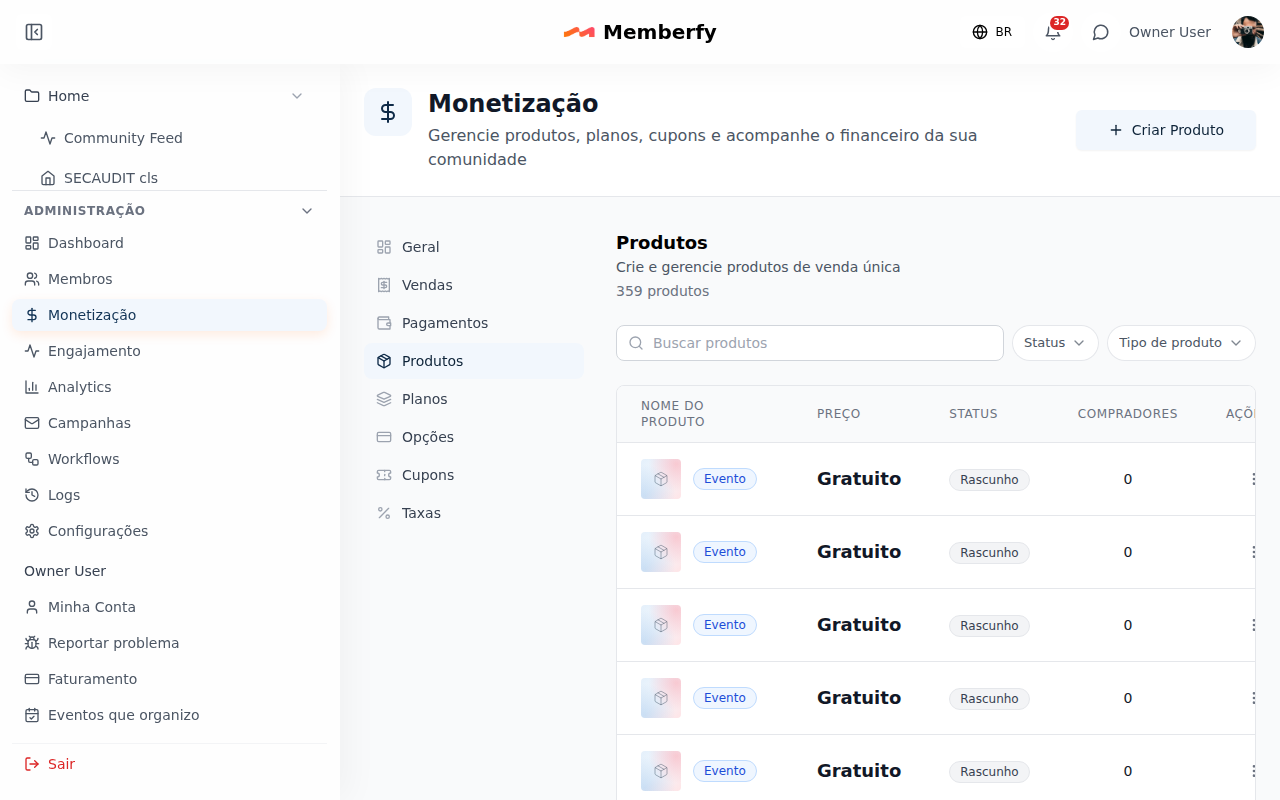
- Filters: in the bar above the list, after the search, Status and Product kind ("All kinds"), each in a button with a menu; the chosen filter becomes a chip with × and stays in the page address.
- Search and pages: Search products looks through every product of the community, not only the ones on screen: by name, address (slug) and internal reference name, ignoring case and accents. The list comes 20 at a time, with the total, "Page 1 of 14" and the Previous and Next buttons. With nothing found, the screen says "No results for “term”"; if the list does not load, Try again. The Options section works the same, with Search billing options.
- Physical has no shipping cost or tracking: Memberfy only tracks stock and stores the delivery address, which the buyer and the team see in the purchase details.
The physical product's address asks for country, postal code (in Brazil, 00000-000), recipient name, street, number, complement (optional), district, city, state and phone.
Free product
A product can cost zero, both a one-off product and a subscription (a free plan). None of it goes through payment:
- No charge, no fee. There are no payment methods or installments to choose ("A free product takes no payment: no payment methods, fees or installments apply."), and the platform fee is zero. Installments with a zero price are refused.
- It publishes without approved Business Information, because no money is involved. Approval only applies to a price above zero, including when you change a live product from zero to a value.
- Who gets it: the button in place of Buy is Get it free (for courses and events, Enroll for free and Join for free). It requires sign-in, works once per person and product (repeating it returns the one the person already has) and grants access at once, with the confirmation by e-mail.
- In sales, the purchase shows as Free, outside revenue, with no entry in the statement, and there's nothing to refund. A free plan renews without charging.
- A coupon that brings the total to zero: on a one-off product (with no add-ons), a coupon that takes the total to zero (for example, 100% off) becomes a free purchase, once per person. On a plan, only a 100% forever coupon does this, and renewals charge nothing. A total between US$ 0.00 and US$ 1.00 is still refused, and installments aren't covered. See Coupons.
Seats and waitlist
For courses and events, the Seats field, on the Payment & Pricing tab, is the product's stock: how many people can take part. Left empty, seats are unlimited. The field shows how many are still free. For the digital and download kinds, Control Stock? plays the same role.
- The seat counts from the free draft on. It's a limit of the course or the event, not just of the sale: direct sign-up, free checkout and paid purchase take the same seat.
- For an event, only those who confirm "Going" take a seat; "Maybe" and "Interested" don't. For a course, enrollment takes one.
- The seat comes back, only once, when the person leaves, cancels, has their access ended or is refunded.
- Lowering the seats below the number signed up doesn't remove anyone.
- When it's full, sign-up, enrollment and checkout answer Sold out, and the person can Join the waitlist (one per person and product). The member sees their place in line ("You're on the waitlist, number 3.") and can Leave the waitlist.
- When a seat frees up, the next person in line gets an e-mail with a 24-hour offer, with the seat reserved. Through the e-mail link, they choose Take my seat (and pay, if the product has a price). If they don't accept in time, the offer passes to the next person; if nobody is in line, the seat goes back to stock.
- The team sees the line on the product's Waitlist tab: the people in order and, for whoever has an offer, "Offer until …".
Plans that include products
A plan can include products: whoever has an active subscription gets the course, the event, the download or the one-off product at no extra charge.
- On the plan, the Included products field; on the product, the Plans tab, with Included in plans. Both sides change the same link.
- Access lasts while the subscription is active. Whoever leaves the plan loses access to what it included, unless they bought the product separately.
- Whoever has the product through the plan doesn't pay for it and doesn't need a checkout.
Credits on purchase
A one-time payment digital product can grant credits when the purchase completes: Credits granted on purchase (0 = grants none) and Credits validity (days), counted from the purchase (empty, they don't expire). A product included in a plan grants no credits. A refund or a dispute on the purchase takes back what hasn't been used. The field only works in a community with a Bookings or Scheduling space. In the API: grantedCredits and grantedCreditsValidityDays.
Time-limited access
A course or event product can give access for a number of days, counted from the purchase. Today this period (accessDuration, in days) is set through the API; the product screen doesn't have the field yet, but shows the person "Access until …".
- 7 days and 1 day before the end, the person gets an e-mail inviting them to pay again.
- Paying before the end extends access from the old date, without taking another seat or showing sold out. The screen shows Renew in the last 7 days.
- At the end, without a new payment, the enrollment is canceled (course) or the attendance is removed (event), the seat goes back to stock and the person gets an e-mail saying so. Progress and certificates already issued stay.
- They don't apply to the team, whoever has the product through a plan, free products or lifetime access (no deadline).
The Sale card
On the course, event and download pages, the team (owner, admin, moderator and finance) sees the Sale card at the top of the right column, with that item's product. On an event with ticket types, selling stays in the event's management bar, and the card doesn't show.
- the price;
- the status: Draft (gray), On sale (green) or Off sale (amber);
- the seats ("N of M seats left" or Unlimited seats);
- the "Team only" tag: members don't see the card;
- a button that opens the product. While the product is not on sale, it names the next step: Set price (free product) or Put on sale (already has a price); on sale, Price and sale.
Owner, admin and finance edit; the moderator sees the View price and sale button, which opens the product read-only.
Who can
Create and delete products: owner and admin. Edit them (including price, seats and publishing, in Monetization and in Price and sale of courses and events): owner, admin and finance; finance also edits, through the API and the assistant, the plans that include the product. The moderator can only read.
In the API and through the assistant, finance also edits the price, the seats and the plans that include the product, and publishes or unpublishes; on the screen, finance only reads the product. Creating and deleting products stay with the owner and the admin, and the moderator only reads.
Step by step: create a product
Role: owner or admin.
- Open Monetization › Products and click Create Product.
General tab
At the top of the tab is the Product kind (Digital or Physical; course, event and download products are created with the item). See Product types.
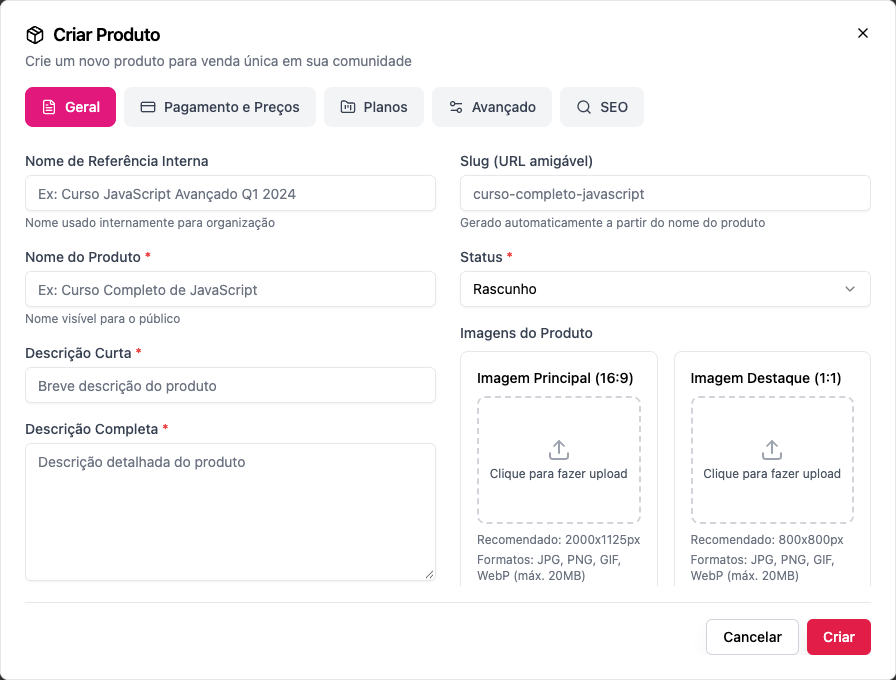
- Internal Reference Name (optional): only the staff sees it. E.g. Excel from scratch — March cohort.
- Product Name *: the name the buyer sees. E.g. Excel from scratch.
- Short Description * and Full Description *: the short one appears on cards; the full one, on the product page.
- Slug (SEO-friendly URL): generated from the name; change it if you want a shorter address.
- Status *: Draft keeps the product in preparation; Active publishes it on creation. Publishing requires approved Business Information: until then, choosing Active saves the product as a draft, with the rest of the form, and you can set everything up.
- Sell by direct link: turn it on for the product to join the
/productscatalog and get a purchase link. See Sell by direct link.- Feature in the store: "Gets the featured badge in the store and, when the store shows every product, is listed first." In the list, a featured product shows the Featured badge. See Store.
- Product Images: Main Image (16:9), 2000×1125 px recommended, and Featured Image (1:1), 800×800 px. In the Store and on the sale of a padlocked space, the Main Image shows whole, in 16:9: upload it in that ratio so nothing gets cut. JPG, PNG, GIF or WebP, up to 50 MB. Without an image, the Store card shows the name's initial on a cover in the community's color, and the product details show the product icon.
Payment & Pricing tab
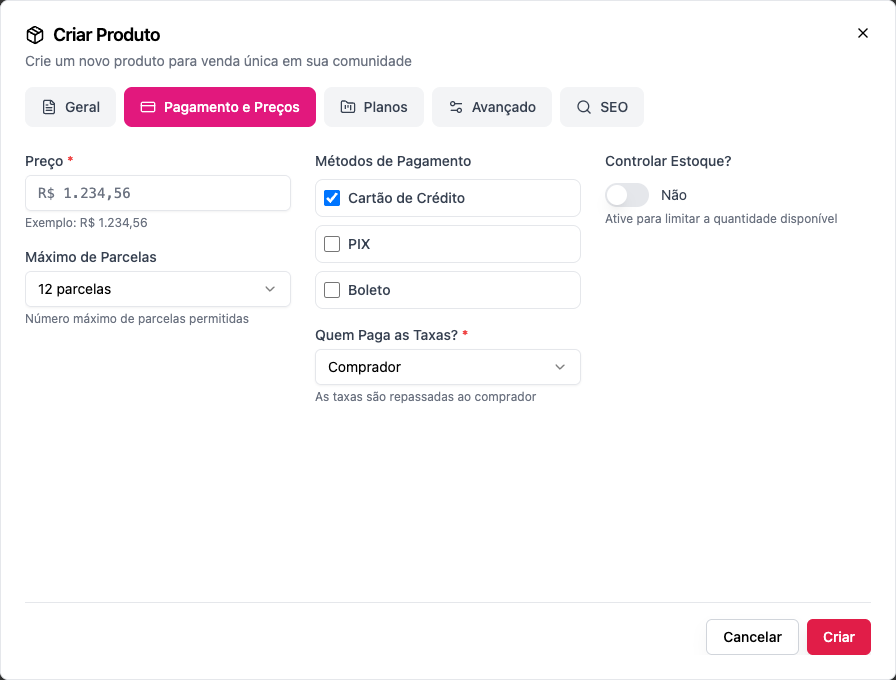
Price *: the product's price. Zero is accepted and creates a free product.
Maximum Installments: from 1 to 12 (the default is 12). Installments apply to cards only; PIX and boleto are paid in full.
Payment Methods: Credit Card, PIX and Boleto. Tick at least one: "Select at least one payment method".
Who Pays the Fees? *:
- Organization: "The organization absorbs transaction fees". The buyer pays the listed price.
- Buyer: "Fees are passed to the buyer". The fee is added to the price at checkout. The form opens with Buyer selected: check it before saving.
Right below it, Who pays the installment interest?:
- Buyer (the default): "Card installment interest is added to the price: paying in full costs the list price."
- Organization: the interest comes out of what the community receives, and the buyer pays the price split, with nothing added. See Annual in installments.
Control Stock?: Yes to limit seats, and then the Stock Quantity, which is what is available right now. Once sold out, the product stops selling. See Stock. On a course or event product the field is called Seats, and sold out leads to the waitlist; on a physical product stock is required.
Plans tab
- If the product is an add-on to a plan, the tab shows which plans. The list of add-ons lives on the plan itself: in Monetization › Plans, edit the plan and tick the product under Add-ons. See Add-ons. On this tab, Included in plans ticks the plans that give the product at no extra charge (see Plans that include products), and the Waitlist tab shows the line of people waiting for a seat.
Advanced tab
- Post-Purchase:
- Redirect URL: where to send the buyer after paying (e.g. the course's welcome page);
- Thank You Message: the text shown when the purchase is complete.
- Organization & Metadata: Display Order (1 = first) and Benefits, one per line.
SEO tab
Title and description for search engines and for the link preview.
Click Create.
Step by step: unlock a space with the purchase
Role: owner or admin.
- Create the course (or event) space with Private visibility.
- Under Who gets in › Products, click + Products and choose the product.
- Save. Buyers get in; anyone who hasn't bought sees the space with the Requires a purchase lock and, on opening it, the This space is exclusive screen, with a See products button that leads to the catalog. For the product to be there, turn on Sell by direct link. See The exclusive access screen.
Examples with numbers
The platform fee is 6.99% + US$ 1.00 per sale, with any payment method. See Platform fee.
A US$ 97 course, the community pays the fee (Organization). The buyer pays US$ 97.00. Fee: US$ 6.78 + US$ 1.00 = US$ 7.78. The community keeps US$ 89.22.
The same course, the buyer pays the fee (Buyer). The buyer pays US$ 97.00 + US$ 7.78 = US$ 104.78. The community keeps US$ 97.00.
A US$ 150 ticket with 200 seats, PIX. Each sale leaves US$ 150.00 − US$ 10.49 − US$ 1.00 = US$ 138.51. All 200 seats sold add up to US$ 27,702.00 net.
The R$ 297 course in 10 card installments, with the buyer paying the interest. Interest for 7 to 12 installments: 6.00%, R$ 17.82. The buyer pays R$ 314.82, in 10 installments of about R$ 31.48. The fee is still calculated on R$ 297.00, and the community receives the same R$ 273.75 (fee paid by the organization).
Installments don't change the platform fee.
Common errors and how to fix them
| Message | What to do |
|---|---|
| Product title is required / Product price is required | Fill in the name and the price |
| Select at least one payment method | Tick card, PIX or boleto |
| Product must be active to accept purchases | Change the status to Active |
| Product is not available for purchase | The product is offline: change the status to Active |
| Sold out | Stock has run out; increase the quantity or turn stock control off. See Stock |
| Enter the available quantity (0 or more). | Stock control is on without a quantity |
| This product is not available for purchase here. Look for it in the community store. | Put the product in a store the buyer can see, or turn on the direct link |
| To publish and start selling, the community needs approved business information… (when saving as Active) | The form shows The product is still a draft and "Your other changes were saved." Click Open Business Information, submit it for review and publish after it's approved |
| This product is priced in …, but the approved business information uses … | The draft was created in another currency. Adjust the currency and the price, then publish |
| We don't sell in … yet: the business information's country has no active payment provider. (when publishing) | The approved country doesn't have somewhere to sell yet; today, only Brazil sells. The product stays a draft, with your other changes saved. See Business information. |
| Community must have approved business information to enable paid products (at checkout) | The Business Information isn't approved, or it was edited and went back to review. See Business information |
| You already purchased this product | The person already has the product; there's nothing to buy again |
| A course or event answers This course is paid. Buy it to enroll. / This event is paid. Buy a ticket to attend. | The item's product was published with a price: signing up goes through the purchase, the plan that includes it, or already being in |
| Sold out. All seats are taken. | Increase the Seats or let the person join the waitlist |
| A physical product that won't publish | Physical requires stock control with the quantity filled in (zero is valid and means sold out) |
| You can't delete the product of a course, event or download | Delete the course, the event or the item: the product is archived with it |
Frequently asked questions
Can I create the product before the Business Information is approved? Yes. It starts as a draft, in the currency of the Business Information's country (or in reais, if there's no Business Information yet), and you can edit it as much as you like. Only publishing and selling wait for approval.
Can I sell the same course forever, with no monthly fee? Yes: that's exactly what a one-time product is. The purchase unlocks the course space and doesn't expire.
Can buyers pay in installments? Yes, in up to 12 card installments, up to the maximum you set. The platform fee is the same as for a single payment. Installments carry Memberfy's installment interest (4.29% in total for 2 to 6 installments, 6.00% for 7 to 12), paid by the buyer by default. For the community to absorb the interest, choose Organization in Who pays the installment interest?. See Annual in installments.
Can I discount a product? Yes, with a coupon that includes the product under Applicable Products.
Can I give a product away? Yes. A zero price creates a free product, with no payment or fee, which publishes without approved Business Information.
Can I sell a course or an event on its own, without the whole space? Yes. Every course and every event is created with its own product, as a free draft; just set the price in Price and sale and publish. See Selling the course and Selling tickets.
Does changing the price affect people who already bought? No. The new price applies to future sales.
How do I see who bought? In the Buyers column of the product list, and in the statement under Monetization › Dashboard.
In the API
POST /api/products with type: "ONE_TIME", title, price, maxInstallments, allowedPaymentMethods, feePayer (ORGANIZATION or BUYER), hasStock, stockQuantity, directLinkEnabled; hasStock requires stockQuantity (400, param: stockQuantity) and doesn't apply to subscriptions (400, param: hasStock); POST .../products/{id}/publish and unpublish. Creating doesn't require approved Business Information; publishing (or PUT with status: ACTIVE) without it returns 403, and with a currency different from the approved country's, 400 (param: currency), and with an approved country that has no payment provider, 400 with no param. See Products.
In the API: kind (digital, physical, event, course, download) on the product and as a filter in GET /api/products?kind=; POST /api/products accepts digital and physical (physical requires hasStock and stockQuantity; event, course and download return 400 on kind) and kind doesn't change afterwards. price accepts 0 in ONE_TIME and SUBSCRIPTION, and INSTALLMENT with 0 returns 400. capacity (total seats; null unlimited) in PUT /api/products/{id}; includedInPlanIds in PUT /api/products/{id} and includedProductIds in POST and PUT /api/subscription-groups. accessDuration (days of access) on a course or event product. Joining the line: POST and DELETE /api/products/{id}/waitlist, GET …/waitlist/me and, for the team, GET …/waitlist. POST /api/checkout for a free product doesn't need paymentMethod, returns the purchase with paymentMethod: FREE and, for a physical product, requires shippingAddress. Finance can now PUT /api/products/{id}, publish and unpublish.