
Spaces
A space is the area where things happen: it lives inside a section, has a module, and defines who sees it, who creates content and what it takes to get in.
A space is each item in the side menu, inside a section: "Feed", "Lessons", "Calendar", "Photo gallery". It's where content lives. Every space has a module, chosen when it's created, which says what it is (a feed, a list of events, courses…).
What it's for
The space is the unit of access and organization. Each one answers three questions:
- What is it? The module: Feed, Content, Events, Courses, Gallery, Engagement, Link, Call for papers, Store or Certificates.
- Who sees it? The visibility: Public, Members, Subscribers or Private.
- Who posts? The Who can post rule: Anyone, Staff or Admins.
Real examples:
| Space | Module | Visibility | Who can post |
|---|---|---|---|
| Company announcements | Feed | Members | Staff |
| Coworking residents' board | Feed | Private (Resident plan) | Anyone |
| Course lessons | Courses | Private (the course product) | Admins |
| Live session calendar | Events | Members | Staff |
| Open blog | Content | Public | Admins |
| Event photos | Gallery | Members | Anyone |
How it works
What a space has
| Field | What it's for |
|---|---|
| Module | The space's type. Chosen in the first step |
| Icon | Next to the name in the menu |
| Title | The name in the menu. Required |
| Slug | The piece of the address. The space lives at /<section>/<space>. Generated from the title; unique within the section |
| Description | Optional |
| Visibility | Who sees the space. Never more open than the section's |
| Who gets in | With Private: the groups, products, plans, badges or a minimum level that unlock it |
| For those without access | Same as the section (the default), Hide or Show with a padlock |
| Who can post | Who creates items inside the space |
| Module Configuration | Whatever the module asks for, and only what changes the space: the Link's link, who issues in Certificates, how many calls in Call for papers. See Module configuration |
Visibility and access
The default visibility of a new space is Members. The full rules, and what a member sees without access, are in Visibility and access. In short:
- Public: anyone, even without signing in.
- Members: anyone in the community.
- Subscribers: anyone with any active subscription.
- Private: only those on the list (groups, plans or products). With an empty list, the space is team only.
Owners, admins, moderators and finance see all spaces.
Whoever has no access to a restricted space (by group, plan, product, Members or Subscribers) sees the space with a padlock, with only its title and description (Requires a plan, Requires a purchase, Granted by the team…), or sees nothing: the For those without access option decides. The default is to show it with a padlock. A Private space with nobody on the list never shows to anyone outside the team and carries the Team only badge.
Who can post
| Option | Who creates items in the space |
|---|---|
| Anyone | Whoever the item type allows (the default) |
| Staff | Owners, admins, moderators and finance |
| Admins | Owners and admins |
Commenting and reacting stay open to anyone who sees the space. Remember that some items already have their own minimum role: events are for moderators and above, courses for admins and above. See Roles and permissions.
Module configuration
When you create a space, it asks only what changes how the space behaves. What each module asks for, on top of the common details (title, slug, description, visibility and who can post):
| Module | What creating it asks |
|---|---|
| Feed, Content, Events, Courses, Engagement and Gallery | Nothing beyond the common details |
| Link | The Link, required. It opens in a new tab when someone clicks the space in the menu |
| Certificates | Who issues, in place of Who can post: Admins (the default) or Team |
| Store | Step 3, Storefront: which products the store shows |
| Surveys | How the space works: Several surveys (the default, a list) or One survey (opening it goes straight to it). Whoever has access to the space is who answers |
| Call for papers | How many calls. With Several calls, Who can open a call; with One call, the Call type and step 3, Call, with the call itself |
Some settings are saved right after the space is created (the call's, who issues, the store's products). If one of them fails, the space already exists: the dialog says what wasn't saved and offers Try again, on that same space, or Open settings (in the store, Choose products). Trying again doesn't create a second space.
Pre-moderation
Today no space has prior approval: what gets published shows up right away, and moderation happens afterwards. See Moderation.
Who creates and organizes spaces
Creating, editing, moving and deleting spaces is for owners and admins.
Display
In six modules, the owner and the admin choose how items appear in the space: the Display field ("How items appear to everyone who opens the space."), when editing the space and in Create Space, with the module's default already selected. Everyone who opens the space sees the same; moderators and members do not see the field nor change the display for themselves.
| Display | What it looks like |
|---|---|
| Feed | A single column, a large card with a preview |
| Cards | A grid of cards with a cover, 1 to 3 per row |
| List | One row per item: a small thumbnail, the title and two lines of details |
| Compact | One row per item, no image: the title and the deciding detail (date, price, deadline) |
| Grid | Just the image, square, 1 to 4 per row |
| Calendar | The month or the week, with the events on each day |
| Showcase | A grid of upright posters, 2 to 6 per row, with the progress bar under the cover (Courses only) |
| Module | Options (the default in bold) |
|---|---|
| Content | Feed, Cards, List, Compact |
| Events | Cards, List, Compact, Calendar |
| Courses | Cards, List, Showcase (see Showcase) |
| Downloads | Cards, List, Compact |
| Classifieds | Cards, List |
| Gallery | Grid, Feed |
- No choice, no change: a space nobody touched shows the module's default, as before.
- Only the list changes. The bar, search, filters, order, padlock and the item's detail are the same in any display; clicking an item opens the same page as before.
- The other modules (Feed, Channel, Upvote, Store and the rest) do not have the field.
The Events calendar
With Calendar, the Events space shows the Month (the default) or the Week, with Previous, Next and Today; the period stays in the address, to share.
- Month: each day shows up to 3 events (time and title) and "+2" when there are more; the "+N" opens that day's list.
- Week: each day's events in time order, with no hour axis.
- Day and time in the community's time zone, even for an event with another time zone; a multi-day event shows on every day it covers. The week starts on Sunday in Brazilian Portuguese, English and Spanish, and on Monday in European Portuguese, Italian and German.
- On mobile (narrow screens), month and week become a list by day of the period.
- Events with no date stay out of the grid, under No date (N), right below, collapsed.
- A period with no events shows "No events in this period."; with more than 300 events in the period, the first 300 show with the notice "Too many events in this period: showing the first 300. Use search or the week view to see the rest."
- Drafts and padlocked events show for whoever already saw them in the list.
Step by step
Create a space
Role: owner or admin.
- In the menu, under the section where the space will live, click Add Space.
- Module: pick the tab and the module and click Next. Community has Content, Engagement, Feed, Link, Gallery, Surveys, Forms, Upvote, Channel and Networking; Events & Courses, Events, Courses, Certificates and Call for papers; Sales, Store, Downloads and Classifieds; Coworking, the physical-space modules. Planning & HR, Performance review, Feedback, Goals & OKRs, Time Tracking, Development Plan, Recognition and 1:1. See Modules.
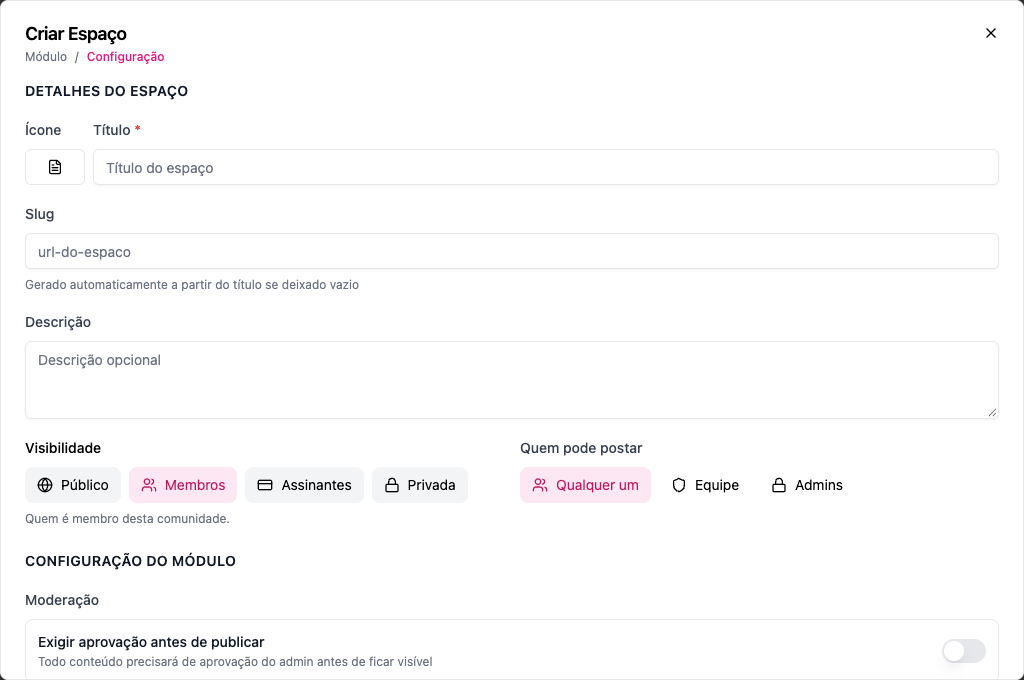
- Configuration › Space Details: choose the Icon, write the Title and, if you like, the Slug and the Description. A space's slug can't start with
_: "This address cannot be used…". - Choose the Visibility. With Private, add the groups, products, plans, badges or a minimum level under Who gets in.
- Choose Who can post (in Certificates, Who issues).
- Fill in what the module asks for: the Link in Link, How many calls in Call for papers. See Module configuration.
- Click Create Space. In Store, and in Call for papers with One call, first click Next and fill in step 3. The space appears in the section, at the end of the list.
Edit
Hover over the space in the menu, open Space options › Edit space, make your changes and save. The Module Type shows up when editing, but changing it on a space that already has content hides that content (an event doesn't show up in a Feed, which is a different module). Prefer creating a new space.
Move to another section and reorder
Drag the space through the menu: up and down changes the order; onto another section moves it there. If the slug already exists in the destination section, it's adjusted. The space keeps following the new section's visibility: in a more closed place, it becomes more closed.
Delete
Open Space options › Delete space and confirm. The space disappears from the menu for everyone, along with whatever was in it. Deletion can't be undone from the screen.
There's no "archive": to take a space out of circulation without deleting it, set it to Private with an empty list (only the staff sees it) or move it to a staff section.
What members see
- In the menu, only the spaces they can open, plus those locked by a plan or product, with the lock.
- Inside the space, the module's screen: the Feed timeline, the list of events, the courses.
- The create button (New Status, Create Content, New Event…) only for those who can create there.
Common errors and how to fix them
| Message | What to do |
|---|---|
| This space cannot be more open than the section "…", which is … | Close down the space or open up the section |
| The access grant "…" does not exist in this community. | Remove the deleted group, product or plan from the list |
| Section not found or does not belong to this community. | The section was deleted; choose another |
| Only staff members (admin, owner, moderator, finance) can perform this action | The space is set to Staff and the person is a member |
| Only admins (admin, owner) can perform this action | The space is set to Admins |
| You do not have access to this space. | The person doesn't have the plan, product or group on the list |
Frequently asked questions
Can a space be in two sections? No. Each space belongs to one section. To show up in two places, use a Link space pointing to the other one.
Can I have two Feeds? Yes, and it's common: a general Feed and a class Feed, for example. The general Feed shows what comes from the spaces the person can see.
Do people without access see that the space exists? By default, yes: they see the space with a padlock, with only its title and description, never the content. To hide it, choose Hide under For those without access. A space with nobody under Who gets in is team only and never shows.
What happens to the content when I change the visibility? Nothing is deleted. Only who can see it changes.
In the API
POST /api/spaces (with sectionId, title, module, visibility, access, canCreate), PUT /api/spaces/{id}, DELETE /api/spaces/{id}, POST /api/spaces/reorder and GET /api/spaces/modules. See Sections & Spaces and the Creation order. The display: layout comes back in GET /api/spaces and GET /api/spaces/{id} for whoever reads (null is the module's default); POST and PUT accept layout (owner and admin). A value the module does not offer (such as showcase outside Courses) returns 400 with param: "layout"; when the module changes, a layout the new one does not offer goes back to null. In GET /api/spaces/modules, each module brings layouts: { options, default } (or null). For the calendar, GET /api/events?from=&to= takes ISO dates (to inclusive), at most 62 days, and returns up to 300 events that overlap the period, by startTime, with truncated and undatedCount next to data, no pagination; filter=next|past is ignored, and my, status, search and spaceId combine with the period. undated=true lists only undated events. An invalid date, only one of the two, to before from or more than 62 days return 400 (param from or to).