
Plans
A plan is a subscription tier. It groups billing options (Monthly, Annual), says what the member gets, unlocks spaces, takes add-ons, and has its own address to share.
A plan is a subscription tier: Starter, Growth, Business; Silver, Gold, Platinum; Student, Student + Mentoring. It groups the billing options (the ways to pay, such as Monthly and Annual), says what the member gets, and is what unlocks the spaces for paying members.
What it's for
| Community | Plans | What each one unlocks |
|---|---|---|
| Online school | Student (US$ 15/month) and Student + Mentoring (US$ 35/month) | Student: courses. Mentoring: courses and the mentoring room |
| Coworking space | Flex (US$ 99/month) and Resident (US$ 300/month, 12-month contract) | Flex: calendar and announcements. Resident: everything, plus the residents' board |
| SaaS platform | Starter, Growth, Business, Scale, each Monthly and Annual | The size of the community |
The plan is not the price: the price lives in the billing options. That lets you sell the same plan in several ways (monthly with no contract, monthly with a contract, annual in 12 installments) without duplicating what it delivers.
You can set up the plans, options, add-ons and downsell before the Business Information is approved: the options start as Draft. The plan only shows up on the pricing page once it has an Active option, and setting an option to Active requires approval.
How it works
What a plan has
| Field | What it's for |
|---|---|
| Icon | An emoji shown on the plan's card |
| Plan Name * | E.g. Growth |
| Description * | What the member gets at this tier. Shown on the pricing page |
| Address | The plan's direct link: /pricing/<address>. Left blank, it's created from the name. Lowercase letters, numbers and hyphens |
| Visibility | Public (the plan shows on the pricing page, in the Store and in plan-change suggestions) or Link only (out of every listing; opens only through the direct address) |
| Color | The card's color |
| Benefits | A list, one per line. A new line appears on its own |
| Currency | All the plan's options use the same currency. It can't change once the plan has options |
| Billing options | The ways to pay that are part of the plan |
| Add-ons (upsell) | Products that can be added to the plan. See Add-ons |
| Included products | Courses, events, downloads or one-off products that subscribers get at no extra charge. See below |
| Credits per month | How many credits each active subscription gets per month, to book rooms and times. 0 = the plan grants no credits. See below |
Rules
- A billing option belongs to only one plan. Options that are already part of another plan, and add-ons, don't show up in the list to tick. And every billing option must be in a plan: creating one without a plan is refused, and saving can never leave an option without one.
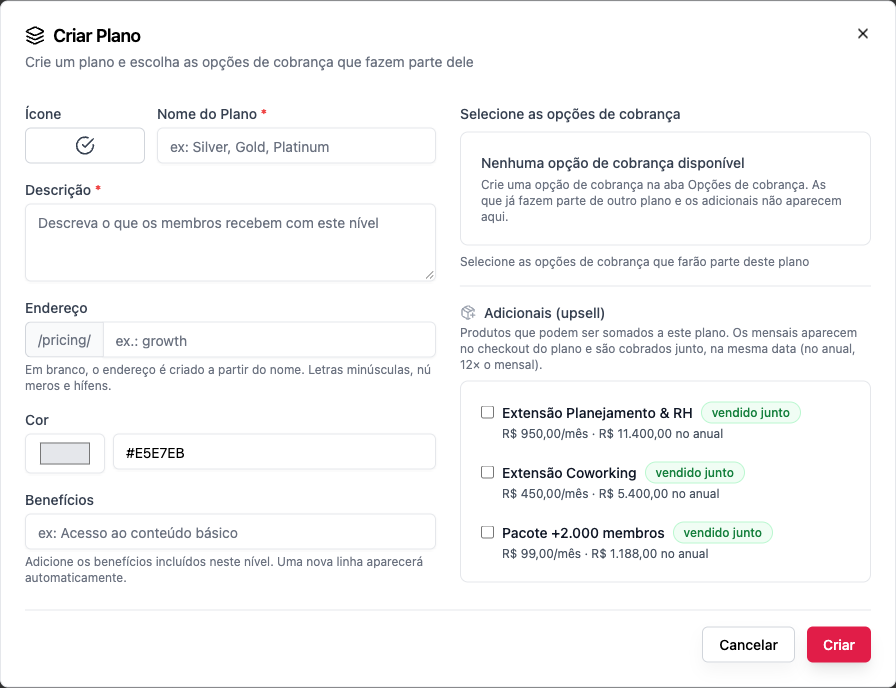
- The billing option comes first. The plan only lists what already exists; with no options, you see "No billing options available".
- A plan only truly goes away with no live options. A plan with billing options still linked can't be deleted, and the refusal names the options: "This plan can't be deleted: it still has these billing options: Growth Monthly, Growth Yearly. Move or delete those options first."
- The name is unique within the community ("A subscription group with this name already exists"), and so is the address ("A plan with this address already exists in this community").
Visibility: Public or Link only
| Visibility | Where the plan shows |
|---|---|
| Public (the default) | On the pricing page, in the Store, in the storefront picker and in plan-change suggestions, as today |
| Link only | In no listing: pricing page, Store (in both modes), storefront picker. It only opens through the direct address, /pricing/<address> — or /pricing/<address>/<option> — where it's bought normally. Whoever already subscribes still sees the plan |
Link only hides, it doesn't lock: checkout through the direct address works the same, add-ons and all. And a link-only plan is never a destination of the plan change, not even for someone who already subscribes to another option of it.
In the plan form, under Monetization › Plans, the Plan visibility field has both choices, with the explanation under each one: Public ("Shows in the Store, the pricing page and the storefront picker.") and Link only ("Hidden from every listing. Opens only through the plan's link, which is worth sharing."). With Link only, the form shows the Plan link, to copy, and the plan list marks the plan with the Link only badge.
Link only hides the plan, it doesn't protect it. Whoever has the address can buy, without showing up in any list.
Who can
Create, edit and delete plans: owner and admin. Finance sees the plans and the subscribers.
Included products
Tick under Included products what the plan gives as a gift: "A course, an event or any one-off product that subscribers of this plan get at no extra charge." The same link shows on the product, on the Plans tab, under Included in plans.
- Whoever has an active subscription gets access, without buying and without checkout. On leaving the plan, they lose access to what it included, unless they bought the product separately.
- It applies to courses, events, downloads and one-off products, including those priced at zero.
- Only the owner and the admin change this link.
- See Plans that include products.
Credits per month
The Credits per month field makes each active subscription to the plan get that many credits every month, valid until the month turnover in the community's time zone (unless accrual is on). The annual plan also gets them month by month. Whoever switches to a plan with more credits gets only the difference. The field only works in a community with a Bookings or Scheduling space; without one, the app explains that one has to be created first. In the API: monthlyCredits.
Step by step: create a plan
Role: owner or admin.
- First create the plan's billing options (e.g. Growth · Monthly at US$ 25 and Growth · Annual at US$ 228). See Billing options.
- Open Monetization › Plans and click Create Plan.
- Choose the Icon and write the Plan Name and the Description.
- If you want, set the Address (e.g.
growth). The direct link becomesyour-address/pricing/growth. - Choose the Color and the Plan visibility (Public or Link only), and write the Benefits, one per line.
- Under Select billing options, tick the ones that are part of the plan.
- Under Add-ons (upsell), tick the products that can be added to the plan, if any.
- Click Create.
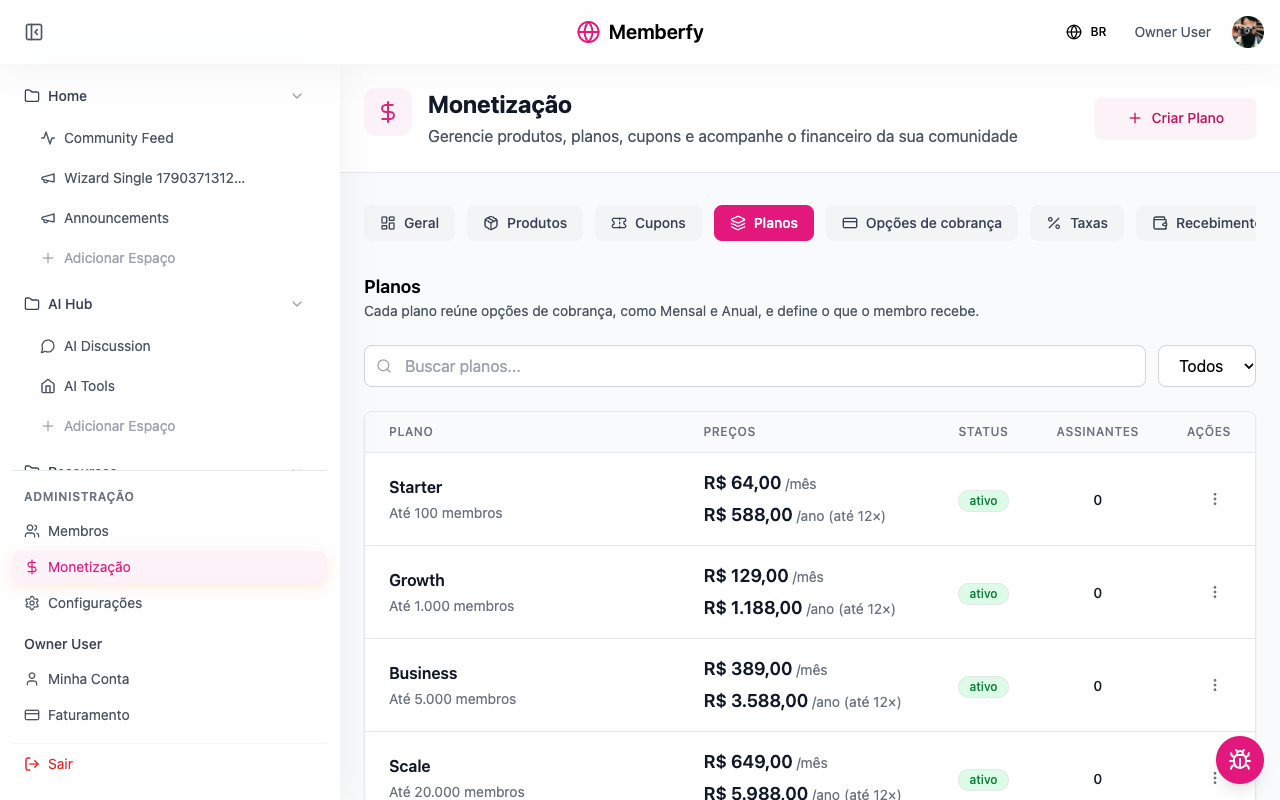
The Plans table shows each plan with its options' prices, its status, and how many subscribers it has.
The Subscribers column counts the plan's subscriptions in force: active, in trial, past due and paused. A plan with subscribers can't be deleted.
Step by step: unlock spaces for the plan
Role: owner or admin.
You have two ways:
| Space visibility | Who gets in |
|---|---|
| Subscribers | Anyone subscribed to any plan |
| Private, with the plan under Who gets in › Plans | Only those subscribed to that plan |
- In the menu, open Space options › Edit space.
- Choose Private and, under Who gets in, + Plans.
- Save.
To unlock a whole section, do the same on the section. See Visibility and access.
What the subscriber sees
- They open the Subscriptions page,
/pricing, and compare the plans on the Store's cards, with the Monthly | Yearly toggle and the savings tag; with four plans or more, three cards and the All subscriptions list. See The Subscriptions page. - They choose the plan. Choose a billing option appears, with the Monthly | Annual toggle when there are both. On annual, the screen works out the savings on its own (e.g. 24%, when the US$ 228 annual equals US$ 19 a month against US$ 25 for monthly) and the tag says which payment method it applies to ("Save 24% with PIX or boleto", when card installments carry interest). The comparison is per month against the monthly option without a contract, at the price the buyer pays (with the platform fee when the buyer pays it), rounded to a whole number.
- If the plan has add-ons, Add-ons for this plan appears, to tick.
- Under Payment Details, they choose PIX, card or boleto and pay. See Checkout.
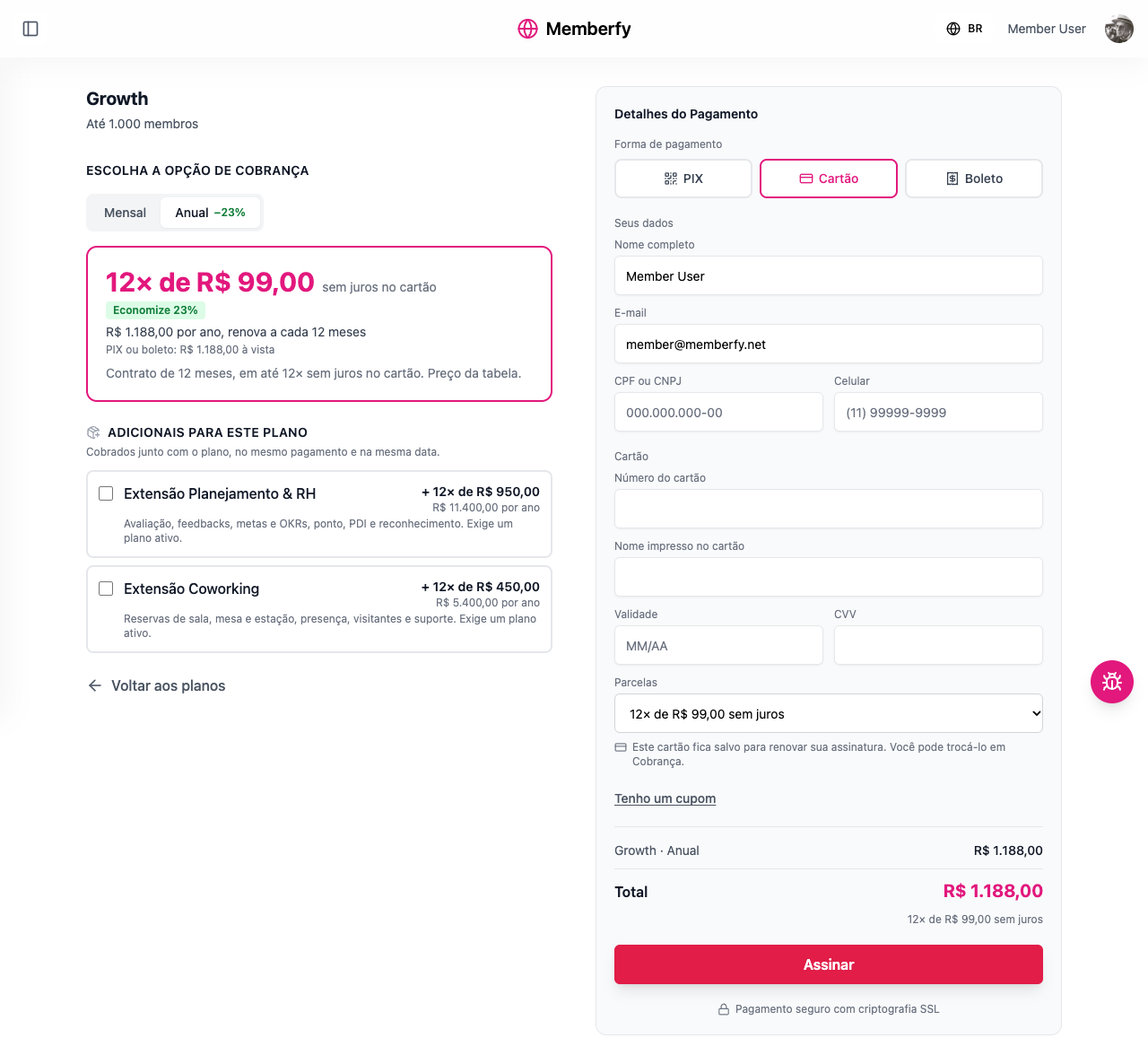
Anyone arriving through the direct link (/pricing/growth) lands on the chosen plan.
Examples with numbers
The platform fee is 6.99% + US$ 1.00 per charge. See Platform fee.
Growth Monthly, US$ 25. Each month: a fee of US$ 1.75 + US$ 1.00 = US$ 2.75. The community keeps US$ 22.25 a month.
Growth Annual, US$ 228. One charge a year: a fee of US$ 15.94 + US$ 1.00 = US$ 16.94. The community keeps US$ 211.06 for the year, the equivalent of US$ 17.59 a month. Compared with 12 monthly payments (US$ 22.25 × 12 = US$ 267.00), the community receives less on annual, but it gets the whole year at once and loses no one mid-year.
100 Growth Monthly subscribers. US$ 2,500 a month in sales; US$ 275 in fees; US$ 2,225 net.
How to build a ladder of plans
A good ladder has few rungs, and each one answers "what do I get on top?".
- Start with two or three plans. More than that makes the choice confusing.
- Differentiate by what people get, not just by price. The higher plan unlocks one more space, a mentoring session, an exclusive event.
- Use the same ways to pay on all of them. If one plan has Monthly and Annual, the others should too, so the pricing page's Monthly | Annual toggle works the same way for all of them.
- Make annual worth it. The page works out the savings on its own; 15% to 25% is typical.
- Make extras add-ons, not new plans: someone who wants coworking doesn't need a "Growth with coworking" plan.
Copy the plan's link
Role: owner or admin.
In Monetization › Plans, in the plan's actions menu, Copy link copies the address of the pricing page with the plan already chosen, https://<community address>/pricing/<plan address>, and shows "Link copied". It's the link to put on your website, in an email or on WhatsApp.
- Only an active plan has a link: on an inactive plan, the item is disabled with "Activate the plan to share it".
- If the browser won't let it copy automatically, "Copy the link" appears with the address selected so you can copy it by hand.
The link to a specific billing option, such as annual only, is in Billing options.
Edit, deactivate and delete
- Edit: in the table, open the row's menu (⋮) and choose Edit. Changes to the name, description and benefits apply to everyone right away.
- Deactivate: the plan leaves the pricing page; existing subscribers keep their subscription.
- Delete: only with no live billing options. The refusal now names the ones holding the plan: "This plan can't be deleted: it still has these billing options: …"
Common errors and how to fix them
| Message or situation | What to do |
|---|---|
| No billing options available | Create the options under Monetization › Options. Those already in another plan don't show up |
| A subscription group with this name already exists | Use another name |
| A plan with this address already exists in this community | Choose another address |
| The plan address must use only lowercase letters, numbers and single hyphens, up to 60 characters | Fix the address |
| The currency cannot be changed because this plan has billing options attached | Create another plan for the other currency |
| This plan can't be deleted: it still has these billing options: … | Move the options to another plan or delete them |
The plan doesn't show up on /pricing | Check that it has at least one Active option |
Frequently asked questions
Can I have a free plan? A billing option priced at zero creates a free plan, which renews without charging, with no fee and without requiring approved Business Information.
Can I offer a free trial? Yes, on the billing option: Free Trial? from 1 to 30 days. See Billing options.
Can a subscriber switch plans? Yes, on their own, under Billing › Change plan: to a more expensive option, right away, paying the prorated difference; to a cheaper one or another billing interval, at the end of the period already paid; add-ons join in the same change, in a single charge. The team doesn't change anyone's plan. Link only plans never show up as a change destination. See Change plan.
Can I sell a plan without listing it on the pricing page?
Yes: the Link only visibility hides the plan from listings. It stays for sale through the direct address, https://<your community's address>/pricing/<plan address>.
Does changing the price affect existing subscribers? The price lives in the billing option. Existing subscribers stay at their subscription's amount; new subscribers pay the new one.
What's the difference between a plan and a product? A plan is recurring (billing options that repeat); a product is sold once. See Products.
In the API
In the API, a plan is a subscription group: POST /api/subscription-groups with name, description, productIds (the billing options), addOnProductIds, slug and visibility (public or link_only; anything else answers 400); PUT .../subscription-groups/{id}; PATCH .../subscription-groups/reorder. The public list GET /api/checkout/subscription-groups doesn't return link_only plans (except the one the person subscribes to), and GET /api/checkout/subscription-groups/{slug} opens the plan by its address, whatever the visibility.
In the API: includedProductIds in POST and PUT /api/subscription-groups (products the plan includes) and includedInPlanIds in PUT /api/products/{id}.
The management list (GET /api/subscription-groups, /{id} and /{id}/products, which return the visibility, the add-ons and the number of subscribers) belongs to the owner, the admin and finance. Members read the public plans at GET /api/checkout/subscription-groups; on screen, the notice is "You only see the public plans and your own. Link-only plans do not appear here."
See Subscriptions and the Creation order.