
Create and organize spaces
The practical guide to building the community menu: ready-made structures for each kind of community, the order for creating sections and spaces, moving and reordering, and what to watch out for with visibility and who can post.
This is the practical guide. The concepts are in Sections, Spaces and Modules; the rules about who sees and who does what are in Roles and permissions. Here is how to build it.
Role for everything in this article: owner or admin.
The right order
- First create whatever will unlock access: the plans (for paid areas) and the groups (for cohorts and teams). The Who gets in list only shows what already exists.
- Create the sections with the right visibility: it's the floor for the spaces inside.
- Create the spaces in each section, with the module, the visibility and Who can post.
- Publish the first content in each space: an empty space looks abandoned.
Ready-made structures
Course community
| Section (visibility) | Spaces (module · who can post) |
|---|---|
| Start here (Public) | Welcome (Content · Admins) |
| Community (Members) | Feed (Feed · Anyone) · Announcements (Feed · Staff) |
| Student area (Private, Student plan) | Lessons (Courses · Admins) · Class room (Feed · Anyone) · Live sessions (Events · Staff) |
| Engagement (Members) | Engagement (Engagement) |
Coworking
| Section | Spaces |
|---|---|
| Announcements (Members) | House notices (Feed · Staff) |
| Calendar (Members) | House events (Events · Staff) · Book a room (Link to the form) |
| Residents (Private, Resident plan) | Board (Feed · Anyone) · Photos (Gallery · Anyone) |
A company's HR
| Section | Spaces |
|---|---|
| Announcements (Members) | Announcements (Content · Staff) |
| Training (Members) | Learning paths (Courses · Admins) |
| Culture (Members) | Feed (Feed · Anyone) · Photos (Gallery) · Engagement |
| Leadership (Private, Leadership group) | Leadership room (Feed · Anyone) |
Annual event
| Section | Spaces |
|---|---|
| Conference 2027 (Public) | Call for papers (Call for papers) · Program (Events · Staff) · Information (Content · Admins) |
| Attendees (Private, Ticket product) | Board (Feed) · Photos (Gallery) |
Step by step
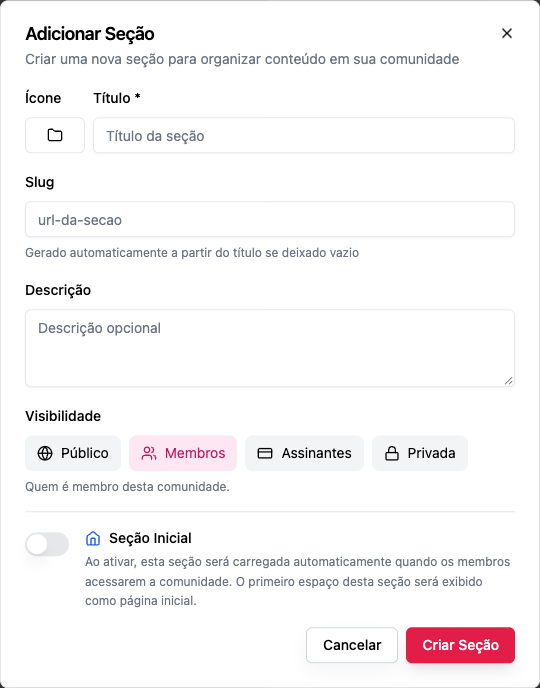
Create a section
- At the end of the menu, Add Section.
- Icon, Title, Slug (optional), Description (optional).
- Visibility; with Private, the Who gets in list.
- Initial Section, only if it's the one that opens first.
- Create Section.
Create a space
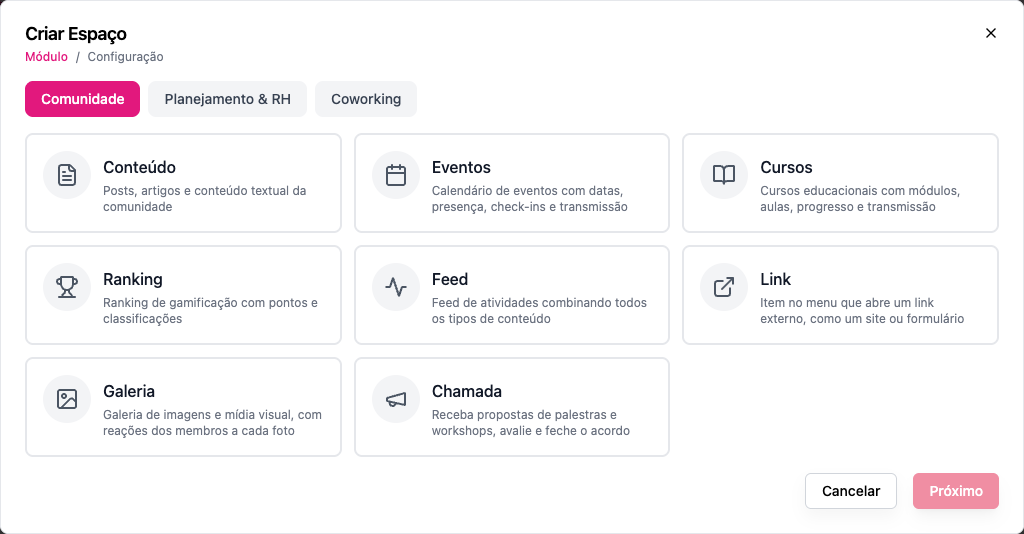
- Under the section, Add Space.
- Choose the module and click Next.
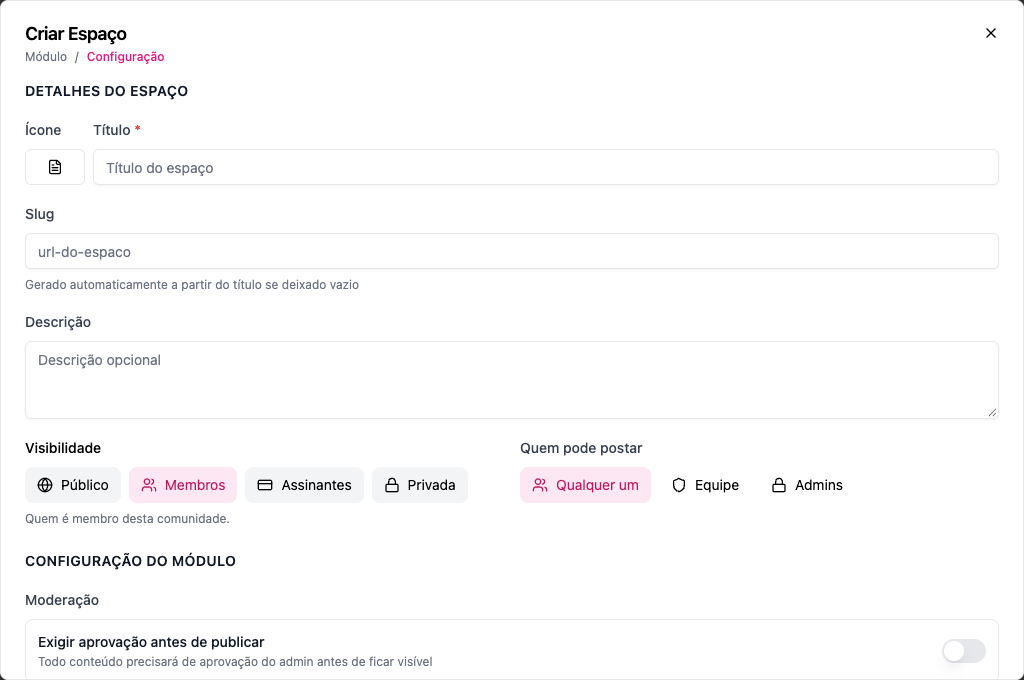
- Icon, Title, Slug, Description.
- Visibility (never more open than the section) and Who can post (in Certificates, Who issues).
- Whatever the module asks for, if anything: the Link in Link, How many calls in Call for papers, How the space works in Surveys and in Forms. Feed, Content, Events, Courses, Engagement and Gallery ask for nothing more. See Spaces.
- Create Space. In Store, in Call for papers with a single call, in Courses with a single course, in Surveys with one survey, in Forms with one form and in Downloads with one file only, Next first takes you to step 3. A space with one call, one course, one survey, one form or one file is born with that item and the window ends open on it (the survey and the form, in their editor; the file, already uploaded and in draft).
If a setting saved after creation fails, the space already exists: the dialog offers Try again or Open settings.
Reorder and move
- Drag sections and spaces in the menu to change the order (it's the same for everyone).
- Drag a space onto another section to move it there. The slug is adjusted if it already exists in the destination, and the space starts following the new section's visibility.
Edit and delete
Hover over the item in the menu and open its options: Edit section/space, Delete section/space. A section with spaces can't be deleted; neither can the initial section.
If you save an empty space in a one-item mode (one call, one course, one survey or one file), the window doesn't close: it moves on to the item's form, the same one used at creation, and opens the space on it. Later closes without creating the item.
Deleting a Courses space also deletes its courses: they leave the list and students lose access. Certificates already issued stay valid and nobody receives new certificates from these courses. The app warns before you confirm: "The courses in this space will be deleted too: they leave the list and students lose access. Certificates already issued stay valid, and nobody will receive new certificates from these courses.".
A space's type (its module) doesn't change after it's created, because what it holds depends on it: for another type, create a new space. When editing, Configure takes you to the module's settings, and Who can post only shows up in modules where someone publishes.
Things to watch out for
| Watch out | Why |
|---|---|
| Choose the module carefully | Changing the module of a space with content hides what's already there |
| Create the plan before closing the space | Otherwise the space ends up Private with an empty list: only the staff sees it |
| Use Staff in announcement spaces | That way nobody has to moderate posts there |
| Don't overdo the number of sections | 3 to 6 keep the menu easy to read |
| Publish before you promote | An empty space looks abandoned |
Common errors and how to fix them
| Message | What to do |
|---|---|
| This space cannot be more open than the section… | Close down the space or open up the section |
| Cannot delete section with active spaces… | Move or delete the spaces |
| Cannot delete the home section… | Mark another section as initial |
| The access grant "…" does not exist in this community. | Remove the deleted plan, product or group from the list |
| Add Space doesn't appear | You're not an owner or admin |
Frequently asked questions
Can I build everything through the API?
Yes: POST /api/sections and POST /api/spaces, in that order. See Creation order.
Do members see the change right away? Yes. The menu is loaded on every visit.
Can I copy one community's structure to another? Not on screen. Through the API, you can recreate the sections and spaces.