
Visibility and access
Who sees each section and each space (public, members, subscribers or private), how the access list by group, product and plan works, how section and space combine and what people without access see, with or without a padlock.
Every section and every space answers one question: who sees this? The answer is the visibility and, when it's Private, the Who gets in list. That's how you separate what's a showcase from what's only for paying members, only for one cohort or only for the leadership.
The four visibilities
| Visibility | Who sees it | Example |
|---|---|---|
| Public | Anyone, including people who aren't signed in | The open blog, the "Start here" page |
| Members | Members of this community | The general Feed, the calendar |
| Subscribers | Anyone with any active subscription | Exclusive content for paying members, any plan |
| Private | Only the people you list | The Growth plan course, the cohort's room, the leadership |
The order, from most open to most closed, is Public › Members › Subscribers › Private. A new space starts as Members.
The staff sees everything. Owners, admins and moderators see every section and every space, whatever the visibility: they need that in order to moderate. The Finance role isn't part of this rule: for finance, the same applies as for a member. See Roles and permissions.
Private: the "Who gets in" list
With Private, the Who gets in block appears, with four lists and the minimum level:
| List | Unlocks for | Use it when |
|---|---|---|
| Groups | The people in a member group | A cohort, a team, a department, the leadership |
| Products | Whoever bought the product | A course or a ticket sold on its own |
| Plans | Whoever subscribes to that plan | Content for a subscription tier (Growth, Gold…) |
| Badges | Whoever holds the badge now | Mentors, veterans, whoever finished the program: taking part opens the door |
| Level | Whoever is at the chosen level or above | The veterans' room, content for long-time participants |
The list's rules:
- Meeting any one is enough. A space unlocked for the Mentors group and the Gold plan is seen by anyone in the group or subscribed to the plan.
- Empty list = staff only. That's how you "hide" a space without deleting it. It never shows with a padlock to anyone else; see Team only.
- A plan counts while the subscription is active. Someone who cancels keeps seeing it until the end of the paid period; after that, they lose access automatically.
- A product counts for whoever bought it. A one-time purchase unlocks the space.
- A badge counts while the person holds it. Whoever earns the badge gets in at once, with a bell notice that says what opened it ("Your badge opened the Veterans' Room space"), once per space or section; whoever loses it, or when the badge is deleted, stops seeing the area on the next visit. A private badge also opens the area.
- A level counts while the person is in it. One level per space or section: whoever reaches the level (or passes it) gets in at once, with the bell notice "Your level opened the Veterans' Room space", once per space or section; whoever drops, by points taken away or in the Monday drop for the week's activity, loses access on the next visit. With gamification off, a level opens nothing.
Subscribers and Private with a plan look the same, but they aren't: Subscribers accepts any plan; Private accepts only the plans you list.
Section and space together
The rules multiply between the section and the space: to see a space, a person needs to get through the section and the space.
- Anyone who can't get through the section sees nothing inside it.
- A space can't be more open than its section. The screen warns you: "This space cannot be more open than the section…", and the more open options appear unavailable.
- For a private space inside a private section, the person needs to be on both lists.
- Tightening a section's visibility also tightens the spaces that were more open; the screen tells you how many.
Example: a Student area section (Private, Full Course plan), with a Mentoring space (Private, March cohort group). To get into Mentoring, the person needs to subscribe to the plan and be in the group.
For those without access
A restricted area doesn't have to disappear. The For those without access option, on the section and on the space, decides what happens to whoever is left out: the area disappears from the menu, or it shows with a padlock, with its title, its description and the way in (subscribe, buy, sign in). It's the showcase of what's exclusive: whoever sees the padlock knows what they get by coming in.
The default is to show with a padlock. Since October 28, 2026, every section that already existed was set to Section and spaces and every space to Same as the section. In practice, the restricted areas that used to disappear for whoever has no access (a class's room, a group's area, a subscribers-only space) now show with a padlock, with their title and description. No content shows, but the name and the description do. If an area must stay invisible, switch it to Hide (see where).
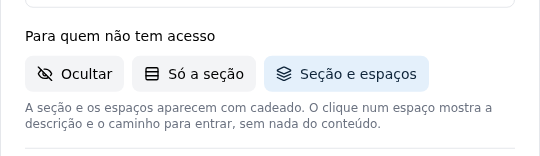
On the section
| Option | What whoever has no access sees |
|---|---|
| Hide | Nothing: the section disappears from the menu, as before |
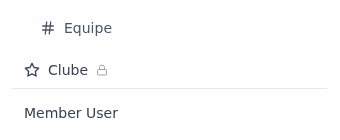
| Section only | A single line with a padlock, without the spaces. Clicking it opens the section page (/{section-slug}), with the description and the way in |
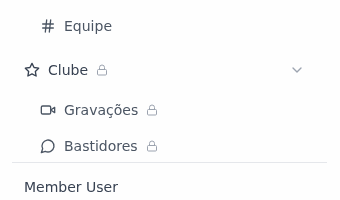
| Section and spaces (default) | The section and its spaces, with a padlock. Clicking a space opens that space's offer screen |
On the space
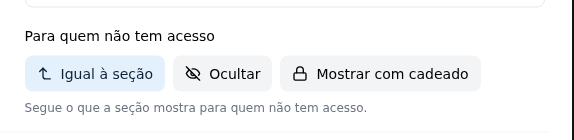
| Option | What whoever has no access sees |
|---|---|
| Same as the section (default) | Whatever the section shows |
| Hide | Nothing: the space disappears, even if the section shows with a padlock |
| Show with a padlock | The space with a padlock, even if the section is set to Hide |
The option doesn't appear on a Public area, because nobody is left out of it.
How section and space combine
- Section on Section and spaces, one space on Hide: that space doesn't show; the others show with a padlock.
- Section on Section only: the spaces never show, not even those on Show with a padlock. The section line is the showcase.
- Section on Hide, one space on Show with a padlock: the person sees the section's title and only that space, with a padlock.
- The person gets through the section, but the space is more closed (a Members section, a Private space unlocked by a plan): on Same as the section, the space shows with a padlock, unless the section is on Hide.
What shows and what never shows
With a padlock, only the icon, the title and the description of the section or space show. Write the description with whoever is outside in mind: it's what convinces them.
Never shown:
- the content: posts, lessons, events, files, counts, the names of who takes part;
- the address of a Link space: clicking opens the offer screen, never the link;
- the name of the group that unlocks the area;
- the area in search, not even by its title, and its items in the general Feed.
A padlocked space is also never an automatic destination: the home page, the first space of a section, the "where to post" pickers and the notification bell skip padlocked spaces. A member without a plan, in a community whose first space belongs to the Club, lands on the first space they can open, not on the offer.
The padlock in the menu
Hovering over the padlock, the menu gives the reason:
| Text | When |
|---|---|
| Members only | For a visitor, on a Members area |
| Subscribers only | On a Subscribers area, for someone with no subscription |
| Requires a plan | On a Private area unlocked by a plan |
| Requires a purchase | On a Private area unlocked by a product |
| Granted by the team | On a Private area unlocked only by groups |
The exclusive access screen
Whoever opens a padlocked space (from the menu, a link or an e-mail) sees the space's name, icon and description and, below them, a block that says what opens that space and how to get in.
Space unlocked by a plan, add-on or product: the sale right there.
When what opens the space is on sale, the block is the sale, without leaving the space and with the same payment as the Store. Only what opens that space shows up.
For someone without a plan (or not signed in), every plan that opens the space shows up alike, side by side, sorted by what each one charges per month (lowest first, with the add-on when it is required; a yearly plan counts the year's total divided by 12; the Store keeps the team's order). Both the plans that open the space by themselves and those that open it with an add-on are included. Each card has the plan's price, an add-on box, Renews automatically or the contract term, the plan's benefits, the Total per period (only on the card that carries a required add-on; on the others it would repeat the price) and the Subscribe to {plan} button (just Subscribe when the name is long):
- on a plan that needs an add-on to open the space, the box shows the add-on ("+ Group mentoring", with its price) ticked and locked: "Required to unlock this content". The Total adds plan and add-on, and the button goes to the plan's page with the add-on already ticked, in a single payment;
- on a plan that opens the space by itself, the box says No add-on · "Included in the plan" · "Unlocks this content".
Monthly | Yearly sits above the cards when the plans bill at both rhythms. Yearly carries the tag with the saving against monthly, the same calculation as checkout ("−17%", or "up to −20%" when the plans save differently), and the screen opens on the cheaper option (Yearly, when it has a saving). On Yearly, the card shows the price the way the plan's checkout does: "12× R$ X" on the card, with "interest-free on your card" or "on your card (total R$ Y)", the savings tag, which says where the saving applies ("Save 17% with PIX or boleto", depending on the methods the option accepts) and replaces the up-front line (with no tag, "PIX or boleto: R$ Z up front" stays); without installments, the year's price and "R$ X per month equivalent". The Total with the add-on follows the same format: "Total: 12× R$ X on your card or R$ Z up front". A plan with no yearly option stays monthly, with "No yearly option: billed monthly". With more than one plan, the Recommended badge marks the one featured in the Store. Five plans or more sit in a row that scrolls sideways. An add-on is never bought on its own (see Add-ons): for someone without a plan, it only shows up inside the card of a plan that sells it with the plan. Without such a plan, the add-on card shows Subscribe to plan.
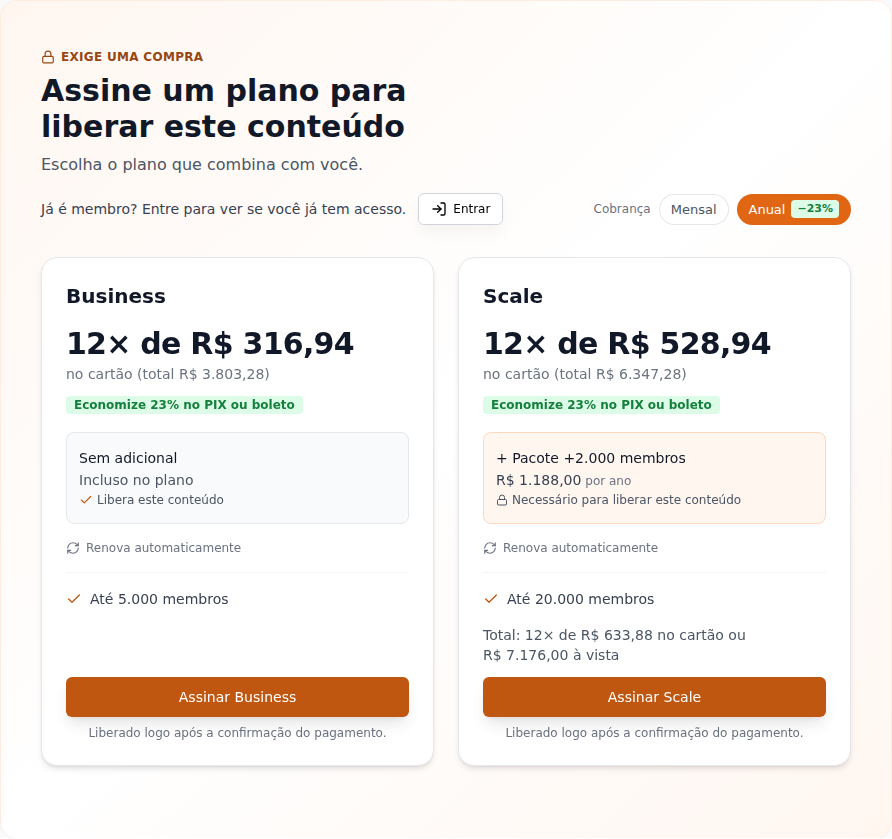
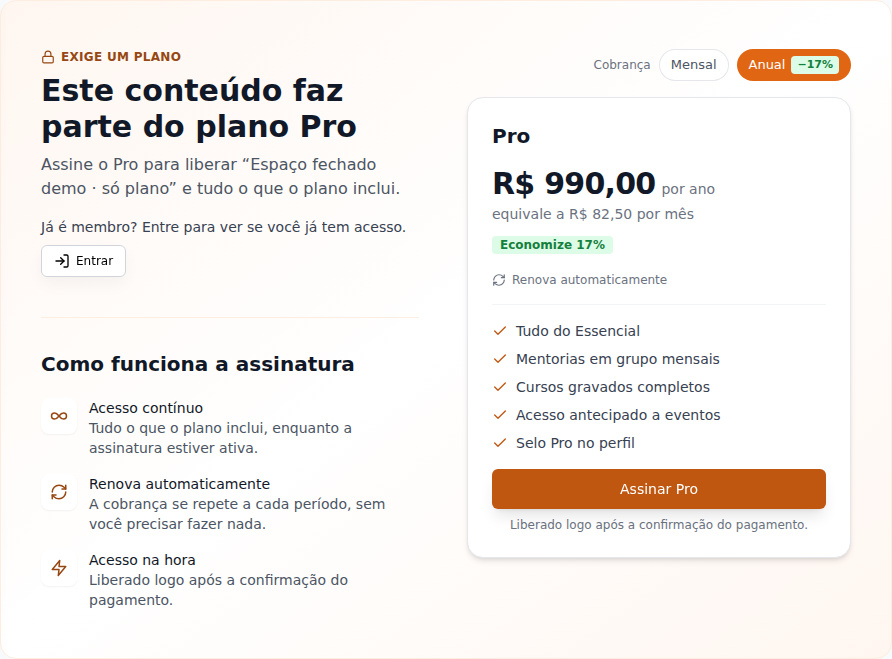
With a single plan, the headline sits on the left, with the "How the subscription works" block under it (Ongoing access, Renews automatically and Instant access), and the card on the right, with Monthly | Yearly above it. The Total only shows when the card carries an add-on (on its own it would repeat the price).
One-off product. When a product (one-off or installments) also opens the space, it comes after the plans, separated by or: "Subscribe to a plan" above, "Or buy one-off access" (one-time payment) below. The product cards follow how many there are: one takes the full width, two sit in two columns, three in one row. Buy opens the payment right there; once done, the space reloads, now open.
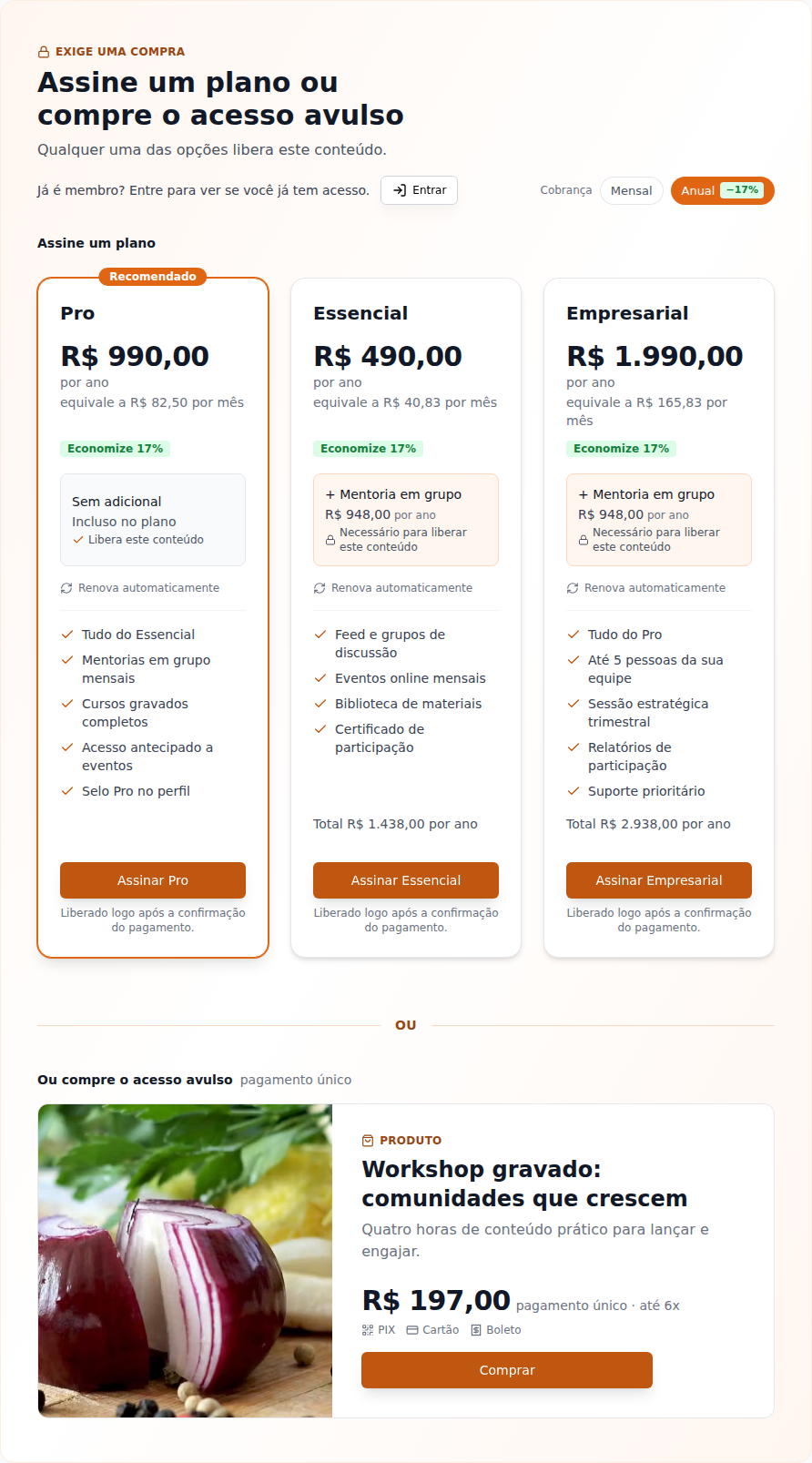
The headline says what unlocks it:
| What opens the space | The headline |
|---|---|
| One plan | "This content is part of the Pro plan" (or "Unlock this content with Pro + Group mentoring", when it needs the add-on) |
| Several plans | "Subscribe to a plan to unlock this content" |
| Plans and a one-off product | "Subscribe to a plan or buy one-off access" |
| Product only | "Buy access to unlock this content" |
Under each card: "Unlocked right after payment is confirmed." A Subscribers space (any plan) shows every public plan.
For someone who already has a plan, the sale starts from it:
| The person's plan | What shows up | The button |
|---|---|---|
| Takes the add-on that opens the space | "Unlock this content with {add-on}" and the add-on card, with Available on your plan | Add to plan (added to the subscription, prorated) |
| Neither opens the space nor takes the add-on | "Unlock this content by changing plans" and the other plans that open the space | Switch to {plan}: opens the plan change on that plan |
When the new plan also needs the add-on, the plan change already opens with it checked: plan and add-on change in a single operation, in a single charge.
Someone not signed in sees the same sale, with the invitation "Already a member? Sign in to see if you already have access." and the Sign in button right under the headline: after signing in, the person comes back to the space, which checks access again. To pay, the checkout asks them to sign in or create an account ("You need an account in this community to pay."). After subscribing to a plan from the space, the payment confirmation goes back to the space, now open (unless the billing option has its own address for after payment).
What is never offered:
- a Link only plan: it only opens through its own address and never shows up in the offer;
- a product the person could not buy: Buy only shows up when the product is in a Store the person sees or has its direct link on (the same rule as the payment, which refuses the rest);
- a draft or inactive product, and a loose billing option outside any plan.
If nothing that opens the space is on sale for the person, the block shows no card: it says "Talk to the community team to ask for access to “Club”.", with the Talk to the team button when someone can answer (see below).
A group's space.
A space unlocked by a group is not for sale: the team decides who gets in. The block says This space belongs to a community group, never the group's name:
- for a member: "Members of the group get in directly. If you should be in it, ask the community team for access.", with Talk to the team (without the chat, "The community team decides who joins the group.", with no button);
- for someone not signed in: "Members of the group get in directly. Sign in to see if that is you.", with Sign in.
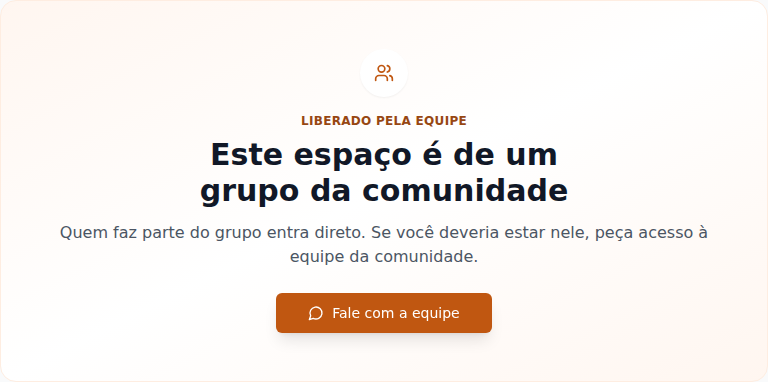
Space unlocked by a badge.
A badge is not bought: the person earns it. The block says "Earn the Mentor badge" (or "Earn one of these badges", when there is more than one) and shows each public badge with its image and description. A private badge never shows its name, image or description: only "A special badge". When a purchase also opens the space, it comes right after, separated by or. Whoever is not signed in sees the badges and the Sign in button. When the person earns the badge, the bell says "Your badge opened the Veterans' Room space" (or "section"), once.
In Who gets in, + Badges picks from the community's catalog; private ones carry the private mark: "Private badge: it opens too, but people without access only see "a special badge", never its name." Moderators and finance do not see private badges in the list.
Space unlocked by a level.
The Unlocked by level badge and the title "Available from level 9 · Legend". For a member: "Take part in the community to earn points and reach that level: “Veterans' Room” opens right away.", the points ("You have 420 points · 80 to go"), the The level's activity this week block (the same as the profile's; a space the person cannot open shows without its name) and the See my progress button, which opens the member page. If a badge also opens the space, it shows below ("One of these badges also unlocks it:"). For a visitor: "Members from level 9 get into “Veterans' Room”. Sign in to see your progress."
In the editor, under Who gets in, the + Level button picks the level; the space shows the chip "From level 9 · Legend". Picking level 1 warns: "Level 1 is every member. To open it to everyone, use the Members visibility instead." With gamification off: "Gamification is off: the level opens nothing until it is turned on."
Other cases.
| Who opens it | What the screen shows |
|---|---|
| Visitor, Members area | Members only: "Create your account in the community to access “Club”. Already have one? Just sign in.", with Create Account (or Ask to join, if sign-up needs approval) and Sign in |
| Signed in, but from another community | "“Club” is for members of this community. Join the community to get access.", with Join the community |
| Sign-up awaiting approval | Your signup is under review: "As soon as the team approves your signup, you can access “Club”." |
| None of the above | "You don't have access to “Club”. If you think you should, contact whoever runs the community.", with Back to home |
When there is no sale, the padlock's reason shows above the title (Granted by the team, Requires a plan…). The screen never gives the name of the group that unlocks the area. A padlocked section keeps the same box (This section is exclusive), with the buttons to the plans or products page.
The Talk to the team button
In an area closed by group (or with nothing on sale) there is nothing to buy: the team grants access. So the exclusive access screen has a Talk to the team button, which opens a chat conversation with someone who can let you in.
When it shows. For a member of the community, in a padlocked section or space unlocked by group or with nothing on sale, and only when the chat is on in the community and someone on the team can answer (below). Otherwise the screen shows only the text. Visitors, pending sign-ups and people from another community don't see the button: the screen offers them their own way in (table above).
Who answers. Memberfy picks one person, in this order:
- the first admin online (in alphabetical order of name);
- with no admin online, the first moderator online;
- with nobody online, the owner.
In every case, only someone who is Available to chat and with no block either way. Finance never answers: that role handles money, not access.
What the click does. The chat opens on a direct conversation with that person; if you already have a conversation with someone on the team who can answer, it is reused. The message box comes with the draft "I'd like access to Club", which you can edit: nothing is sent until you click Send. If the conversation doesn't open, the reason shows under the buttons, for example "No one on the team is available to chat right now. Try again later."
Chat rules. The button ignores the Who can start a conversation rule (it works even with Team only) and doesn't require the person asking to be available to chat. A new conversation counts toward the limit of 10 new conversations per hour (see Limits against spam); a reused one doesn't.
Team only
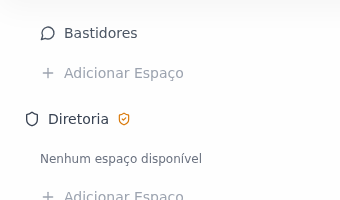
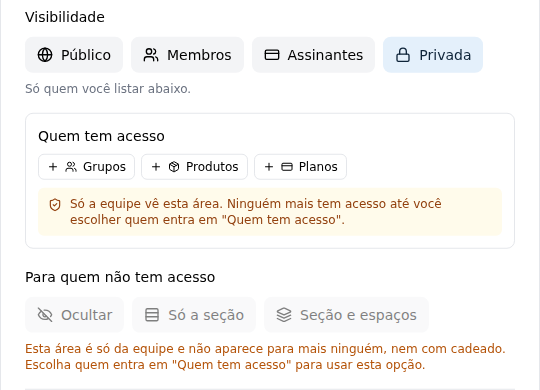
A Private area with nobody under Who gets in (and the spaces that inherit from such a section) is administration only: it never shows to anyone outside the team, not with a padlock, not by default. A space linked to a product from the products screen doesn't count as administration only: whoever buys the product gets in.
For owners, admins and moderators, an administration-only area has three notices:
- the Team only badge, with an icon, next to its name in the menu;
- a banner at the top of the space or section: "Only the team can see this area. No one else has access until you choose who gets in under "Who gets in".";
- the same notice inside the Who gets in block, when editing.
On these areas, the For those without access option is disabled, with the explanation: "Only the team can get into this area, and it never shows to anyone else, not even with a padlock. Choose who gets in under "Who gets in" to use this option." Once you add someone under Who gets in, the badge and the banner go away and the option applies again.

Where to change the option
Role: owner or admin.
On a section:
- In the menu, hover over the section and open Section options › Edit section.
- Under For those without access, right below Visibility and Who gets in, choose Hide, Section only or Section and spaces.
- Click Save.
On a space:
- In the menu, hover over the space and open Space options › Edit space.
- Under For those without access, choose Same as the section, Hide or Show with a padlock.
- Save.
The same option appears when creating the section (Add Section) and the space (Add Space). To check the result, open the community in a private window (as a visitor) or ask a member without access.
The menu updates right away. When the team creates, edits, moves, reorders or removes a section or a space, or changes who has access, the side menu of everyone who has the community open updates by itself, without reloading the page. Anyone inside a space that was removed, or that they lost access to, goes right away to the no-access screen.
A link to an area the person cannot see
An area that doesn't show for the person (on Hide, administration only, or a mistyped link) opens the This space is restricted box: "It is not available to your account: access may depend on a group, an approval or a plan. Talk to whoever runs the community; if someone sent you the link, check that it is complete." For a visitor, the screen asks them to sign in, with a Sign in button. The screen is the same for a hidden area and for a link that doesn't exist, on purpose: it doesn't reveal that the area exists.
Access follows payment
When a space is Subscribers or unlocked for a plan, nobody has to grant or remove access by hand:
- Paid: gets in as soon as the payment is confirmed.
- Canceled: stays until the end of the period already paid, and then leaves.
- Late on renewal: the subscription becomes past due.
Someone on a free trial doesn't count as a subscriber yet for subscribers' spaces or for plans on the access list. If the trial should unlock the space, let the Memberfy team know.
Examples
| I want… | Do this |
|---|---|
| An open showcase that invites people in | A Public section with Content |
| A space for anyone who pays for something | A Subscribers space |
| A space only for the Growth plan | A Private space, Growth plan under Plans |
| The material for a course sold on its own | A Private space, the course product under Products |
| A cohort's room | A Private space, the cohort's group under Groups |
| A space only the staff sees, for now | A Private space with an empty list |
| A whole subscribers' area | A Subscribers section: every space inside it inherits that |
| Show the paid area with a padlock, to sell it | A Private section with the plan, on For those without access › Section and spaces (the default) |
| A class's room that nobody outside sees | A Private space with the group, on For those without access › Hide |
Step by step: unlock a space for a plan
Role: owner or admin.
- Create the plan first, in Monetization › Plans. The space only lists what already exists. See Plans.
- In the menu, open Space options › Edit space.
- Under Visibility, choose Private.
- Under Who gets in, click + Plans and choose the plan.
- Save. Non-subscribers now see the space with the Requires a plan lock.
The same goes for + Products and + Groups.
Common errors and how to fix them
| What happens | Why | What to do |
|---|---|---|
| The Public option is unavailable on the space | The section is more closed | Open up the section, or leave the space as it is |
| The access grant "…" does not exist in this community. | The plan, product or group on the list was deleted | Remove it from the list and save |
| A subscriber says they can't see the space | Their plan isn't on the list, or the subscription isn't active | Check the list and the subscription status in Monetization |
| The space disappeared for every member | It became Private with an empty list | Add whoever should see it |
| A restricted area shows with a padlock to whoever has no access | It's the default (Section and spaces / Same as the section) | Under For those without access, choose Hide |
| The For those without access option is disabled | The area is team only: Private with nobody under Who gets in | Add whoever gets in; the option applies again |
Frequently asked questions
Why does the staff see a space I made private? Because owners, admins and moderators always see everything.
Can I unlock a space for just one person? Create a group with that person and unlock the space for the group.
Does someone without access see the content of a padlocked area? No. They only see the icon, the title and the description, and the way in.
Does changing the visibility delete anything? No. It only changes who sees it.
Does a post from a private space show up in the general Feed? Only for those who have access to the space it came from.
In the API
visibility: public, members, plan or private; and access: { groupIds, productIds, subscriptionGroupIds, badgeIds } on POST/PUT for sections and spaces. See Sections & Spaces. In badgeIds, absent (or null) keeps the badges that already open the area, and [] removes them all; a badge from another community or a deleted one returns 400. The team reads access.badges and requiredBySection.badges (id, name, imageUrl, visibility).
For those without access:
lockedDisplayonPOST/PUTfor sections (hide,sectionorsection_and_spaces, the default) and spaces (inherit, the default,hideorshow). On an edit, leaving it out changes nothing.- In the lists (
GET /api/sections,GET /api/spaces), a padlocked area comes withlocked: trueandlockReason(signIn,plan,product,subscriptionorgroup, never the group's name). A padlocked space carries onlyid,title,slug,icon,description,module,sectionId,lockedandlockReason: nomoduleConfig, noexternalUrland no counts. A section onsectioncomes withoutspaces. - Opening a padlocked space answers 403 with
data: { reason, actions, productIds?, subscriptionGroupIds?, lockReason, space: { id, title, slug, icon, description, module, sectionId } }.reason:plan,group,approvalorother;actions:signIn,joinCommunity,seePlans,buyoraskTeam. - Unlocked by a badge:
reason: "badge"(andlockReason: "badge"in the lists and in the sectiondenial), with theearnBadgeaction,badges(public ones only:id,name,imageUrl,description) andhasHiddenBadge: truewhen a private badge also opens the area. Earning the badge publishes thespace.access_grantedevent withsource: "badge". - Unlocked by a level:
access.minLevelId(the level's id) oraccess.minLevel(the number, 1 is the first) onPOST/PUT; absent keeps it,nullremoves it. The refusal carriesreason: "level"(andlockReason: "level"), theearnPointsaction,leveland, for a member with gamification on,progress(points,pointsToGo,currentLevelandrequirementswiththisWeekandminCount); a visitor gets onlylevel. Reaching the level publishesspace.access_grantedwithsource: "level". - When the next step is buying or subscribing (
actionswithbuyorseePlans), the space 403 also carriesoffers: { plans, addOns, products }, the offer's cards in the same shapes asGET /api/storefront/spaces/{spaceId}/products: only what opens the space, active, and, among products, only what checkout sells to the caller (in a store the person sees or with the direct link on).addOnscarryavailability(owned,add,upgradeorsubscribe) and theplansthat take them. Never alink_onlyplan (which is no longer named insubscriptionGroupIdseither). It works for visitors; a group-only space has nooffers. With nothing on sale,actionsfalls back toaskTeam. GET /api/sections/{id}for a padlocked section answers 200 withlocked,lockReasonanddenial(the same shape, withsectioninstead ofspace).- A hidden area (on
hide, or administration only) answers 403 withdata: { reason: "other", actions: [] }, with no title and nothing about what unlocks it. - The padlocked refusal (the space 403 and the section
denial) carriescanContactTeam:truewhen the Talk to the team button has someone to answer. The button callsPOST /api/chat/contact-teamwithspaceIdorsectionId(one of the two), which returns the conversation (201new,200reused) without sending anything;403withcontactTeamNotAllowed(the area isn't padlocked withaskTeamfor the caller),teamUnavailable(nobody to answer) ordisabled(chat off);429at the new-conversations limit. - The team also gets
lockedDisplayandadminOnly(truewhen the area is administration only).