
Engagement
The Engagement page, under Administration, for the team. The period's numbers compared with the previous one, activity per day, the most engaged and the statement of every activity, with filters, links and CSV export. And badges - creating them, giving them by hand, on course completion or event check-in and by workflow, public or private - and the profile with points, level, badges and certificates.
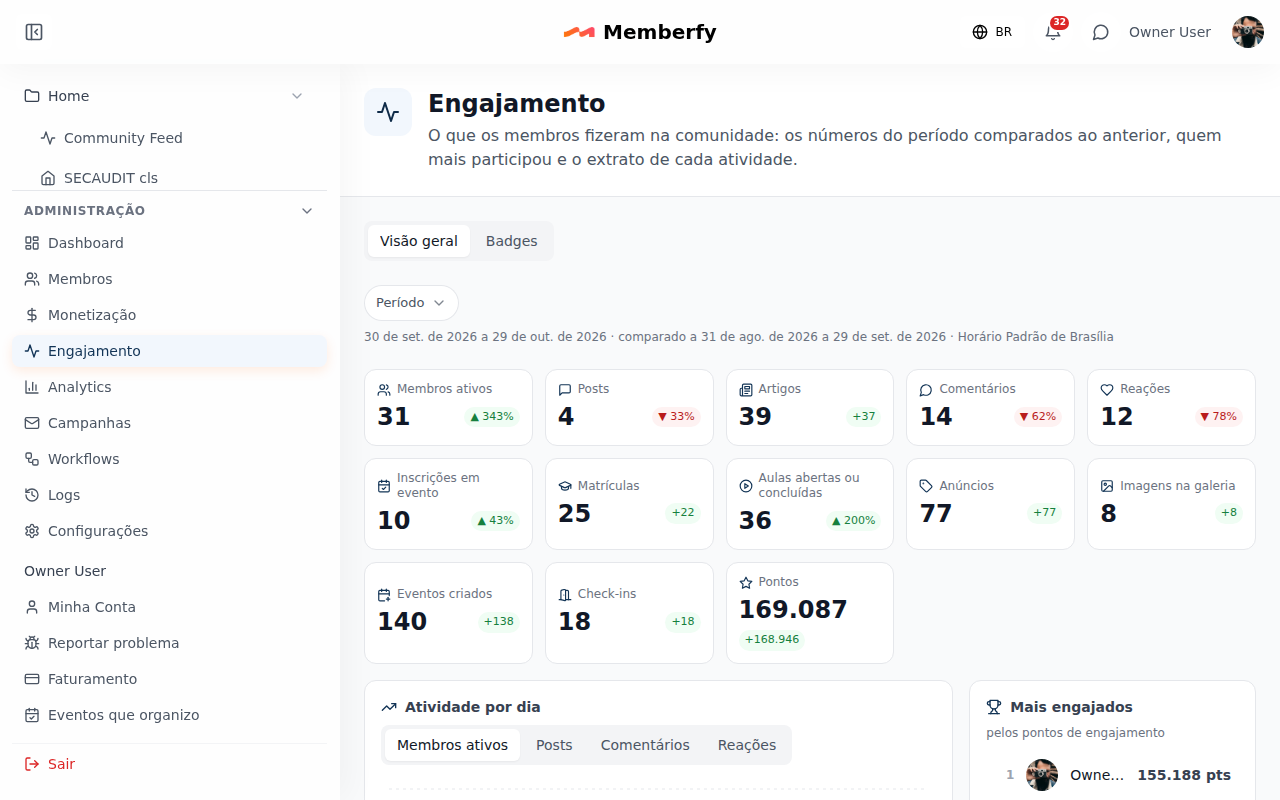
The Engagement page shows what members did in the community: "the period's numbers compared with the previous one, who took part the most and the statement of every activity."
It's in Administration › Engagement, right below Monetization. It has two views in the switch at the top: Overview (the numbers and the statement, below) and Badges (the badge catalog, only for the owner and the admin).
What it's for
| The team wants to know… | On the page |
|---|---|
| Whether the community is more active than last month | The cards, with the change against the previous period |
| Who took part the most | Most engaged |
| What Maria did this week | Statement, filtered by Maria |
| Who commented in the Announcements space | Statement, type Comments and space Announcements |
| The list for a spreadsheet | Export CSV |
| Give a badge to everyone who finished the welcome course | Badges, with Badge on completion on the course |
Who can
The team: owner, admin, moderator and finance. Members don't see the page. The Badges view is only for the owner and the admin.
How it works
The period
At the top, the Period button opens a menu with 7 days, 30 days, 90 days and Custom (From, To and Apply), up to 366 days and ending no later than today. Days follow the community's time zone. Below it you see the period and the previous one it's compared with ("Oct 1 to 30 compared to Sep 1 to 30"): the previous one always has the same length.
The period and the statement filters live in the page address: copy the link to send the same view to someone on the team.
The cards
One card per number for the period, with the change against the previous period and, below, "Previous period: …":
Active members, Posts, Articles, Comments, Reactions, Event registrations, Enrollments and Lessons opened or completed. Listings, Gallery images, Events created and Check-ins only appear when there was some activity of that type in either period.
Clicking a card ("See in the statement") filters the statement by that type.
Activity per day
The Activity per day chart shows the period day by day, with the buttons Active members, Posts, Comments and Reactions to switch what it shows.
Most engaged
The 10 who took part the most in the period: by engagement points, when the community has the engagement turned on, or by interactions, when it doesn't. Clicking a person ("See …'s statement") filters the statement by them.
The statement
One row per activity, from newest to oldest, with who did it, what, in which space, when and the engagement points ("+5 points"). The types:
| Filter | What goes in |
|---|---|
| Posts | Posted in the feed |
| Articles | Published an article |
| Comments | Commented |
| Reactions | Reacted |
| Event registrations | Registered for an event |
| Enrollments | Enrolled in a course |
| Lessons | Opened or completed a lesson |
| Listings | Posted a listing in Classifieds |
| Gallery | Added an image to the gallery |
| Events created | Created an event |
| Check-ins | Checked in at Attendance |
| Sign-ins | Signed in to the community (once a day) |
A like received doesn't go in: the statement shows what the person did.
- Filters: in the bar above the statement, Activity type (one or more), Member (with the Filter by member search) and Space, each in a button with a menu (on a phone, under Filters (N)). Each chosen filter becomes a chip with ×; Clear filters removes them all.
- Links: the item opens the post, the event or the course; the space opens the space; the name opens the member's profile. A deleted item shows as Deleted item, and a member who left, as Removed member.
- Load more brings the next rows; at the end, "End of the statement for this period."
- Export CSV downloads the statement with the filters applied, up to 50,000 rows; above that, shorten the period or use a filter. Above 2,000 rows, the file is prepared in the background and a download link, valid for 72 hours, arrives by email to whoever exported it; the screen says "Your file is being prepared; the link will arrive by email at …". The link in the email opens the app and asks you to log in: only the person who requested the export, and who still has the role for it, can download it. The file is available for 72 hours and then deleted. Up to 2,000 rows, the download is immediate, as before.
Badges
A badge is a seal with an image and a name that the community gives to someone who did something: finished the welcome course, spoke at an event, mentored others. It shows on the profile, the member card and the ranking. Badges work with gamification on or off.
The catalog
Role: owner or admin.
In Administration › Engagement, Badges view, the Badge catalog lists each badge with its image, description and how many people hold it ("12 people hold it"). New badge opens the window:
| Field | Rule |
|---|---|
| Image | Required. PNG, JPG, WebP or GIF; stored at up to 512 × 512 px, transparency kept |
| Name | Required, up to 60 characters. It can't repeat another badge's name in the community |
| Description | Optional, up to 300 characters. It shows on hover or tap |
| Who sees it | Public: shows on the profile, the card and the ranking for the whole community. Private: only the person who holds it, the owner and the admins see it, marked as private |
In each badge's menu: Give to…, See who holds it, Edit and Remove.
- Edit changes the name, image, description and who sees it; the change applies at once for those who already hold the badge.
- Remove asks first, saying how many people hold the badge ("12 people hold this badge. It leaves their profiles and the ranking."). The grants stay in the history; the course or event that gave the badge stops giving it, and nobody is notified. When the badge opens spaces or sections, the question says how many ("It opens 2 spaces in "Who gets in". Once removed, whoever gets in only through it loses access right away."): that access closes as soon as the badge goes.
Giving and taking back
A badge arrives in four ways, and the same person never holds the same badge twice: someone who already holds it stays as they are, with no second notice.
| How | Where |
|---|---|
| By hand | Give to… in the catalog (up to 100 people at once, searching by name or e-mail) or Give badge on the member's profile, with an optional Reason only the team sees |
| On course completion | In the course form, Completion tab, Badge on completion: whoever finishes the course gets the badge, no workflow needed. See Courses |
| On check-in | In the event editor's Check-in card, Badge on check-in: whoever checks in gets the badge, once. It works with the event's check-in on. See Events |
| By workflow | The Award badge action (see Workflows) |
The recipient is notified in the bell ("You got the badge Handshake") and by e-mail, in the Achievements category of E-mails from this community, on by default. The notice opens the person's profile on the Achievements tab.
Taking it back from someone is in See who holds it or on the badge, on the person's profile. Taking it back doesn't notify the person, and the grant stays in the history. Undoing the check-in or losing the certificate doesn't take the badge away.
In a workflow, the Received a badge trigger (with the badge filter) fires right after: "Received Handshake → add to the Veterans group".
Award automatically
A badge can award itself, by a rule, with no workflow (it does not count toward the plan's workflow limit). The rule says what the person does, how many times and, optionally, where and when:
| Part of the rule | What it is |
|---|---|
| What | An action of the gamification (create a post, comment, like…, except the team's adjustment) or a moment of another module: completing a course, checking in at an event, passing a quiz, submitting a form, answering a survey, having a proposal accepted, receiving a recognition, seeing an Upvote topic done, checking in at the coworking |
| How many times | 1 to 1,000 (default 1) |
| Where (optional) | A space: "posted in Introduce yourself" |
| When | Ever, the last 7 days, the last 30 days or the current month (in the community's time zone) |
| Member for at least (optional) | N days in the community: the first counted action after the N days awards it |
- The past does not count. Counting starts when the rule is created or edited: creating or editing a rule gives the badge to nobody.
- The badge is given at the action that completes the count, once, with the bell notice, the Achievements e-mail and the
badge.awardedevent withsource: "rule". - With gamification off, no rule awards. Badges already given stay.
- An action over the daily cap does not count for the rule.
- Up to 50 rules per community, one per badge.
When the badge goes away on its own. Undoing a check-in takes back the badge the event's check-in gave (unless the person has another checked-in ticket); revoking a course's certificate takes back the badge the course completion gave. Deleting a post takes nothing back.
On screen. In the badge window (New badge or edit), turn on Award automatically ("The badge goes by itself to whoever meets the rule, with the usual notice.") and fill in When the person, How many times, Period (All time, 7 days, 30 days or This month), Only in this space (optional) and Member for at least (optional) … days. The window warns "The rule does not count the past: it applies to what people do from when you save."; on an existing rule it shows "Counting since {date}. Changing the rule restarts the count." and, if you change it, "You changed the rule: when you save, the count starts over (it counted since {date}). Whoever already got the badge keeps it." Turning it off warns "When you save, the badge stops being awarded automatically. Whoever already got it keeps it." In the catalog, the badge card shows the rule: "Automatic: Create post · 3×". Through the assistant, create_badge and update_badge.
Through the API: rule: { trigger, minCount, spaceId, window, minMemberDays }, with trigger action:CREATE_POST (and the other actions) or course.completed, event.checked_in, quiz.passed, form.submitted, survey.answered, proposal.accepted, recognition.received, upvote.topic_done, attendance.checked_in; window always, last7, last30 or month. On edit, null removes the rule and absent keeps it. Over 50 rules returns 400 (badges.ruleLimit); an invalid field, 422 with errors[].param rule.<field>.
What a badge unlocks
A badge can open spaces and sections: in Who gets in, Badges is the fourth list, next to groups, products and plans, and holding any one of them is enough (see Visibility and access). Whoever earns the badge gets in at once and the bell says "Your badge opened the Veterans' Room space", once per space; whoever loses the badge is out on the next visit. Whoever does not have it yet sees the space with a padlock and "Earn the Mentor badge"; a private badge shows only as "A special badge".
So "whoever finished the program gets into the veterans' room" needs no workflow or group: award the badge on course completion and put the badge in the room's Who gets in.
The profile shows engagement
On each member's profile (the one that opens when you click the name), you see:
- the badges, right below the name (private ones with a lock);
- Points and Level, with gamification on: the person's total in the community, adding up every section, the same number as the overall ranking;
- when the person's level (or the next one) asks for activity in the week, the block "To stay at Kernel this week", with each requirement and the progress (Create post 2 of 3), and "To move up to" the next level, with the points still missing. Only the person and the team (owner, admin, moderator and finance) see this block. A requirement in a space the viewer cannot access shows "in a space you cannot access" in place of the name. See What is left this week;
- the Certificates and Badges sections: the issued Certificates (clicking opens a viewer on the page itself) and the Badges (each with its image, name and where it came from, like "Course Welcome · 10/27/2026"; the origin is a link). Revoked or replaced certificates don't show. See Certificates on the page.
| Who sees | Public badges | Private badges | Certificates |
|---|---|---|---|
| The person themself | Yes | Yes | Yes |
| Owner and admin | Yes | Yes | Yes |
| Moderator and finance | Yes | — | Yes |
| Another member | Yes | — | Only if the person chose The whole community |
Who sees my certificates. On your own profile, on the Achievements tab, Show my certificates to: Only me and the team (the default: you, the owner, the admins, the moderators and finance) or The whole community. The change applies at once. With the Channel's limited profile, another member doesn't see the points or the Achievements tab.
Adjust points. The owner and the admin have the Adjust points button on the profile and in each ranking row's menu, with gamification on: Points (positive adds, negative takes away, never 0) and Reason (required, up to 200 characters). The points change at once, and the person sees the reason in their points history. See Gamification.
Step by step: a badge for those who finished the welcome course
Role: owner or admin.
- Administration › Engagement, Badges view, New badge.
- Pick the Image, the Name (Handshake), the Description (Finished the welcome course.) and Public. Create badge.
- Open the Welcome course, Edit, Completion tab, and in Badge on completion pick Handshake. Save.
- Those who finished before don't get it on their own: use Give to… on the badge for them.
Step by step: what Maria did this week
Role: owner, admin, moderator or finance.
- Administration › Engagement.
- In Period, 7 days.
- In the Member filter, search for and choose Maria.
- The statement shows each of her posts, comments, reactions, registrations and lessons, with the link. To keep it, Export CSV.
Example
A student community's month. Rafael opens Engagement with 30 days: Comments went up 18% and Enrollments went down 10%. He clicks Enrollments and sees in the statement that nearly all of them were in a single course. In Most engaged, he clicks the first person and sends the link to the filtered page to the moderator so she can thank them.
From the Dashboard to here
On the Dashboard, the New content and Engagement cards open this page over the same 7 days, with the statement filtered by the types they add up: the total matches the card's number.
Frequently asked questions
What's the difference from Logs? Engagement shows what members did (participation). Logs show everything the community records: the team, the platform, the assistant, emails, finance and moderation.
Does reading a post count? No. Only actions: posting, commenting, reacting, registering, studying, signing in to the community.
Does a private badge show in the ranking? Only for the person who holds it, the owner and the admins. Others don't see it, not even through the API.
Are private spaces included? Yes. The team sees activity in every space.
Through the assistant and the API
- Through the AI assistant:
list_engagement_activitiesreads the same statement, andengagement_reportthe numbers with the comparison. - Through the API:
GET /api/reports/engagement(the numbers, withcompare) andGET /api/reports/engagement/activities(the statement, withfrom,to,memberId,kind,spaceIdandcursor; as CSV, up to 50,000 rows). - Badges through the assistant:
list_badges,get_badge,create_badge,update_badge,delete_badge(asks for confirmation),award_badge(up to 100 people, withdry_runto see who gets the e-mail),revoke_badge(asks for confirmation) andlist_member_badges;get_membercarries the profile's engagement. See Tools · Content and engagement.GET /api/badgesandGET /api/badges/{id}bringunlocks: { spaces, sections }, how many spaces and sections the badge opens;DELETEreturns the same. - Badges through the API:
GETandPOST /api/badges,POST /api/badges/image,GET,PATCHandDELETE /api/badges/{id},GET /api/badges/{id}/holders,POST /api/badges/{id}/grants,GETandPOST /api/members/{memberId}/badgesandDELETE /api/members/{memberId}/badges/{badgeId}; the course takescompletionBadgeIdand the event,checkInBadgeId.GET /api/members/{id}carriesengagement, andPUT /api/members/metakescertificatesVisibility. Thebadge.awardedandbadge.revokedwebhooks are in Webhook events. See the API reference.