
Releases
Communities can now refund buyers on their own, from the Sales tab in Monetization, choosing whether access continues, and a payout now goes to the bank the moment it's requested. Along with that, sales money got clear dates: every sale is released 30 days after payment, the 4% reserve stays 60 days with every payment method, and the balance shows what's pending, retained, available and owed. Also, the R$ 10.00 minimum payout, the R$ 3.67 payout fee, the end of advances and automatic transfers, new security controls and a fixed total balance. Later in the day, the Sales tab got each sale's status and a detail with its timeline, refunds can be partial on card and PIX, and creating a space now asks only what changes the space.
Today's highlights:
- Refunds from Monetization: the community refunds a buyer from the Sales tab, without waiting on the Memberfy team, and chooses whether they keep access.
- Payouts that go to the bank right away: a payout goes to the bank the moment it's requested, with no manual approval, and the account receives exactly the amount requested.
- The whole sale, with its timeline: the Sales tab shows one line per sale with its status, and each sale opens into a detail with everything that happened to it, in order.
- Refunding part of a sale: on card and PIX, the community returns just part of the amount, as many times as needed, up to the total.
Then come the improvements and the fixes. At the end, separately, what matters to developers.
Today's changes are for communities that sell in reais (communities in Brazil). Selling and paying out in dollars is still on its way.
Refunds from Monetization
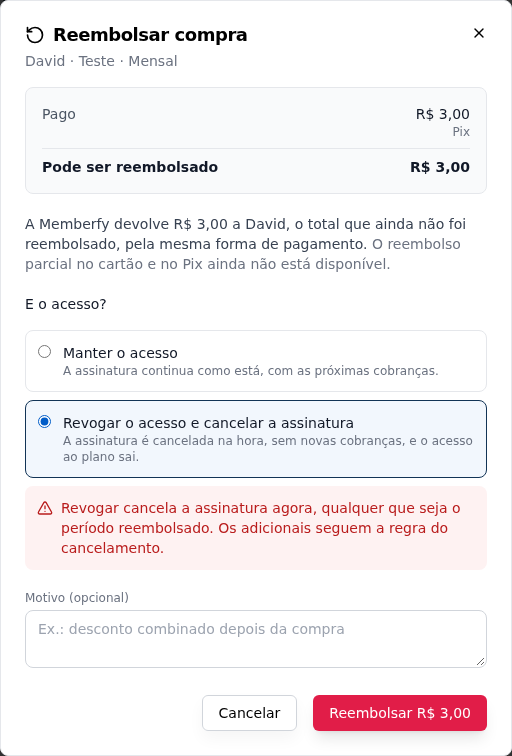
What it is. The new Sales tab in Monetization lists every purchase in the community (one-time products, plans and add-ons) with the buyer, the amount, the net, the payment method and the refund status. The Refund button lives there. In the dialog, you say whether the buyer keeps or loses access, and Memberfy returns the money.
Why it matters. Before, returning a sale meant writing to the Memberfy team and waiting. Now the owner, the admin and finance refund right away, and decide on access at the same time: keep it for a discount agreed after the purchase, or remove it when someone gives up.
- Keep or revoke access. On a one-time product or add-on, revoking removes access to the product. On a subscription, revoking cancels the subscription right away, and the dialog warns you before you confirm. Even with access kept, the purchase shows as Refunded, with the amount and the date.
- On card and PIX, Memberfy returns the money through the same payment method. The platform fee goes back too, in proportion to the amount returned, and the community only returns the part it received. You can return the whole amount or just part of it (see Refunding part of a sale).
- A refund that waits for balance. If the community's receiving account doesn't have the balance for its part yet, the refund stays Pending: waiting for balance and goes out on its own when balance comes in, in order of arrival. The access choice applies right away, and the amount is reserved: it isn't available for payout.
- Boleto returned directly. A paid boleto isn't returned by the payment provider. The community returns the money directly to the buyer, by PIX or bank transfer, and records the return in the same dialog (it can be just part of it). Nothing leaves the community's balance and the platform fee doesn't come back.
- The buyer gets an e-mail with the amount and whether access continues; the community gets a refund notice.
Where it is. Monetization › Sales, on the purchase's row. For a subscription, also under Members › Subscriptions › View details › Charge history, next to each paid charge.
How to start.
- In Monetization › Sales, find the purchase by the buyer's name or e-mail and click Refund.
- Under What about access?, choose Keep access or Revoke access and, if you like, write the reason.
- Click Refund R$ …. On a boleto, check I already returned it to the buyer, fill in the amount and the date, and click Record return of R$ ….
Example. Maria bought the R$ 297 course by PIX and you agreed on a discount after the purchase. You refund it keeping access: the R$ 297.00 goes back to her by PIX, she stays in the course, and the sale shows as Refunded in the Sales tab.
See Sales and Refunds and disputes.
Through the assistant. The same works in a conversation with Claude or ChatGPT: "Refund [email protected]'s course purchase. She keeps access." The assistant finds the purchase, asks whether access continues and only refunds after your yes to a summary. There's also the ready-made recipe Refund a buyer. See Recipes.
Payouts that go to the bank right away
What it is. When an owner or admin confirms a payout, Memberfy sends the transfer to the bank at that moment, with no manual approval from anyone. The credit is expected the next business day.
Why it matters. Before, the request stayed Pending until the Memberfy team made the transfer by hand. Now the money leaves when you ask, and the history shows the real state: Processing until the bank confirms, Completed when the credit lands, or Failed, with the reason.
- The account receives exactly the amount requested. The payout fee comes out of the balance, on top of the amount.
- The maximum comes already worked out. The dialog shows what's available, the maximum (already without the fee and without what's reserved for refunds) and the minimum. The Withdraw the maximum button fills in the amount.
- If the bank refuses it, the payout ends up Failed, the amount and the fee go back to the balance, and the history gives the reason. Once the account is fixed, just request it again.
Where it is. Monetization › Dashboard › Request Payout. The history is under Monetization › Payments › Payout history.
How to start.
- In Monetization › Dashboard, click Request Payout.
- Type the amount under How much you want to receive or click Withdraw the maximum, and check the fee and what leaves the balance.
- Click Confirm payout.
Example. With R$ 1,000.00 available, the maximum is R$ 996.33: the account receives the full R$ 996.33 the next business day, and R$ 1,000.00 leaves the balance.
See Payouts.
The whole sale, with its timeline
What it is. The Sales tab now shows one line per sale, with the buyer, the product, the Status, the amount and the net, the payment and the date. Each sale opens into a detail: the summary, the Refund button and the timeline, with the payment, the balance release, the reserve, each step of a refund and the e-mails the buyer received.
Why it matters. Before, to understand what had happened to a purchase you had to piece together the list, the refund history and the statement. Now the answer to "what happened to Maria's purchase?" is on one screen.
- The status, in a word. Paid, Processing, Waiting for balance, Refunded, Partially refunded, Returned directly, Disputed, Awaiting payment, Failed… Hover to see a refund's amount, date and access.
- The Status filter uses the same names as the column and replaces the old filters.
- The ⋮ menu on each line leads to View details and, while there is something left to return, to Refund. Clicking the line also opens the detail.
Where it is. Monetization › Sales.
How to start.
- In Monetization › Sales, search for the buyer by name or e-mail.
- Click the sale (or ⋮ › View details).
- Read the timeline from top to bottom; a future date is when something will still be released.
Example. Maria asks when the money from her purchase reaches the community. In the detail, the timeline shows the PIX payment on 10/8, the release for payout on 11/7 and the 4% reserve coming back on 12/7, with the scheduled badge on what hasn't happened yet.
See Sales.
Refunding part of a sale
What it is. On card and PIX, a refund can be part of the amount: from R$ 0.01 up to what can still be refunded. A purchase accepts several partial refunds, up to the total. And in an order with a plan and add-ons paid together, each purchase is refunded on its own.
Why it matters. Before, on card and PIX only the whole remainder of the charge could be refunded, and a purchase that shared its charge with others wasn't refunded through Memberfy. Now a discount agreed after the purchase, or returning just one add-on, goes through the Sales tab itself.
- The platform fee goes back in the same proportion as the amount returned, and only the community's share leaves the balance.
- A partial refund usually stays Processing for a few minutes while the reversal is confirmed; the status updates on its own.
Where it is. Monetization › Sales, under Refund, in the amount field.
How to start.
- In Monetization › Sales, open the sale and click Refund.
- Change the amount to what you want to return and choose whether access continues.
- Confirm. The Refund button stays on the sale for what's left.
Example. From a R$ 197.00 PIX sale, the community returns only R$ 50.00, a discount agreed with the buyer. Access continues, and the sale shows as Partially refunded.
See Refunds and disputes.
Other news
- Creating a space asks only what changes the space. Before, some modules asked for options that changed nothing (Feed post types, Gallery layout, Ranking options, course sequence). Now each module asks only what counts: Link asks for the address, Certificates asks Who issues, Store asks for the storefront and Call for papers asks how many calls. If a setting isn't saved, the space already exists and the window offers Try again, without creating a second space. See Spaces.
- Who can open a call, on screen. In a call space with Several calls, creating and editing the space now show Who can open a call: Staff (the default), Admins or Members. Before, this rule could only be changed through the assistant. See Call for papers.
- The storefront when creating a Store. Step 3 of creating a Store, Storefront, chooses what it shows: All active products (the default) or Chosen products. Before, the store started out showing everything, and the choice came later. See Store.
- Counters in the Help Center. The MCP and API home pages show how many tools and recipes the assistant has and how many endpoints the API has, with the total in each of the same 8 product areas and a link to each page. The numbers come from Memberfy itself, in production, every time the Help Center is published.
- Sale times in the community's time zone, and View subscription. The sales list, the detail and the timeline show times in the community's time zone (that of the business information's country), with a note saying which one, instead of the viewer's time zone. A refund waiting for balance shows its Last attempt. And on a plan sale, the View subscription button opens the subscription in Members › Subscriptions. See Sales.
- The assistant's tools on the website. The MCP page on the Memberfy website shows the 207 tools in the same 8 areas as the Help Center, and the 4% reserve for 60 days on every sale.
Improvements
A 30-day release period, for every method. Before, PIX was available on the day of payment, boleto 1 day after clearing and card after 30 days. Now every sale becomes available for payout 30 days after payment, with any method, and each sale shows the date under Releases on. On a card sale in installments, each installment is released on its own date. See Balance and statement.
A 4% reserve for 60 days, with every payment method. Before, only card had a reserve, held for 30 days. Now 4% of the gross amount of each sale, by card, PIX or boleto, is held for 60 days to cover disputes and goes back to available on its date. See Balance and statement.
The balance shows where each amount comes from. The Dashboard separates Pending (sales before their release date, with the next release), Retained (the dispute reserve) and Available for Payout. When a refund or a dispute takes available below zero, the amount owed appears, and it comes out of the next sales released. Before, a negative balance showed as zero.
A R$ 10.00 minimum payout. A payout below that is refused, and the dialog shows the minimum before you type the amount. See Payouts.
A R$ 3.67 payout fee. Memberfy's fee per payout is still R$ 3.67, charged on top of the amount requested: the account receives the full amount. The dialog shows the fee and the total that leaves the balance before you confirm. See Platform fee.
No advances and no automatic transfers. Money only leaves when an owner or admin requests a payout. The Automatic Transfers section is gone from Settings › Payout Settings, and the Transfer Interval line is gone from Monetization › Payments. See Business information and payout account.
Clearer payout registration texts. The messages and e-mails about the payout registration (the review, the activation, sales switched off and refused details) are more direct and no longer name the payment provider. In the sales-switched-off e-mail, the field is now called Payout status. See Business information and payout account.
New security controls. We applied new security controls to Memberfy. Nothing changes in how you use it: everyone keeps seeing and doing the same as before.
The plan window in three columns. On wide screens, creating or editing a plan shows three columns side by side: the plan's identity, the benefits and the billing options, with the add-ons below across the full width. On a phone it stays one column. See Plans.
Fixes
- The total balance. Before, the Total balance on the Dashboard could add up the gross and the net of the same sale and show more than the community had. Now it adds up pending, retained and available, and matches the statement.
For developers
This part is for those who integrate Memberfy through code. To use what's above, none of this is needed.
API
- Sales and refunds. Three new routes, for the
X-CommunityIdcommunity, for owner, admin and finance:GET /api/manage/purchases(the sales, with thestatus,productId,paymentMethod,refunded,from,toandsearchfilters),GET /api/manage/purchases/{purchaseId}(one sale, with all its refunds) andPOST /api/manage/purchases/{purchaseId}/refunds(refunds it, withaccessKEEPorREVOKE, a requiredidempotencyKeyand, on boleto,settledOutside). Each sale hasrefundedAmount,refundableAmount,refundMethodandrefundBlockedReason. See Sales and Responses and errors. - New balance.
GET /api/payouts/balancenow returnspending(before, always zero),owed,withdrawableBalance,maxPayoutAmount,minPayoutAmount,pendingRefundsandbalances[], one line per currency, with?currency=to choose the currency of the payout calculation.availablecan be negative. Statement entries haveavailableAt, one per installment on a card sale in installments, and accept thecurrencyfilter. - Status and timeline.
GET /api/manage/purchasesaccepts thesituationfilter (one or more) and each sale hassituation;GET /api/manage/purchases/{purchaseId}has thetimeline, with each event already translated byAccept-Language. - Partial refunds.
POST /api/manage/purchases/{purchaseId}/refundsacceptsamount(default: the remainder) on card, PIX and boleto, and refunds one purchase on its own in an order with several. - Payouts.
POST /api/payoutsanswers201with the payout in the state it ended up in (PROCESSINGorFAILED, withfailureCodeandfailureMessage) and refuses with400an amount below the minimum or above the maximum. See Payouts.
MCP: technical details
- Three new Finance tools: 207 in total.
list_purchasesandget_purchase(read-only) andrefund_purchase(kind: money, asks to confirm; on boleto,settled_outsiderecords the money returned directly). A purchase that can't be refunded through Memberfy yet is refused before the summary, with the reason inrefund_blocked. New prompt Refund a buyer (refund_buyer): 10 prompts in all. By role: owner and admin, 207; finance, 103. See Tools · Finance. - Status, timeline and partial refunds.
list_purchasesacceptssituationand returnssituation_label;get_purchasehas thetimeline;refund_purchaseacceptsamountto return just part of it on card and PIX. get_balancereturns one line per currency, with pending and its release dates, retained with its return date, owed, the withdrawable amount, the fee, the maximum, the minimum andpending_refunds.list_ledger_entrieshas each entry's releases on date and acceptscurrency.request_payoutrefuses on the first call an amount below the minimum or above the maximum, and the result shows the payout's real state.community_overviewgainedmoney_by_currency.