Community→Sections→Spaces→Content (posts, events, lessons…)
The **section** is the first level: each bold heading in the side menu, with a folder icon, is a section. Inside it are the [spaces](/conceitos/espacos), and each space has a [module](/conceitos/modulos) that says what it is.
## What it is and what it's for
A section groups spaces that have something in common, and it's how members find their way around the menu. Think of sections as the drawers of a cabinet:
| Community | Sections that work |
|---|---|
| Online course | **Start here** · **Lessons** · **Live sessions** · **Student area** |
| Coworking | **Announcements** · **Calendar** · **Residents** · **Open community** |
| A company's HR | **Announcements** · **Training** · **Benefits** · **Leadership** |
| Association | **Welcome** · **Content** · **Events** · **Members' area** |
But a section is **more than a heading**. It has **its own visibility and access list**, with the same options as a space, and those rules apply to everything inside it. A **Subscribers' area** section with **Subscribers** visibility locks every space you put there in one go.
## How it works
### What a section has
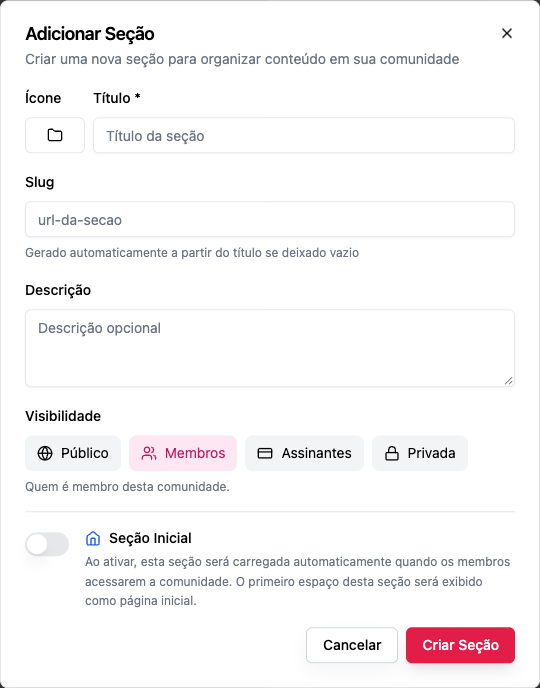
| Field | What it's for |
|---|---|
| **Icon** | Shown next to the title in the menu |
| **Title** | The name in the menu. Required |
| **Slug** | The piece of the address (`/start-here/...`). Generated from the title if you leave it blank; unique in the community |
| **Description** | Optional; helps the staff remember what the section is for |
| **Visibility** | Public, Members, Subscribers or Private. Applies to every space inside it |
| **Who gets in** | Only with **Private**: the groups, products, plans, badges or a minimum level that unlock the section |
| **For those without access** | **Hide**, **Section only** or **Section and spaces** (the default): whether whoever is left out sees the section with a padlock or sees nothing |
| **Initial Section** | When turned on, this section opens when members come into the community, and its first space becomes the home page |
### The section's visibility is the floor for its spaces
The section's rules and the space's rules **add up**:
- anyone who can't get through the section **sees nothing** inside it;
- a space is **never more open** than its section. If the section is **Subscribers**, its spaces can only be **Subscribers** or **Private**;
- tightening a section's visibility also tightens the spaces that were more open. The screen tells you beforehand how many spaces will change.
The order, from most open to most closed, is **Public › Members › Subscribers › Private**. See [Visibility and access](/conceitos/visibilidade-e-acesso).
### For those without access: a padlock or nothing
The section chooses what whoever doesn't get through it sees:
- **Hide**: nothing; the section disappears from the menu.
- **Section only**: one line with a padlock, without the spaces. Clicking it opens the **section page** (`/{section-slug}`), with the icon, the title, the description and the way in (**Subscribe to get access**, **Buy to get access**, **Sign in**…).
- **Section and spaces** (the default): the section and its spaces with a padlock. Each space can step out of this rule with its own option (**Same as the section**, **Hide** or **Show with a padlock**).
With a padlock, only the icon, the title and the description show, never the content. **The default shows**: every restricted section shows with a padlock to whoever has no access, until you switch it to **Hide**. A **Private** section with nobody under **Who gets in** is team only: it never shows to anyone else, carries the **Team only** badge and the option is disabled. The details, the combinations with the space and the offer screen are in [For those without access](/conceitos/visibilidade-e-acesso#for-those-without-access).
### The initial section
Every community has one section marked as initial (the **Home** section that comes ready-made). When someone opens the community's address, they land on its first space. That's why:
- the initial section **can't be deleted** (*"Cannot delete the home section. Please set another section as home first."*);
- you can't unmark the initial section without marking another (*"Cannot unset home section. Please set another section as home first."*).
### Who manages them
Creating, editing, reordering and deleting sections is for **owners and admins**. Moderators and members only see the sections. See [Roles and permissions](/conceitos/papeis-e-permissoes).
## Step by step
### Create a section
*Role: owner or admin.*
1. At the end of the side menu, click **Add Section**.
2. Choose the **Icon**.
3. Write the **Title** (e.g. *Start here*).
4. Leave the **Slug** blank so it's generated, or write one (lowercase letters, numbers and hyphens). The slug can't start with `_` or be a name the platform reserves for its own pages (such as `admin`, `pricing`, `billing`, `checkout`, `products`, `settings`, `members`, `login`, `api`, `mcp`); such a slug is refused with *"This address cannot be used: do not start it with _ or use a name the platform reserves (such as admin, pricing, billing, products)."* A slug generated from the title is adjusted automatically.
5. If you like, write a **Description**.
6. Choose the **Visibility**. With **Private**, add the groups, products, plans, badges or a minimum level that unlock the section under **Who gets in**. Right below, under **For those without access**, choose whether whoever is left out sees the section with a padlock (**Section and spaces**, the default, or **Section only**) or sees nothing (**Hide**).
7. Turn on **Initial Section** only if this section should open first.
8. Click **Create Section**. It appears at the end of the menu, empty, with **Add Space** underneath.
### Rename it or change its visibility
1. Hover over the section in the menu and open **Section options**.
2. Click **Edit section**.
3. Change what you need and save.
Changing the title doesn't change the slug on its own: links you've already shared keep working.
### Reorder
Drag the section up or down in the menu (**Reorder section**). The order is the same for every member.
### Collapse
Each section has a **Collapse** / **Expand** arrow next to its title. This is a preference of whoever is looking; it changes nothing for anyone else.
### Delete
1. First move or delete the section's spaces. A section with spaces can't be deleted: *"Cannot delete section with active spaces. Please delete spaces first."*
2. Open **Section options › Delete section** and confirm.
To take a section out of members' view without losing anything, change its visibility to **Private** with an empty **Who gets in** list: only the staff can still see it, with the **Team only** badge. Don't confuse this with the **Hide** choice under **For those without access**: it hides the section only from whoever has no access; whoever is on the list still sees it.
## Examples
**A course with a student area.** A **Start here** section (Public) with a welcome Content space that works as a showcase. A **Student area** section (Private, unlocked by the course plan) with Courses, the class Feed and Events. People who haven't bought see the showcase and the lock.
**Coworking.** An **Announcements** section (Members) with a Feed where only the staff posts. A **Residents** section (Private, unlocked by the Resident plan) with the room calendar and the board.
**HR.** An **Announcements** section (Members). A **Leadership** section (Private, unlocked by the Leadership group, with **For those without access** on **Hide**): anyone outside the group doesn't even know it exists.
## Common errors and how to fix them
| Message | What to do |
|---|---|
| *Cannot delete section with active spaces. Please delete spaces first.* | Drag the spaces to another section or delete them |
| *Cannot delete the home section…* | Mark another section as the **Initial Section** and try again |
| *This space cannot be more open than the section…* | Open up the section or close down the space. The section is the limit |
| *The access grant "…" does not exist in this community.* | The chosen group, product or plan was deleted; remove it from the list |
| The **Add Section** button doesn't appear | You're not an owner or admin |
| A restricted section shows with a padlock to whoever has no access | It's the default (**Section and spaces**). Under **For those without access**, choose **Hide** |
| The **For those without access** option is disabled | The section is team only (**Private** with nobody under **Who gets in**). Add whoever gets in |
## Frequently asked questions
**Is there a limit on sections?**
The platform has no limit. In practice, 3 to 6 sections keep the menu easy to read.
**Can I put a section inside another?**
No. The structure has a single section level; to subdivide, use more spaces or more sections.
**What happens to the spaces if I make the section private?**
They become at least as closed as the section. Anyone not on the section's list stops seeing all of them.
**Can two spaces in different sections have the same slug?**
Yes. A space's slug is unique within its section, and the full address is `/